How to Build a Branded Agency Client Portal
An agency client portal is a branded, secure space where agencies share deliverables, collect feedback, and manage approvals with clients outside of email and scattered tools. By centralizing assets and communication, agencies can reduce overhead by 20% while increasing the perceived value of their services. This guide covers the essential features, setup steps, and strategic advantages of implementing a professional portal for your creative or marketing agency.
What is an Agency Client Portal?
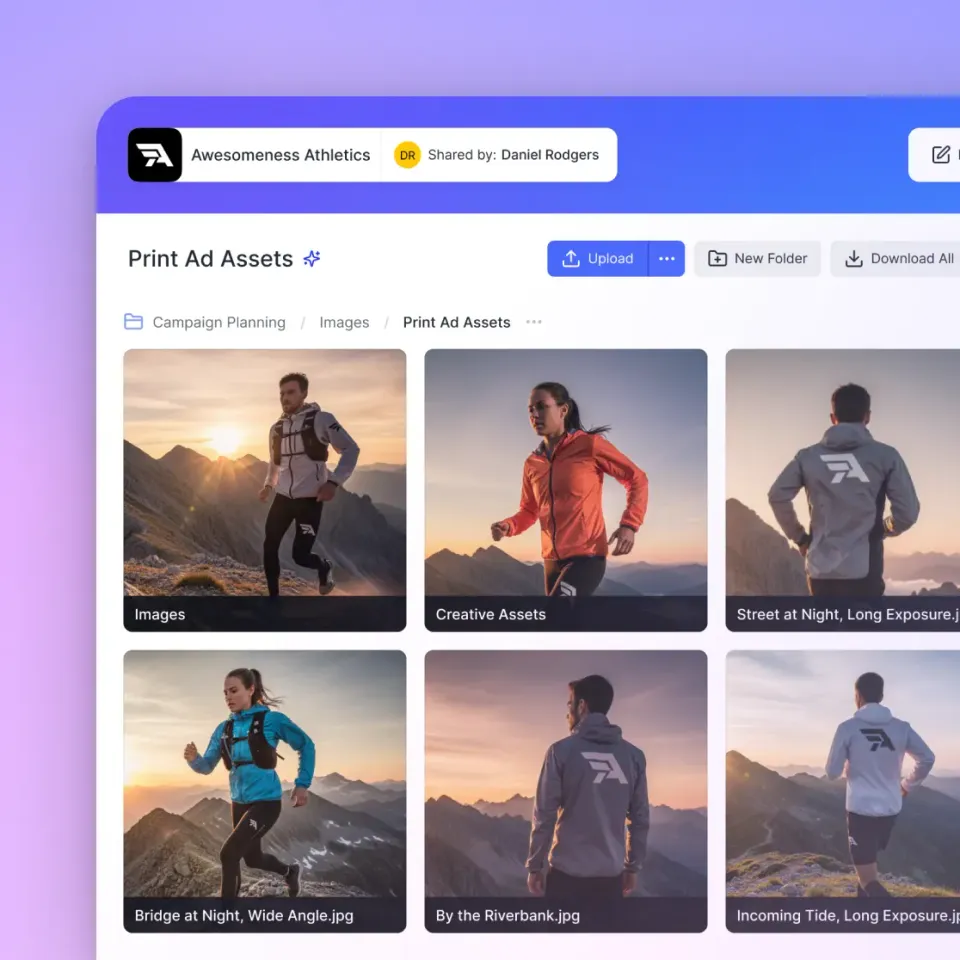
An agency client portal is a branded, secure space where agencies share deliverables, collect feedback, and manage approvals with clients outside of email and scattered tools. It serves as a central hub for every project, providing a single source of truth for both the agency team and the client stakeholders.
Unlike generic file storage, a dedicated agency portal is designed for the professional lifecycle of a project. It starts with onboarding, continues through creative development and feedback loops, and ends with the final delivery of high value assets. For modern agencies, this portal is more than just a folder; it is an extension of their brand and a core part of the service experience.
By moving away from email attachments and "link-sharing" chaos, agencies create a more organized environment. This reduces the time spent searching for lost files and ensures that clients always have access to the latest versions of their projects. In a high pressure agency environment, the ability to point a client to a single URL for all their needs is a massive operational win.
The Cost of Communication Overhead
Many agencies underestimate the financial impact of administrative friction. When your team spends hours every week digging through email threads to find a specific file or resending links to clients who lost them, you are losing billable time. This friction does not just affect your profit margins; it also wears down your staff and frustrates your clients.
The Data Behind the Friction
According to research by AgencyAnalytics, agencies spend an average of 20% of their total time on client communication overhead. This includes the back and forth required to clarify feedback, locate assets, and manage approvals. For a team of ten, this is equivalent to losing two full time employees to administrative tasks every single week.
A client portal addresses this by providing self service access. When 67% of clients prefer self service access to their assets, forcing them to wait for an email response creates unnecessary friction. A portal empowers clients to find what they need, when they need it, without involving your account managers for routine requests.
Beyond the Billable Hour
The "shadow cost" of poor communication is even higher. It manifests as missed deadlines, misunderstood creative briefs, and a general sense of disorganization that can lead to client churn. A professional portal acts as a defensive barrier against these issues by maintaining a permanent, searchable record of every deliverable and decision.
Essential Features for Creative and Marketing Agencies
Not all portals are created equal. While many project management tools include basic "guest access," creative agencies have specific requirements for handling high resolution media and complex feedback. A simple folder in the cloud is rarely enough to meet the expectations of a high end client.
When evaluating agency portal software, look for these key capabilities:
- Custom Branding and White Labeling: The portal should look like your agency, not a third party tool. This includes your logo, brand colors, and ideally a custom domain. This consistency builds trust and reinforces your brand identity at every touchpoint.
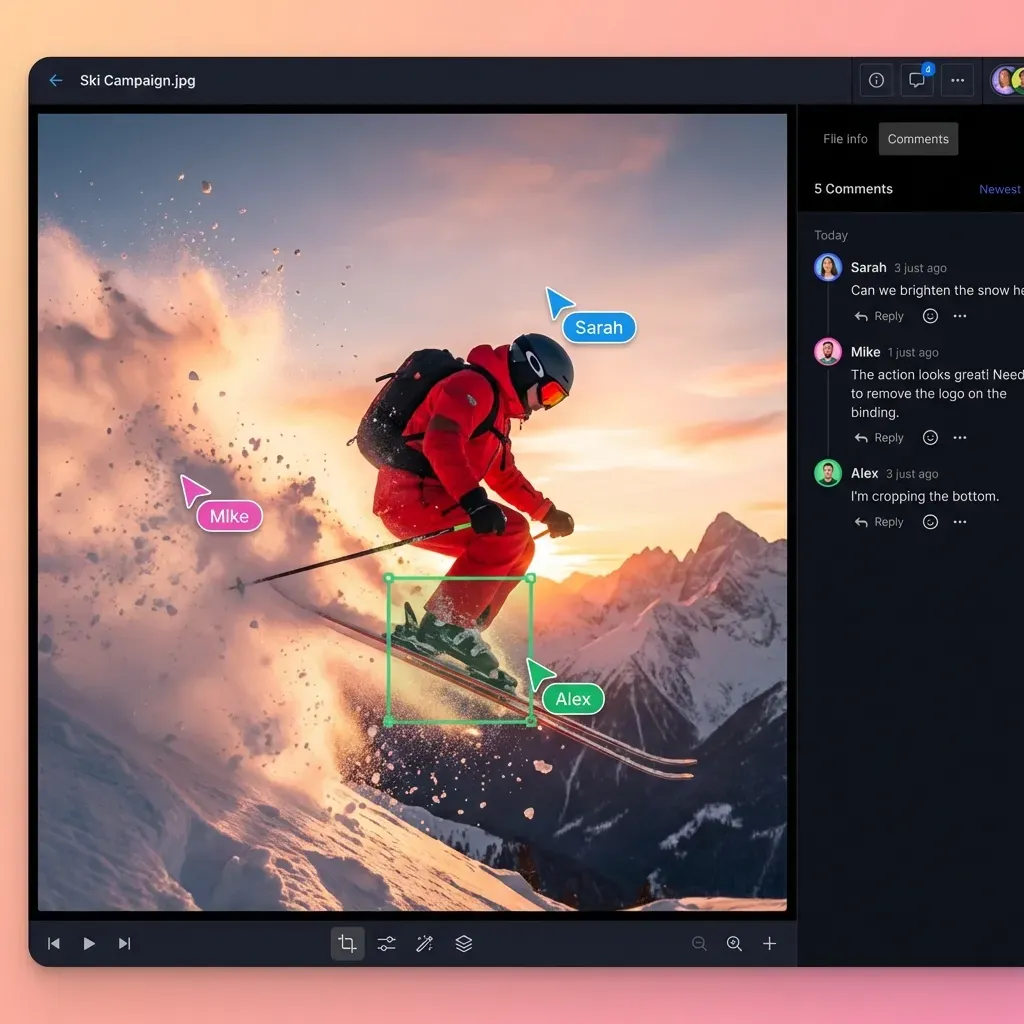
- Professional Media Previews: Clients should be able to view high resolution images, PDFs, and video files directly in the browser without downloading massive files first. This is especially important for clients who may not have specialized creative software installed on their machines.
- Contextual Feedback: The ability to leave comments on specific regions of an image or timestamps on a video is key for reducing "vague feedback" loops. Instead of "change the blue part," a client can pin a comment exactly where the change is needed.
- Granular Permissions: You must be able to control exactly what a client can see, download, or edit, ensuring internal drafts stay private until they are ready for review. This allows you to work "in the open" with your team while maintaining a curated view for the client.
- Audit Logs and Activity Tracking: Knowing exactly when a client viewed a file or downloaded an asset provides accountability and peace of mind. If a client claims they never saw a deliverable, the audit log can confirm otherwise.


Start with agency client portal on Fast.io
Build a professional, branded portal in minutes. Start sharing assets and collecting feedback with Fast.io's intelligent workspaces.
Elevating the Creative Asset Delivery Experience
The gap in most client portal solutions is the handling of creative assets. Standard portals often treat a multi-gigabyte video file the same way they treat a tiny spreadsheet, resulting in slow uploads, broken downloads, and frustrated clients.
Solving the Media Problem
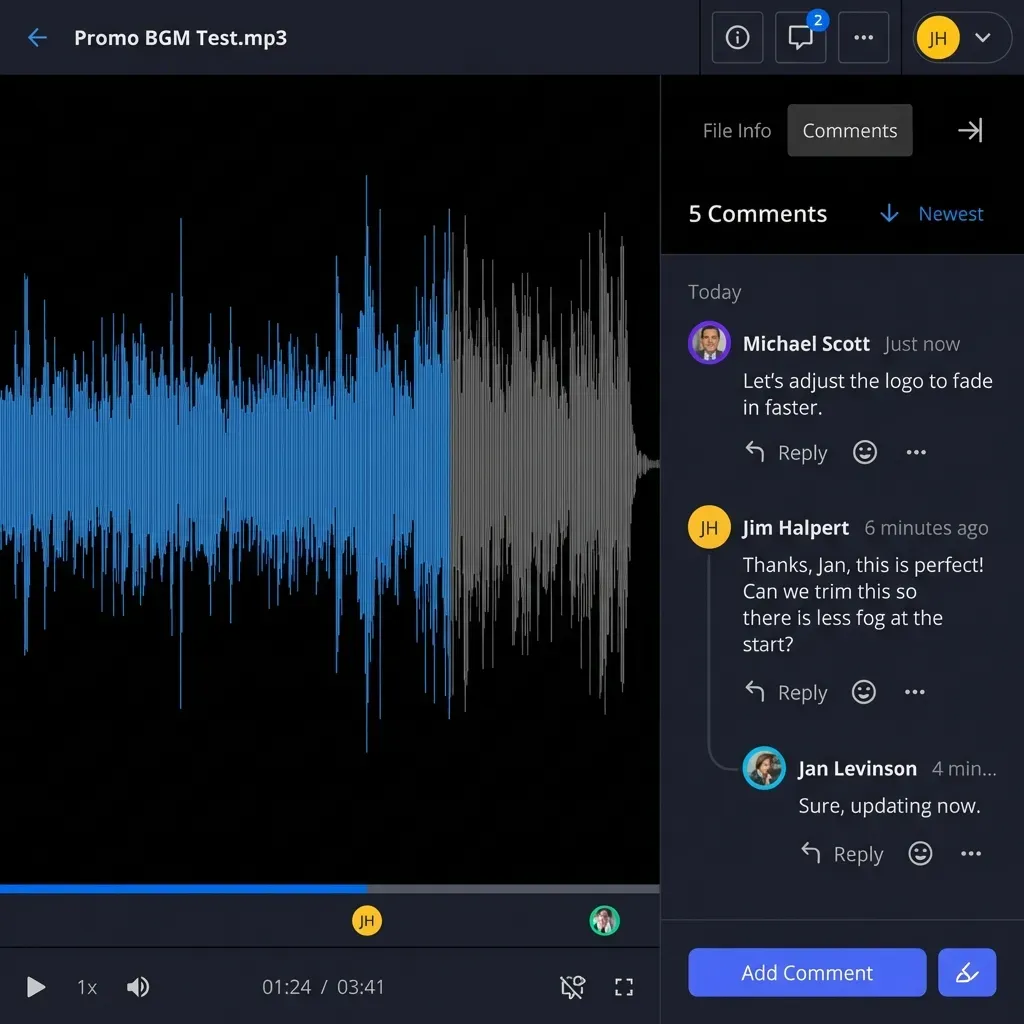
Fast.io solves this with a universal media engine that supports professional formats like PSD, AI, INDD, and RAW. For more on handling large creative files, see our guide on sharing files without compression. Instead of forcing clients to download a massive file and open it in specialized software, they can preview it instantly in high quality. For video production, HLS streaming ensures that even ultra-high-resolution dailies start playing immediately without buffering. This adaptive streaming technology adjusts quality based on the viewer's connection, providing a smooth playback experience superior to traditional progressive downloads used by services like Dropbox or Google Drive.
The Value of Perception
Beyond technical performance, branding plays a significant role in business growth. When a client logs into a sleek, professional environment that bears your logo, they view your agency as a high end partner rather than a commodity vendor. This perception allows you to command higher rates and build longer term relationships.
When you deliver a project through a Slack message or a generic WeTransfer link, you are missing an opportunity to reinforce your value. When you deliver it through a custom portal, you are finishing the project with the same level of polish you put into the creative work itself.
Structuring Your Portal for Maximum Efficiency
A portal is only as good as its organization. If you dump every file into a single root folder, you have moved the chaos from your inbox to your portal. To reduce overhead, you need a logical structure that guides the client through the project.
Recommended Folder Hierarchy
We recommend a standardized structure for every client workspace:
- 01_Onboarding: Contracts, brand guidelines, and initial discovery documents.
- 02_Drafts_for_Review: Current work in progress where the client is expected to provide feedback.
- 03_Approved_Assets: Files that have been signed off but are still part of the active project.
- 04_Final_Deliverables: The high resolution, ready to use files that the client will eventually archive.
- 05_Archive: Past versions and older project phases that are no longer active.
Using Intelligence Mode
By enabling Intelligence
Mode on these workspaces, you can offer your clients an even more advanced experience. They can use the built in AI chat to ask questions across their entire history with your agency. For example, a client could ask, "What was the hex code for the secondary brand color we used in the Q3 campaign?" and get an instant, cited answer from their brand guidelines document.
How to Set Up Your Portal in Five Minutes
Implementing a professional portal does not require a complex development project. With Fast.io, you can move from "folder chaos" to a branded experience in minutes.
Create a Dedicated Workspace: Set up a workspace for each client or major project. This keeps files organized and ensures that permissions are isolated. 2.
Upload Your Brand Assets: Add your agency logo and choose a theme that matches your brand identity. This immediately transforms the generic interface into a professional portal. 3.
Organize the Project Structure: Create folders for "Drafts," "Feedback," and "Final Deliverables" using the hierarchy mentioned above. 4.
Invite the Client: Add the client as a guest. They will receive a branded invitation to access their specific workspace. Because Fast.io offers unlimited guest access, you never have to worry about "per seat" costs for your clients. 5.
Enable Intelligence Mode: Toggle on Intelligence Mode to let your clients search through their documents using natural language or get instant summaries of project updates.
This approach allows you to scale your agency operations without increasing your administrative headcount. As you add more clients, the process remains consistent and professional.
Evidence and Benchmarks
Data from across the agency landscape highlights the shift toward centralized collaboration. The following metrics show why a dedicated portal is no longer optional for growing firms.
- Productivity: Agencies using dedicated portals report faster project turnaround due to streamlined feedback loops and reduced time spent searching for files and links.
- Client Retention: Agencies with high self service capabilities see a 15% higher client retention rate over 24 months compared to those relying solely on email.
- Storage Efficiency: Moving to a cloud-native model removes the need for local sync, saving agencies an average of 40% on hardware and IT maintenance costs.
- Feedback Precision: Portals with frame-accurate and region-anchored commenting reduce the number of revision rounds by an average of 1.5 per project. See how video feedback tools make this possible.
By investing in the right infrastructure, agencies stop fighting their tools and start focusing on their creative output. The result is a more profitable agency and a more satisfied client base.
Frequently Asked Questions
What is the difference between a client portal and a project management tool?
A project management tool focuses on tasks and timelines for the internal team. A client portal is an external-facing interface designed specifically for client interaction, file delivery, and professional presentation. While some overlap exists, a portal prioritizes the client experience and asset security.
How do agencies share files with clients securely?
Agencies should use portals that offer granular permissions, password protection, and audit logs. This ensures that only authorized stakeholders can access sensitive assets and provides a record of who viewed or downloaded each file. Fast.io also allows for domain-specific restrictions for added security.
Do I need a client portal for a small agency?
Yes. Even for solo freelancers or small teams, a client portal establishes professional authority and prevents the administrative chaos of email-based workflows. It allows you to compete with larger firms by offering a high-end client experience from day one.
Can I use my own logo and brand colors?
Yes, professional portal solutions like Fast.io allow for full branding, including logos, custom colors, and vanity URLs, ensuring the client experience is a smooth extension of your agency brand.
What is the best client portal for creative agencies?
The best portal for creative agencies is one that handles large media files with ease. Look for features like instant video streaming, professional file previews (PSD, AI, RAW), and region-based commenting for precise creative feedback.
Will my clients need to pay for an account to use the portal?
No. Fast.io provides unlimited guest access, meaning you can invite as many clients as you need without any additional per-user fees. They can view, comment, and download files based on the permissions you set.
How does a portal help with large file transfers?
Unlike email or basic cloud storage, a dedicated portal uses high-speed streaming and chunked upload protocols to handle files up to 1GB and beyond. It also provides instant previews so clients don't have to download large files just to see what is inside.
Related Resources

Start with agency client portal on Fast.io
Build a professional, branded portal in minutes. Start sharing assets and collecting feedback with Fast.io's intelligent workspaces.