How to Collaborate on Blender Projects with Remote Teams
Blender collaboration is the practice of multiple artists working together on 3D projects, sharing .blend files, textures, and renders across distributed teams. Managing these complex file dependencies requires more than email or basic cloud drives. This guide walks through professional workflows for effective Blender team projects, covering everything from file structure best practices to choosing the right collaboration platform for your studio.
Why Blender Collaboration Is Different From Other File Sharing
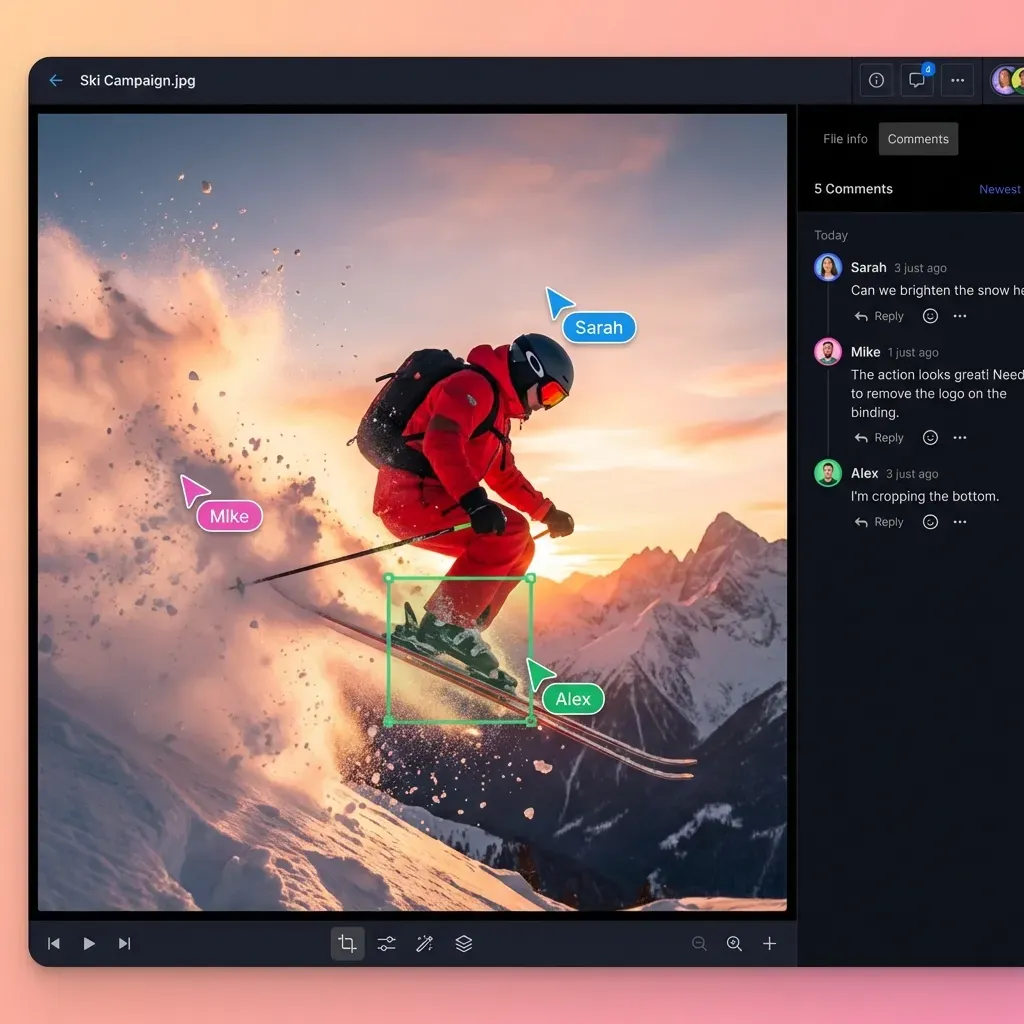
Collaborating on 3D projects presents challenges that text-based documents and even video files simply do not have. A single Blender project is rarely just one .blend file sitting alone in a folder. It is a complex web of linked libraries, external textures, simulation caches, HDRI environment maps, and render outputs that must all stay connected for the project to work.
When you move a Blender project from one computer to another, these links often break. This creates the dreaded "missing textures" pink screen that every 3D artist has encountered at least once. The file path C:\Users\John\Textures\Wood.png does not exist on Sarah's Mac at /Users/Sarah/Documents/. Unless you have planned ahead, your carefully textured scene becomes a pink nightmare.
File size compounds the problem significantly. A mid-complexity character model with 4K textures can easily hit 500MB. Add simulation caches for cloth, hair, or fluid dynamics, and project folders routinely exceed 50GB or even 100GB. Traditional methods like email attachments are completely impossible at these sizes. Standard consumer cloud storage services often throttle uploads this large or take hours to sync.
Version control adds another layer of complexity. Unlike a Word document where Track Changes shows every edit, Blender files are binary. You cannot diff two .blend files to see what changed. When two artists both save changes to the same file, you cannot merge them. One person's work gets overwritten unless you have a clear system for managing versions.
These challenges mean that the collaboration tools designed for office documents fall short for 3D production. Teams need workflows that account for large binary files, external dependencies, and the reality that "merge conflict resolution" in 3D means someone manually recreating their lost work.
File Structure Best Practices Before You Start Sharing
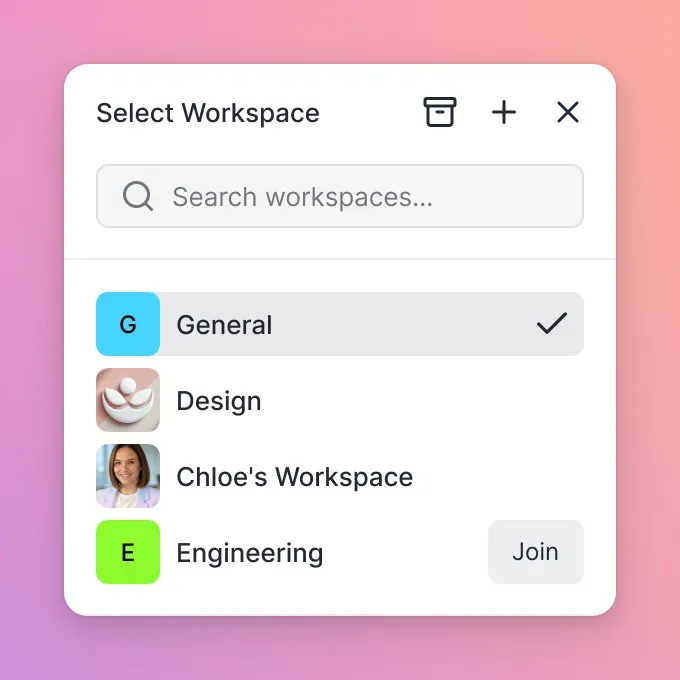
Before choosing any collaboration platform, you need to establish file structure conventions that prevent broken links and lost assets. These practices apply regardless of whether you use Dropbox, Git, or a cloud-native solution like Fast.io.
Use Relative Paths Everywhere
Blender can reference external files using absolute paths (full file paths starting from the drive root) or relative paths (paths relative to the .blend file's location). Absolute paths break the moment you move the project to a different computer. Relative paths work anywhere.
Set Blender to use relative paths by going to File > External Data > Make All Paths Relative. Do this every time you add new textures or link external files. Better yet, enable "Relative Paths" as a default in Blender's preferences under Save & Load.
Pack Critical Assets When Possible
For smaller textures and essential resources, consider packing them directly into the .blend file. Go to File > External Data > Pack Resources to embed all external files. This increases file size but creates a single portable file that works anywhere.
The tradeoff: packed files become larger and slower to open. For hero assets you need to share quickly, packing works well. For full production pipelines with terabytes of textures, external file management is the only practical approach.
Establish a Project Template
Create a standard folder structure that everyone on the team uses. A common setup looks like this:
/ProjectName//blends/- All .blend files, organized by scene or department/textures/- All texture maps, organized by asset/references/- Concept art, photo references, style guides/renders/- Output renders and compositing files/cache/- Simulation caches (often excluded from sync)/exports/- Final deliverables for other departments
When everyone uses the same structure, relative paths stay consistent. The texture at ../textures/wood_diffuse.png resolves correctly for every team member.
Name Files Deliberately
Agree on a naming convention before you start. A clear pattern helps everyone understand file purpose, version, and ownership at a glance. One common format is Project_Asset_v##_Artist.blend, for example GameEnv_Hero_v04_Tom.blend. This tells you the project, what the file contains, the version number, and who last saved it.
Method 1: Standard Cloud Storage (Dropbox, Google Drive, OneDrive)
Many teams start by putting their Blender project folder in Dropbox, Google Drive, or OneDrive. These services are familiar, widely available, and often already part of existing workflows. For very small teams or solo freelancers, they can work adequately.
The approach is straightforward: create a shared folder, invite team members, and let the sync clients keep everyone's local copies up to date. Artists work on their local copies and changes sync automatically. Most of these services handle conflict detection, creating a "conflicted copy" when two people modify the same file.
Where This Breaks Down
Sync conflicts are the primary pain point. If two artists open scene_v1.blend at the same time and both save changes, the cloud service creates a conflicted copy. You now have two versions of the file: scene_v1.blend and scene_v1 (conflicted copy 2026-01-15).blend. There is no automated way to merge these. Someone has to manually open both files and recreate the "losing" artist's work.
Storage consumption is another practical problem. Sync-based services work by downloading everything to every computer. A 200GB project folder means 200GB of storage consumed on every artist's laptop. Freelancers with 256GB drives cannot participate. The team must either exclude large folders from sync (breaking the collaboration) or ask everyone to upgrade their hardware.
Sync speed often creates bottlenecks during deadlines. Uploading a 10GB render overnight is fine. Uploading urgent feedback revisions during a client call is not. Most consumer cloud services prioritize reliability over speed, leading to frustrating waits when time matters most.
When to Use This Approach
Standard cloud storage works best for solo freelancers backing up work, very small teams (2-3 people) who communicate constantly to avoid collisions, and projects where file sizes stay manageable (under 10GB total). For larger productions, the limitations become blockers.
Method 2: Version Control Systems (Git, SVN, Perforce)
Technical teams and game studios often use Version Control Systems (VCS) for Blender collaboration. Git, Subversion (SVN), and Perforce provide strict version history, branching workflows, and formal check-in/check-out systems that prevent accidental overwrites.
These tools originated in software development, where tracking changes to code files is essential. Their great strength is auditability: you can see exactly what changed, when, and who made the change. You can roll back to any previous version. Branching lets artists work on experimental changes without affecting the main project.
The Binary File Problem
VCS tools are designed for text files, not large binary files. Git in particular struggles with Blender projects because .blend files are binary. Every save creates a new version that Git stores completely, not as a diff. A project with 50 versions of a 500MB file consumes 25GB of Git history.
Git LFS (Large File Storage) addresses this by storing binaries outside the main repository. This helps with storage but adds complexity. Artists must install Git LFS, configure tracking rules, and understand how LFS differs from standard Git. Mistakes in LFS configuration lead to broken checkouts or massive repository sizes.
The Learning Curve
The bigger barrier for creative teams is the learning curve. Git was designed by software engineers for software engineers. Concepts like staging, commits, branches, merges, and rebases are unfamiliar to artists whose primary tools are Blender, Photoshop, and After Effects.
Asking a character artist to learn command-line Git operations just to save their work introduces friction that slows production. Even with GUI clients like Sourcetree or GitKraken, the mental model is foreign. "Did you push your commit?" becomes a confusing question for someone who just wants to save a file.
When to Use This Approach
VCS makes sense for game development pipelines where code and art assets must live together in the same repository. It also works for teams with dedicated technical artists who can set up the infrastructure and train team members. For pure 3D content production without code integration, simpler tools often work better.
Method 3: Cloud-Native Collaboration with Fast.io
For creative teams who need file server simplicity without the storage overhead of sync-based tools, cloud-native platforms like Fast.io offer a middle path. These solutions keep files in the cloud and stream them on-demand rather than syncing everything to every device.
The core difference is architectural. Dropbox and Google Drive are sync-first: they download all files to your computer and keep them synchronized. Fast.io is cloud-first: files live in the cloud, and you access them directly without filling up local storage. A freelancer can browse a 2TB project library without needing 2TB of free space on their laptop.
How It Works for Blender Projects
You upload your project folder once to Fast.io. Team members access the workspace through the web interface or desktop app. When someone opens a .blend file, it streams to their local Blender session. Saves go back to the cloud. Other team members see the updated file immediately without waiting for sync.
This on-demand model means large texture libraries, render archives, and simulation caches are accessible without consuming local storage. You can browse 500GB of project assets on a MacBook Air with 256GB of storage because you only download what you actually open.
Real-Time Presence Indicators
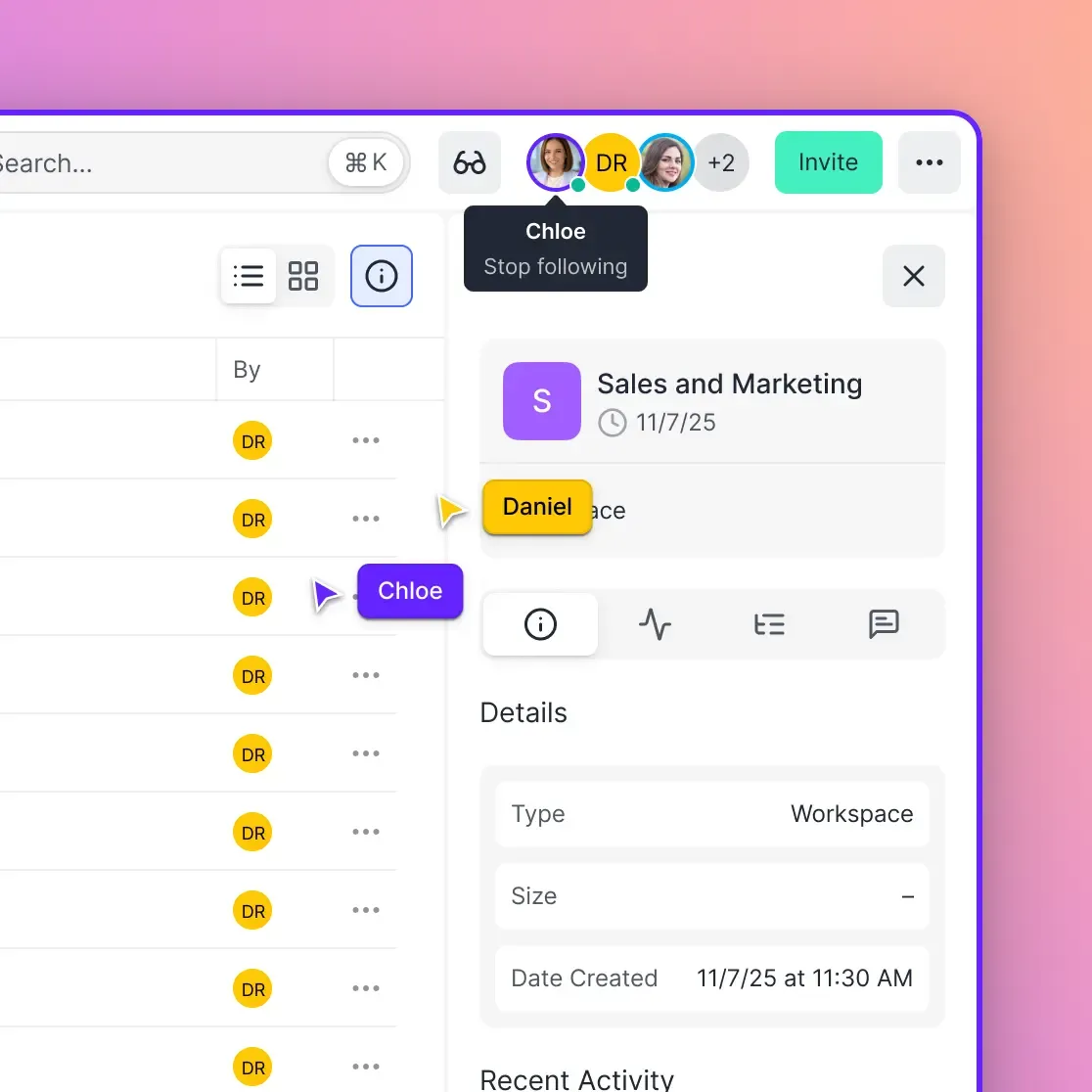
Fast.io includes real-time presence features that help prevent the collision problems common with cloud drives. You can see who is currently active in the workspace and which folders or files they are viewing. Before opening a file someone else is working on, you can see their avatar indicating they are there.
This does not prevent conflicts entirely, since Blender files cannot be truly co-edited by multiple people simultaneously. However, visibility into who is working where helps teams coordinate. You can message a teammate before making changes to a shared asset, avoiding the "who saves last wins" problem.
Organization-Owned Files
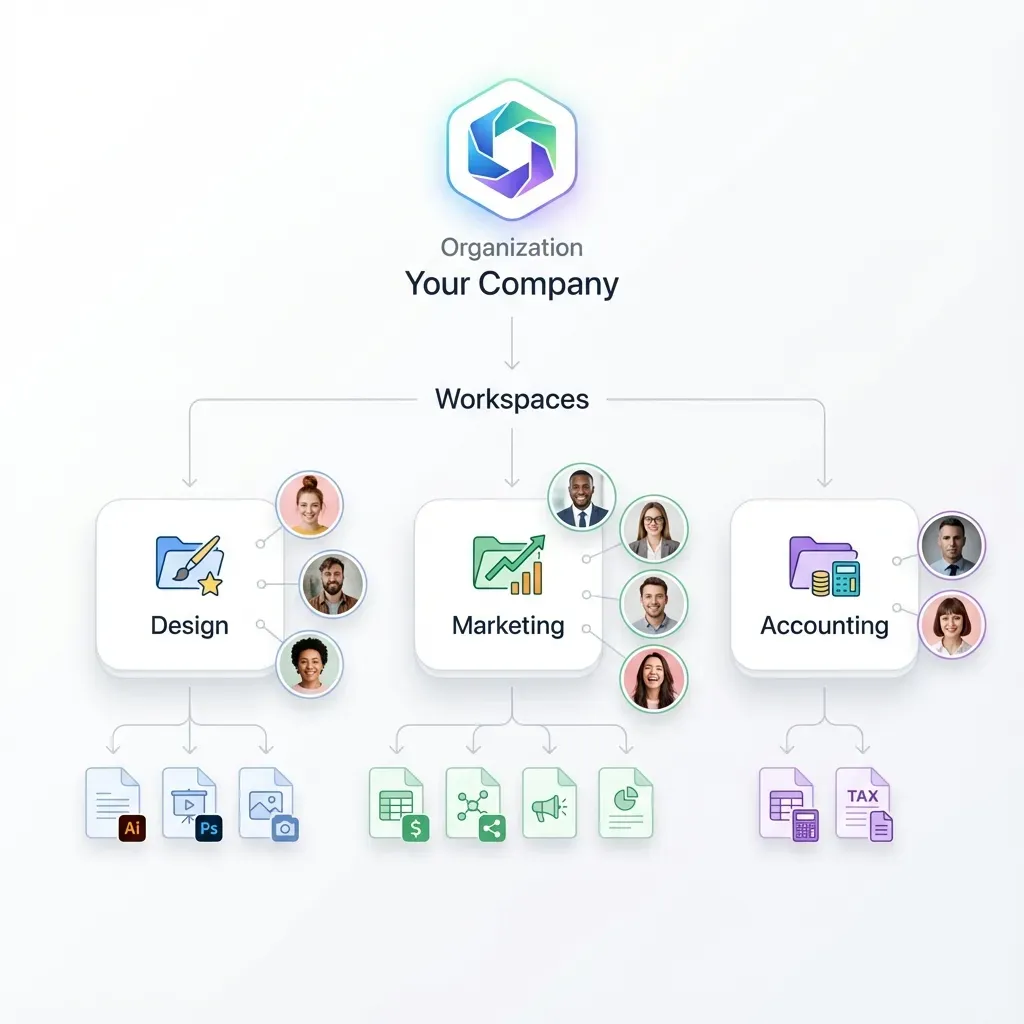
Unlike personal cloud storage where files belong to individual users, Fast.io uses an organization-first model. Files belong to the studio, not to individual artists. When a freelancer finishes a contract and leaves, the files stay. There is no complex process of transferring ownership or recovering assets from someone's personal Dropbox.
This matters for studios that cycle through contractors frequently. Every project lives in a shared workspace that persists regardless of who is currently on the team.
Optimizing Large File Transfers for 3D Production
Regardless of which platform you choose, optimizing how you handle large files makes collaboration smoother. Blender projects involve some of the largest file types in creative work, and transfer speed directly impacts productivity.
Proxy Workflows for Review
When sharing work-in-progress for feedback, you do not always need to transfer the full-resolution source files. Blender's proxy system lets you create lower-resolution versions of video files for faster playback. Similarly, creating compressed preview renders for client review is faster than sending raw EXR sequences.
Fast.io handles this automatically for video content through HLS streaming, generating optimized previews while keeping originals safe. Clients can review and comment on video content without downloading massive source files.
Texture Optimization Before Sharing
4K and 8K texture maps are common in modern Blender projects, but they consume enormous storage and bandwidth. Before sharing a project, consider whether all textures need maximum resolution. Background props often look fine with 2K maps. Only hero assets visible in close-up shots need 4K or higher.
Automated texture optimization using tools like TextureResize or the built-in texture size limits in Blender's rendering settings can shrink project sizes significantly without visible quality loss in final renders.
Excluding Simulation Caches
Simulation caches for cloth, hair, rigid bodies, and fluids can exceed the size of all other project files combined. A 30-second fluid simulation might generate 50GB of cache data. Transferring this between team members is often impractical.
The better approach is to share only the simulation settings and let each artist bake locally. Document the bake settings clearly so others can reproduce identical results. Add cache folders to your .gitignore or sync exclusion rules so they do not attempt to transfer.
Incremental Updates
When possible, structure work to minimize what needs to transfer. Instead of re-uploading entire project folders, update only changed files. Cloud-native platforms like Fast.io handle this automatically at the file level. Version control systems track changes granularly. With basic cloud storage, you may need to manually manage which files you replace.
Setting Up External Collaborator Access
Most Blender projects involve people outside your core team at some point. Freelance artists, clients reviewing work, render farms, or contractors handling specific tasks all need access to project files without becoming permanent team members.
Guest Access Without Account Overhead
Traditional file sharing often requires external collaborators to create accounts, install sync clients, and consume paid seats on your team plan. This creates friction for short-term collaboration and drives up costs as you add freelancers.
Fast.io provides unlimited guest access where external users can view, download, or upload to specific shared folders without needing their own accounts. They do not count against seat limits. You can share a folder with a render farm and revoke access when the job completes, without managing user accounts.
Branded Client Portals
For client-facing delivery, presentation matters. Sending clients a raw folder link looks unprofessional compared to a branded portal with your studio's logo and colors. Fast.io's branded portal feature lets you create white-label sharing experiences that present your studio's identity rather than generic file-sharing interface.
Clients access their deliverables through a portal that looks like an extension of your studio. They can preview video content directly in browser without downloading, leave comments, and download approved final files. The experience is polished and on-brand.
Granular Permissions
Not everyone needs the same level of access. A client reviewing renders should be able to view and comment but not delete source files. A freelance animator needs access to the character rig folder but not to accounting documents.
Permission systems that operate at the folder level let you grant exactly the access each collaborator needs. View-only prevents downloads. Upload-only lets people contribute without browsing existing files. Time-based expiration revokes access automatically after a project ends.
Download Controls and Watermarking
For sensitive pre-release content, controlling what collaborators can do with files adds security. Disabling downloads forces view-only access in browser. Dynamic watermarking embeds viewer information into previews, creating accountability if content leaks. These controls may be overkill for routine projects but matter for confidential pre-announcement work.
Frequently Asked Questions
Can you collaborate on Blender projects in real-time like Google Docs?
Native real-time collaboration where multiple artists edit the same .blend file simultaneously is not built into Blender. Experimental add-ons like the Multi-User add-on attempt this, but they have limitations for production use. For most professional 3D productions, collaboration means splitting the project into linked assets and managing file versions, rather than two people editing the same geometry simultaneously. Fast.io helps with the file management and version coordination aspects of this workflow.
How do I share a Blender file with all its textures intact?
The safest method is to pack resources before sharing. Go to **File > External Data > Pack Resources** to embed all textures and sounds inside the .blend file. This increases file size but creates a single portable file that renders correctly anywhere. For larger projects where packing is impractical, use relative paths consistently and share the entire project folder structure, not just the .blend file.
What is the best cloud storage for Blender projects?
For teams, cloud-native storage like Fast.io works well because it handles large files without filling up local hard drives and includes presence features that help prevent file conflicts. For version control with code integration, Perforce or SVN with LFS are industry standards in game development. For simple personal backups, Google Drive or Dropbox are sufficient, though they struggle with large project sizes and team sync conflicts.
How do I prevent file conflicts when multiple artists work on the same Blender project?
The key is visibility and communication. Use a platform with real-time presence indicators so you can see when teammates are working in specific folders. Establish clear ownership rules so each artist is responsible for specific assets. Use Blender's linking system to separate assets into individual files that different artists own. And implement naming conventions that include version numbers and artist initials to track changes.
Can freelancers access my Blender project files without getting a full account?
Yes, with the right platform. Fast.io offers unlimited guest access where external collaborators can view, download, or upload to shared folders without creating accounts or consuming seat licenses. You control exactly what they can access and can revoke permissions instantly when the project ends. This is more flexible than platforms that require every user to have a paid seat.
Related Resources

Better Blender Collaboration Starts Here
Stop dealing with missing textures and sync conflicts. Fast.io gives your 3D team a simpler way to work together on Blender projects without the overhead of sync tools or version control complexity.