How to Build an AI File Manager with the Fast.io API
Most AI agent tutorials skip the hardest part: giving your agent reliable, searchable file storage that works across sessions. This guide walks through building a complete AI file manager on the Fast.io API, from authentication and uploads to semantic search and ownership transfer.
Why Agents Need a Purpose-Built File Layer
The typical AI agent project starts the same way. You get the LLM working, wire up some tools, and then realize your agent has no memory between sessions. Files it generated yesterday are gone. Context it built up over hours vanishes the moment the process stops.
Most developers reach for whatever storage they already know. S3 buckets, local disk, maybe a shared Google Drive folder. These work for storing bytes, but they weren't designed for what agents actually need: semantic search across documents, event-driven updates, structured metadata, and the ability to hand finished work to a human.
The result is a patchwork. One service for object storage, another for vector embeddings, a third for access control, and custom glue code holding it all together. A 2026 MIT Technology Review analysis identified data infrastructure as the primary bottleneck for enterprise AI agent adoption, and this fragmentation is a big reason why.
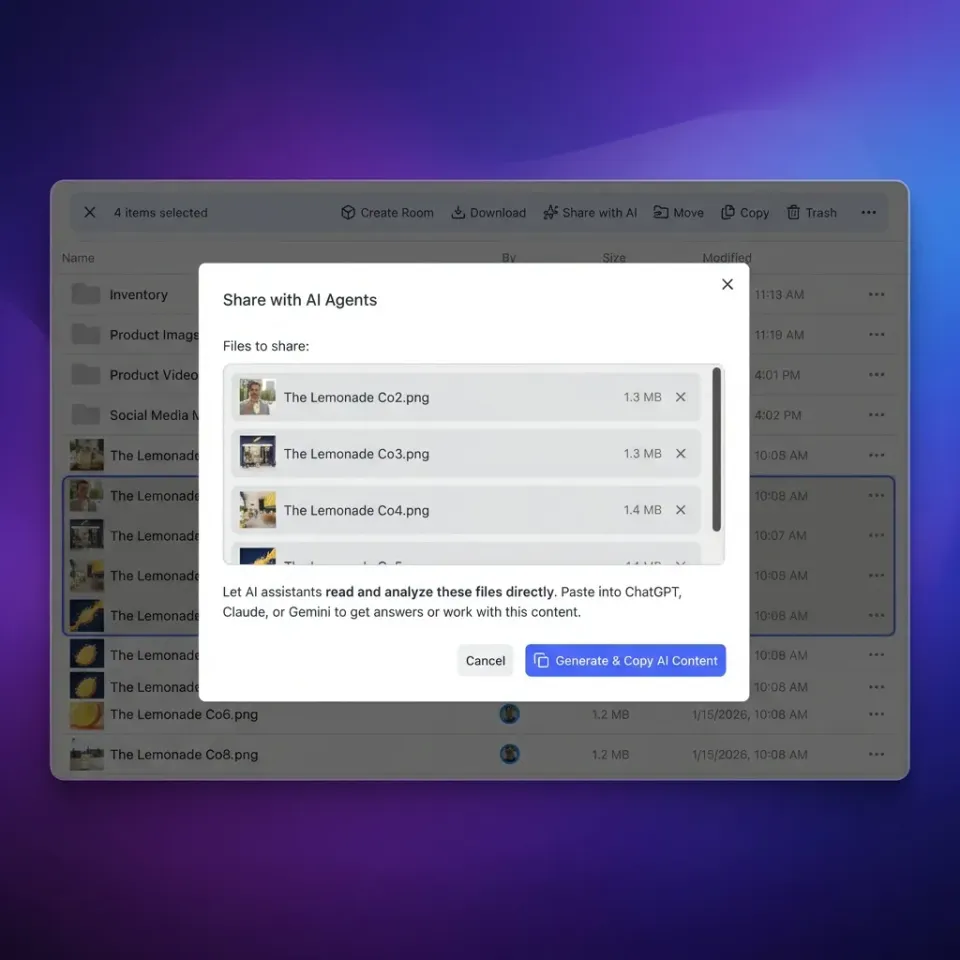
Fast.io takes a different approach. Instead of bolting AI features onto a storage service, it provides intelligent workspaces where uploaded files are automatically indexed for semantic search once Intelligence Mode is enabled. Your agent authenticates with a dedicated agent account, manages files through a REST API or MCP server, and can transfer completed work to a human, all from a single platform.
This guide builds a complete AI file manager on that foundation. By the end, you'll have working code that authenticates, uploads files, queries them with natural language, and hands the workspace off to a client.
Setting Up Authentication and Your First Workspace
Fast.io supports three authentication methods. For an AI file manager, the simplest path depends on your use case.
API Key (Existing Accounts)
If you already have a Fast.io account, create an API key at Settings > Devices & Agents > API Keys. Pass it as a Bearer token on every request:
const API_BASE = "https://api.fast.io";
const headers = {
  "Authorization": `Bearer ${process.env.FASTIO_API_KEY}`,
  "Content-Type": "application/json"
};
API keys never expire unless you revoke them. This is the fastest way to get started.
Agent Account (Autonomous Agents)
If your agent needs to create its own account programmatically, register with the agent=true flag:
const signup = await fetch(`${API_BASE}/current/user/`, {
  method: "POST",
  headers: { "Content-Type": "application/json" },
  body: JSON.stringify({
    first_name: "FileManager",
    last_name: "Agent",
    email: "agent@yourdomain.com",
    password: generateSecurePassword(),
    agent: true
  })
});
After signup, verify the email address, then authenticate with Basic Auth to receive a JWT token (1-hour TTL, refreshable for 30 days). Agent accounts automatically get the free plan: 50GB storage, 5,000 credits/month, 5 workspaces, no credit card required.
PKCE OAuth (Human-Authorized Access)
When a human needs to grant your agent access without sharing credentials, use the PKCE flow. The agent generates an authorization URL, the user approves in their browser, and the agent receives a token. This is the most secure option for production deployments where the agent acts on behalf of a user.
For this tutorial, we'll use an API key. Swap in any method later by changing the Authorization header.
Creating an Organization and Workspace
Every workspace lives inside an organization. Create both programmatically:
async function createOrg(name: string): Promise<string> {
  const res = await fetch(`${API_BASE}/current/org/`, {
    method: "POST",
    headers,
    body: JSON.stringify({
      name,
      billing_plan: "agent"
    })
  });
  const data = await res.json();
  return data.id;
}

async function createWorkspace(
  orgId: string,
  name: string
): Promise<string> {
  const res = await fetch(
    `${API_BASE}/current/org/${orgId}/create/workspace/`,
    {
      method: "POST",
      headers,
      body: JSON.stringify({
        name,
        intelligence: "true"
      })
    }
  );
  const data = await res.json();
  return data.id;
}
Setting intelligence: "true" enables Intelligence Mode on the workspace. Every file uploaded here will be automatically indexed for semantic search and AI queries. If you don't need RAG capabilities and want to conserve credits, pass intelligence: "false" instead.


Build your AI file manager on persistent, searchable storage
Fast.io gives your agents 50GB of free storage with built-in semantic search, MCP integration, and ownership transfer. No credit card, no expiration.
Building the Storage Layer
With authentication working and a workspace created, the next step is uploading and organizing files. This is where the AI file manager starts to take shape.
Uploading Files
Fast.io uses two upload paths depending on file size.
Small files (under 4MB): Single POST request.
async function uploadFile(
  parentFolderId: string,
  filename: string,
  content: Buffer
): Promise<string> {
  const formData = new FormData();
  formData.append("file", new Blob([content]), filename);
  formData.append("parent_id", parentFolderId);

const res = await fetch(`${API_BASE}/current/upload/`, {
    method: "POST",
    headers: { "Authorization": headers.Authorization },
    body: formData
  });
  const data = await res.json();
  return data.new_file_id;
}
Large files (4MB and above): Chunked upload with up to 3 parallel chunks of 5MB each.
async function uploadLargeFile(
  parentFolderId: string,
  filename: string,
  fileBuffer: Buffer
): Promise<string> {
  // Create upload session
  const session = await fetch(
    `${API_BASE}/current/upload/session/`,
    {
      method: "POST",
      headers,
      body: JSON.stringify({
        filename,
        parent_id: parentFolderId,
        file_size: fileBuffer.length
      })
    }
  );
  const { session_id } = await session.json();

// Upload 5MB chunks in parallel
  const CHUNK_SIZE = 5 * 1024 * 1024;
  const chunks = [];
  for (let i = 0; i < fileBuffer.length; i += CHUNK_SIZE) {
    chunks.push(fileBuffer.slice(i, i + CHUNK_SIZE));
  }

await Promise.all(
    chunks.map((chunk, index) =>
      fetch(
        `${API_BASE}/current/upload/${session_id}/chunk/`,
        {
          method: "POST",
          headers: {
            "Authorization": headers.Authorization,
            "Content-Range": `bytes ${index * CHUNK_SIZE}-${
              index * CHUNK_SIZE + chunk.length - 1
            }/${fileBuffer.length}`
          },
          body: chunk
        }
      )
    )
  );

// Finalize
  const complete = await fetch(
    `${API_BASE}/current/upload/${session_id}/complete/`,
    { method: "POST", headers }
  );
  const data = await complete.json();
  return data.new_file_id;
}
For files that already live in another cloud service, use URL import instead. Fast.io can pull files directly from Google Drive, OneDrive, Box, or Dropbox via OAuth, bypassing local I/O entirely.
Organizing with Folders
Use folders to give your agent's output structure:
async function createFolder(
  workspaceId: string,
  parentId: string,
  name: string
): Promise<string> {
  const res = await fetch(
    `${API_BASE}/current/workspace/${workspaceId}/storage/`,
    {
      method: "POST",
      headers,
      body: JSON.stringify({
        parent_id: parentId,
        name,
        type: "folder"
      })
    }
  );
  const data = await res.json();
  return data.id;
}
A practical pattern: create top-level folders like research/, drafts/, and deliverables/. Your agent writes intermediate work to the first two, then moves final output to deliverables/ before handoff.
File Locks for Multi-Agent Access
When more than one agent writes to the same workspace, use file locks to prevent conflicts:
async function acquireLock(fileId: string): Promise<boolean> {
  const res = await fetch(
    `${API_BASE}/current/storage/${fileId}/lock/`,
    { method: "POST", headers }
  );
  return res.ok;
}

async function releaseLock(fileId: string): Promise<void> {
  await fetch(
    `${API_BASE}/current/storage/${fileId}/lock/`,
    { method: "DELETE", headers }
  );
}
This prevents the classic multi-agent problem where two agents overwrite each other's changes. The pattern is sometimes called stigmergy: agents coordinate indirectly by reading and writing shared files rather than passing messages directly.
Adding Intelligence: Semantic Search and AI Queries
Storage alone isn't what makes this an AI file manager. The intelligence layer is what separates it from a plain S3 bucket or shared Drive folder.
With Intelligence Mode enabled on your workspace, every uploaded file is automatically ingested and indexed. Documents are broken into chunks, embedded, and made available for both vector search and conversational AI queries. No separate vector database, no embedding pipeline, no retrieval code to maintain.
Semantic Search
Search files by meaning rather than exact keywords:
async function semanticSearch(
  workspaceId: string,
  query: string
): Promise<SearchResult[]> {
  const res = await fetch(
    `${API_BASE}/current/workspace/${workspaceId}/ai/search/?` +
      new URLSearchParams({ q: query }),
    { headers }
  );
  const data = await res.json();
  return data.results;
}
Ask "what were the key findings from the Q4 report?" and get relevant passages even if those exact words never appear in the document. This is vector similarity search running against the automatically generated embeddings.
Conversational AI Queries
For deeper analysis, create an AI chat session that can reason across files:
async function askAboutFiles(
  workspaceId: string,
  question: string,
  fileIds?: string[]
): Promise<string> {
  const chatRes = await fetch(
    `${API_BASE}/current/workspace/${workspaceId}/ai/chat/create/`,
    {
      method: "POST",
      headers,
      body: JSON.stringify({
        type: "chat_with_files",
        message: question,
        file_ids: fileIds
      })
    }
  );
  const { chat_id } = await chatRes.json();

// Poll for response
  const messageRes = await fetch(
    `${API_BASE}/current/workspace/${workspaceId}/ai/chat/${chat_id}/messages/`,
    { headers }
  );
  const messages = await messageRes.json();
  return messages[messages.length - 1].content;
}
Two chat types are available. Use chat_with_files when you want answers grounded in specific documents (requires Intelligence Mode or direct file attachment, up to 20 files or 200MB). Use chat for general queries without file context.
AI responses include citations pointing back to specific passages in your files. This is useful when your agent builds reports that need to trace every claim back to a source document.
Event-Driven Updates
Rather than checking for new files on a timer, use Fast.io's long-poll endpoint to react to changes as they happen:
async function watchForChanges(
  entityId: string,
  callback: (event: any) => void
): Promise<void> {
  while (true) {
    const res = await fetch(
      `${API_BASE}/current/activity/poll/${entityId}?wait=95`,
      { headers }
    );
    if (res.ok) {
      const events = await res.json();
      for (const event of events) {
        callback(event);
      }
    }
  }
}
The wait=95 parameter holds the connection open for up to 95 seconds and returns immediately when something changes. This is far more efficient than polling every few seconds.
Credit Costs to Plan For Intelligence Mode costs 10 credits per page of document ingestion. A 50-page PDF uses 500 credits. Semantic search queries only hit the vector index without invoking an LLM, so they're cheaper. AI chat costs 1 credit per 100 tokens.
On the free agent plan's 5,000 monthly credits, you can index roughly 500 pages and still have budget for search queries and chat. If you're working with large document sets, consider enabling Intelligence Mode only on workspaces that need search and using standard storage for everything else.

Ownership Transfer and Branded Shares
The final piece of an AI file manager is getting finished work into human hands. This is where most agent storage solutions fall short. With S3, you email a presigned URL. With Google Drive, you share a folder link and hope permissions are right.
Fast.io has a dedicated ownership transfer flow. Your agent creates the workspace, does all the work, and then generates a claim token. The human opens a URL, claims the organization, and becomes the owner. Your agent retains admin access for ongoing management.
async function transferToHuman(
  orgId: string
): Promise<string> {
  const res = await fetch(
    `${API_BASE}/current/org/${orgId}/transfer/token/`,
    {
      method: "POST",
      headers
    }
  );
  const { token } = await res.json();
  return `https://go.fast.io/claim?token=${token}`;
}
The claim token is a 64-character string valid for 72 hours. Send the URL to your client through whatever channel you prefer: email, Slack, or embedded in your app's UI.
After the human claims ownership, they get the free plan (50GB, upgradeable) and full control of the workspace. Your agent keeps admin access, so it can continue uploading files, running queries, or managing the workspace on the human's behalf.
Branded Shares for External Delivery
For cases where you don't want to transfer the entire organization, use Shares. Fast.io supports three share types:
- Send shares for delivering files to recipients
- Receive shares for collecting files from external collaborators
- Exchange shares for bidirectional file exchange
All share types support password protection, expiration dates, and custom branding.
async function createSendShare(
  workspaceId: string,
  name: string,
  fileIds: string[]
): Promise<string> {
  const res = await fetch(
    `${API_BASE}/current/workspace/${workspaceId}/share/`,
    {
      method: "POST",
      headers,
      body: JSON.stringify({
        name,
        type: "send",
        node_ids: fileIds,
        password_protected: true,
        password: generateSharePassword()
      })
    }
  );
  const data = await res.json();
  return data.url;
}
This pattern works well for recurring deliverables. Your agent generates a report, uploads it to the workspace, creates a password-protected share, and sends the link to the recipient.
MCP Server as an Alternative Interface
Everything above uses direct REST calls, but the Fast.io MCP server exposes the same capabilities through 19 consolidated tools. If your agent framework supports MCP (Claude Code, Cursor, or custom implementations), you can connect via Streamable HTTP at /mcp or legacy SSE at /sse. The MCP skill guide documents the full tool surface. Session state is maintained using Durable Objects, so if your agent's connection drops, it can reconnect and resume where it left off.
How Fast.io Compares to Other Storage Options
Fast.io isn't the only option for building an AI file manager. Here's how it stacks up against the alternatives you're likely considering.
Amazon S3 / Google Cloud Storage
The standard choice for object storage. S3 costs about $0.023 per GB per month, GCS about $0.020. Both are reliable, well-documented, and battle-tested at scale. The gap: neither provides built-in semantic search, agent account types, or ownership transfer. You'll need to add a vector database (Pinecone, Weaviate, or pgvector), build your own metadata layer, and write custom access control logic. For a production AI file manager, that's weeks of additional work.
Dropbox API / Google Drive API
Designed for human users, not agents. The OAuth flows assume a person clicking through consent screens. Neither offers semantic search or an agent account concept. You can make them work, but you're fighting the API design at every step.
OpenAI Files API
Tightly coupled to OpenAI's assistant framework. Files are ephemeral and tied to sessions, not persistent storage. No visual dashboard for humans to browse the output. And if your agent uses Claude, Gemini, or open-source models, this isn't an option at all.
Fast.io
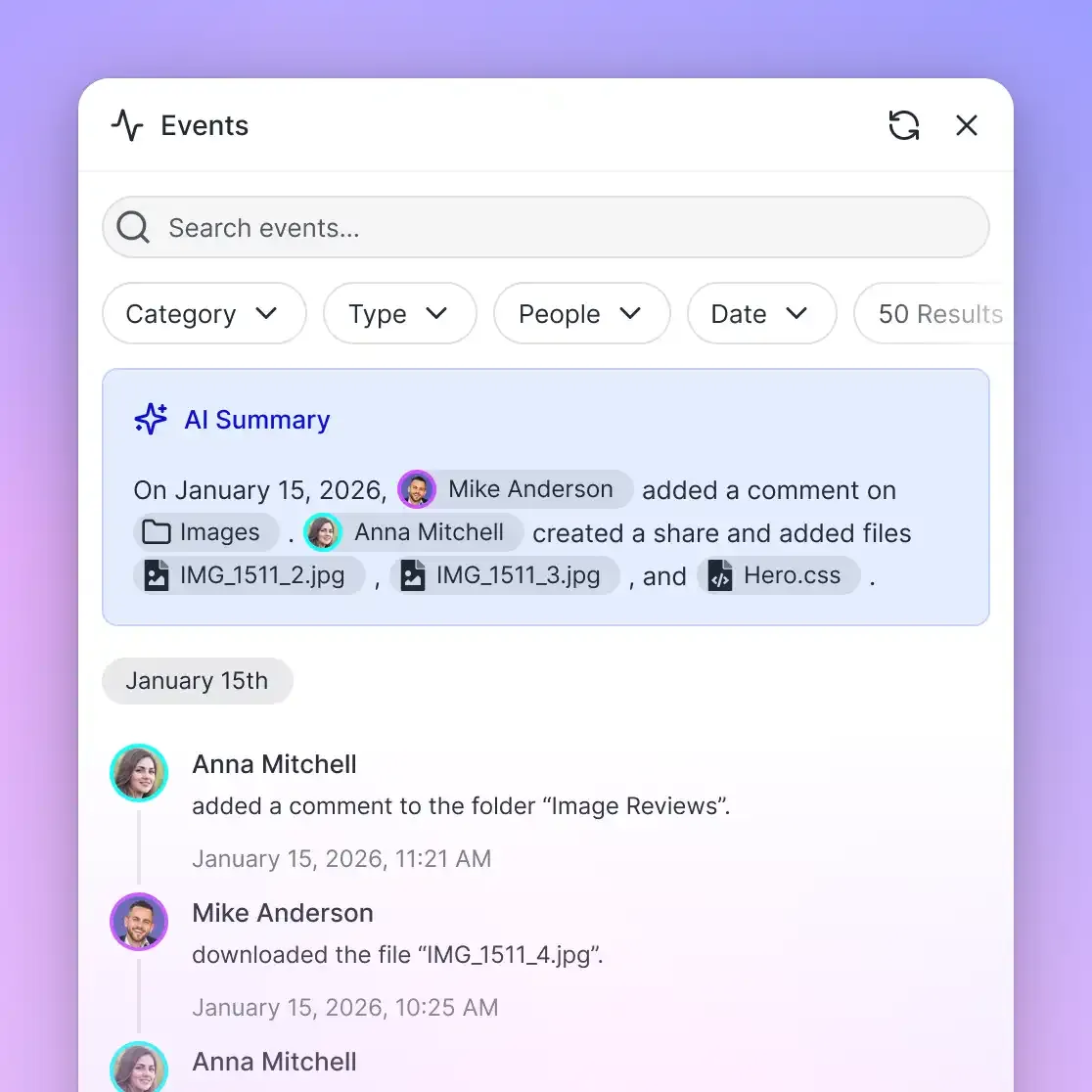
Built specifically for the agent-to-human workflow. Dedicated agent accounts, built-in RAG with automatic indexing, 19 MCP tools for framework integration, ownership transfer, and a visual dashboard where humans can browse and manage everything the agent created. The free tier gives you 50GB, 5,000 monthly credits, 5 workspaces, and 50 shares with no credit card and no expiration.
The tradeoff: Fast.io is newer and has a smaller ecosystem than AWS or Google Cloud. If you need deep integrations with other AWS services or Google's ML pipeline, those platforms have an advantage. But if your primary need is giving an AI agent persistent, searchable file storage with a clean handoff to humans, Fast.io eliminates the most time-consuming parts of the build.
For a deeper look at agent storage patterns, see the storage for agents guide.
Frequently Asked Questions
How do I build an AI file manager?
Start by choosing a storage API that supports both programmatic access and semantic search. Authenticate your agent, create a workspace, upload files, and enable intelligence features for search and AI queries. The Fast.io API provides all of these in one platform. You can also assemble the same capabilities from separate services like S3, a vector database, and custom access control, though that takes considerably more development time.
What is the best API for AI agent file storage?
It depends on your requirements. For raw object storage at scale, S3 and Google Cloud Storage are proven options. For agent-native workflows that include semantic search, ownership transfer, and MCP integration, Fast.io is purpose-built for the use case. OpenAI's Files API works if you're locked into their assistant framework but lacks persistence across sessions.
Does Fast.io work with models other than Claude?
Yes. The Fast.io API and MCP server work with any LLM framework. Claude, GPT-4, Gemini, LLaMA, and local models can all authenticate and interact with workspaces through the same REST endpoints or MCP tools. The platform is model-agnostic.
Do I need a separate vector database for semantic search?
Not with Fast.io. When you enable Intelligence Mode on a workspace, the system automatically indexes uploaded files for vector similarity search and AI-powered queries. You query the workspace directly through the API instead of maintaining a separate embedding pipeline.
How much does the free agent plan include?
The free plan provides 50GB of storage, 5,000 monthly credits, 5 workspaces, 50 shares, and up to 5 members per workspace. No credit card is required and the plan does not expire. Credits cover storage, bandwidth, AI tokens (1 per 100 tokens), and document ingestion (10 per page).
Can I transfer an agent-created workspace to a human?
Yes. Fast.io's ownership transfer feature lets your agent generate a 64-character claim token, which produces a URL the human opens to claim ownership of the organization. The human becomes the owner and the agent retains admin access for ongoing management. Claim tokens are valid for 72 hours.
Related Resources

Build your AI file manager on persistent, searchable storage
Fast.io gives your agents 50GB of free storage with built-in semantic search, MCP integration, and ownership transfer. No credit card, no expiration.