How to Set Up a Client File Sharing Portal That Actually Gets Used
A client file sharing portal is a secure, branded digital space where businesses share files with clients, collect deliverables, and manage project assets without relying on email attachments. This guide covers the features that separate useful portals from abandoned ones, plus how to set one up that clients will actually use.
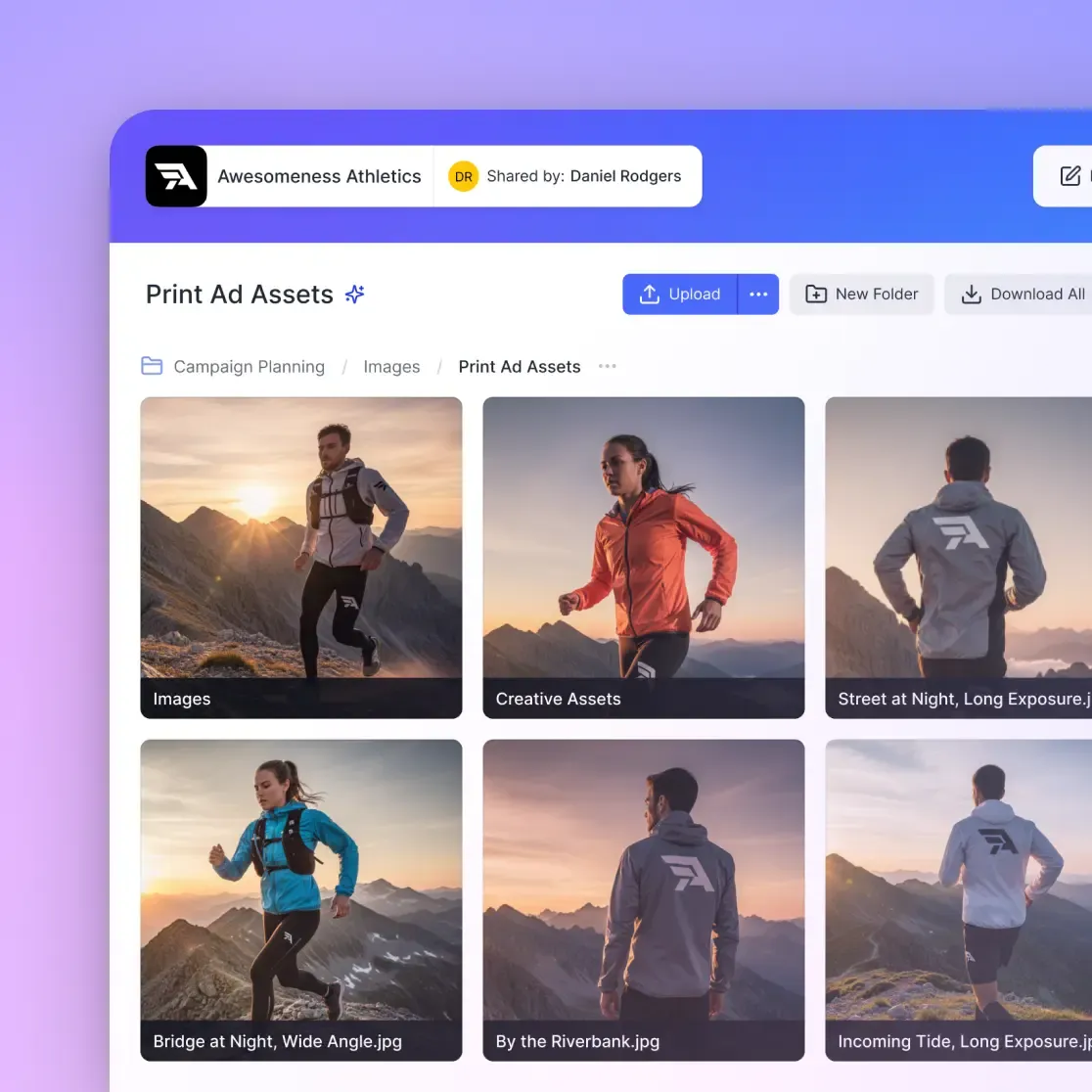
What Is a Client File Sharing Portal?
A client file sharing portal is a dedicated online space where you exchange files with clients. Instead of sending email attachments back and forth, clients log into a branded portal to download deliverables, upload assets, and track project progress.
The difference between a portal and regular file sharing: permanence and organization. Email attachments get buried. Shared links expire. A portal gives clients a consistent place to find everything related to their project.
Agencies spend 8+ hours weekly managing client file exchanges. Most of that time goes to answering "where's that file?" emails and resending download links that expired.
Why Clients Prefer Self-Service File Access
67% of clients prefer self-service file access over requesting files from their point of contact. The reasons are practical:
- No waiting: Clients download files at 2am if they need them
- No back-and-forth: They browse and find what they need themselves
- No confusion: One location for everything, not scattered email threads
For agencies and service businesses, this means fewer support requests and faster project turnaround. When clients grab their own files, your team spends less time on file delivery and more time on billable work.
The retention impact is measurable too. Branded portals increase client retention by 23% compared to ad-hoc file sharing. Clients perceive businesses with professional portals as more organized and trustworthy.
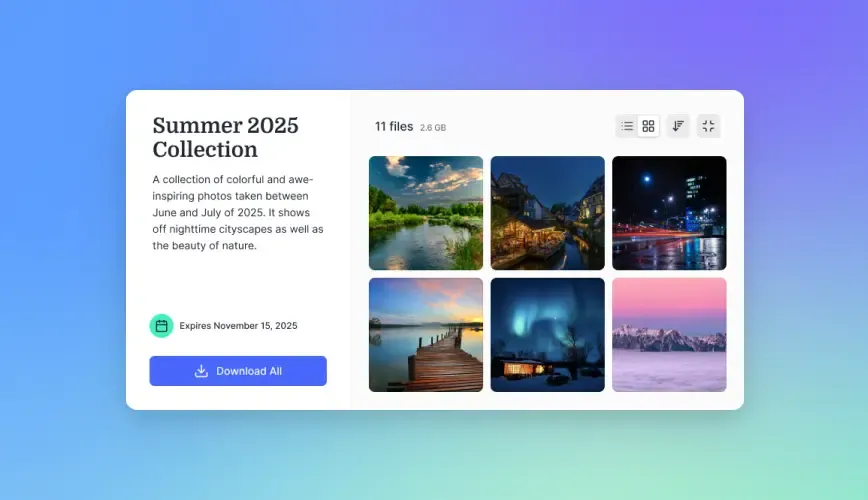
Features That Matter in a Client Portal
Not all client portals solve the same problems. Here's what to look for based on your actual needs:
Must-Have Features
White-label branding: Your logo, colors, and domain. Clients should feel like they're in your space, not a third-party tool.
Guest access without accounts: Clients shouldn't need to create accounts or remember passwords. Send them a link, let them work.
Activity tracking: Know when clients view files, what they download, and how long they spend reviewing deliverables.
File organization: Folders, workspaces, or projects that make sense to clients, not just your internal structure.
Large file support: If you're sharing video, design files, or raw assets, you need support for files measured in gigabytes, not megabytes.
Nice-to-Have Features
- Version control: Automatic tracking of file revisions
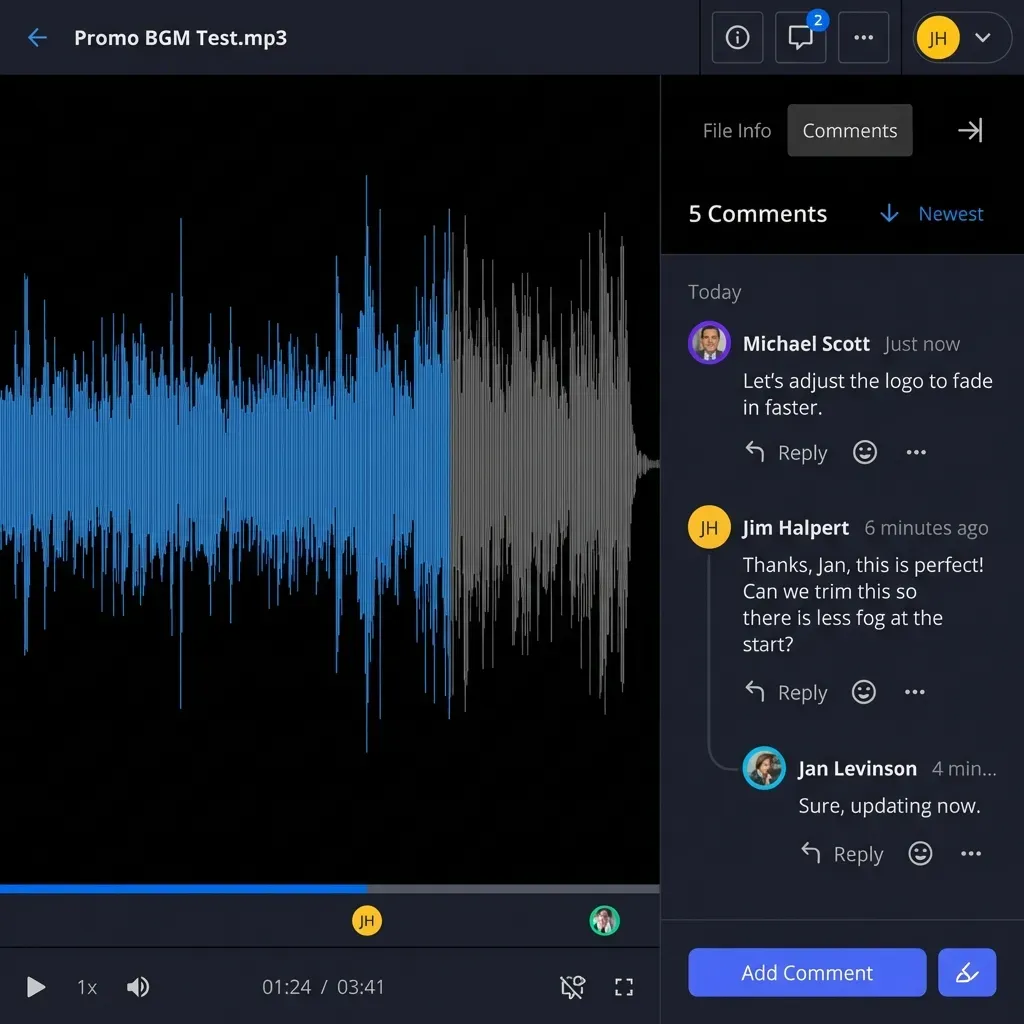
- Comments and feedback: Let clients mark up files directly
- Expiring access: Revoke access when projects end
- Download restrictions: View-only options for sensitive deliverables
How to Set Up a Client Portal
Setting up a client portal takes about 30 minutes if you choose the right tool. Here's the process:
Step 1: Choose Your Structure
Decide how you'll organize client files. Options include:
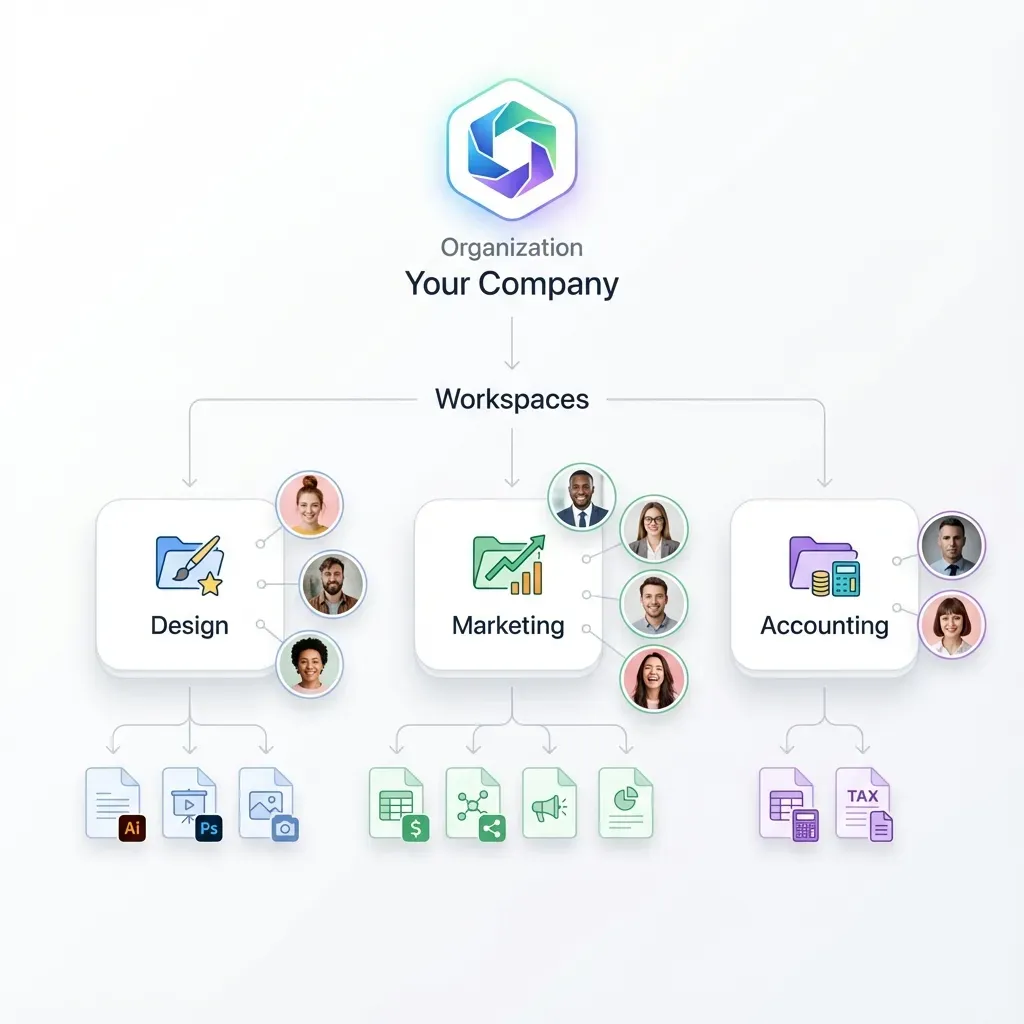
- One workspace per client: Everything for that client in one place
- One workspace per project: Separate spaces for different engagements
- Shared folders within workspaces: Invite clients to specific folders only
Most agencies use one workspace per client with folders for each project inside. This keeps things simple and gives clients a single place to look.
Step 2: Brand Your Portal
Upload your logo, set your colors, and configure a custom domain if available. The portal should feel like part of your business, not some random file sharing tool.
Step 3: Set Permissions
Configure what clients can do:
- View and download: Standard for deliverables
- Upload: Let clients send you assets
- Comment: Enable feedback on specific files
Start restrictive and open up permissions as needed. You can always give more access later.
Step 4: Invite Your First Client
Send the invite link. Most portals let clients access files without creating accounts, which removes friction and increases adoption.
Client Portal vs. Email vs. File Transfer Services
Each method has a place. Here's when to use what:
Email attachments work for:
- Single files under 10MB
- One-off exchanges with no follow-up
- Quick informal sharing
File transfer services (WeTransfer, Dropbox Transfer) work for:
- Large one-time deliveries
- Files you don't need to keep organized
- Sending to people you won't work with again
Client portals work for:
- Ongoing client relationships
- Projects with multiple file exchanges
- When you need activity tracking
- When branding matters
The decision comes down to relationship duration. For quick one-offs, email or transfer services are fine. For clients you'll work with repeatedly, a portal saves time over the course of the relationship.
Common Mistakes When Setting Up Client Portals
After watching agencies set up hundreds of client portals, these problems come up repeatedly:
Making clients create accounts: Every required account creation loses a percentage of clients. Passwordless access or magic links solve this.
Complex folder structures: Clients don't care about your internal organization. Keep the structure simple: one folder per deliverable type or project phase.
No notifications: Clients forget portals exist if you don't remind them. Automatic notifications when new files are added keep them engaged.
Ignoring mobile access: Clients check files from phones. If your portal doesn't work on mobile, you'll get "I can't open this" emails.
Forgetting to revoke access: Old clients shouldn't have access to your current work. Set expiration dates or manually revoke access when projects end.
How Fast.io Handles Client Portals
Fast.io builds client portals on top of workspaces. You create a workspace and share it with external clients, rather than managing a separate portal product.
What this means in practice:
- External shared folders: Invite clients to specific folders without giving them full workspace access
- Branded portals: Custom logo, colors, and vanity URLs for data rooms
- Unlimited guest access: Clients don't count against your seat limit and don't need accounts
- Usage-based pricing: Pay for storage, not per-client seat fees
For agencies working with multiple clients, this model makes more financial sense than per-seat alternatives. ShareFile charges per user. Fast.io charges for what you actually use.
The other differentiator is media handling. If you're sharing video files, Fast.io streams them with adaptive bitrate (HLS) instead of forcing downloads. Clients preview video in browser without waiting for a 10GB file to download.
Frequently Asked Questions
What is a client portal?
A client portal is a secure, branded online space where businesses share files, documents, and project information with their clients. Instead of emailing attachments, clients log into the portal to access everything related to their project in one organized location.
How do I share files with clients securely?
Use a file sharing portal with encryption, access controls, and activity logging. Set permissions so clients can only view or download what they need. Use password protection or domain restrictions for sensitive files. Avoid email attachments for confidential documents.
What is the best client portal software?
The best client portal depends on your needs. For creative agencies sharing large media files, look for streaming support and white-label branding. For professional services, focus on security features and audit trails. For budget-conscious teams, usage-based pricing (like Fast.io) costs less than per-seat models for businesses with many client relationships.
Do clients need to create accounts to use a portal?
Not with most modern portal software. Guest access features let clients access files via secure links without creating accounts. This reduces friction and increases adoption. Some portals require accounts for upload permissions or commenting features.
How much does a client file sharing portal cost?
Costs range from free (limited features) to $20+ per user per month. Traditional per-seat pricing charges for each client who accesses the portal. Usage-based alternatives like Fast.io charge for storage instead, which is more economical for businesses with many client relationships.
Related Resources

Ready to set up your client portal?
Create a branded file sharing portal your clients will actually use. No per-seat fees, no client accounts required.