How to Choose Cloud Storage for Photographers
Professional photographers generate 500GB to 2TB of files annually, and most consumer cloud storage falls short. This guide covers what photographers actually need: RAW file support, client delivery tools, reliable backup, and pricing that scales with your business.
What Is Cloud Storage for Photographers?
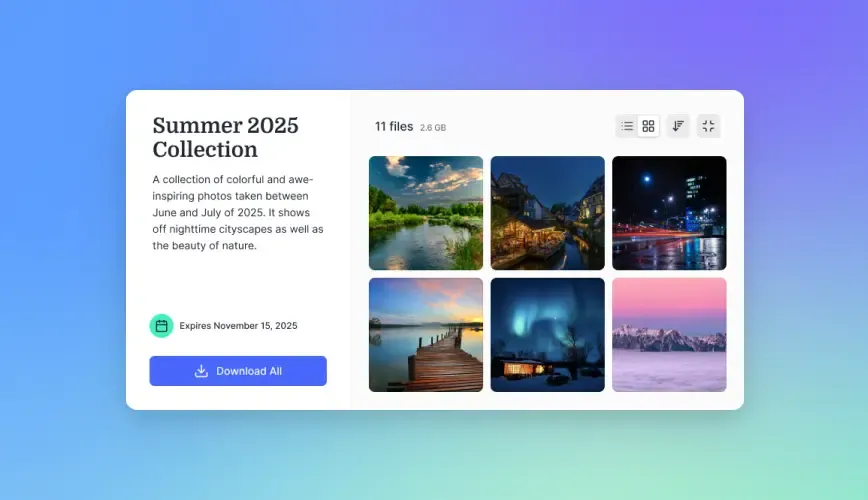
Cloud storage for photographers is online storage designed to handle large photo libraries with features like RAW file support, client galleries, and fast upload speeds.
Unlike consumer options built for phone snapshots, professional photo storage handles files that average 25-50MB each (RAW) and can reach 100MB+ for medium format. A single wedding shoot might produce 50GB of RAW files. A commercial shoot with tethered capture can hit that in an afternoon.
The 68% of photographers who have lost files due to inadequate backup know this already: general-purpose cloud storage treats photos like any other file. Photo-specific storage is designed around the reality that your images are both large and irreplaceable.
How Much Storage Do Photographers Actually Need?
The answer depends on your shooting volume and how long you keep files.
Rough estimates by photographer type:
- Part-time/hobbyist: 500GB-1TB per year
- Portrait/event photographer: 1-2TB per year
- Wedding photographer: 2-4TB per year (50-100 weddings)
- Commercial photographer: 2-5TB per year depending on volume
- High-volume studio: 5TB+ per year
Most photographers keep at least 2-3 years of work accessible. That means a working wedding photographer might need 6-12TB of active storage, plus archival storage for older work.
The real calculation: Count your average shoot size in GB, multiply by shoots per year, multiply by years you want to keep accessible. Add 20% for growth.
Key Features to Compare
Not all cloud storage works the same for photo workflows. Here's what to evaluate:
RAW File Support
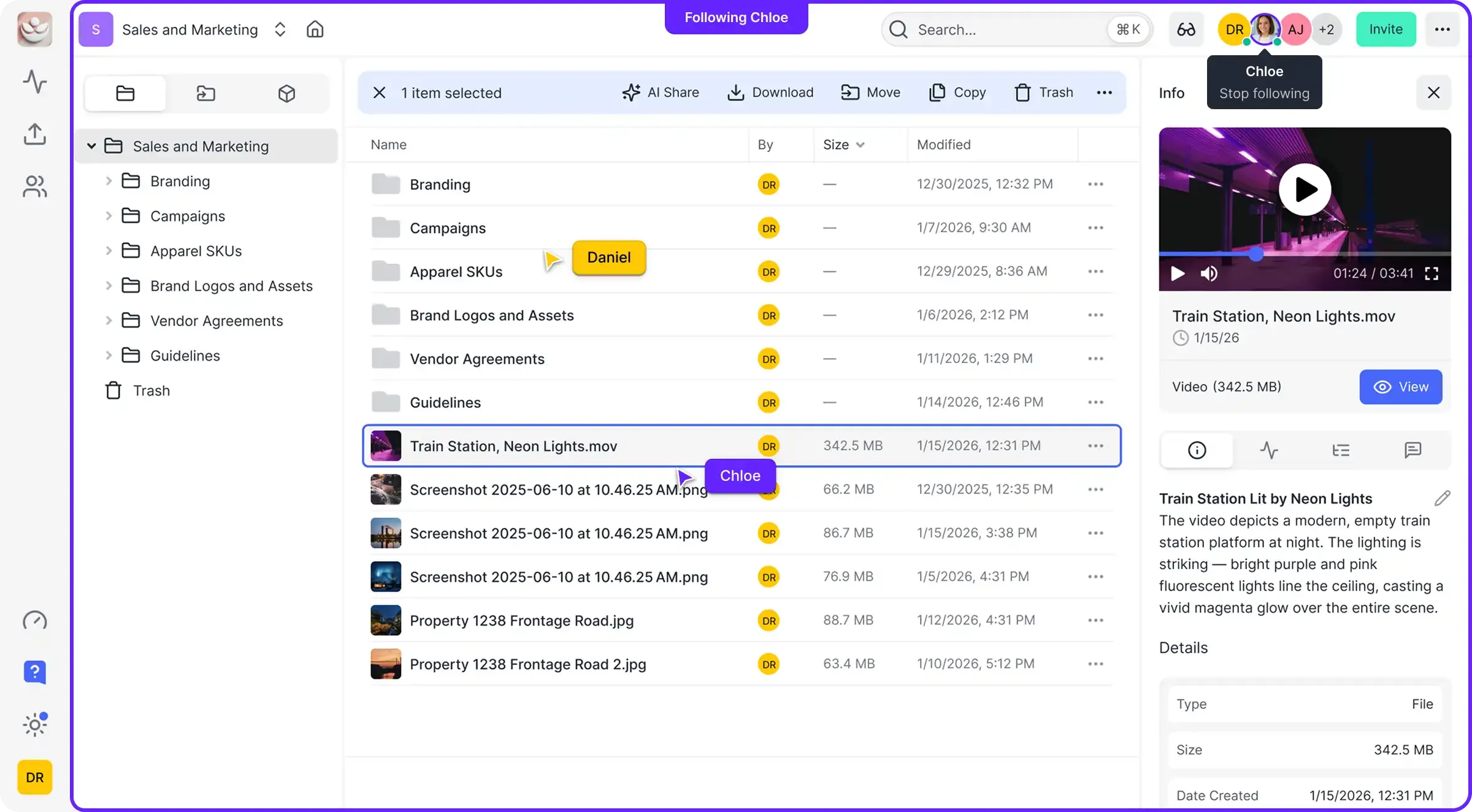
Some services compress or convert uploads. Others can't preview RAW files, forcing you to download before you can see what you have. Look for:
- No compression on upload (your 50MB RAW stays 50MB)
- Browser preview for common RAW formats (CR3, NEF, ARW, RAF)
- PSD and layered file preview
Upload Speed
A 50GB shoot needs to upload reasonably fast. Check:
- No file size limits (some services cap at 2-5GB per file)
- Parallel uploads (multiple files at once)
- Resume capability for interrupted uploads
Client Delivery
Getting files to clients matters as much as storage:
- Shareable links with password protection
- Expiration dates for time-limited access
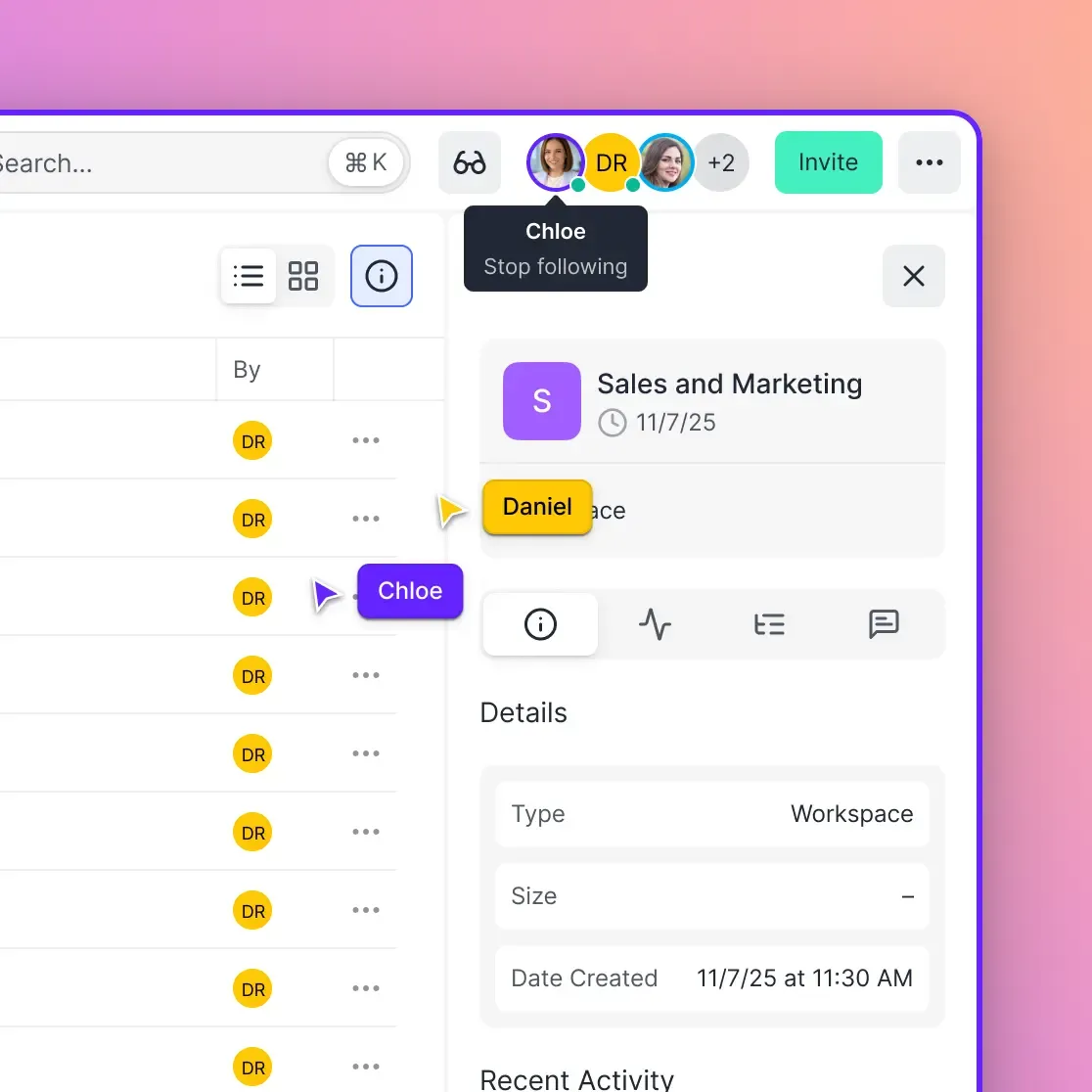
- Download tracking (did they get the files?)
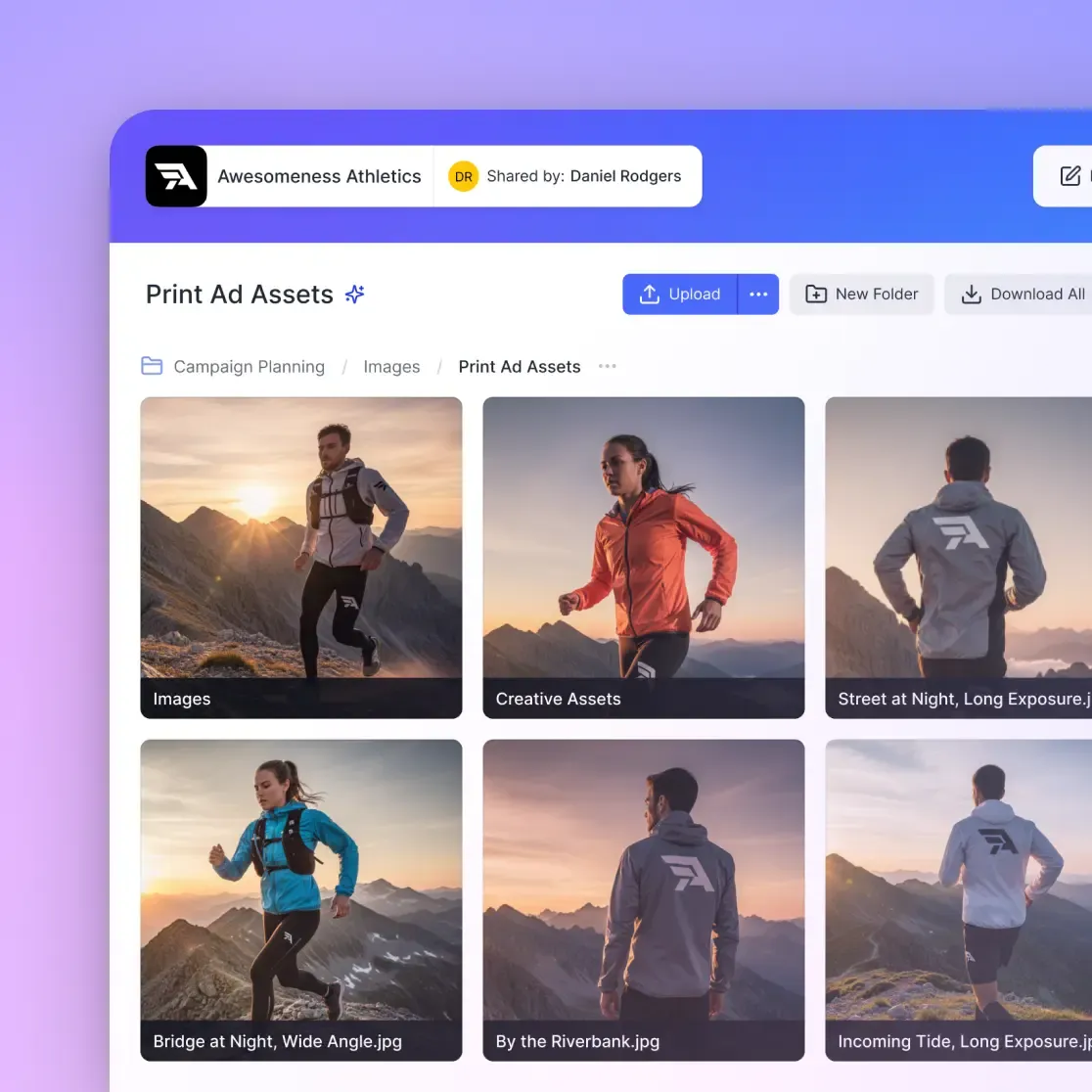
- Branded galleries or portals (optional but professional)
Backup Reliability
Your archive is worthless if the service loses files:
- File versioning (recover previous versions)
- Redundant storage (files exist in multiple locations)
- Clear data retention policies
Cloud Storage Options for Photographers
Here's how the main options stack up for professional photo work:
Unlimited Backup Services
Backblaze offers unlimited backup for around $9/month. It backs up everything on your computer and attached drives automatically. Good for disaster recovery, but not designed for client delivery or collaboration. You can't easily share files or preview RAW formats online.
iDrive provides 5-10TB plans with backup for multiple devices. Better for photographers with several machines, but still primarily a backup tool rather than a working storage solution.
Consumer Cloud Storage
Google Drive gives 15GB free, 2TB for $10/month. Integrates with Google Photos but has limited RAW support and no professional delivery features. Works fine for personal backup, less so for client work.
Dropbox offers strong sharing features and decent RAW previews. The $10/month gets you 2TB. Smart Sync helps manage local storage. However, per-user pricing adds up fast for studios with multiple team members.
OneDrive works well if you're already in the Microsoft ecosystem. Similar pricing to Dropbox with tight Windows integration. RAW preview support has improved but remains inconsistent across formats.
Photography-Specific Platforms
SmugMug focuses on portfolio display and print sales more than storage. Unlimited uploads, but it's really a client-facing platform. Starting at $13/month, it makes sense if you sell prints or need public galleries.
ShootProof and similar gallery platforms handle client proofing well but aren't meant as primary storage. Most photographers use these alongside a backup solution.
Team-Focused Cloud Storage
For studios with multiple photographers, editors, or assistants, per-seat pricing becomes a problem. A 10-person studio paying $15/user/month spends $1,800/year before counting storage overages.
Team cloud storage like Fast.io uses usage-based pricing instead. Store what you need, add team members without multiplying costs. Universal RAW previews and branded client portals help studios present work professionally. Files belong to the organization account, so your archive stays intact when staff change.
Setting Up a Photo Backup Strategy
Storage without strategy is just delayed data loss. Here's a practical approach:
The 3-2-1 Rule
Keep 3 copies of important files, on 2 different types of media, with 1 copy offsite. For photographers:
- Copy 1: Working drive (your fastest SSD/NVMe)
- Copy 2: Local backup (external drive or NAS)
- Copy 3: Cloud backup (offsite protection)
Workflow Integration
The best backup happens automatically. Set up your cloud storage to:
- Ingest: Import cards to your working drive
- Sync: Cloud backup starts automatically
- Edit: Work from local files (faster)
- Archive: Move completed projects to cloud-primary storage
- Deliver: Share directly from cloud to clients
What to Keep vs. What to Delete
Storage costs money. Be intentional:
- Keep forever: Final selects, delivered files, contracts
- Keep 1-2 years: Full RAW sets from shoots
- Keep 30-90 days: Rejected images, test shots
- Delete immediately: Duplicates, obvious mistakes
Deciding what to delete is as important as choosing where to store.
Client Delivery Best Practices
Getting files to clients seems simple until it isn't. Large galleries, slow downloads, and expired links create friction.
Gallery Size Matters
A 500-image wedding gallery at 3MB per export hits 1.5GB. Some clients have slow connections or limited storage. Consider:
- Web-resolution previews for browsing (much smaller)
- Full-resolution downloads on request
- ZIP packaging for bulk downloads
Professional Presentation
How you deliver affects perception. Compare:
- WeTransfer link: functional but generic
- Branded portal: your logo, your colors, professional impression
For high-end clients, presentation matters. For volume work, efficiency wins.
Access Controls
Protect your work and your clients:
- Passwords: Required for sensitive content (boudoir, corporate)
- Expiration: Limit access window to encourage timely downloads
- Download limits: Prevent unauthorized redistribution (optional)
- Watermarks: Visible protection for unpaid previews
Pricing Comparison
Storage pricing varies wildly by model. Here's what photographers typically pay:
| Service | Storage | Monthly Cost | Per-TB Cost | Notes |
|---|---|---|---|---|
| Backblaze | Unlimited | $9 | N/A | Backup only, no sharing |
| Google Drive | 2TB | $10 | $5 | Limited pro features |
| Dropbox | 2TB | $12 | $6 | Per-user pricing for teams |
| pCloud | 2TB | $10 | $5 | Lifetime option available |
| iDrive | 5TB | $7 | $1.40 | Multi-device backup |
| SmugMug | Unlimited | $13+ | N/A | Gallery-focused |
Hidden costs to watch:
- Per-user fees (Dropbox charges for each team member)
- Overage charges (what happens when you exceed limits?)
- Download bandwidth (some services charge for client downloads)
- Feature tiers (sharing features often require higher plans)
For solo photographers, consumer options often work. For studios and teams, calculate total cost including all users and actual storage needs.
Frequently Asked Questions
What is the best cloud storage for photographers?
The best option depends on your needs. For pure backup, Backblaze offers unlimited storage at low cost. For client delivery, Dropbox or team-focused platforms with branded portals work better. For studios with multiple team members, usage-based pricing (like Fast.io) typically costs less than per-seat services. Most working photographers use a combination: cloud backup for disaster recovery plus a sharing-focused service for client work.
How much cloud storage do photographers need?
A working professional photographer typically needs 2-5TB of active storage. Portrait and event photographers shooting 50-100 sessions per year generate 1-2TB annually. Wedding photographers often produce 2-4TB per year. Multiply by the years of work you want to keep accessible. A 5-year archive for an active wedding photographer might require 10-20TB total.
Is Google Drive good for photographers?
Google Drive works for basic storage and backup, but has limitations for professional use. RAW file previews are inconsistent, there are no built-in client gallery features, and the 2TB plan may not be enough for active photographers. It's fine as part of a backup strategy, but most professionals need additional tools for client delivery and RAW workflow support.
How do professional photographers store their photos?
Most professionals use a layered approach: fast local storage (SSD) for active projects, local backup (external drives or NAS) for redundancy, and cloud storage for offsite backup and client delivery. The 3-2-1 rule (3 copies, 2 media types, 1 offsite) is standard. Working files stay local for speed; completed projects move to cloud-primary storage with local backup.
Should I use photography-specific storage or general cloud storage?
Photography-specific platforms like SmugMug excel at client galleries and print sales but may not be ideal as primary storage. General cloud storage (Google Drive, Dropbox) handles backup well but lacks professional delivery features. Many photographers combine both: general cloud backup for protection, plus a gallery platform or team storage solution for client-facing work.
What's the difference between cloud backup and cloud storage?
Cloud backup (Backblaze, Carbonite) automatically copies your local files to the cloud for disaster recovery. You work from local drives; the cloud is a safety net. Cloud storage (Dropbox, Google Drive, Fast.io) lets you work directly from cloud-hosted files, share with others, and access from any device. Backup protects files. Storage enables workflows.
Related Resources

Ready to simplify your photo storage?
Fast.io handles large RAW files, team collaboration, and client delivery without per-seat pricing.