How to Compress Video for Email Without Destroying Quality
Compressing video for email reduces file size to fit within email attachment limits, though it often sacrifices video quality. Gmail caps attachments at 25MB, and compressing a 1GB video to fit that limit typically reduces quality by 90%. This guide covers practical compression methods, the settings that matter, and when you're better off skipping compression entirely.
Why Email Attachment Limits Force Compression
Every email provider enforces attachment size limits. These limits exist because email servers store copies of messages across multiple systems as they route to recipients. Large attachments strain that infrastructure.
Email attachment limits by provider:
- Gmail: 25MB
- Outlook.com: 20MB
- Yahoo Mail: 25MB
- iCloud Mail: 20MB
- Business Exchange: 10-25MB (varies by admin settings)
A one-minute 1080p video shot on a modern smartphone runs 150-300MB. A five-minute clip can easily hit 1GB. That's 40 times larger than Gmail allows.
Video compression works by removing visual information, reducing resolution, or changing the codec. You can shrink files enough to email them, but there's always a tradeoff.
Video Compression Basics: What Actually Affects File Size
Three factors determine video file size:
Resolution controls how many pixels are in each frame. A 4K video (3840x2160) has four times more pixels than 1080p (1920x1080). Dropping from 4K to 1080p cuts file size by roughly 75%.
Bitrate measures how much data is used per second of video, typically in megabits per second (Mbps). Higher bitrate means more detail, but larger files. A 1080p video at 50Mbps looks crisp. The same video at 5Mbps looks muddy.
Codec is the compression algorithm. H.264 is widely compatible but less efficient. HEVC (H.265) produces smaller files at the same quality but some devices can't play it. AV1 is the newest option with the best compression, though support is still limited.
When you compress video for email, you're adjusting one or more of these settings. The key is knowing which tradeoffs matter for your specific video.
Desktop Software: Most Control Over Quality
Desktop compression tools give you the most control over output quality. They're slower than online tools but produce better results.
HandBrake (Free, Mac/Windows/Linux)
HandBrake is open-source and handles most video formats. To compress for email:
- Open HandBrake and select your video file
- Under "Preset," choose "Fast 720p30" or "Very Fast 480p30"
- Set the output format to MP4
- Adjust the "RF" slider. Lower numbers mean higher quality but larger files. Start with RF 22-24 for email
- Click "Start Encode"
A 500MB video typically compresses to 30-50MB at 720p with RF 23. Quality remains watchable for review purposes.
VLC (Free, Mac/Windows/Linux)
VLC's conversion feature is hidden but functional:
- Open VLC and go to Media > Convert/Save
- Add your video file
- Click "Convert/Save"
- Choose "Video - H.264 + MP3 (MP4)" profile
- Click the wrench icon to adjust bitrate (try 2000-3000 kbps for email)
- Start conversion
VLC works in a pinch, but HandBrake offers more control and produces smaller files at the same quality.
Online Compressors: Fast but Limited
Online video compressors work directly in your browser. No installation required, and they're fine for quick jobs. But they have real limitations.
FreeConvert and Clideo offer browser-based compression with options for resolution and format. Upload your video, choose a target size, and download the result.
Kapwing provides a compression slider that lets you preview quality before downloading.
RedPanda Compress processes video locally in your browser, so files never leave your computer. Good for sensitive content.
The tradeoffs with online tools:
- File size limits. Free tiers typically cap at 500MB-1GB
- Processing speed. Large files take ages to upload, compress, and download
- Quality control. Fewer options than desktop software. You often get "small," "medium," or "large" instead of specific bitrate settings
- Privacy. Your video passes through someone else's servers (except RedPanda)
For a quick compress-and-send, online tools work. For regular use or large files, desktop software is worth the initial setup.
Recommended Settings for Email Compression
Here are specific settings that balance quality and file size for email attachments:
Target: Under 25MB (Gmail limit)
- 1 minute video: 720p at 3000 kbps gets you around 20MB
- 2 minutes: Drop to 480p at 2000 kbps for about 22MB
- 5 minutes: 480p at 800 kbps keeps you under 24MB
- 10 minutes: You'll need 360p at 500 kbps to stay within 25MB
Frame rate: 24-30 fps. Higher frame rates don't help for most content. Dropping from 60fps to 30fps cuts file size significantly.
Codec: H.264 for maximum compatibility. Every phone, computer, and email client plays H.264 MP4 files without issues.
Audio: 128kbps AAC stereo. Audio contributes less to file size than video, but there's no reason to keep 320kbps audio for an email attachment.
These settings work for review purposes. A client can watch the video and provide feedback. But for final delivery, you're better off not compressing at all.
The Quality Problem: Why Compression Hurts Video
Compressing a 1GB video to 25MB removes 97% of the data. That data was there for a reason.
Video compression creates visible artifacts:
- Blocking. Solid colors break into visible squares, especially in shadows and gradients
- Banding. Smooth gradients become stepped, like contour lines on a map
- Motion blur. Fast movement turns into smeared pixels
- Detail loss. Fine textures, text, and facial details become muddy
For casual videos, these artifacts are acceptable. A compressed vacation clip still tells the story.
But for professional content, compression matters. A color-graded film loses the grade. A design review loses the details the client needs to evaluate. A training video with on-screen text becomes unreadable.
The math doesn't lie: you can't remove 97% of visual data without visible consequences.
The Better Alternative: Send a Link Instead
Instead of degrading your video to fit email limits, upload it at full quality and email a link.
Your email provider already offers this. Gmail integrates with Google Drive. Outlook connects to OneDrive. When your attachment is too large, they offer to convert it to a shared link automatically.
But built-in cloud storage has limitations. Storage quotas fill up quickly with video files. Links expire or become inaccessible when someone's account runs out of space. And for business use, you often need more control over who can access the file.
Professional file sharing platforms solve these problems:
- No file size limits. Upload at original quality, no compression needed
- Link controls. Password protection, expiration dates, view-only access, download restrictions
- Activity tracking. See who viewed your video and when
- No account required. Recipients click a link and watch or download
Sharing large video files this way keeps quality intact. Your recipient sees exactly what you created, not a compressed approximation.
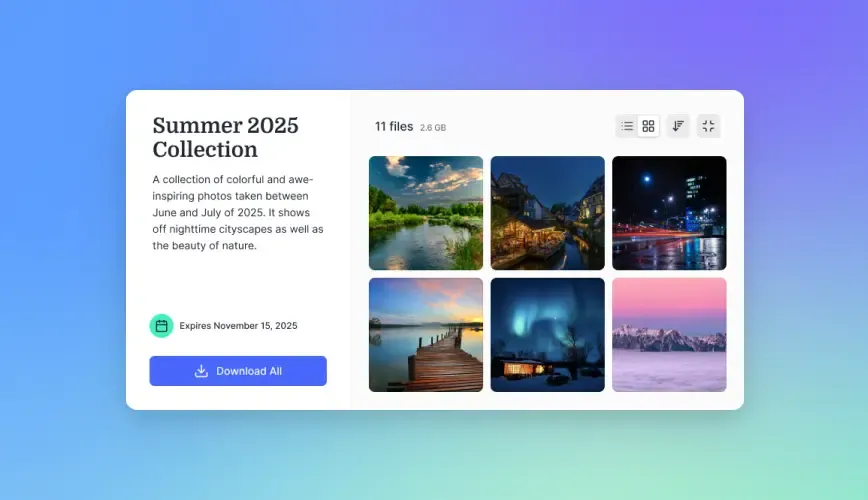
Fast.io supports HLS streaming for video files, so recipients can start watching immediately without waiting for a download. The original file stays available for download when they need it.
When to Compress vs. When to Share a Link
Compress when:
- The recipient specifically asked for an email attachment
- You're sending a quick preview, not the final version
- Quality doesn't matter for the use case (internal reference, casual share)
- You don't have access to cloud storage or file sharing tools
Share a link when:
- Quality matters (client review, final delivery, portfolio work)
- The video is longer than two minutes
- You'll need to track who accessed it
- You want to revoke access later
- The recipient will need the original file
For most professional video workflows, the link approach saves time and preserves quality. Compression is a workaround for email's limitations, not the best solution.
If you regularly send video files for review, setting up a client portal eliminates the compress-and-email cycle entirely. Clients access a single location with all their project files, always at full quality.
Frequently Asked Questions
How do I make a video small enough to email?
Use video compression software like HandBrake (free) to reduce resolution and bitrate. For a 25MB email limit, compress to 720p or 480p with bitrate around 2000-3000 kbps. Alternatively, upload the video to cloud storage and email a download link instead, which preserves full quality.
What is the best free video compressor?
HandBrake is the best free option. It's open-source, works on Mac, Windows, and Linux, and gives precise control over resolution, bitrate, and codec. For quick online compression without installing software, FreeConvert and RedPanda Compress work well for smaller files.
How can I send a video that is too large for email?
Three options: (1) Compress the video using HandBrake or VLC to reduce file size below 25MB. (2) Use your email provider's cloud integration, where Gmail, Outlook, and Apple Mail convert large attachments to shared links automatically. (3) Upload to a file sharing service and email the link directly.
Does compressing video reduce quality?
Yes, compression removes visual data to reduce file size. Compressing a 1GB video to 25MB for email typically removes 97% of the data, causing visible artifacts like blocking, banding, and loss of detail. For review purposes this is often acceptable, but final deliveries should use uncompressed files shared via link.
What video format is best for email attachments?
MP4 with H.264 codec is the most compatible format for email. It plays on every device and email client without requiring special software. Keep audio at AAC format, 128kbps stereo. Avoid newer codecs like HEVC or AV1 since some recipients won't be able to play them.
Related Resources

Skip the compression. Send full quality.
Fast.io lets you share video at original quality with streaming playback, link controls, and no file size limits.