How to Build a Creative Agency Workflow That Saves Hours on File Management
A creative agency workflow is the structured sequence of steps an agency follows to manage client projects, from brief intake through asset creation to final delivery. This guide maps out each stage and shows you how to eliminate the file management bottlenecks that cost agencies 20% of their billable time.
What Is a Creative Agency Workflow?
A creative agency workflow is a documented, repeatable process that moves client projects from initial brief to final delivery. It defines who does what, when assets move between stages, and where files live at each step.
Most agencies think they have a workflow. What they actually have is a loose collection of habits that fall apart when someone goes on vacation or a client makes a last-minute change.
A real workflow answers these questions:
- Where do client briefs and raw assets land when they arrive?
- Who has access to working files vs. approved finals?
- How do stakeholders give feedback without breaking version control?
- When a project wraps, where do final assets go?
The difference between chaos and control usually comes down to file management. Creative teams spend an average of 20% of their billable hours just searching for files, re-downloading assets, and untangling version confusion. That's one day per week lost to administrative friction.
The Five Stages of Agency File Flow
Every creative project moves through the same basic stages. The question is whether your file management supports or sabotages each transition.
Stage 1: Brief Intake and Asset Collection
Projects start with incoming materials: client briefs, brand guidelines, reference images, raw footage. These need a designated landing zone, not scattered across email threads and Slack DMs.
Set up a dedicated intake folder for each project. Give clients a direct upload link so assets arrive in one place. This prevents the "Can you resend that file?" loop that eats up project kickoff time.
Stage 2: Working Files and Production
This is where your team creates. Designers, editors, and copywriters all need access to the same source materials while keeping their working files organized.
The trap: personal folders. When assets live in "John's Drive" or "Marketing Folder 2024 (Old)," knowledge walks out the door with every departure.
Organization-owned file storage solves this. Files belong to the agency, not to individuals. When someone leaves or changes roles, nothing needs to be transferred.
Stage 3: Internal Review
Before clients see anything, your team reviews. Creative directors mark up layouts. Senior editors flag cuts. This stage generates the most version confusion if you're not careful.
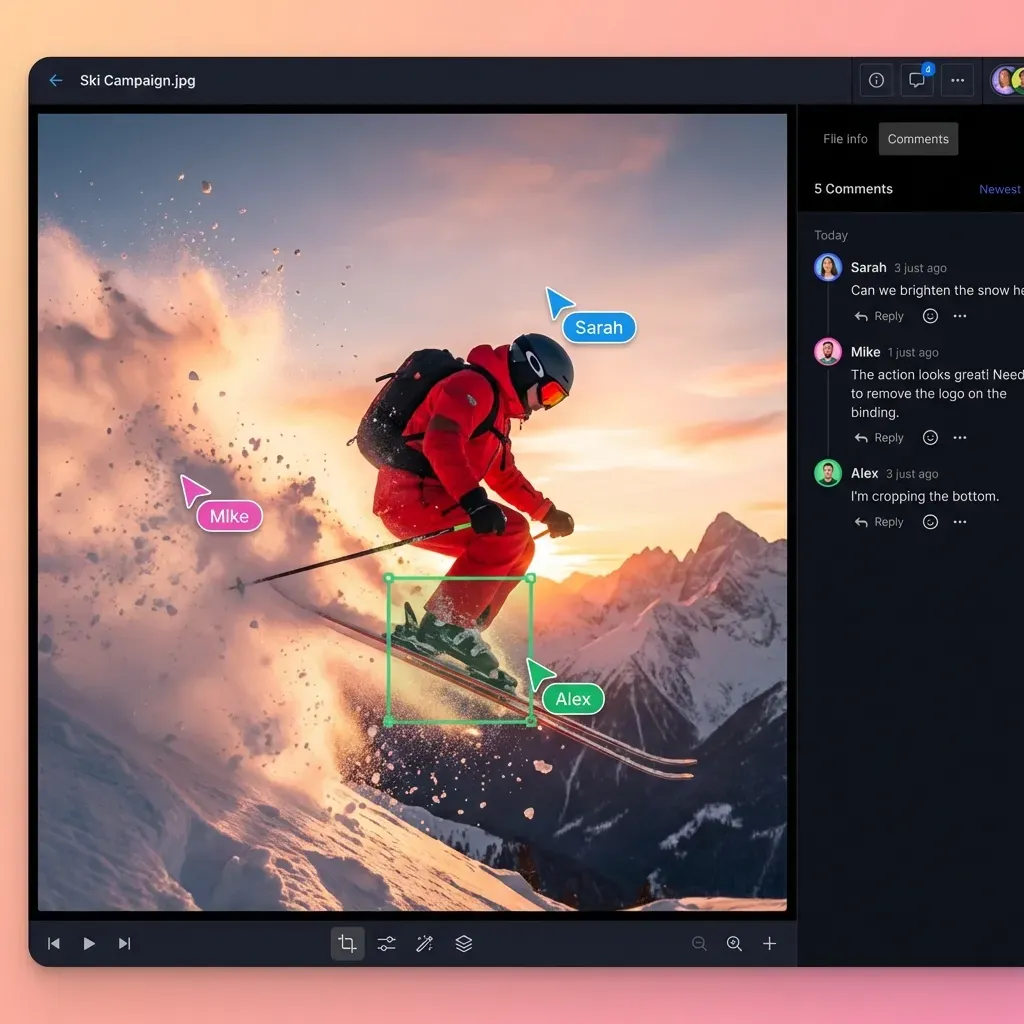
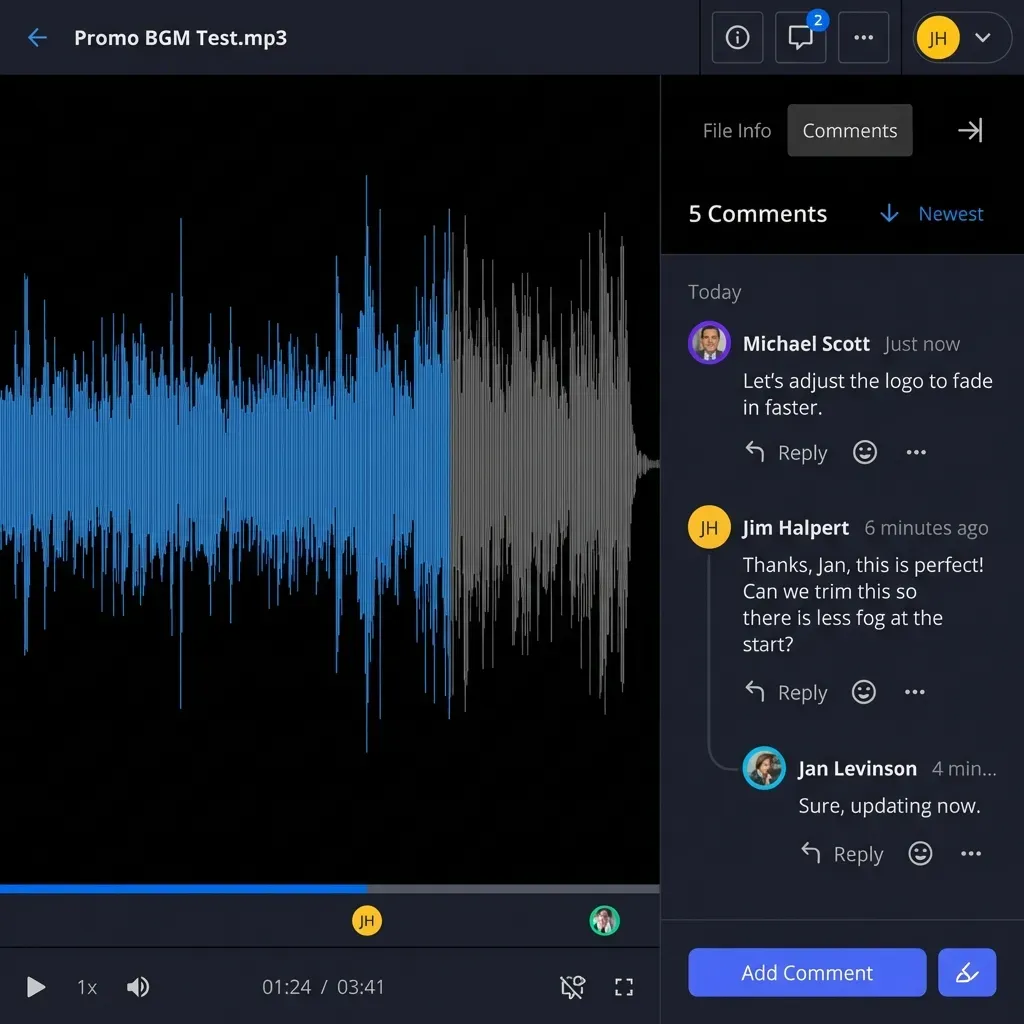
Frame-accurate comments matter here. Telling a video editor "the logo animation feels slow" is less useful than pinning a note to frame 247 saying "trim 6 frames from logo reveal."
Stage 4: Client Review and Approval
Clients need to see work and give feedback. They don't need to see your messy working folders or accidentally overwrite the wrong file.
The solution is a controlled viewing environment: a branded portal where clients see only what you want them to see, can leave comments, and can mark approvals. No login required, no risk of them wandering into your internal folders.
Stage 5: Final Delivery and Archival
Approved assets go to clients. Project files get archived. This stage often fails because agencies skip it when rushing to the next job.
Build delivery into your workflow. Use a dedicated delivery folder with appropriate access controls. Archive completed projects with a consistent naming convention so you can find them two years later when the client calls asking for "that video we did."
Why Traditional Folder Structures Break Down
Most agencies start with a simple folder hierarchy: Client > Project > Asset Type. It makes sense on paper. Then reality hits.
Problem 1: Access sprawl
Junior designer needs access to one client folder. You give them access to the parent folder because it's faster. Now they can see every client's confidential work. Multiply this by 50 employees and 200 clients.
Problem 2: Version chaos
"Logo_Final.ai" becomes "Logo_Final_v2.ai" becomes "Logo_Final_REAL_FINAL.ai" becomes "Logo_Final_USE_THIS_ONE.ai." Sound familiar?
Without proper version control, teams waste hours figuring out which file is actually current. Worse, someone grabs the wrong version and sends it to the client.
Problem 3: Sync conflicts
Traditional cloud storage syncs files to local drives. Two people edit the same file, and sync conflicts create duplicate versions. Large video files take hours to sync, blocking other work.
Cloud-native storage avoids this entirely. Files live in the cloud and stream on demand. No sync, no conflicts, no waiting for downloads.
Problem 4: Files leave with people
When files live in personal accounts or local drives, they walk out the door with every departure. The institutional knowledge that cost thousands in billable hours to create vanishes overnight.
Building a File Workflow That Actually Works
Here's how to structure file management that supports rather than sabotages your creative process.
Use Workspaces, Not Folders
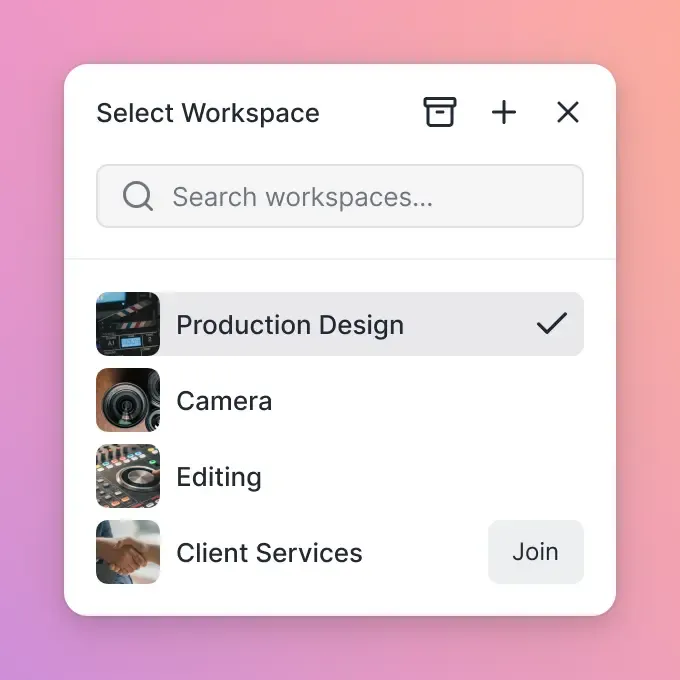
Instead of a nested folder hierarchy, organize by workspace. Each workspace is a self-contained environment for a project or client with its own permissions, activity log, and member list.
Workspaces can be open (anyone in the agency can browse and join) or private (invite-only for sensitive clients). This replaces the awkward "who has access to what" guessing game.
Establish Clear Zones
Create distinct areas with different purposes:
- Intake: Where client materials land. Upload-only for clients, read-write for account managers.
- Working: Where production happens. Team access only. Version-controlled.
- Review: Where stakeholders give feedback. Controlled visibility, comment-enabled.
- Delivery: Where approved assets live. Client-downloadable, with access tracking.
Enable Real-Time Collaboration
Creative work is collaborative. Your file system should reflect that.
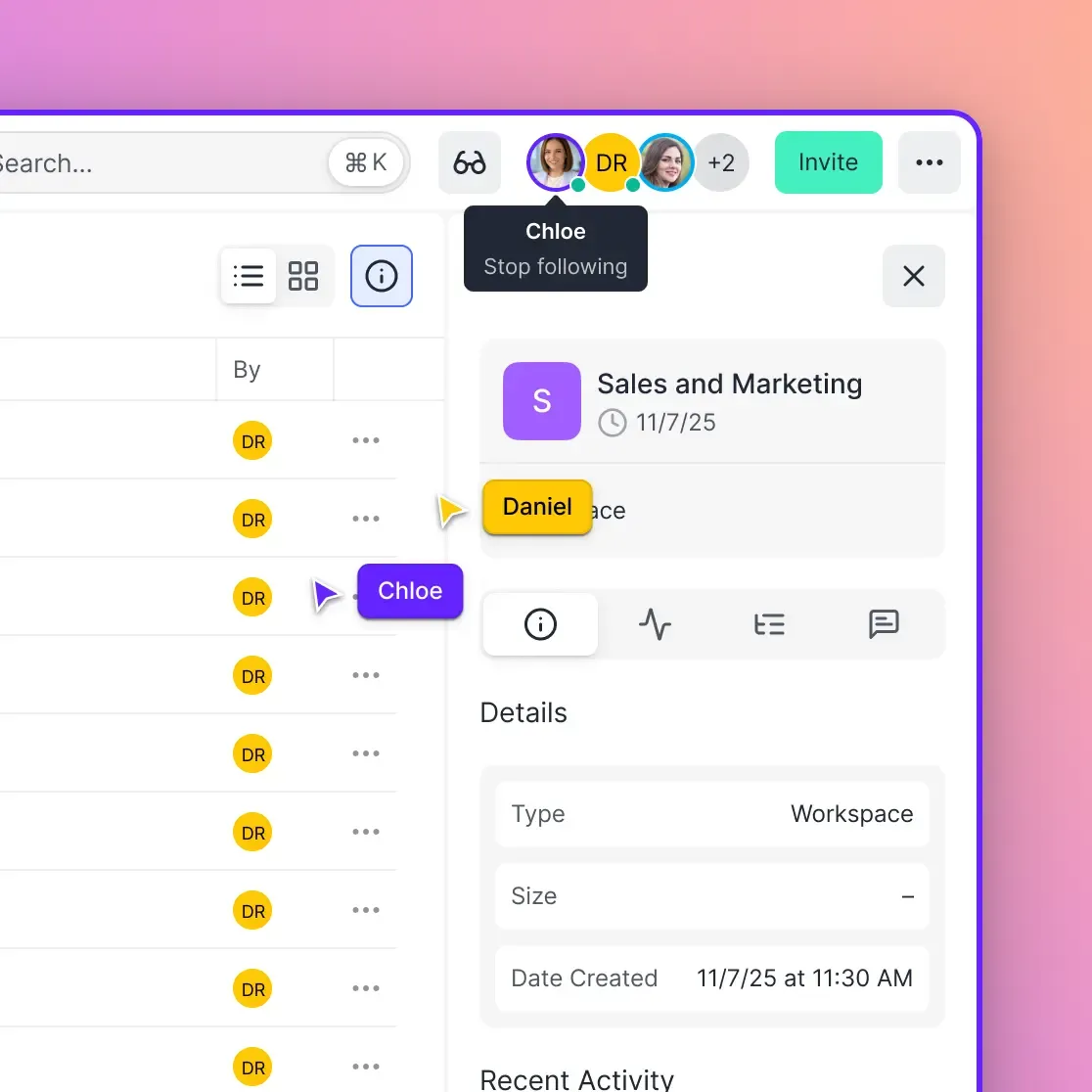
Presence indicators show who's currently viewing a workspace. Follow mode lets you see exactly what a teammate sees, eliminating the "can you see my screen?" dance during design reviews.
Threaded comments on files, including specific video frames or image regions, keep feedback contextual rather than buried in email chains.
Make Search Actually Work
Most file search is useless. You search for "Q3 video" and get 200 results because every file has "video" somewhere in the path.
Semantic search understands what you mean, not just what you type. Search "that product launch video we did for Acme last fall" and find it, even if the filename is "Acme_ProductLaunch_Final_v3_Approved.mp4."
How Ad Agencies Handle Client File Sharing
Client file sharing has unique requirements that generic storage tools miss.
Clients shouldn't need accounts
Every account is friction. Every password is a support ticket waiting to happen. Clients should access their portal with a simple link, optionally protected with a password or domain restriction.
Branding matters
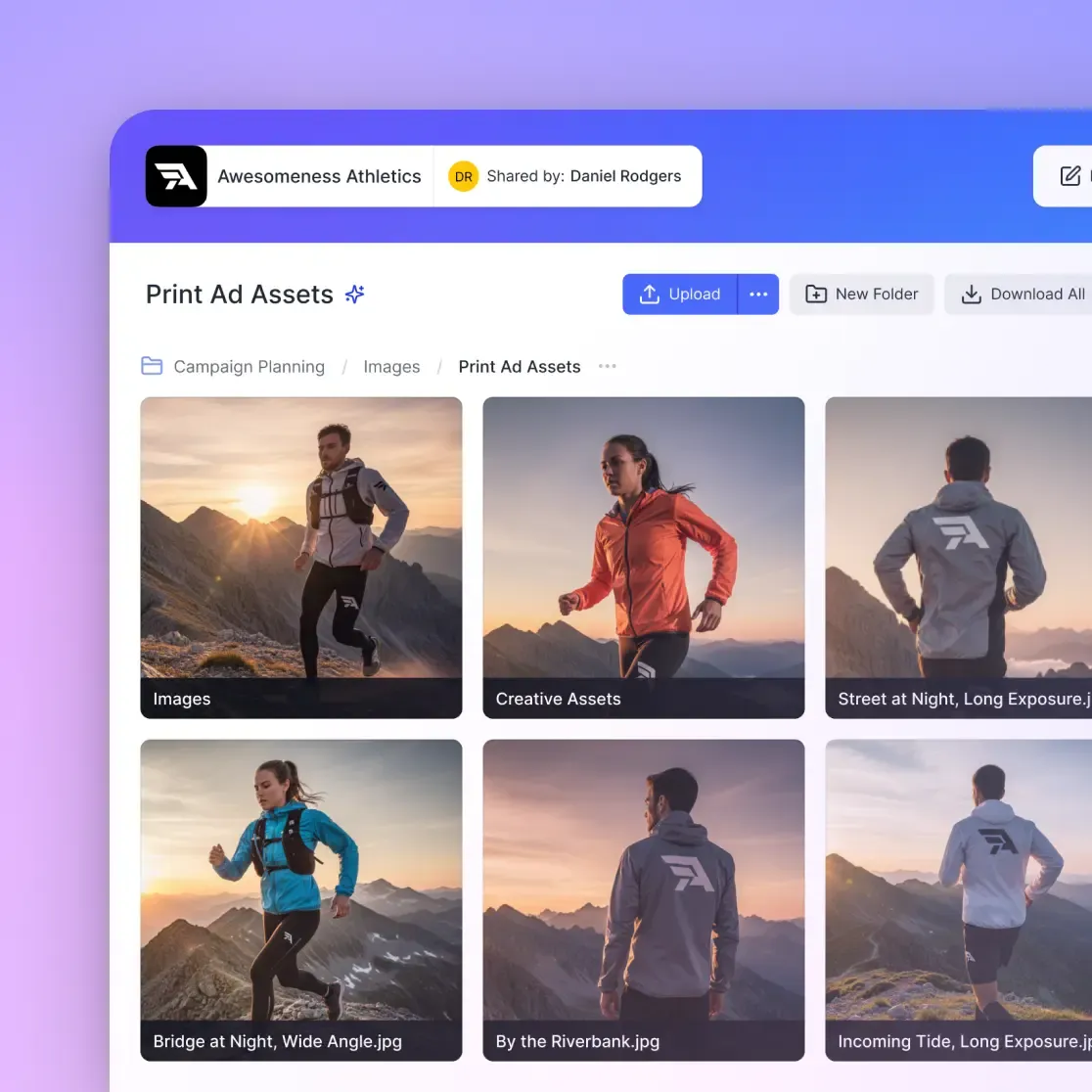
When clients visit your portal, they should see your brand, not your storage vendor's. Custom logos, colors, and even vanity URLs reinforce professionalism.
Visibility must be controlled
Clients should see their projects. Not other clients' work. Not your internal discussions. Not your working files with embarrassing layer names. Separate external sharing folders let you curate exactly what clients see.
Tracking provides accountability
When a client claims they never received final assets, you need proof. View tracking shows exactly when files were accessed, by whom, and for how long.
For high-stakes reviews, data rooms add another layer: detailed engagement analytics, watermarking, and instant access revocation if something goes wrong.
Handling Large Files Without Losing Your Mind
Creative work produces big files. 4K video, RAW photography, layered PSD files with 200 artboards. Traditional file sharing chokes on these.
The email ceiling
Email attachments cap at 25MB. Most WeTransfer-style tools cap at 2GB. A single uncompressed video file can be 50GB or more.
The sync bottleneck
Sync-based storage downloads entire files before you can work. That 10GB After Effects project? Wait 20 minutes before you can even preview it.
The compression trap
Some services compress uploads to save space. Your carefully color-graded footage gets recompressed, introducing artifacts. Not acceptable for professional work.
What actually works
Cloud-native storage streams files on demand. Video plays instantly with adaptive bitrate streaming, the same technology Netflix uses. You scrub through a 50GB file without downloading a byte.
Previews generate automatically for professional formats: PSD, AI, RAW, even CAD files. Reviewers see what they need without expensive software licenses.
Upload the original. Keep the original. Deliver the original. No compression, no quality loss, no 7-part ZIP archives.
What Software Do Creative Agencies Actually Need?
Creative agency software falls into three categories that often get conflated.
Project Management
Tools like Monday, Asana, and ClickUp track tasks, timelines, and team workloads. They answer "what needs to happen and when." They're terrible at actually storing and managing the files themselves.
Creative Production
Adobe Creative Cloud, Figma, DaVinci Resolve, and similar tools are where work gets made. They need reliable access to source files and a place to save outputs. They don't solve organization, collaboration, or client delivery.
File Management and Collaboration
This is the missing layer most agencies cobble together from Dropbox, Google Drive, WeTransfer, and prayer. It answers "where do files live, who can access them, and how do they move between stages."
The mistake is assuming project management or creative tools can handle file management. They can't. A well-designed file management layer connects everything else.
What to look for:
- Organization-owned files: Assets belong to the company, not individuals
- Granular permissions: Control access at workspace, folder, and file level
- Native media handling: Stream video, preview design files, comment on frames
- External sharing: Branded portals that work without client accounts
- Usage-based pricing: Pay for storage used, not seats you don't need
- Activity tracking: Know who accessed what and when
Putting It All Together: A Sample Agency Workflow
Here's how this looks in practice for a typical video project.
Day 1: Brief arrives
Client uploads brief and raw footage to the project intake folder. Account manager gets notified, reviews materials, and creates a working workspace for the production team.
Days 2-5: Production
Editors access source footage directly from the workspace, no download required. They save working files to the team area. Daily progress reviews happen in Follow Mode: creative director sees exactly what the editor sees.
Day 6: Internal review
Creative director watches the cut using HLS streaming, leaving frame-accurate comments. Editor addresses notes, updates the timeline, and marks revisions complete.
Day 7: Client review
Account manager shares the cut to the client portal. Client watches in-browser, leaves timestamped feedback. No file downloads, no codec confusion.
Day 8: Revisions and approval
Editor makes changes. New version uploads to the same location, previous version stays in history. Client reviews final cut and marks approved.
Day 9: Delivery
Approved files move to the delivery folder. Client downloads finals. Project archive captures everything: source materials, working files, reviews, and finals.
Total time lost to file management: minimal. Total "can you resend that?" emails: zero.
Frequently Asked Questions
What is a creative agency workflow?
A creative agency workflow is the documented, repeatable process that moves client projects from brief to delivery. It defines where files live, who has access at each stage, how feedback is collected, and how approved assets get delivered. A good workflow prevents version confusion, eliminates file hunting, and ensures nothing falls through the cracks.
How do ad agencies manage files?
Ad agencies typically manage files through a combination of cloud storage, project management tools, and file transfer services. The most effective agencies use workspace-based organization where files belong to the organization rather than individuals. They separate intake, working, review, and delivery areas with appropriate access controls at each stage.
What software do creative agencies use?
Creative agencies use three types of software: project management tools (Monday, Asana, ClickUp) for tracking tasks and timelines, creative production tools (Adobe Creative Cloud, Figma, DaVinci Resolve) for making the work, and file management platforms for storing, organizing, and sharing assets. The most overlooked layer is file management, which connects everything else.
How can agencies reduce time spent on file management?
Agencies can reduce file management time by implementing cloud-native storage that streams files on demand (no sync delays), using semantic search that understands what you mean rather than exact filenames, setting up clear workspace structures with appropriate permissions, and establishing client portals that eliminate the 'Can you resend that file?' loop.
What's the difference between cloud storage and cloud-native storage?
Traditional cloud storage syncs files between cloud and local drives, which creates delays, uses local disk space, and can cause sync conflicts. Cloud-native storage keeps files in the cloud and streams them on demand. You can play a 50GB video instantly without downloading it, and multiple people can work without creating duplicate versions.
Related Resources

Ready to fix your agency's file workflow?
See how Fast.io helps creative teams eliminate file chaos and get projects delivered faster.