How to Choose the Best Creative Cloud Storage for Your Team
Creative cloud storage goes beyond simple file hosting. For design teams and video editors, it means visual previews, large file transfers measured in terabytes, and frame-accurate review tools. This guide breaks down what separates creative-focused storage from generic options like Google Drive or Dropbox, and helps you pick the right solution for your workflow.
What Makes Creative Cloud Storage Different
Creative cloud storage is a category of file hosting built specifically for visual professionals. The term often gets confused with Adobe Creative Cloud, which bundles a software subscription with a modest 100GB of storage. That amount fills up fast when you are working with RAW photos, ProRes video files, or 3D render sequences.
Dedicated creative storage platforms solve three problems that generic cloud drives cannot handle well. First, they support massive file sizes without choking on uploads. A single 4K project can exceed 500GB, and trying to push that through a consumer file-sharing service often means overnight uploads, timeout errors, or corrupted transfers. Second, they generate visual previews for professional formats. Standard drives show blank icons for PSD, INDD, EXR, and RAW files, forcing designers to download 50MB files just to see what they contain. Third, they eliminate sync conflicts. Generic cloud drives try to mirror everything to every user's local machine, which creates chaos when multiple editors touch the same project folder.
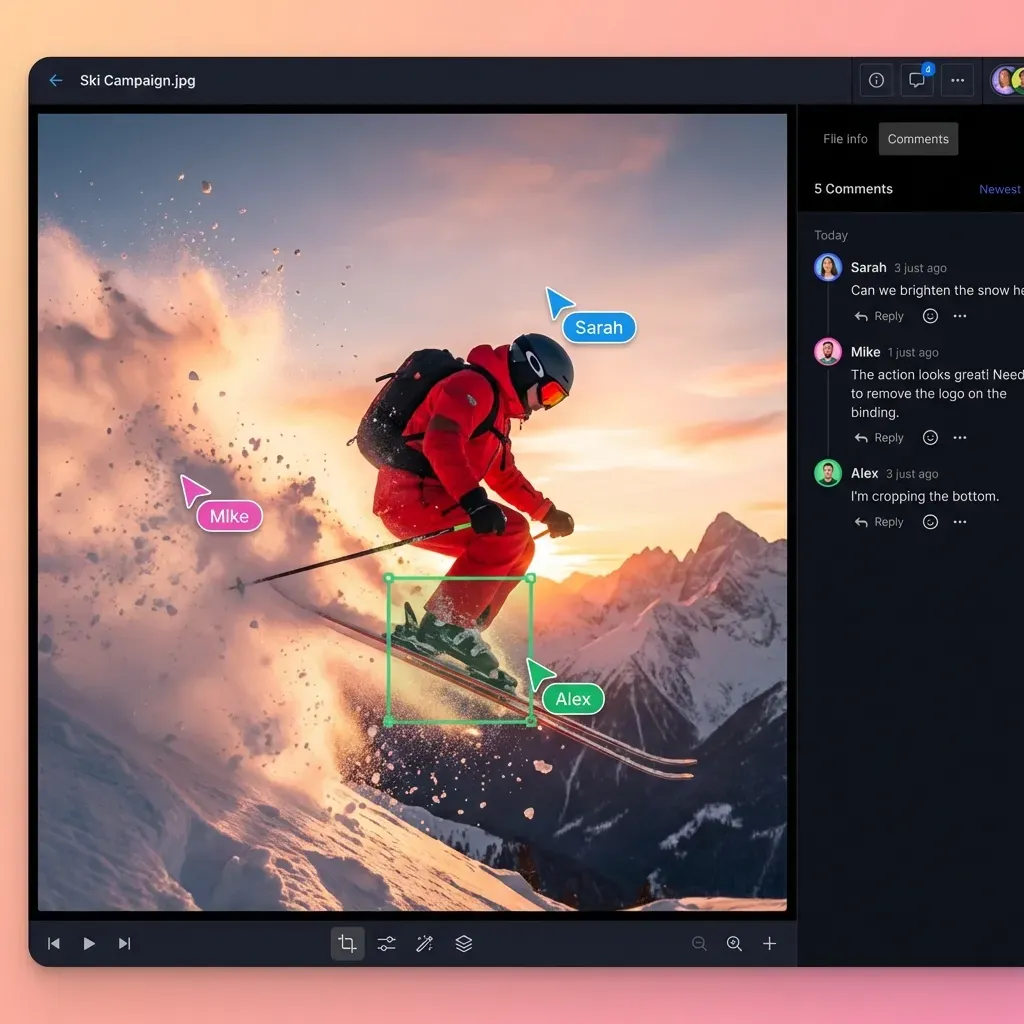
The practical result is that creative teams spend less time managing files and more time doing actual creative work. A video editor can scrub through footage in the browser without waiting for downloads. A photographer can share a contact sheet without compressing images. An agency can deliver final assets to clients through a branded portal instead of a generic link.
Why Standard Cloud Storage Falls Short for Media Teams
Generic cloud storage services like Google Drive, Dropbox, and OneDrive work perfectly well for spreadsheets, presentations, and PDFs. They fall apart when creative teams try to use them as their primary asset hub.
The biggest problem is the sync model. These platforms assume every file should exist on every user's device. When a video editor adds a 200GB folder of camera footage to a shared drive, that folder starts syncing to every team member's laptop. Hard drives fill up within hours. Network bandwidth gets consumed. Older machines grind to a halt. Some services offer "selective sync" or "smart sync" workarounds, but these add friction and often break when users switch between devices.
Preview support is the second major gap. Professional creative files come in dozens of specialized formats. Premiere Pro projects, After Effects compositions, Cinema 4D scenes, Capture One catalogs, and InDesign packages all appear as blank icons in standard drives. Team members cannot browse assets visually. They download files one by one to check contents, then delete them to free up space, then download them again a week later when they need them.
Transfer speed is the third limitation. Consumer cloud drives use standard HTTP uploads that work fine for documents but struggle with large media. Uploading a 50GB client delivery might take hours, and a brief network hiccup can force you to start over. Creative-focused platforms use accelerated transfer protocols, chunked uploads, and resume capabilities that handle large files reliably.
The Hidden Cost of Sync Conflicts
Version conflicts create real damage in creative workflows. When two editors work on the same After Effects project, sync-based drives create duplicate 'conflicted copy' files. These duplicates can break project links, orphan rendered sequences, and create hours of cleanup work. Cloud-native storage avoids this by keeping one authoritative version online and streaming it to whoever needs it.
The 6 Features That Matter for Creative Workflows
Not all creative cloud storage platforms offer the same capabilities. When evaluating options for your team, focus on these specific features that separate specialized solutions from generic file sharing.
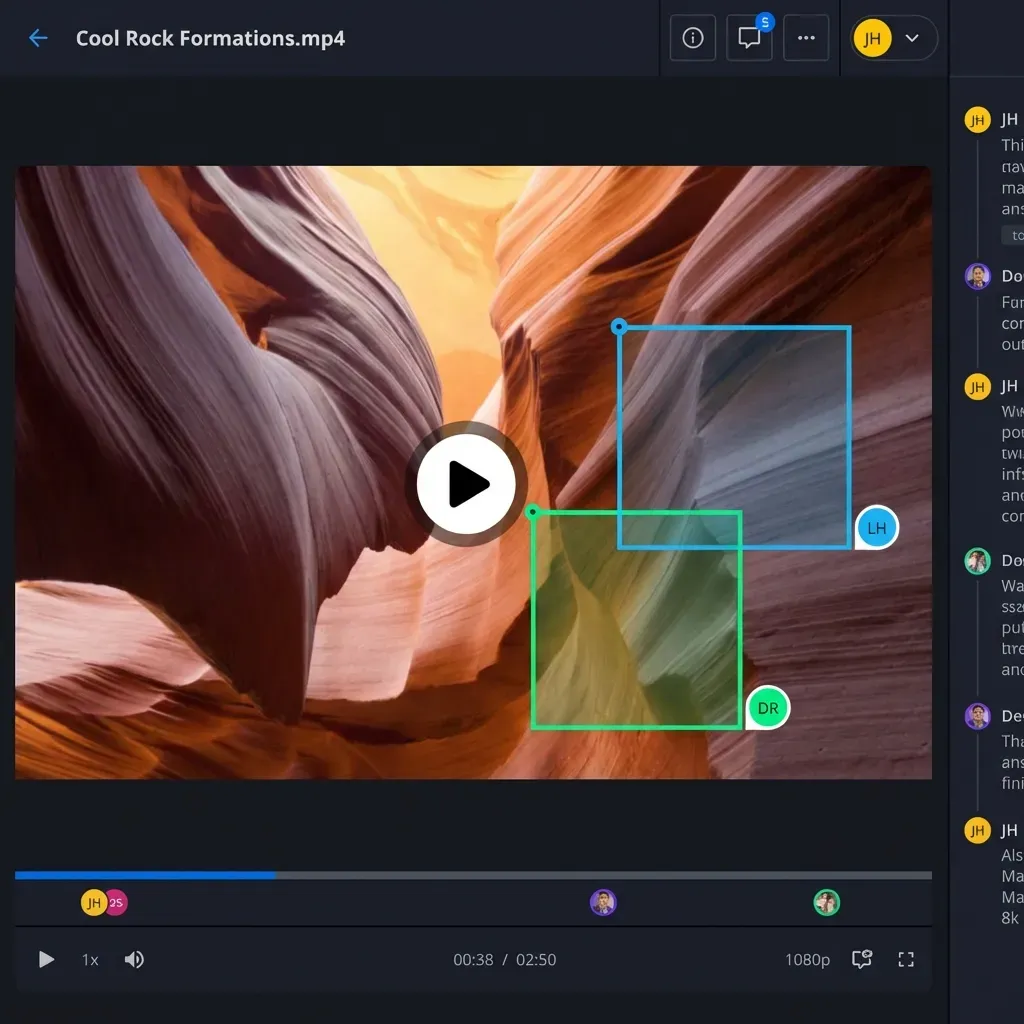
Universal Media Engine. The platform should generate web-ready previews for every asset type in your pipeline. You need thumbnails for Photoshop files, streaming playback for video footage, waveforms for audio files, and page views for InDesign documents. Without this, your team downloads files constantly just to see what they contain.
No-Sync Architecture. Look for platforms that describe themselves as "cloud-native" or "direct-to-cloud." Files should live online and stream on demand rather than copying to every device. This frees up local disk space, eliminates sync conflicts, and lets team members access projects from any machine without waiting for downloads.
Branded Client Delivery. Sending work through a generic sharing link looks unprofessional and creates security concerns. Better platforms let you create custom portals with your logo, colors, and domain name. Clients see your brand when they download deliverables, turning file transfer into a touchpoint that reinforces your positioning.
Frame-Accurate Review Tools. Video feedback that says "change the part with the dog" wastes everyone's time. Creative storage should let reviewers draw directly on specific video frames and leave timestamped comments. Editors can jump to exact moments and see annotations in context.
Granular Access Controls. You often need to share one folder with a freelancer without exposing the entire project archive. Look for folder-level permissions, time-limited links, password protection, and domain restrictions that let you control exactly who sees what.
Activity Tracking. Knowing who downloaded what and when becomes critical for client billing, project management, and security audits. Detailed logs show file views, downloads, comments, and permission changes across your workspace.
Calculating Your Storage Requirements
Creative file sizes vary dramatically based on resolution, format, and workflow stage. A back-of-napkin calculation before choosing a storage tier prevents unpleasant surprises and mid-project upgrades.
Photography workflows generate roughly 25-50MB per RAW image depending on camera sensor size. A wedding photographer shooting 3,000 images creates around 100-150GB per event. Commercial product photography with multiple lighting setups and retouching stages can push single projects past 500GB when you include final deliverables at various sizes.
Video production consumes storage faster than any other creative discipline. One hour of 4K ProRes 422 HQ footage takes approximately 318GB. A typical commercial project with B-roll, interviews, and multiple render outputs can exceed 2-3TB before archiving. Documentary productions working with weeks of field footage sometimes measure storage needs in tens of terabytes.
Motion graphics and 3D work accumulate storage through render caches, texture libraries, and iterative output versions. A single Cinema 4D project with detailed textures might consume 10-20GB, but the rendered image sequences can multiply that by 50x or more.
Practical calculation method: List your active projects for the past three months. Total their current storage footprint. Double that number for breathing room. This gives you a realistic "hot storage" requirement for active work. For archives, consider whether the platform offers tiered pricing for cold storage or if you need a separate archival solution.
Most creative teams underestimate their needs initially. Choose a platform with flexible scaling rather than hard caps, and build archival workflows into your process from the start.
Comparing the Top Creative Storage Platforms
The market includes several options worth evaluating for creative workflows. Each platform makes different tradeoffs between price, features, and target use cases.
Fast.io positions itself for teams that need high-speed collaboration and professional client delivery. The platform connects directly to your cloud bucket or uses its own fast storage, providing a no-sync interface that feels like a local drive but lives entirely online. It excels at branding, large file transfers, and HLS video streaming that plays instantly without buffering. Pricing follows a usage-based model rather than per-seat fees, which makes it cost-effective for teams with many collaborators or external clients. Frame-accurate video comments, unlimited guest access, and branded portals round out the feature set.
Frame.io is the established standard for video review and approval workflows. The platform handles feedback exceptionally well, with industry adoption across major studios and production companies. However, costs scale quickly when used as primary long-term storage rather than just a review tool. Most teams pair Frame.io with a separate storage solution for raw footage and archives.
Dropbox remains a reliable general-purpose option with solid integrations across creative tools. Adobe suite integration, paper documents, and file requests all work smoothly. The main drawback for creative teams is the sync-first architecture that fills up local drives and creates version conflicts. Smart Sync helps but adds friction.
Google Drive dominates document collaboration but lacks the media handling that creative teams need. Video playback stutters. Professional format previews are limited. The folder organization model creates the "My Drive chaos" problem where files scatter across personal drives and become difficult to find. It works as a companion tool but rarely satisfies as a primary creative hub.
Setting Up Your Creative Storage System
Migrating to a new storage platform or setting up your first dedicated creative hub requires some planning. A structured approach prevents the folder chaos that plagues most creative teams.
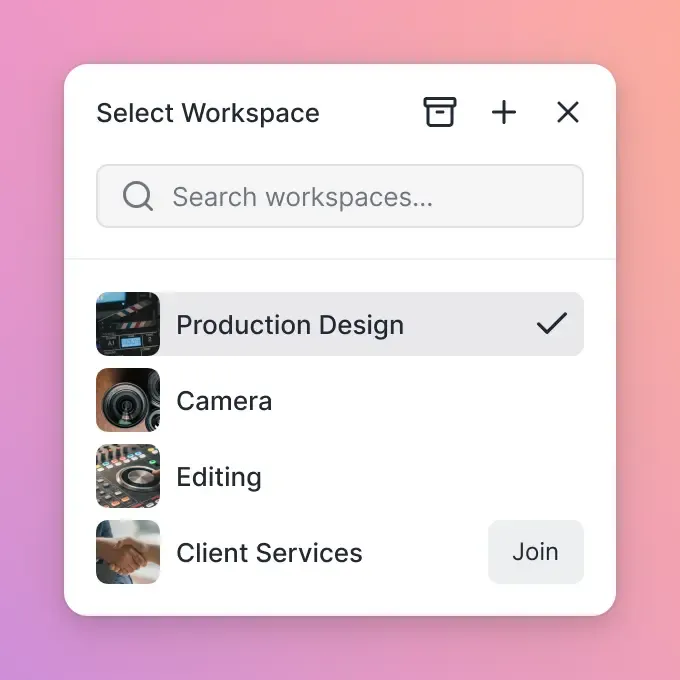
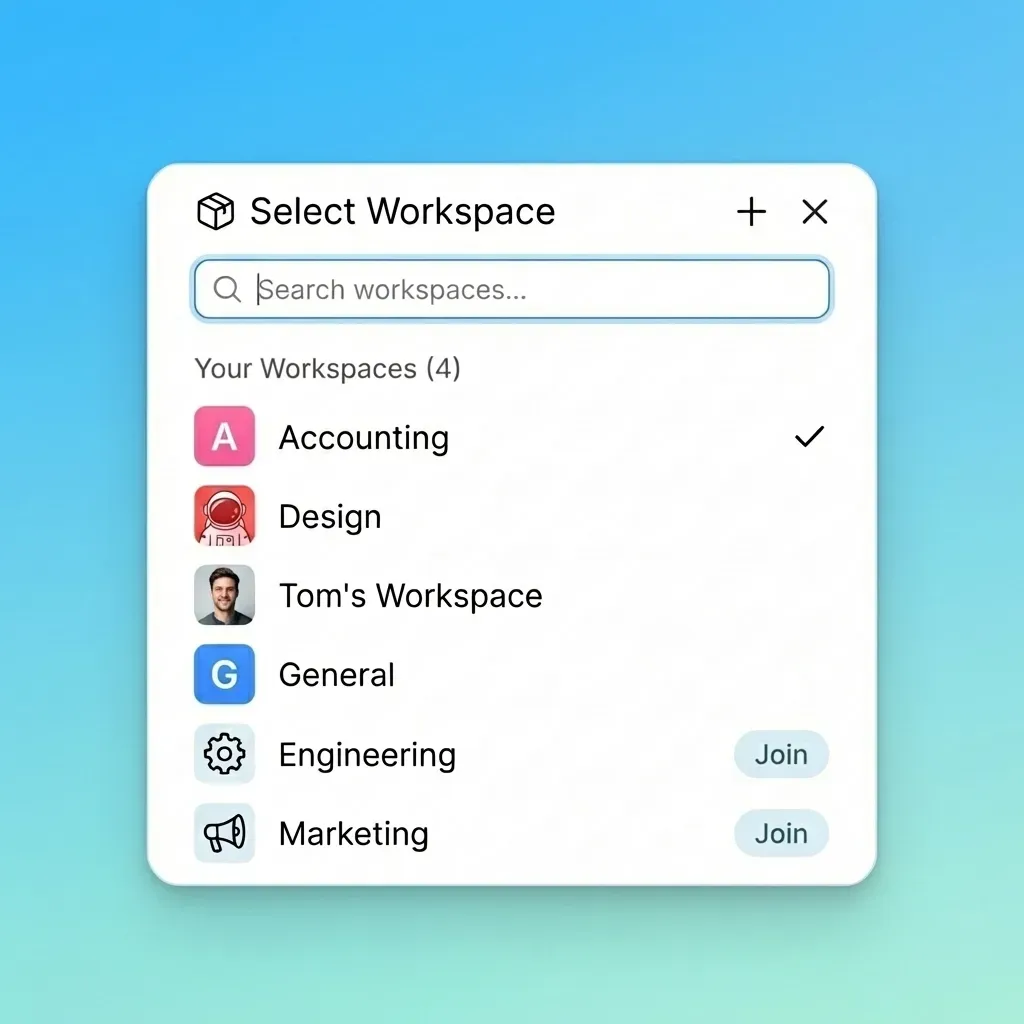
Define your workspace hierarchy before uploading anything. Create top-level workspaces for major divisions: active client projects, internal work, archives, and shared resources like fonts, templates, and stock libraries. Within client workspaces, establish a consistent folder structure that every project follows. Something like Client Name > Project Name > Assets, Working Files, Deliverables works for most agencies.
Set permission defaults at the workspace level. Rather than managing access file by file, configure who can view, edit, and share at the workspace level. Most platforms let you set defaults that apply automatically to new content. External clients should access dedicated delivery folders, not your working files.
Configure branded portals early. If your platform supports custom branding, set this up before your first client delivery. Upload your logo, choose colors that match your brand guidelines, and configure a custom domain if available. First impressions matter, and a branded delivery experience signals professionalism.
Establish archival workflows. Active projects consume expensive hot storage. When projects wrap, move them to archive storage or export them to cheaper cold storage tiers. Tag projects with completion dates and client names so you can find them later. Some teams keep a lightweight index document linking to archived project locations.
Train your team on upload protocols. The best folder structure collapses if team members upload files to random locations. Document where different asset types belong, how to name files consistently, and when to use version tagging. A 30-minute onboarding session prevents months of cleanup later.
Frequently Asked Questions
Is Adobe Creative Cloud storage enough for professional work?
For most freelancers and agencies, no. The 100GB included with Creative Cloud subscriptions fills up with just one or two video projects. It works fine for syncing application settings, fonts, and small asset libraries, but you will need a separate storage solution for actual project files, client deliverables, and archives. Many professionals treat Creative Cloud storage as a convenience feature rather than their primary file system.
What is the best way to share 100GB+ files with clients?
Skip email attachments and consumer file transfer sites that impose size limits. Use a cloud storage platform that supports chunked uploads with automatic resume, then generate a direct download link or share through a branded portal. The client should be able to download without creating an account. Look for options that show download progress, allow pause and resume, and work reliably on slower connections.
How can I protect unreleased creative work in the cloud?
Start with expiring links that automatically deactivate after a set time period. Add password protection for sensitive deliverables. If your platform supports it, use domain restrictions so links only work from specific company networks. Enable audit logs to track who accessed files and when. For highly sensitive work like unreleased campaigns, consider watermarking that embeds viewer identification into previews.
Should I use creative cloud storage or a digital asset management system?
It depends on your team size and workflow complexity. Cloud storage works well for teams under 50 people who need file sharing, collaboration, and client delivery. DAM systems add metadata management, rights tracking, and distribution workflows that larger organizations require. Many mid-size agencies start with cloud storage and add DAM functionality later. Some platforms blur the line by including basic DAM features like tagging and search.
How do I prevent version conflicts when multiple editors work on the same project?
Choose a cloud-native platform that does not sync files to local drives. When files live in one authoritative location online, there is no opportunity for conflicting local copies. Team members check out files, make changes, and save back to the cloud. Combined with activity tracking that shows who is working on what, this eliminates the duplicate file problem that plagues sync-based drives.
Related Resources

Storage Built for Creative Teams
Fast.io gives you visual previews, fast transfers, and branded client delivery without sync headaches or per-seat pricing.