How to Set Up DaVinci Resolve Collaboration for Your Team
DaVinci Resolve collaboration enables multiple editors, colorists, and audio engineers to work on the same project simultaneously. This guide covers three approaches: Blackmagic Cloud for real-time editing, shared storage for local teams, and proxy workflows for remote collaboration without expensive infrastructure.
What Is DaVinci Resolve Collaboration?
DaVinci Resolve collaboration is the ability for multiple team members to work on a single project at the same time. Unlike traditional editing workflows where one person locks the project file, Resolve's multi-user system lets editors, colorists, Fusion artists, and audio engineers work in parallel.
Resolve achieves this through a Project Server that manages access and prevents conflicts. Each user can edit different timelines or work in different bins without overwriting each other's changes. The system uses automatic bin and timeline locking, so when you open a bin, others see it as read-only until you're done.
The catch: Multi-user collaboration requires DaVinci Resolve Studio ($295 one-time purchase). The free version of Resolve doesn't include these features. You'll also need either Blackmagic Cloud, shared network storage, or a proxy-based workflow to share media between team members.
Three Ways to Collaborate in DaVinci Resolve
There's no single "right" way to set up Resolve collaboration. The best approach depends on your team's location, budget, and technical resources.
Option 1: Blackmagic Cloud (Easiest Setup)
Blackmagic Cloud hosts your project library online. Team members sign in with their Blackmagic Cloud ID and can work on the same project from anywhere. Blackmagic handles the server infrastructure.
Best for: Distributed teams who want minimal setup Cost: Blackmagic Cloud subscription + Resolve Studio licenses Limitation: You still need to share media files separately. The cloud only syncs project data, not footage.
Option 2: Shared Network Storage (Fastest Performance)
A shared NAS or SAN gives everyone direct access to both project files and media. This is the traditional post-production setup and offers the best playback performance.
Best for: Teams in the same physical location Cost: NAS/SAN hardware + Resolve Studio licenses Limitation: Requires everyone on the same network. Remote access needs VPN or expensive infrastructure.
Option 3: Proxy Workflows (Most Flexible)
Generate lightweight proxy files from your camera originals. Share proxies through cloud storage, edit collaboratively, then reconnect to full-resolution media for final output.
Best for: Remote teams on limited budgets Cost: Resolve Studio licenses + cloud storage for proxies Limitation: Extra steps to generate and manage proxy media
Setting Up Blackmagic Cloud Collaboration
Blackmagic Cloud is the fastest way to get a team editing together. Here's how to set it up:
Step 1: Create Blackmagic Cloud IDs
Each team member needs a free Blackmagic Cloud account. Go to cloud.blackmagicdesign.com and sign up. This ID is separate from any Resolve license.
Step 2: Set Up the Project Library
In Resolve, go to File > Project Manager. Click the cloud icon and sign in with your Blackmagic Cloud ID. Create a new cloud library for your project.
Step 3: Invite Collaborators
From the Blackmagic Cloud website, open your library and add team members by email. Assign roles: admin (full control), editor (can modify), or viewer (read-only).
Step 4: Share Your Media
This is where most teams get stuck. Blackmagic Cloud syncs project data, not media files. You need a separate solution for footage:
- Local teams: Use a shared drive or NAS
- Remote teams: Upload to cloud storage and have everyone download, or use a proxy workflow
- Hybrid approach: Keep full-resolution media on local storage, share proxies through the cloud
Step 5: Start Editing
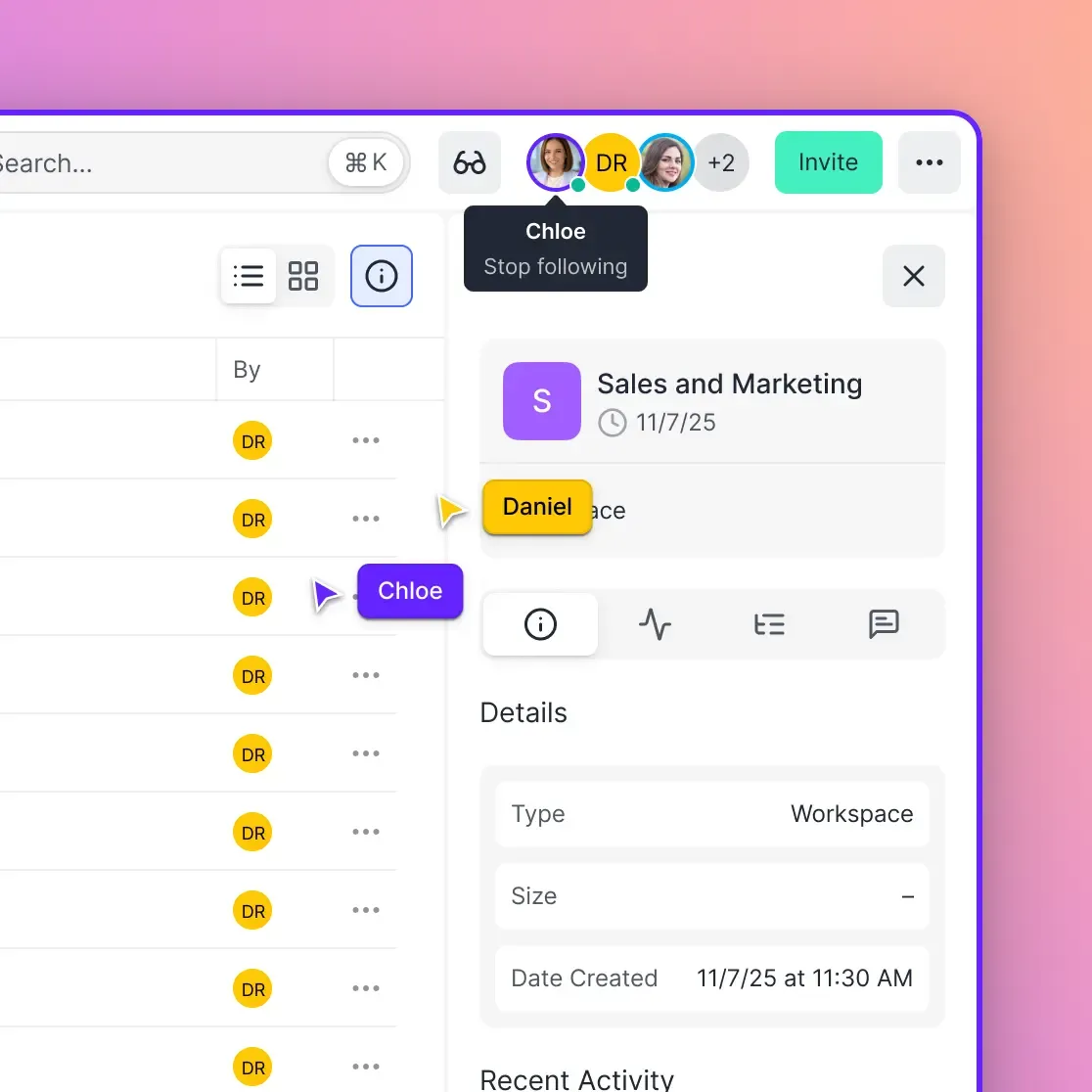
Open the cloud library in Resolve. You'll see other team members' avatars when they're online. Bins and timelines automatically lock when someone is editing them.
Sharing Large Video Files for Remote Teams
The biggest challenge with Resolve collaboration isn't the project server. It's getting gigabytes (or terabytes) of footage to everyone who needs it.
Traditional solutions fall short:
- Email attachments: 25MB limit. Useless for video.
- WeTransfer: 2GB limit on free tier. Files expire after 7 days.
- Dropbox/Google Drive: Slow progressive downloads. No streaming preview. Eats up everyone's local storage.
For video production teams, you need a solution built for large media files.
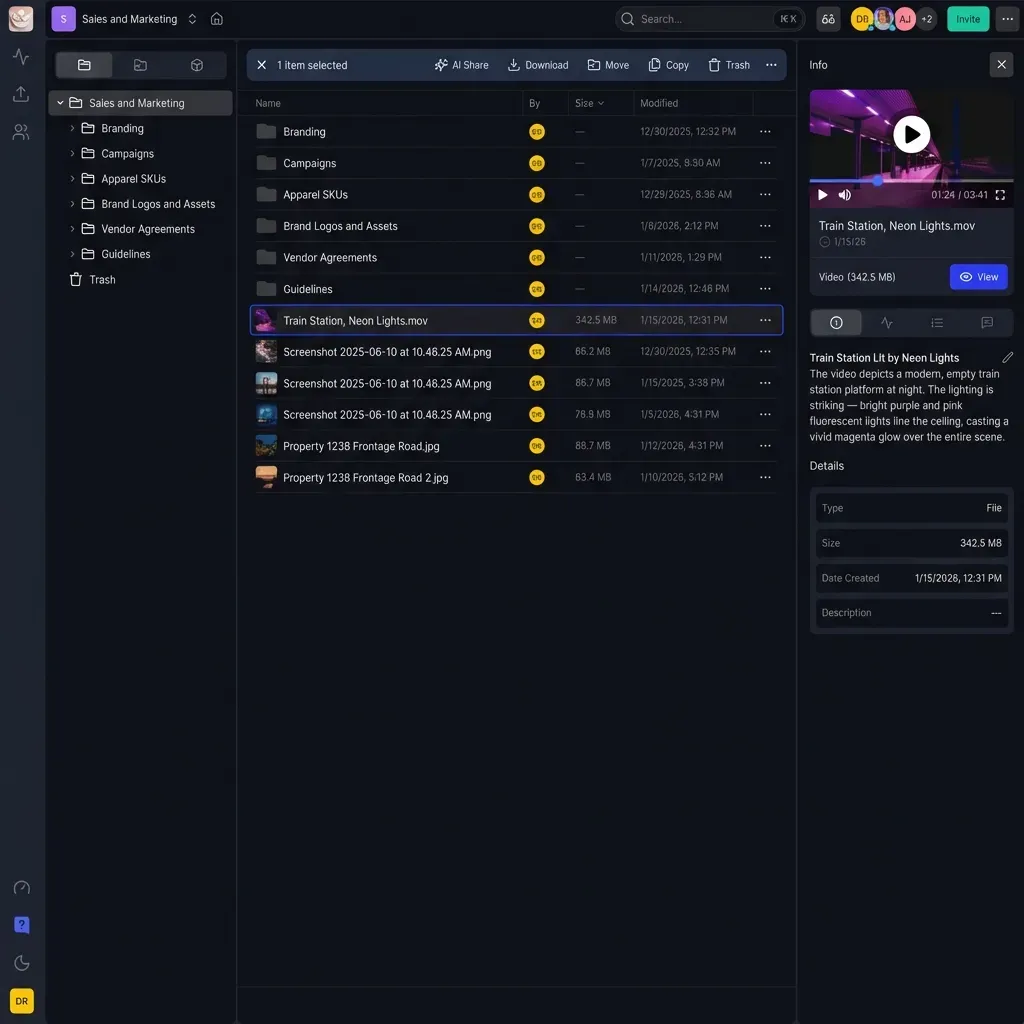
Fast.io handles video differently. Instead of forcing downloads, it streams footage using HLS (the same technology Netflix uses). Team members can preview full-length clips in their browser before deciding what to download. When they do download, transfers happen at full speed without compression.
Practical workflow:
- Upload camera originals to Fast.io
- Share the workspace with your team
- Editors preview footage in-browser to identify what they need
- Download only the clips required for their portion of the edit
- Use Resolve's relink feature to connect local files to the project
This approach works especially well with proxy workflows, where you're sharing lightweight files that don't require massive bandwidth.
Building a Proxy Workflow for Distributed Teams
Proxy workflows let remote teams collaborate without sharing terabytes of original footage. The concept is simple: create small, edit-friendly versions of your clips, share those, then reconnect to originals for final delivery.
Generating Proxies in Resolve
DaVinci Resolve includes a standalone app called Blackmagic Proxy Generator. You can also generate proxies directly in Resolve:
- Import your media into the Media Pool
- Right-click and select "Generate Optimized Media" or "Generate Proxy Media"
- Choose a proxy resolution (1/2 or 1/4 of original)
- Wait for Resolve to process the files
Recommended proxy settings:
- Resolution: 1920x1080 or 1280x720
- Codec: ProRes Proxy or DNxHR LB
- These settings balance quality and file size
Sharing Proxies with Your Team
Once proxies are generated, upload them to your cloud storage. Each editor downloads the proxies and links them in their local Resolve project.
Keep your folder structure identical across all team members. If your proxies live in /Project/Proxies/Day1/, everyone should use the same path. This makes relinking automatic when you merge work.
Reconnecting to Original Media
When the edit is locked, the lead editor reconnects proxies to original camera files:
- Move original media to a location all timeline references can reach
- Right-click in the Media Pool > Relink Selected Clips
- Point to the folder containing originals
- Resolve matches filenames and reconnects automatically
Export your final project at full resolution using the reconnected originals.
Collaboration Tips from Professional Post Teams
After working with dozens of video teams, certain practices consistently prevent headaches:
Establish clear bin ownership. Even with automatic locking, it helps when everyone knows which bins are "theirs." Create a bin structure at the start: one master bin for shared selects, personal bins for each editor's work-in-progress.
Use Resolve's built-in chat. The collaboration panel includes a chat function. Use it for quick questions instead of switching to Slack or email. Messages are tied to the project, so context stays with the work.
Version your timelines intentionally. Before making major changes, duplicate your timeline with a new version number (v1, v2, etc.). If something breaks, you can always return to a previous version.
Set daily sync points for remote teams. Even with real-time collaboration, distributed teams benefit from a scheduled "merge" where everyone reviews the current state of the project together. Video calls with screen sharing work well for this.
Keep your frame rates consistent. All team members should use the same project settings. Mismatched frame rates cause sync issues that are painful to fix later.
Document your media paths. Create a simple text file in your project folder listing where originals, proxies, and exports live. When someone new joins or you revisit the project months later, you'll thank yourself.
When Built-in Collaboration Isn't Enough
Resolve's collaboration features work well for editing, color, and audio. But they don't solve every workflow challenge.
Review and approval gaps. There's no built-in way for clients or producers to mark shots as approved or request changes. You need a separate review tool or a clear system of comments and markers.
Asset management for large projects. Feature films and episodic work involve thousands of clips. Resolve's media management is functional but basic. Productions at scale often use dedicated asset management systems alongside Resolve.
Client delivery. When the edit is done, you need to get exports to clients for review. Resolve exports files; it doesn't handle delivery.
Fast.io fills these gaps for post-production teams:
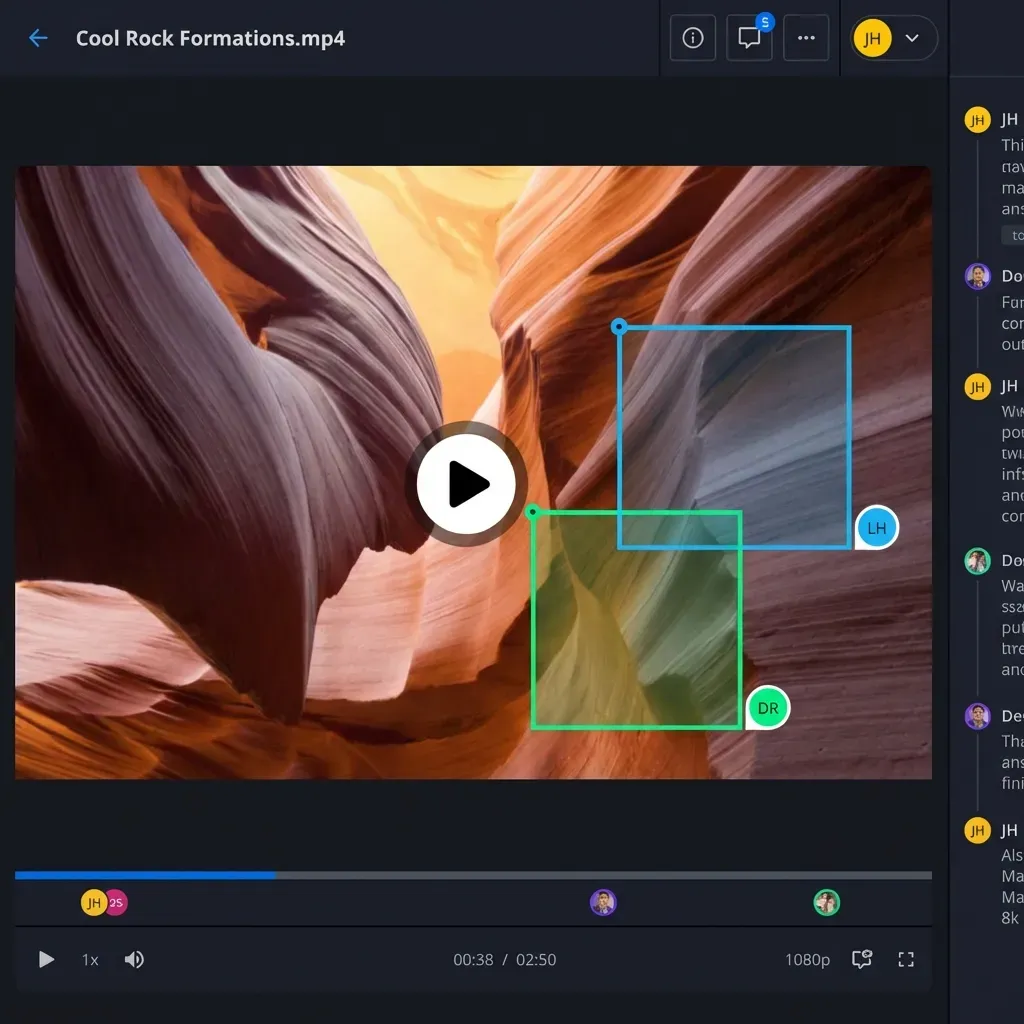
- Frame-accurate commenting: Clients can pin feedback to specific frames, not just "the shot at 2:15"
- Viewer analytics: See which sections clients actually watched and how long they spent on each
- Branded portals: Deliver work through a professional portal with your logo, not a generic file link
- Large file support: Send ProRes masters without compression or file size limits
Using Resolve for editing and Fast.io for media sharing gives teams professional workflows without enterprise budgets.
Frequently Asked Questions
Can multiple people work on DaVinci Resolve at the same time?
Yes, but you need DaVinci Resolve Studio (the paid version) and either Blackmagic Cloud, shared network storage, or a PostgreSQL database server. The free version of Resolve doesn't support multi-user collaboration.
How do I share a DaVinci Resolve project with my team?
The easiest method is Blackmagic Cloud. Create a cloud library in Resolve, invite team members through the Blackmagic Cloud website, and everyone can access the same project. For local teams, a shared NAS with Resolve's Project Server works well. Remember that you also need to share the media files separately.
Does DaVinci Resolve have cloud collaboration?
Yes, through Blackmagic Cloud. It syncs project files (timelines, bins, grades) but not media. You still need a separate solution to share footage with remote team members, whether that's cloud storage, a proxy workflow, or physical drives.
What's the difference between Resolve's free and Studio versions for collaboration?
The free version is single-user only. Resolve Studio ($295 one-time) adds multi-user collaboration, Blackmagic Cloud support, and the DaVinci Resolve Project Server. For team workflows, Studio is required for every editor who needs to work on the project simultaneously.
How do remote teams share large video files for Resolve projects?
Most remote teams use proxy workflows. Generate lightweight proxy files in Resolve, share them through cloud storage, and have everyone edit with proxies. When the edit is locked, reconnect to original camera files for final export. This avoids transferring terabytes of raw footage.
Related Resources

Share video files with your Resolve team
Fast.io makes it easy to share large video files, proxies, and camera originals with remote collaborators. Stream previews, download at full speed, and keep your team in sync.