How to Create a File Drop for Receiving Client Files
A file drop is a secure upload destination where clients or collaborators can submit files without needing an account or access to your full storage system. This guide covers how to create one, what features to look for, and how to choose the right approach for your workflow.
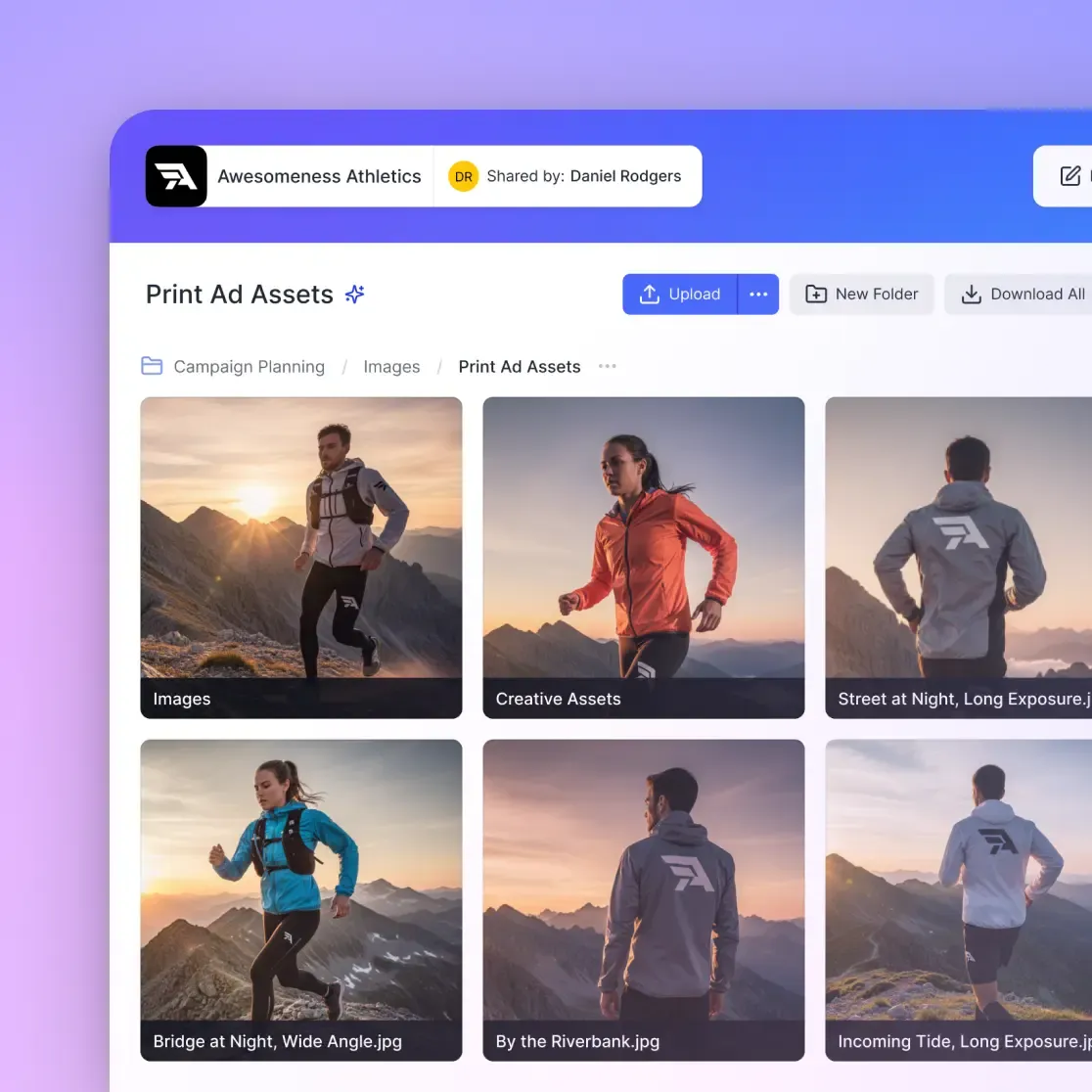
What Is a File Drop?
A file drop is a secure upload destination where clients or collaborators can submit files without needing an account or access to your full storage system.
The concept is simple: you generate a link, send it to someone, and they upload files to a folder you control. They can't see your other files. No login required. No software to install.
File drops go by different names depending on the platform. Microsoft calls them "file requests." Dropbox uses "file requests" too. Some services call them "upload links" or "secure drop links." The mechanics are the same: one-way file submission from external parties into your controlled space.
The distinction from regular shared folders matters. With a shared folder, the recipient can browse, download, and sometimes edit your files. With a file drop, they can only upload. It's the digital equivalent of a mail slot in your door.
Why File Drops Beat Email Attachments
Most freelancers and small businesses still receive client files via email attachments. This creates problems that file drops solve.
Size limits block large files. Most email providers cap attachments at 25MB. That works for Word documents but fails immediately with video clips, design files, or photo batches. Clients resort to splitting files, compressing quality away, or giving up and calling you.
Organization becomes archaeology. When a client sends files across multiple emails over several weeks, finding the right version means digging through threads. "Which email had the final logo?" becomes a recurring question.
Security gaps open up. Email attachments travel through multiple servers without guaranteed encryption. For sensitive documents like contracts, financial records, or client data, that creates liability.
File drops solve all three. There's no size limit forcing compression. Files land in one organized location. And uploads happen over encrypted connections to storage you control.
Teams that switch from email to dedicated file drops spend far less time collecting and organizing client files.
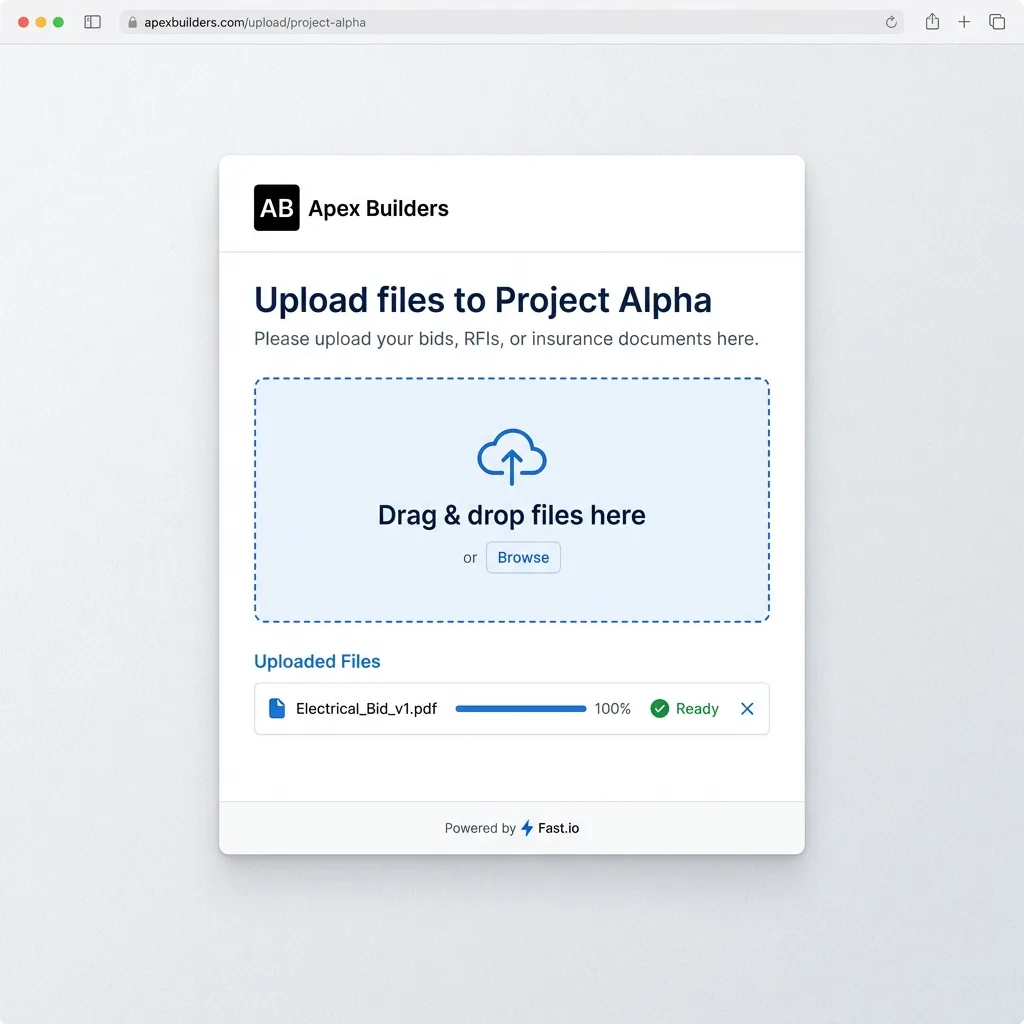
How to Create a File Drop in 5 Steps
Setting up a file drop takes about 10 minutes on most services. Here's the general process:
Choose where uploaded files should land. Create a dedicated folder for incoming client files. Keep it separate from your working files so uploads don't clutter your workspace.
Generate the file drop link. In your cloud storage platform, look for "File Request," "Request Files," or "Create Upload Link" in the sharing menu. Point it at your designated folder.
Set security options. Add a password if the files are sensitive. Set an expiration date if you only need uploads for a limited time. Enable notifications so you know when files arrive.
Customize the submission form (if available). Some platforms let you add a message explaining what files you need, rename the link to something recognizable, or add your branding.
Share the link. Send the file drop link to your client via email, text, or wherever you normally communicate. They click it, upload files, and you receive them in your designated folder.
That's it. No client accounts to create. No permissions to manage. No FTP credentials to share and later revoke.
File Drops in Popular Platforms
Different cloud storage services implement file drops differently. Here's how the major ones compare:
Dropbox File Requests
Dropbox calls their file drop feature "File Requests." You specify a destination folder, optionally set a deadline, and share the generated link. Uploaders don't need Dropbox accounts. The catch: Basic, Plus, and Family accounts have a 2GB per-file limit. Larger files require a Professional or Business plan.
OneDrive File Requests
Microsoft's version works similarly. You pick a folder, generate a request link, and share it. Anyone with the link can upload, even without a Microsoft account. They can only add files, not see what else is in the folder.
Google Drive
Google Drive doesn't have a native file request feature. Workarounds exist, like third-party forms that deposit files into your Drive, or sharing a folder with "Contributor" permissions. Neither is as clean as a true file drop.
Dedicated Upload Services
Some tools specialize in file collection rather than general storage. These often add features like form fields, branding, and better notifications but separate uploads from your main file storage. That means an extra step to move files where you actually work with them.
Features That Matter for Professional File Collection
Consumer file drops work fine for occasional use. Professional file collection needs more.
No file size limits. Client video files regularly exceed 10GB. Design project archives hit 50GB or more. A file drop that chokes on large uploads forces clients back to email or physical drives.
Organization-level ownership. When files upload to personal cloud accounts, they disappear if that person leaves. Business file drops should deposit files into company-owned storage that stays put when team members move on.
Branding options. Clients trust branded upload pages more than generic forms. Your logo and colors help them confirm they're uploading to the right place.
Audit trails. Knowing who uploaded what and when matters for compliance, billing, and project tracking. Basic file drops show file names. Better ones log the uploader's identity, timestamps, and IP addresses.
Integration with your workflow. Files that upload to a separate system just create more work. The best file drops deposit directly into the workspaces where your team already operates.
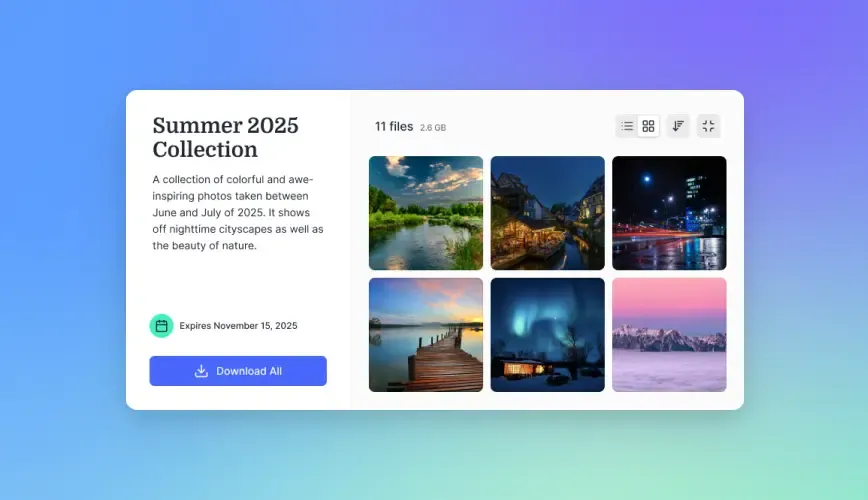
File Drop Folder vs. Shared Folder
Both let external parties interact with your files, but they solve different problems.
A file drop folder (also called an upload-only folder) accepts incoming files from anyone with the link. Uploaders cannot see, download, or delete existing files. They drop off files and leave.
A shared folder gives selected people ongoing access to a set of files. Depending on permissions, they can view, download, comment, or even edit. Access typically requires an account or at least an invitation.
Use file drops when you need to collect files from people who shouldn't see your other work. Think: clients sending raw footage, applicants submitting portfolios, vendors providing documentation.
Use shared folders when you need ongoing collaboration. Think: project teams accessing the same assets, clients reviewing deliverables, partners contributing to shared documents.
Some projects need both. A video production might use a file drop for initial footage collection, then move approved files into a shared folder for the editing team's ongoing work.
Security Considerations for File Drops
Opening an upload endpoint creates attack surface. A few precautions keep file drops secure.
Password protection adds friction but prevents unauthorized uploads. Use passwords when the upload link might be forwarded or posted publicly.
Expiration dates automatically disable links after a deadline. Set these for time-limited projects so old links don't become forgotten entry points.
Upload notifications alert you when files arrive so you can review them promptly. This also helps catch unauthorized submissions early.
File type restrictions (where available) block unexpected formats. If you only need video files, rejecting executables and scripts reduces risk.
Organization-owned destinations ensure uploaded files stay under your control even if the team member who created the link leaves. Personal account file drops create gaps when people move on.
None of these replace basic operational security. Only share file drop links with people who should have them. Monitor what arrives. Delete old links you no longer need.
Frequently Asked Questions
How do I create a file drop?
In most cloud storage platforms, navigate to a folder, open the sharing menu, and look for 'Request Files' or 'Create Upload Link.' Generate the link, optionally add password protection or an expiration date, and share it with the people who should upload files. They can submit files without needing accounts or seeing your other files.
What is a file drop folder?
A file drop folder is a destination that accepts incoming file uploads but doesn't let uploaders see, download, or delete existing contents. It's an upload-only location where external parties can deposit files without accessing your broader storage system. Think of it as a digital mailbox slot.
How do I share a folder for others to upload?
Create a file request or upload link in your cloud storage platform rather than sharing the folder directly. A regular shared folder lets people browse and download files. A file request link restricts access to uploading only, keeping your other files private while still accepting submissions.
What's the difference between a file drop and a shared folder?
A file drop accepts uploads from anyone with the link but hides existing folder contents. A shared folder gives selected people ongoing access to view, download, and sometimes edit files. Use file drops for collecting files from external parties. Use shared folders for ongoing collaboration with people who need to work with your files.
Are file drops secure?
File drops can be secure when properly configured. Use password protection for sensitive uploads, set expiration dates on links, enable notifications to monitor submissions, and ensure files upload to organization-owned storage rather than personal accounts. The link itself should only be shared with intended uploaders.

Create Your File Drop in Minutes
Start collecting client files securely with branded upload links and no file size limits.