How to Send a File Request to Clients and Collaborators
A file request is a link or form you send to others so they can upload files directly to your storage, eliminating back-and-forth email attachments. This guide covers five ways to create file request links, when to use branded vs generic options, and how to set up requests that clients actually complete.
What Is a File Request?
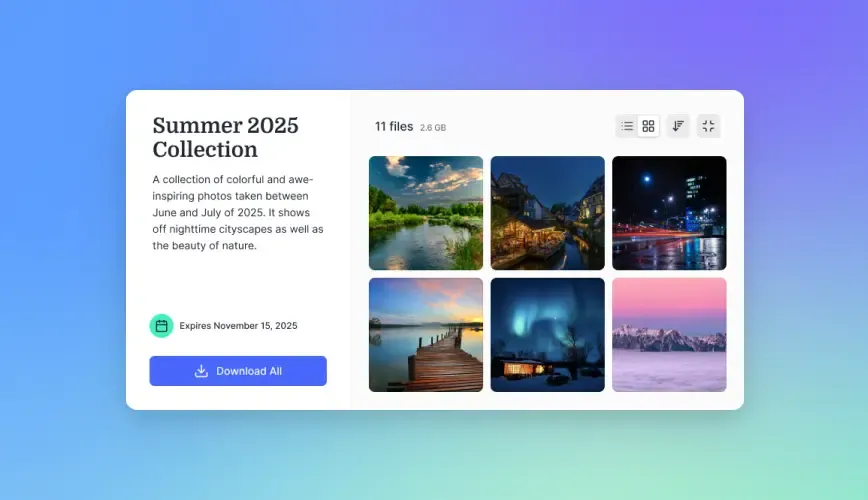
A file request is a secure upload link you send to someone who needs to deliver files to you. The recipient clicks the link, uploads their files, and those files land directly in your designated folder. They never see your other files, and they don't need an account with your storage provider.
Think of it like a digital dropbox slot. You control where files go. They just drop them in.
File requests solve a specific problem: collecting files from people who aren't part of your organization. Clients sending project assets. Vendors submitting invoices. Job applicants uploading portfolios. Anyone who needs to send you something larger than email allows.
Why email attachments fail for file collection:
- Most email services cap attachments at 20-25 MB
- Files scatter across your inbox instead of landing in organized folders
- No version control when someone sends an updated file
- No confirmation that files arrived safely
- Multiple recipients create duplicate chains
File requests fix all of this. One link, one destination, complete visibility into what's been uploaded.
Branded vs Generic File Requests
Not all file request tools work the same way. The biggest distinction is between branded and generic options.
Generic file requests show the storage provider's branding. When you send a Dropbox file request, clients see Dropbox logos and colors. For OneDrive, they see Microsoft branding. The experience works, but it doesn't feel like your business.
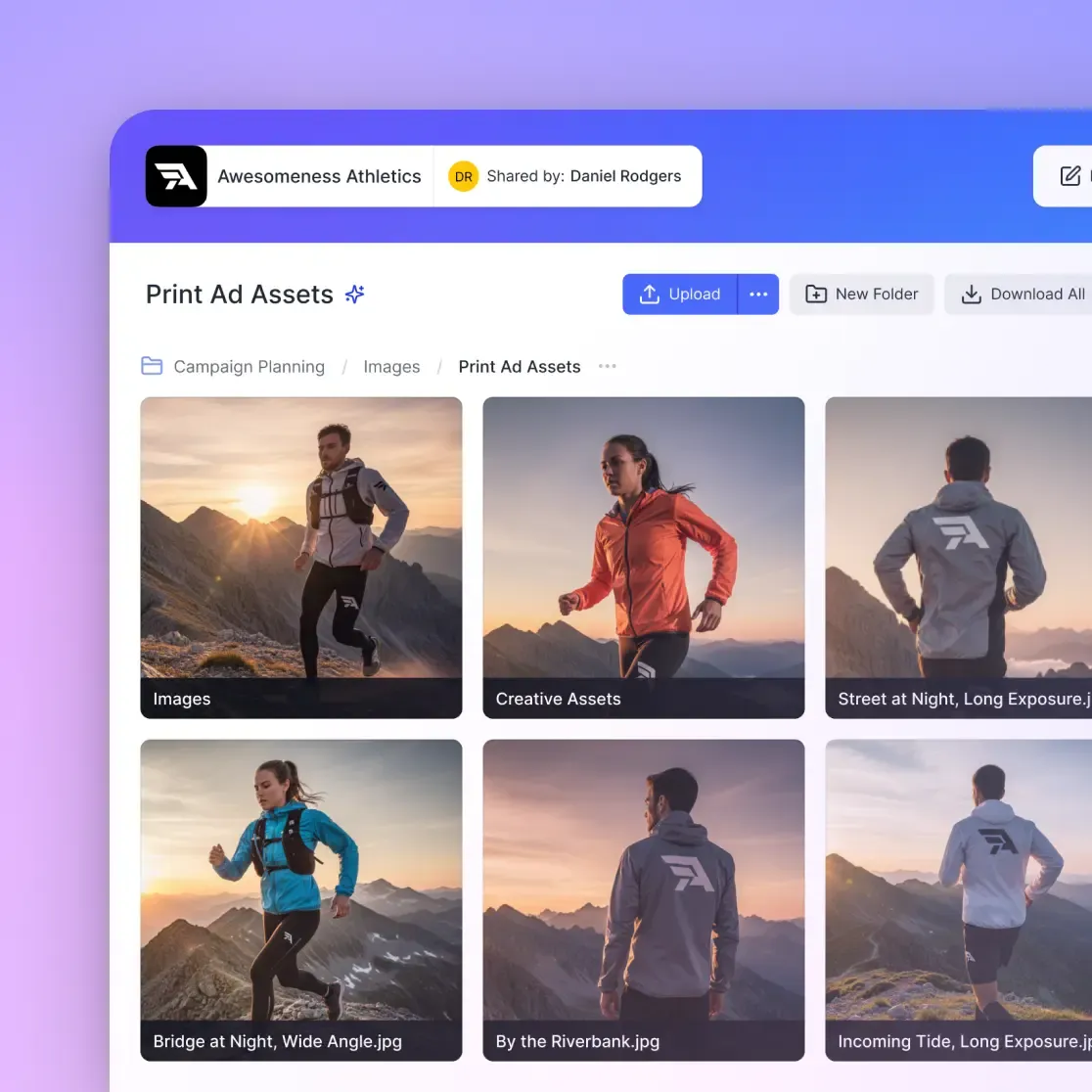
Branded file requests display your company's logo, colors, and sometimes a custom domain. Clients see your brand throughout the upload process. This matters more than you might think.
| Feature | Generic Request | Branded Request |
|---|---|---|
| Branding | Provider's logo | Your company logo |
| Domain | provider.com/... | yourcompany.com/upload |
| Trust signals | Provider's reputation | Your professional image |
| Client perception | "Send files to their Dropbox" | "Upload to [Your Company]" |
For internal teams or one-off requests, generic works fine. For client-facing work, agencies, or any situation where perception matters, branded requests are worth the investment.
Fast.io offers branded client portals with custom logos, colors, and optional vanity URLs. Clients upload to what looks like your own file collection system.
5 Ways to Create a File Request Link
Here are five methods for setting up file requests, from free built-in options to dedicated tools.
1. Cloud Storage Built-In Features
Most cloud storage platforms include basic file request functionality:
Dropbox File Requests: Create from any folder. Name the request, add a description, set an optional deadline. Recipients upload without needing accounts. Files appear in your chosen folder.
OneDrive/SharePoint: Select a folder, click "Request files." Recipients can only upload, not view existing content. Good for Microsoft-heavy organizations.
Google Drive: No native file request feature. You'll need a third-party tool or workaround.
2. Dedicated File Request Tools
Tools like File Request Pro, Content Snare, and Filemail specialize in file collection. They typically offer more customization, deadline tracking, and reminder automation than built-in cloud features.
Trade-off: You're adding another tool to manage. Files may need to sync to your primary storage afterward.
3. Client Portals with Upload Capability
Platforms like Fast.io combine file requests with full client portal functionality. Your clients get a branded space to upload files, view shared documents, and track project progress.
This approach works best when file requests are part of ongoing client relationships rather than one-time collections.
4. Form Builders with File Upload
Typeform, JotForm, and Google Forms support file uploads. Useful when you need to collect files alongside other information (contact details, project specs, consent forms).
Limitation: File size caps are typically lower than dedicated file transfer tools. Large video files or design packages won't fit.
5. Custom Upload Pages
For maximum control, build your own upload page. This requires development resources but gives you complete flexibility over branding, workflow integration, and file handling.
Most teams don't need this level of customization. The built-in and dedicated options cover typical use cases.
How to Set Up a File Request (Step by Step)
The exact steps vary by platform, but the process follows the same pattern everywhere.
Step 1: Choose your destination folder
Before creating the request, decide where uploaded files should land. Create a dedicated folder for the project or client. This keeps uploads organized and makes them easy to find later.
Step 2: Create the request
In most platforms, right-click the destination folder and look for "Request files" or similar. You'll typically set:
- A title (visible to uploaders)
- An optional description explaining what you need
- A deadline (if the platform supports it)
Step 3: Configure permissions
At minimum, ensure uploaders can't see existing folder contents. Most file request features enforce this by default. For sensitive projects, consider:
- Password protection on the upload link
- Expiration dates to limit access windows
- Email notifications when files arrive
Step 4: Share the link
Copy the generated link and send it to your clients via email, project management tool, or wherever you communicate. Include brief instructions if the upload process isn't self-explanatory.
Step 5: Monitor and confirm
Check your destination folder for new uploads. Send confirmation to clients that you received their files. Some platforms automate this notification.
Once you know where to click, setup takes a few minutes.
Best Practices for File Requests That Get Completed
Creating the request is only half the job. Getting clients to actually complete it requires attention to a few details.
Be specific about what you need. "Please upload project files" is vague. "Upload your logo in PNG format and brand guidelines PDF" is actionable. Clients complete specific requests faster than open-ended ones.
Set realistic deadlines. If you need files by Friday, don't set the deadline for Friday. Build in buffer time. Deadline reminders only work if there's time to act on them.
Use clear folder names. When clients see "[Your Company] Q1 Marketing Assets" as the upload destination, they know exactly where their files are going. Generic names create confusion.
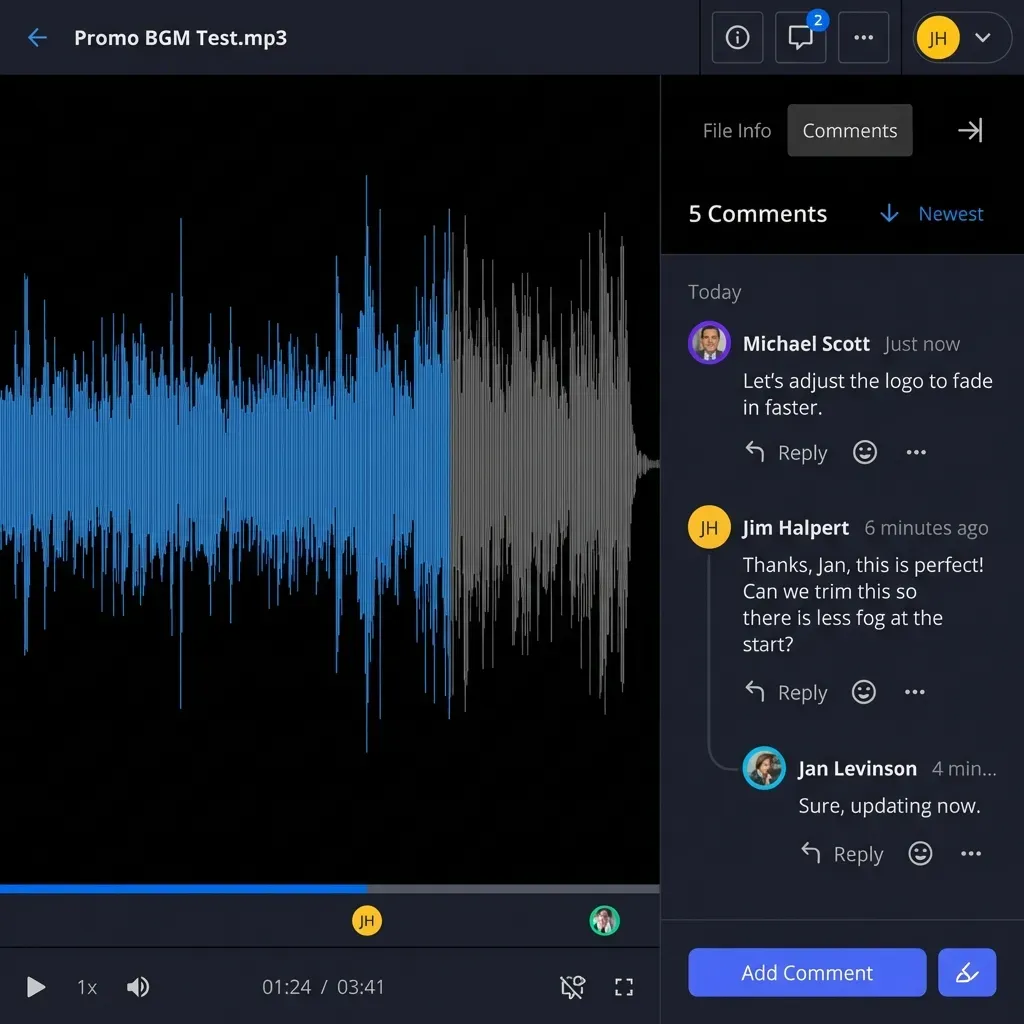
Send upload confirmations. Clients want to know their files arrived safely. Either enable automatic confirmation emails or send a quick acknowledgment manually.
Follow up on incomplete requests. If someone hasn't uploaded by the deadline, a brief reminder usually works. Most delays are forgetfulness, not resistance.
Limit what you ask for at once. Requests asking for 15 files have lower completion rates than requests asking for 3. Split large requests into phases.
One more thing: mobile compatibility. Many clients see your request on their phone first. Test your upload link on mobile before sending.
File Requests for Different Industries
The basic concept applies everywhere, but implementation details vary by industry.
Creative agencies: You're collecting large video files, design source files, and photography assets. File size limits matter. Look for tools that handle multi-gigabyte uploads without compression. Fast.io's media engine streams video previews directly from uploads, so you can review footage without downloading.
Legal firms: Client documents contain sensitive information. Pick platforms with strong access controls, audit trails, and encryption. Secure client portals with granular permissions work better than basic file requests for legal matters.
Real estate: Transaction documents need to move fast. Deadline tracking and reminder automation cut hours of follow-up calls.
Accounting and tax: You're collecting documents from many clients at once during busy season. Look for tools that let you send personalized requests at scale while keeping each client's files separate.
Marketing teams: Brand asset collection from partners and vendors goes smoother with clear file naming rules. Some platforms let you specify accepted formats and naming conventions.
Whatever your industry, the goal stays the same: make it easy for people to send you what you need.
Common File Request Mistakes to Avoid
A few missteps kill completion rates.
Sending requests to the wrong email address. Obvious, but common. Double-check the recipient before sending. Requests sent to old or incorrect emails just sit there.
Forgetting to explain the request. A bare link with no context gets ignored. Always include a brief explanation of what you need and why.
Using overly technical language. "Please submit your deliverables via the secure upload portal" sounds intimidating. "Click here to upload your files" works better.
Neglecting to test the link. Before sending to clients, test the request yourself. Check that it works, the destination is correct, and confirmations fire.
Assuming one request fits all clients. An agency client who does this weekly needs different instructions than a freelancer submitting their first invoice. Adjust for your audience.
Ignoring file organization after upload. Files arrive, you move on, and two months later nobody can find anything. Build in time to organize uploads as they come in.
Frequently Asked Questions
How do I request a file from someone?
Create a file request link through your cloud storage provider (Dropbox, OneDrive) or a dedicated tool. Share the link via email or message. The recipient clicks the link, uploads their files, and those files appear in your designated folder. They don't need an account with your storage provider.
How do I create a file request link?
In Dropbox, go to your destination folder and select 'Request files.' In OneDrive, right-click a folder and choose 'Request files.' Dedicated tools like File Request Pro offer the feature from their dashboard. You'll set a title, optional description, and any deadlines before generating your shareable link.
What is a file request in Dropbox?
Dropbox file requests let you collect files from anyone into a specific folder. You create a request, share the link, and recipients upload files directly to that folder. They can only upload, not view your other files. It's free with any Dropbox account.
Can I brand my file request with my company logo?
Basic cloud storage file requests show the provider's branding. For custom branding with your logo, colors, and domain, you need a dedicated solution like Fast.io's branded client portals or a tool like File Request Pro. Branded requests look more professional and build client trust.
Is there a file size limit for file requests?
Limits vary by platform. Dropbox file requests allow files up to your account's storage limit. OneDrive caps individual uploads at 250 GB. Dedicated file transfer tools often have higher limits than basic cloud storage. Check your platform's documentation for specific caps.
How do I track who has completed a file request?
Most platforms show upload activity in the destination folder's history. You'll see who uploaded, when, and what files they added. Some dedicated tools offer dashboards with completion tracking, deadline reminders, and automated follow-up for incomplete requests.
Related Resources

Ready to create branded file requests?
Set up professional file request links that clients trust and complete.