10 Best File Sharing Tools for Teams in 2026
File sharing tools let teams upload, store, and share files over the internet. With remote teams sharing 3x more files than office-based teams, choosing the right tool affects productivity and costs. This guide compares the 10 best file sharing tools for 2026, with specific attention to large file handling and video production workflows.
What Are File Sharing Tools?
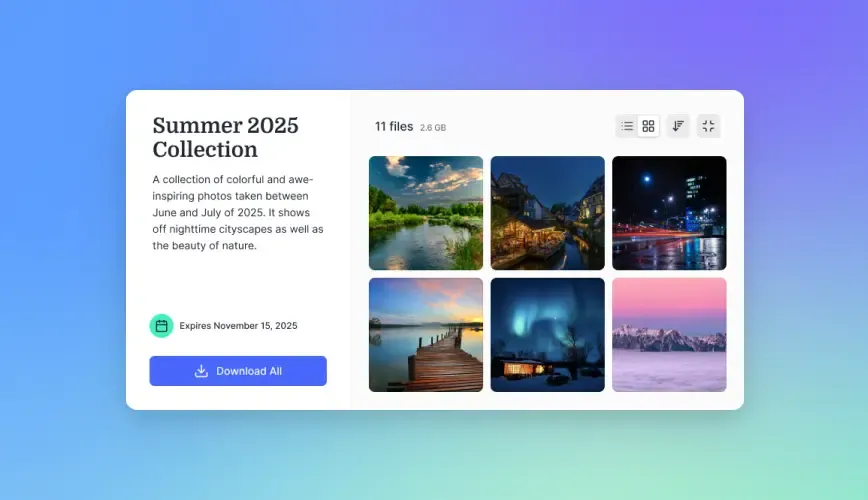
File sharing tools are software applications that enable users to upload, store, and share files with others over the internet or local networks. The global file sharing market is worth $7.8 billion and continues to grow as more teams work remotely.
Modern file sharing tools go beyond simple uploads. They include features like:
- Real-time collaboration on documents
- Version control to track changes
- Access permissions to control who sees what
- Large file support for video and design assets
- Mobile apps for access from anywhere
The best tool for your team depends on your file types, team size, and budget.
The 10 Best File Sharing Tools
Here are the top file sharing tools for teams in 2026, ranked by their strengths for different use cases.
1. Fast.io
Best for: Video production, creative teams, and agencies
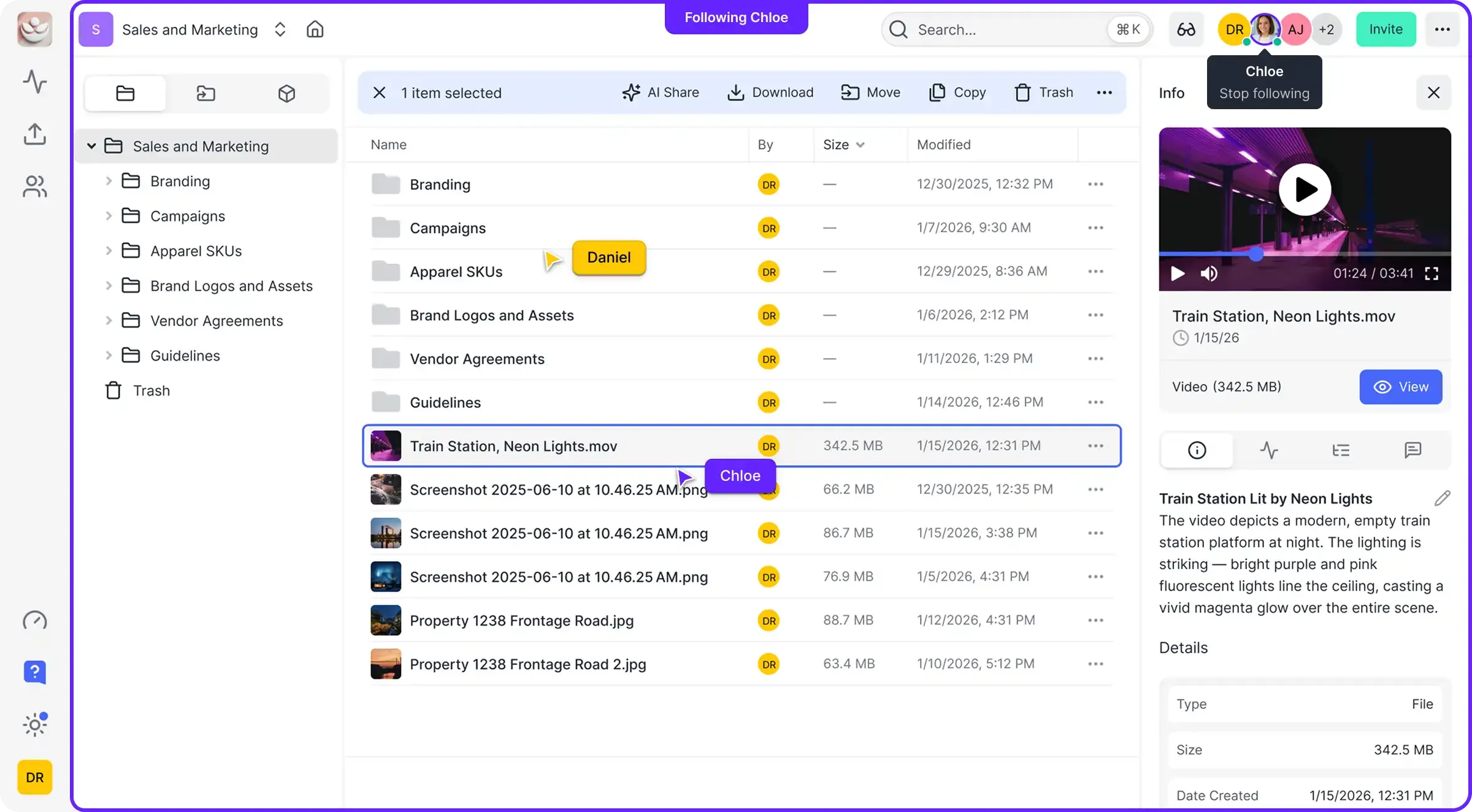
Fast.io skips the sync model entirely. Instead of copying files to every device, it streams them directly from the cloud. Video teams working with files that would take hours to sync can start working immediately.
Key features:
- HLS video streaming with instant playback (no downloading)
- Frame-accurate comments for video review
- Usage-based pricing instead of per-seat costs
- Unlimited guest access for client sharing
- Branded client portals
Pricing: Usage-based credits. Pro plan includes 25 seats, Business includes 100. Extra seats cost $1/month each. Teams of 25 using 5TB pay around $60/month compared to $450/month on Dropbox.
2. Google Drive
Best for: Teams already using Google Workspace
Google Drive offers 15GB free and integrates tightly with Docs, Sheets, and Slides. It works well for document collaboration but struggles with large media files.
Key features:
- Real-time document editing
- Search across file contents
- 15GB free storage
- Third-party app integrations
Pricing: Free tier available. Paid plans from $1.99/month for 100GB to $9.99/month for 2TB.
Limitations: 5TB max file size for most formats. Video playback buffers rather than streams. Folder organization can become chaotic in large teams.
3. Dropbox
Best for: Individual professionals and small teams
Dropbox pioneered consumer file sync and remains popular for its reliability. The sync-based model works well for documents but creates problems for video teams.
Key features:
- Desktop sync across devices
- Dropbox Paper for documentation
- Smart Sync to save local storage
- Dropbox Dash for AI-powered search
Pricing: Plus plan at $11.99/month for 2TB. Professional at $19.99/month. Team plans start at $18/user/month.
Limitations: Per-user pricing adds up fast for large teams. Video must download before playback. Files belong to users, not organizations.
4. Box
Best for: Enterprise compliance requirements
Box focuses on enterprise security and compliance. It integrates with Google Workspace, Slack, and Microsoft 365.
Key features:
- Workflow automation
- E-signature integration
- Compliance certifications (HIPAA, SOC 2)
- Admin controls and reporting
Pricing: Business plans from $15/user/month. Enterprise pricing varies.
Limitations: Per-user pricing. Less intuitive than consumer-focused tools. Limited media preview capabilities.
5. OneDrive
Best for: Microsoft 365 organizations
OneDrive integrates deeply with Windows and Microsoft 365. If your team lives in Microsoft tools, OneDrive makes sense.
Key features:
- Native Windows integration
- Real-time co-authoring in Office apps
- Personal Vault for sensitive files
- 1TB storage with Microsoft 365
Pricing: Included with Microsoft 365 subscriptions. Standalone plans from $1.99/month.
Limitations: SharePoint complexity for advanced features. Less capable outside the Microsoft ecosystem.
6. WeTransfer
Best for: One-time large file transfers
WeTransfer sends large files without requiring accounts. Files expire after a set period, so it works for deliveries, not ongoing collaboration.
Key features:
- Send up to 2GB free without an account
- Pro plan allows 200GB transfers
- Simple drag-and-drop interface
- No recipient account needed
Pricing: Free for 2GB. Pro at $12/month for 200GB. Premium for unlimited.
Limitations: Files expire (not persistent storage). No collaboration features. No organization or folder structure.
More File Sharing Tools Worth Considering
7. Hightail
Best for: Designers using Adobe Creative Cloud
Hightail integrates with Photoshop and Illustrator through browser extensions. Designers can share and get feedback without leaving their tools.
Key features:
- Adobe Creative Cloud integration
- Visual commenting on images
- Approval workflows
- File tracking and analytics
Pricing: Plans from $12/month for individuals. Team plans from $24/user/month.
8. Filecamp
Best for: Digital asset management
Filecamp combines file sharing with asset organization. It works well for marketing teams managing brand assets across multiple campaigns.
Key features:
- Branded file portals
- Custom metadata and tagging
- Download tracking
- Image editing tools
Pricing: From $29/month for the Starter plan.
9. Zoho WorkDrive
Best for: Zoho suite users
Zoho WorkDrive offers team file management within the Zoho ecosystem. It provides good value for small teams already using Zoho.
Key features:
- Team folders and permissions
- Real-time document editing
- Integration with Zoho apps
- Admin controls
Pricing: Starter at $2.50/user/month. Team plan at $4.50/user/month.
10. SwissTransfer
Best for: Privacy-focused file transfers
SwissTransfer stores files in Switzerland under Swiss data protection laws. It allows 50GB transfers for free.
Key features:
- 50GB free transfers
- Swiss data protection
- Password protection
- No account required
Pricing: Free for 50GB. Paid plans remove ads and add features.
How to Choose the Right File Sharing Tool
The right tool depends on what you're sharing and who you're sharing with.
Consider your file types. Document-heavy teams work fine with Google Drive or OneDrive. Video and creative teams need tools that handle large files without forcing downloads. Fast.io streams 4K video files that would take hours to sync on traditional platforms.
Count your collaborators. Per-seat pricing punishes growing teams. A 25-person team on Dropbox Business pays $450/month. Usage-based pricing keeps costs predictable as you add people.
Check external sharing. If you share files with clients or contractors, look for unlimited guest access. Some tools charge for every external user or limit sharing features.
Test the actual workflow. Free trials reveal problems that feature lists hide. Upload your largest file. Share it with someone outside your organization. See how long it takes and what the experience looks like for them.
File Sharing for Video and Creative Teams
Creative workflows create specific problems that general file sharing tools don't solve.
A 30-minute video at 4K resolution runs 10-30GB. Syncing that file to every team member's computer wastes time and storage. Traditional tools force clients to download files before viewing, adding friction to review processes.
Video production teams need:
- Instant playback without downloading (HLS streaming)
- Frame-accurate commenting for precise feedback
- Proxy generation to create lightweight preview copies
- Bandwidth efficiency so clients on slow connections can still review
Fast.io handles this with adaptive bitrate streaming (the same technology Netflix uses) and frame-level commenting. Clients watch videos instantly in their browser while originals stay on your servers.
For creative agencies managing multiple clients, branded portals present a professional image. Upload assets to a client workspace, customize the portal with their branding, and share a clean URL instead of generic file links.

Security Features to Look For
File sharing tools vary widely in security capabilities. Here's what matters:
Encryption should cover files at rest and in transit. Most major tools offer this, but check the specifics.
Access controls let you set who can view, download, or edit files. Look for folder-level and file-level permissions.
Audit logs track who accessed what and when. This matters for compliance and investigating issues.
Link controls add security layers to shared files:
- Password protection
- Expiration dates
- View-only mode (no downloads)
- Domain restrictions
Single sign-on (SSO) integration connects to your identity provider (Okta, Azure AD, Google). This simplifies user management and improves security.
Note that security features don't equal compliance certifications. If you need HIPAA, SOC 2, or other regulatory compliance, verify the specific tool meets those requirements. Many tools offer security features without holding formal certifications.
Frequently Asked Questions
What is the best tool for file sharing?
The best file sharing tool depends on your use case. Google Drive works well for document collaboration. Dropbox suits individual professionals. For video and creative teams handling large files, Fast.io's streaming approach eliminates download waits and includes frame-accurate review tools. Enterprise teams often choose Box for compliance features.
What is the safest way to share files?
The safest file sharing uses encryption (at rest and in transit), password-protected links, expiration dates, and view-only permissions. Audit logs help track access. SSO integration with your identity provider adds another security layer. Avoid sharing sensitive files through email attachments, which lack access controls.
What is the easiest file sharing method?
For one-time transfers, WeTransfer or SwissTransfer let you send files without creating accounts. For ongoing team collaboration, cloud storage tools like Google Drive, Dropbox, or Fast.io provide persistent storage with sharing built in. The easiest option depends on whether you need a quick transfer or ongoing access.
How do I share large video files with clients?
Traditional file sharing forces clients to download large videos before watching. This creates long waits and fills their storage. Tools with HLS streaming like Fast.io let clients watch instantly in their browser while the original stays on your server. This also lets clients on slower connections view at reduced quality without downloading the full file.
What is the difference between file sharing and file sync?
File sync copies files to every connected device, keeping them in sync as changes happen. File sharing lets you access files without copying them locally. Sync works for documents you edit frequently. Sharing works better for large files like videos that don't need local copies on every device.
Related Resources

Ready to simplify file sharing?
See how Fast.io handles large files and video workflows differently.