How to Set Up Secure File Sharing for Your Law Firm
Law firm file sharing refers to secure systems that enable attorneys to exchange confidential documents with clients and co-counsel while maintaining attorney-client privilege. This guide covers the security features your firm needs, how to organize files by matter, and how to set up client portals that protect sensitive information.

Why Standard File Sharing Fails Law Firms
Regular file sharing tools create serious problems for legal practices. Email attachments sit unencrypted on servers. Consumer cloud storage lacks audit trails. And when a case involves 50,000+ pages of documents, these systems collapse under their own weight.
The numbers tell the story: 73% of law firms experienced a data breach attempt in 2024. Meanwhile, 69% of attorneys still share files through email, where a single forwarded message can expose privileged communications to opposing counsel.
ABA Model Rule 1.6 and Formal Opinion 477 require attorneys to take reasonable steps to protect client data. "Reasonable" has evolved to mean encryption, access controls, and activity logging. Using your personal Dropbox account no longer qualifies.
Law firms need file sharing that handles three specific challenges:
- Matter-based organization: Files grouped by case, not scattered across folders
- Client access without accounts: Share with clients who do not want yet another login
- Discovery-ready audit trails: Prove who accessed what and when
Security Features Every Law Firm Needs
Not all "secure" file sharing is equal. Here's what actually matters for legal work.
Encryption That Covers Everything
Your files should be encrypted both in transit (while uploading/downloading) and at rest (while stored). This is table stakes. What matters more: can you control who decrypts them?
Look for granular link controls:
- Password protection for sensitive shares
- Expiration dates that auto-revoke access
- View-only mode that blocks downloads
- Domain restrictions (only @clientcompany.com can access)
Audit Trails for Discovery
When opposing counsel asks "who had access to this document on March 15th?" you need an answer in minutes, not days. Proper audit logs track:
- Every view, download, and permission change
- Login times and IP addresses
- File version history with timestamps
- Comment and annotation activity
Access Controls That Match Legal Hierarchies
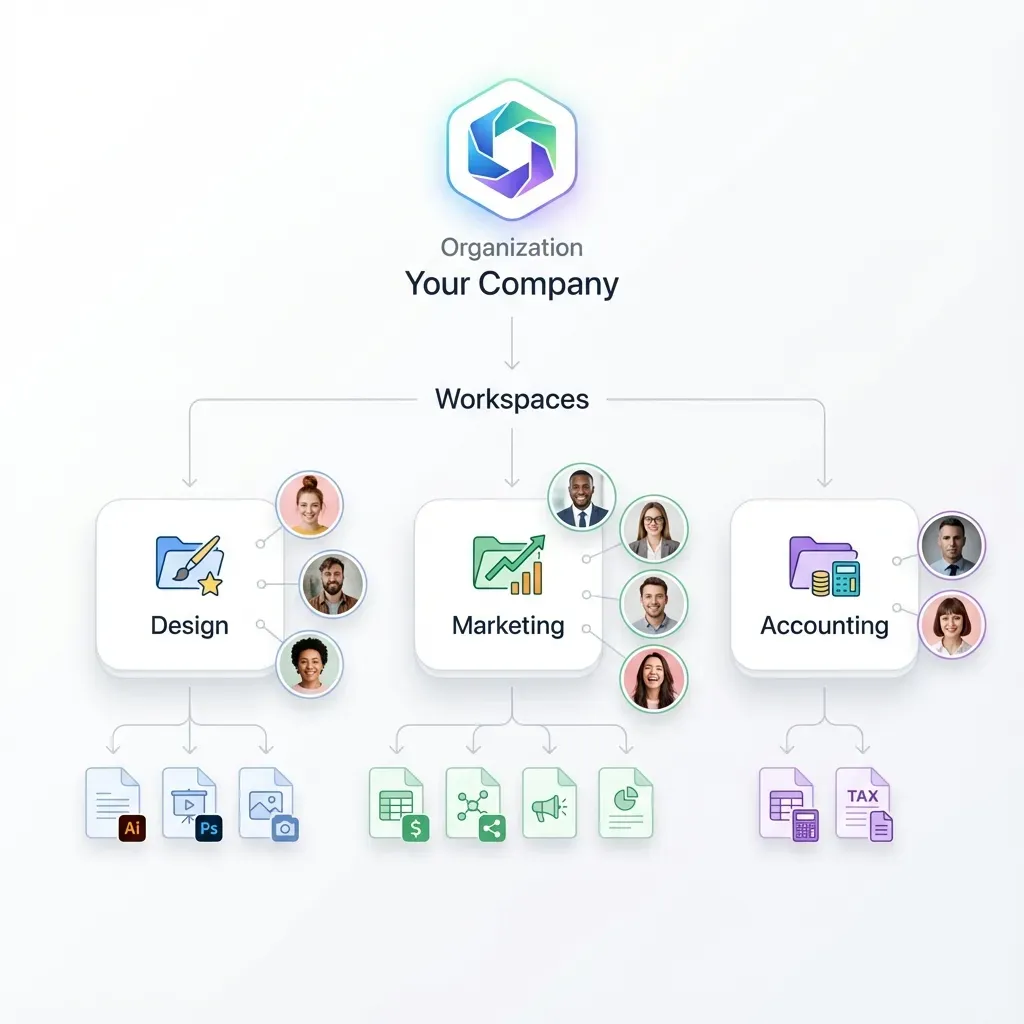
Law firms have complex permission structures. Partners see everything. Associates see their matters. Paralegals see specific folders. Clients see only what you share with them.
Flat permission models do not work here. You need controls at the organization, workspace, folder, and individual file level.
How to Organize Files by Legal Matter
The biggest workflow difference between generic storage and legal file sharing is matter-centric organization. Here's how to structure it.
Create a Workspace Per Client or Case Type
Start with one workspace per major client or practice area. Inside each workspace, create folders for individual matters. This mirrors how your practice management software thinks about cases.
Example structure for a litigation practice:
Smith Industries (Workspace)
├── 2026-001 Employment Dispute
│   ├── Pleadings
│   ├── Discovery
│   ├── Correspondence
│   └── Client Documents
└── 2026-002 Contract Review
    ├── Draft Agreements
    └── Final Versions
Use External Shared Folders for Client Access
Instead of adding clients to your entire workspace, create a shared folder specifically for client-facing documents. Clients see only that folder without accessing your internal work product.
This approach gives you:
- A single location for client deliverables
- Automatic notification when you add new files
- Download tracking to confirm receipt
- Clean separation between draft and final documents
Tag Files for Cross-Matter Search
When you need to find "all NDAs signed in Q4" across every matter, tags make it possible. Create a consistent tagging system:
- Document type (motion, contract, correspondence)
- Status (draft, final, executed)
- Confidentiality level (privileged, work product, public)
Setting Up Client Portals That Work
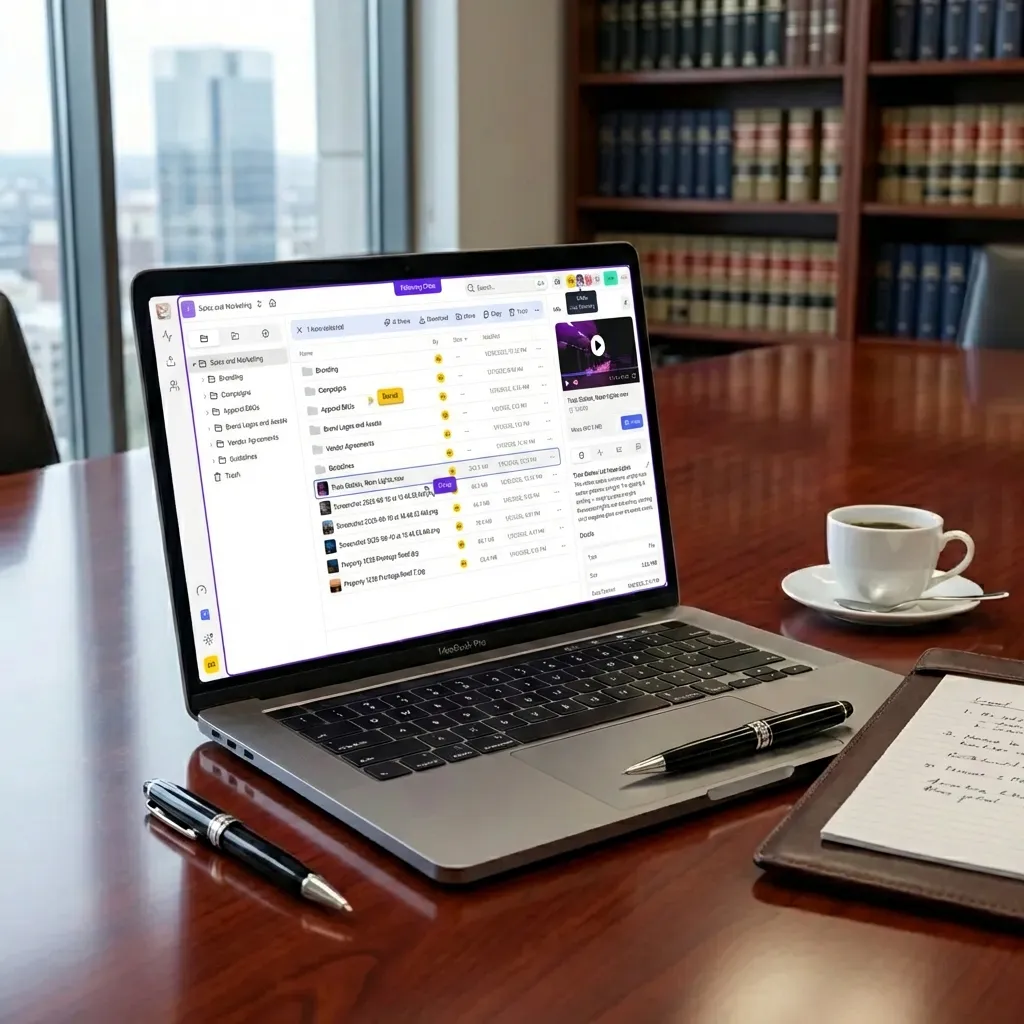
Client portals eliminate the back-and-forth of email attachments. Done right, they also reduce support requests and make your firm look more professional.
Branded Experience Without the Development Cost
A white-label portal displays your firm's logo and colors, not the software vendor's. Clients see "Smith & Associates Document Portal" rather than a generic file sharing screen.
This matters more than you might think. Clients assess your firm partly on professionalism. A branded portal signals you invest in technology and client experience.
Guest Access Without Account Friction
The worst client experience: "Please create an account with this vendor you have never heard of to download your case documents."
Better approach: Send a secure link. Client clicks it, verifies their identity (via email code or password you provide separately), and accesses their files. No account creation, no new password to remember.
What Clients Actually Need
Based on how law firms use portals, clients need these specific capabilities:
- Download final documents: Signed agreements, court filings, invoices
- Upload requested items: Tax returns, contracts for review, evidence
- See what is new: Clear indication of recently added files
- Access from anywhere: Mobile-friendly interface for reviewing on the go

Handling Large Discovery Productions
E-discovery productions regularly involve tens of thousands of files. Standard file sharing chokes on this volume. Here's what works.
Batch Upload Without Browser Crashes
When uploading a production load file with 10,000 documents, you cannot afford browser timeouts. Look for:
- Resume capability if connection drops
- Folder upload that preserves structure
- Background processing that does not lock up your machine
Secure External Production Delivery
Producing documents to opposing counsel requires precision. You need proof they downloaded everything, and you need to revoke access the moment the case settles.
Data rooms built for legal work provide:
- Viewer analytics showing exactly what was accessed
- Engagement tracking (time spent per document)
- One-click access revocation
- Branded presentation that looks professional
Version Control for Living Documents
Settlement agreements go through 47 drafts. Track every version automatically, with timestamps and the ability to compare changes. When someone asks "what changed between v12 and v15?" you should answer that in seconds.
Integrating with Your Legal Stack
File sharing does not exist in isolation. It needs to work with your practice management, billing, and communication tools.
SSO for Firm-Wide Access
Single sign-on through your identity provider (Okta, Azure AD, Google Workspace) means attorneys log in once and access everything. No separate passwords to manage, and immediate deprovisioning when someone leaves the firm.
This also enables MFA enforcement across your entire organization, not just the file sharing system.
Mobile Access for Court and Client Meetings
Attorneys work from courthouses, client offices, and airports. Mobile access is not optional. Check that your file sharing supports:
- Full-featured mobile apps (not just a clunky web view)
- Offline access for flights and dead zones
- Quick search to find the right document mid-meeting
AI Tools for Document Review
Modern file sharing should connect to AI assistants for tasks like:
- Summarizing lengthy contracts
- Extracting key dates and deadlines
- Finding relevant precedent across your document library
The key is secure AI context: sharing files with AI tools without exposing them to training data or third-party access.
Frequently Asked Questions
How do law firms share files securely?
Law firms share files securely using dedicated file sharing platforms with end-to-end encryption, fine-grained access controls, and complete audit trails. The key requirements are matter-based organization, client portal access without account creation, and detailed logs that satisfy ABA ethics requirements. Email and consumer cloud storage lack these legal-specific features.
What is the best way for lawyers to share documents with clients?
The best approach is a branded client portal with guest access. Clients receive a secure link, verify their identity with a code or password, and access only the files shared with them. This avoids the friction of account creation while maintaining security. For sensitive documents, add password protection and expiration dates to shared links.
Is Dropbox secure enough for law firms?
Dropbox lacks several features law firms need: matter-based organization, detailed audit trails for discovery, branded client portals, and granular folder-level permissions. While it offers basic encryption, consumer-focused tools are not designed for legal workflows or ABA compliance requirements. Firms handling sensitive matters should use legal-specific file sharing solutions.
What security features should legal file sharing have?
Legal file sharing requires encryption at rest and in transit, detailed audit logs tracking all file activity, permissions at organization/workspace/folder/file levels, password-protected sharing links with expiration dates, SSO integration with identity providers, and multi-factor authentication. Optional features include watermarking, view-only mode, and domain restrictions on shared links.
How do I organize legal files for multiple matters?
Create one workspace per major client or practice area. Within each workspace, create folders for individual matters using a consistent naming convention (e.g., 2026-001 Client Name - Matter Description). Inside matter folders, use standard subfolders for pleadings, discovery, correspondence, and client documents. Use tags for cross-matter search by document type, status, and confidentiality level.
Related Resources

Secure file sharing built for law firms
Protect attorney-client privilege with matter-based organization, audit trails, and branded client portals.