How to Share Podcast Files with Your Team
Podcast file sharing is the process of transferring large audio files between hosts, guests, editors, and production teams during podcast creation. This guide covers the complete workflow from guest recordings to final edit handoffs, including which file formats to use and how to avoid quality loss.
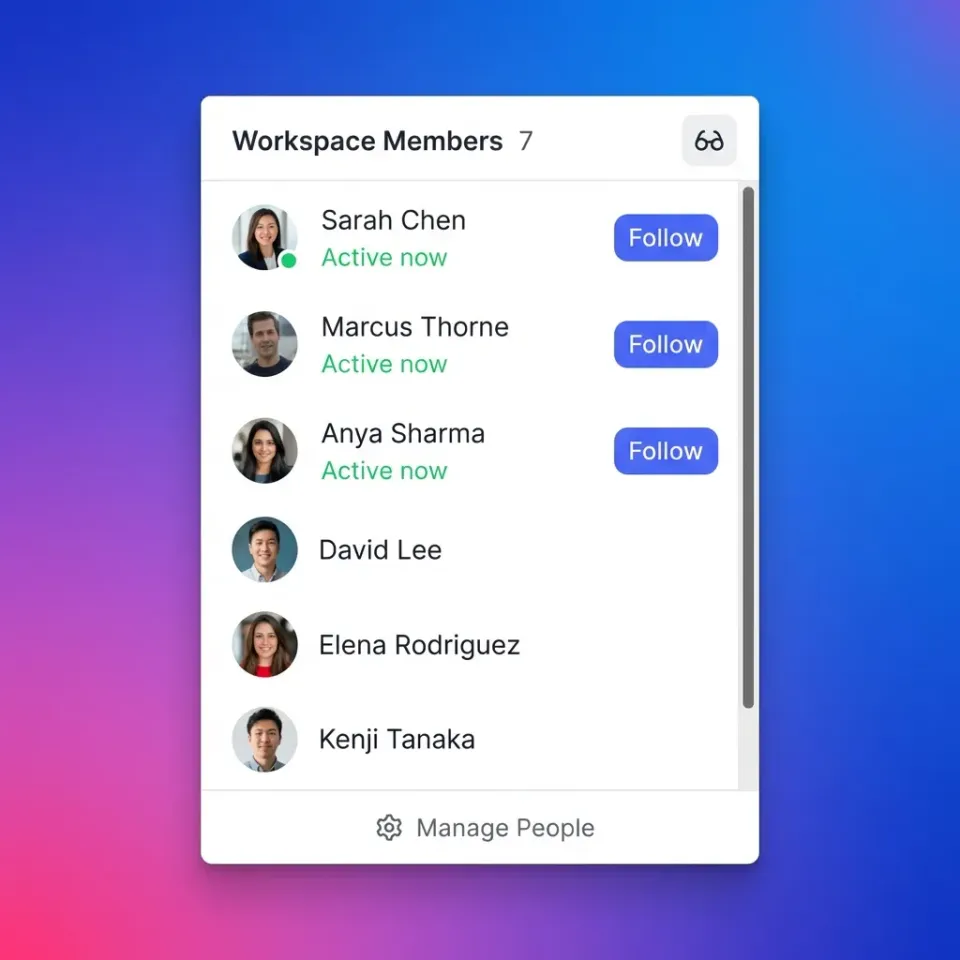
Why Podcast File Sharing Gets Complicated
Podcast production involves moving large files between people who aren't always tech-savvy. Uncompressed podcast episodes can easily exceed hundreds of megabytes per hour. That's too large for email, and many free file sharing services compress audio or limit upload sizes. The typical podcast workflow involves at least three handoffs:
- Guest to host - Remote guests record locally and send their audio
- Host to editor - Raw recordings go to the editor with session notes
- Editor to host - Finished episode returns for approval
Each handoff creates opportunities for quality loss, version confusion, and frustrated "did you get my file?" messages. Most podcast guides skip this part and jump straight to publishing. This guide covers the harder problem: getting files between team members during production.
Helpful references: Fast.io Workspaces, Fast.io Collaboration, and Fast.io AI.
What File Format Should Podcast Files Be?
Use uncompressed or lossless formats during production. Save MP3 for your final published episode.
Recommended formats for sharing:
- WAV - Uncompressed, universally compatible, large files
- AIFF - Apple's uncompressed format, same quality as WAV
- FLAC - Lossless compression, roughly half the size of WAV, maintains full quality
Avoid during production:
- MP3 - Lossy compression. Each time you edit and re-export an MP3, you lose quality
- AAC/M4A - Same problem as MP3. Fine for final delivery, not for editing
When guests ask what format to send, tell them to use high-quality WAV format. This matches most recording software defaults and gives your editor room to work. If file size is a concern, FLAC cuts the size roughly in half without any quality loss. Most editing software (Audacity, Adobe Audition, Logic, Reaper) opens FLAC files without issues.
How Do Guests Send Audio Files for Podcasts?
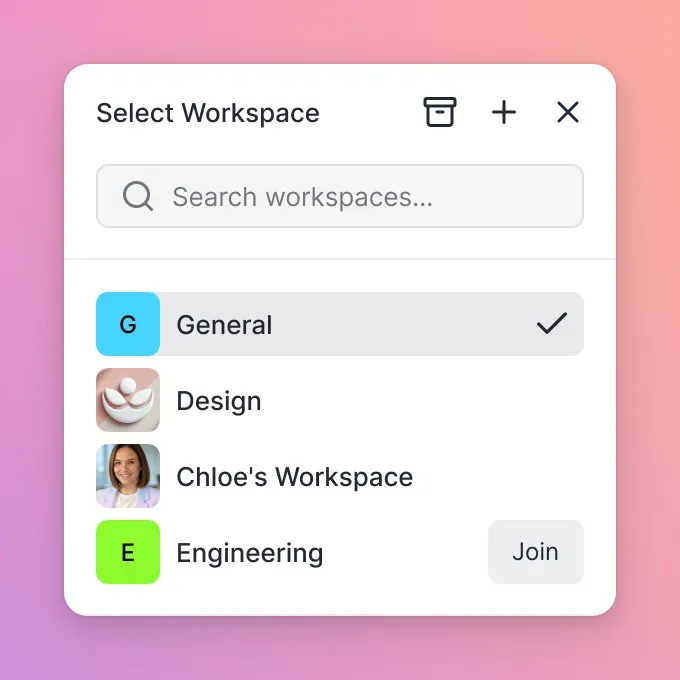
Remote guests need a way to upload recordings without creating accounts or installing software. The best approach is a simple upload link they can use from any browser.
What guests need:
- A link that works on any device (phone, laptop, tablet)
- No account creation or login required
- Support for files over 500MB
- Clear confirmation when the upload completes
Steps to set up guest uploads:
- Create a shared folder or workspace for the episode
- Generate an upload link with guest access
- Send the link with recording instructions (format, sample rate, naming convention)
- Monitor the folder for incoming files
Include a simple naming convention in your instructions. Something like "GuestName-Episode-Date.wav" prevents generic filename issues like "FinalRecording.wav".


Collaborate on Files with Your Team
Share large audio files with guests and editors without compression, expiration, or account requirements.
How to Share Podcast Files with Your Editor
Editors need more than just audio files. A complete handoff includes the raw recordings plus context about what you're trying to achieve.
Include with every editor handoff:
- All audio tracks (host, guest, any separate mic recordings)
- Episode notes or outline
- Timestamps for sections to cut or highlight
- Reference for music, intros, or sound effects to use
- Deadline and any scheduling constraints
Organizing files for your editor:
Create a consistent folder structure for each episode:
Episode-Draft/
├── Raw/
│   ├── Host-Draft.wav
│   └── Guest-Draft.wav
├── Notes/
│   └── Episode-Draft-outline.md
└── Assets/
    ├── intro.wav
    └── outro.wav
This structure means your editor spends time editing, not hunting for files. If you use the same structure every episode, the handoff becomes automatic. For ongoing podcast production, set up a shared workspace where you and your editor both have access. New episodes go into the same location following the same pattern. Your editor knows exactly where to find everything without waiting for you to send files.
Handling Large Podcast Files
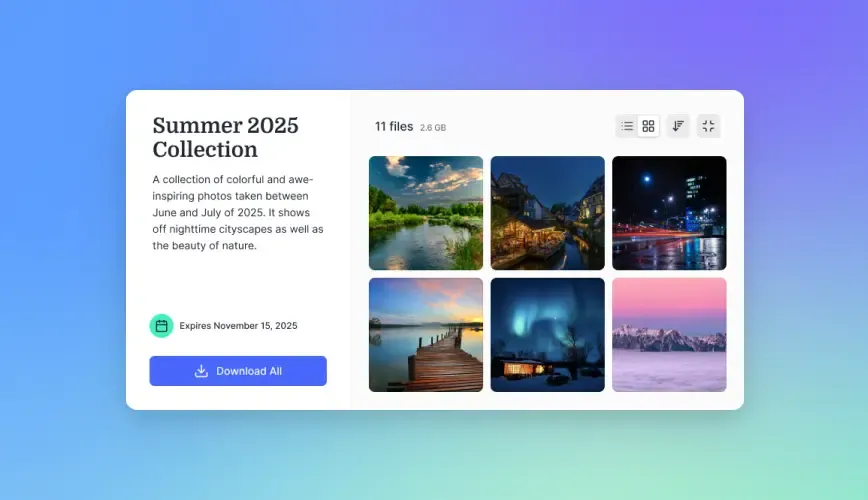
A two-hour high-quality WAV recording produces several gigabytes. Most email services cut off at 25MB. Even cloud storage free tiers struggle with files this size.
Options for large file transfers:
The expiration problem matters more than you'd think. If your editor is busy and can't download the files within a week, WeTransfer links die. Then you're re-uploading and resending links. Persistent storage means files stay available until you delete them. Your editor can download at 2am on a Sunday three weeks from now if that's when they have time.
Avoiding Version Confusion
"Which version is the final one?" kills more podcast workflows than technical problems. When files move between multiple people, naming and organization prevent chaos.
Naming conventions that work:
- Include episode identifier:
Ep-Interview_Raw.wav - Add version labels for edits:
Ep-Interview_Edit_draft.wav,Ep-Interview_Edit_review.wav - Use dates for dated content:
Ep-Interview_Edit-date.wav - Mark finals:
Ep-Interview_FINAL_Master.wav
What to avoid:
Final.wav,Final-draft.wav,Final-final.wavRecording.wavwith no context- Spaces in filenames (some systems handle these poorly)
Activity tracking helps here too. When you can see who uploaded what and when, you don't have to guess which file is current. Look for file sharing tools that show upload timestamps and version history.
Setting Up a Podcast Collaboration Workflow
A repeatable workflow saves hours over the life of your podcast. Here's a complete system from recording to final delivery:
Before recording:
- Create the episode workspace/folder
- Send recording instructions and upload link to guest
- Prepare your recording setup and test audio levels
After recording:
- Export your local recording (WAV, 48kHz, 24-bit)
- Upload to the episode workspace
- Verify guest recording arrived
- Add episode notes and editing instructions
- Notify editor that files are ready
During editing:
- Editor downloads files and works locally
- Editor uploads draft for review
- Host provides feedback with timestamps
- Editor uploads revised version
- Repeat until approved
After approval:
- Editor exports final MP3 for publishing
- Archive raw files for future reference
- Update episode status to complete
Make each step obvious. When everyone knows where files go and what happens next, you spend less time coordinating and more time making good content.
Frequently Asked Questions
How do I share podcast files with my editor?
Create a shared workspace or folder for each episode, upload all raw audio tracks (WAV format), include episode notes with timestamps, and give your editor access to download. Use a consistent folder structure so your editor knows where to find everything without asking.
How do guests send audio files for podcasts?
Send guests an upload link they can use from any browser without creating an account. Include recording instructions specifying high-quality WAV format and a naming convention like 'GuestName-Episode.wav' so files are labeled.
What format should podcast files be?
Use WAV or FLAC during production to avoid quality loss. WAV is uncompressed and universally compatible. FLAC offers lossless compression at about half the file size. Save MP3 for your final published episode only, since each MP3 edit cycle degrades audio quality.
Why can't I just email podcast files?
Podcast files far exceed typical email attachment limits. Uncompressed podcast audio for a single hour requires hundreds of megabytes to over a gigabyte. You need a file sharing service that handles large files and doesn't compress audio during transfer.
How do I avoid podcast file version confusion?
Use consistent naming with episode identifiers and version labels (Ep-Edit-Draft.wav). Never use generic names like 'Final.wav'. Store all versions in the same location so you can see the upload history and easily identify the most recent file.
Related Resources

Collaborate on Files with Your Team
Share large audio files with guests and editors without compression, expiration, or account requirements.