ProRes Workflow: How to Share and Transfer ProRes Files
A ProRes workflow is a production pipeline built around Apple's high-quality video codec, used by 90% of professional editors for its color fidelity and editing performance. This guide covers how to share, review, and collaborate on ProRes footage without quality loss. You will learn practical methods for handling massive file sizes, setting up client review systems, and building a scalable pipeline from ingest to delivery.
Why ProRes Files Are So Hard to Share
Apple ProRes is the preferred codec for post-production because it preserves full color information and edits smoothly on timeline. Unlike compressed formats such as H.264 or H.265, ProRes maintains image quality through multiple generations of editing, color grading, and export. This makes it essential for broadcast, film, and commercial work where visual quality cannot be compromised.
The trade-off is file size. A single hour of ProRes 4444 XQ at 4K resolution can reach 760GB. Even the lighter ProRes 422 HQ runs about 330GB per hour at 4K. These numbers are not edge cases. They represent the daily reality for editors working on documentaries, feature films, commercials, and episodic television.
Standard sharing tools fail at these scales. Email attachments cap at 25MB. Consumer cloud drives like Google Drive and Dropbox force you to sync files locally before you can access them, which fills up your hard drive and creates version conflicts. Physical hard drive shipping adds 24-48 hours to every handoff and introduces the risk of lost or damaged media.
Production teams need a different approach. When a colorist in New York needs to review dailies shot in Los Angeles, waiting for a FedEx package is not acceptable. When a director wants to approve a rough cut from a hotel room in London, downloading 50GB to a laptop is not practical. The solution is a workflow designed around streaming, not downloading.
Understanding ProRes Flavors and File Sizes
Not all ProRes files are created equal. Apple designed six ProRes variants, each optimized for different stages of production. Choosing the right "flavor" for each task helps you balance quality against storage costs and transfer times.
ProRes 4444 XQ is the highest quality option, running at approximately 1.7 Gbps for 4K UHD at 24fps. This works out to about 760GB per hour. Use it for high-end visual effects work, green screen compositing, and archival masters where every bit of color information matters.
ProRes 4444 drops slightly to 1.1 Gbps (500GB per hour) while still supporting alpha channels and 12-bit color. This is the standard choice for motion graphics work and projects with transparency layers.
ProRes 422 HQ at 737 Mbps (330GB per hour) is the workhorse format for broadcast delivery and commercial editing. It offers excellent quality for final delivery while being significantly smaller than the 4444 variants.
Standard ProRes 422 at 492 Mbps (220GB per hour) works well for general editing, interviews, and corporate video where you need good quality but not maximum fidelity.
ProRes 422 LT (Light) at 340 Mbps (150GB per hour) suits storage-constrained projects and news gathering where turnaround speed matters more than archival quality.
ProRes 422 Proxy at 151 Mbps (68GB per hour) is designed specifically for offline editing and remote collaboration. These lightweight files can be edited on laptops and then reconnected to original media for final output.
Understanding these numbers helps you plan realistically. A 30-minute corporate project at ProRes 422 HQ will generate about 165GB of source footage. A feature documentary shooting at ProRes 4444 for eight hours will produce over 4TB. Your workflow needs to handle these volumes efficiently.
Building a Scalable ProRes Workflow
Faster internet alone will not fix a slow production pipeline. You need structured systems at every stage, from camera card ingest to final delivery. The difference between a smooth operation and a chaotic one often comes down to how well you have standardized your processes.
Many production teams treat file management as an afterthought. They figure out storage and sharing on a project-by-project basis, which leads to inconsistent folder structures, lost files, and wasted hours searching for the right version of a sequence. This reactive approach might work for a solo editor, but it breaks down as soon as you add remote collaborators, external clients, or overlapping projects.
A proactive workflow design addresses these problems before they occur. It establishes clear rules for how files are organized, where they are stored, and how they move between team members. Here is a five-step framework that scales from solo editors to large post-production facilities.
Step 1: Standardize Your Folder Structure
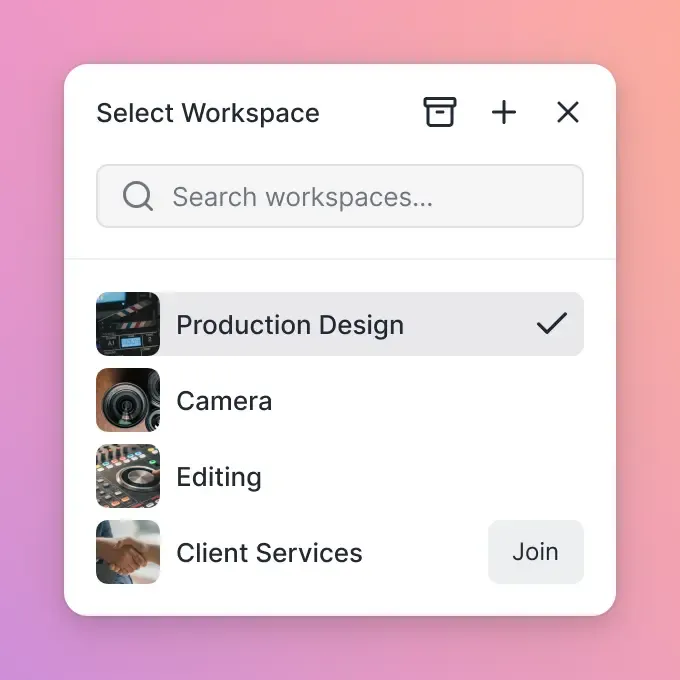
Chaos is the enemy of speed. Every project should follow a consistent folder hierarchy that every team member understands. A typical structure includes separate directories for camera original footage (organized by camera and shoot day), proxy files, audio elements, graphics, and export versions.
For example: 01_Footage/Camera_A/Day_01, 02_Proxies, 03_Audio, 04_Graphics, 05_Exports. When you share a project folder with a remote editor, they can relink media instantly because paths match what you see locally. This small investment in organization saves hours of troubleshooting on every project.
Step 2: Generate Proxies Automatically
You do not always need to edit full-resolution camera files. Most professional NLEs (DaVinci Resolve, Premiere Pro, Final Cut Pro) can generate ProRes Proxy files at roughly one-tenth the size of originals. Edit with proxies on your laptop, then switch to original media for color grading and final export.
The key is automation. Set up watch folders or batch processing so proxies generate overnight after each shoot day. This keeps your editing machine responsive while preserving full quality masters for finishing.
Step 3: Use Direct-to-Cloud Ingest
Traditional workflows involve copying files from camera cards to local drives, then uploading to cloud storage, then downloading to remote editors. Each step adds time and introduces potential for error.
With Fast.io, you can upload files directly from your on-set drive to cloud storage. Files become available to your team the moment they hit the server. There is no waiting for a sync to complete on your local machine before others can access them. This cuts hours from the daily handoff between set and post.
Step 4: Enable Stream-Based Review
Clients and producers should not need to download 50GB just to watch a rough cut. Modern platforms offer HLS (HTTP Live Streaming) that works like Netflix. The viewer clicks a link, the video starts playing immediately in their browser, and adaptive bitrate streaming adjusts quality based on their connection speed.
This is different from progressive download, where the entire file must buffer before playback can begin. HLS streaming means a director can review a 4K sequence on their phone from an airport lounge without special software or storage requirements.
Step 5: Archive Strategically
Once a project wraps, you do not need immediate access to terabytes of camera originals. Move raw footage to cold storage (which costs a fraction of active storage) while keeping lightweight proxies available online. If you need to revisit the project later, you can pull originals from archive.
This tiered approach keeps your active workspace fast and your monthly storage costs manageable. A well-designed archive system also ensures that masters are safe and recoverable even years after project completion.
How to Share ProRes Files Without Downloading
The biggest bottleneck in video collaboration is the download-edit-upload cycle. Traditional cloud storage forces every collaborator to download full source files to their local machine before they can view or work with them. For ProRes files, this means waiting hours for transfers to complete.
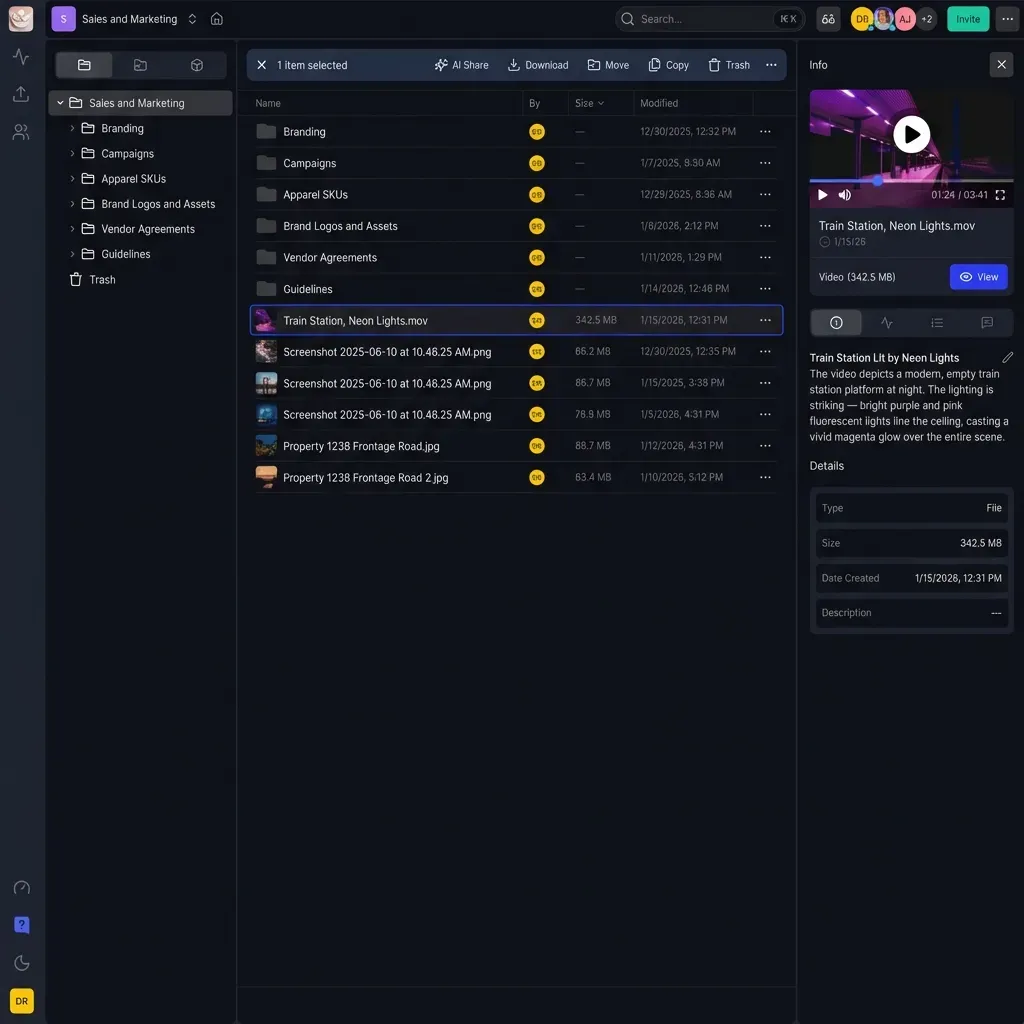
Fast.io takes a different approach. Files stay in cloud storage, and users access them through streaming. When your colorist opens a 100GB ProRes sequence, they see it playing instantly in their browser. When your client watches a rough cut, they are streaming from the cloud, not downloading to their laptop.
This architecture eliminates several pain points at once. Remote editors can start reviewing footage immediately rather than waiting overnight for downloads. Clients can approve cuts from any device with a web browser. Multiple team members can access the same files simultaneously without creating sync conflicts or duplicate versions.
An editor in London can upload dailies at end of day. A director in Los Angeles can watch them three hours later during their morning review session. The footage never left the cloud. There is no thumb drive in the mail, no overnight FedEx, no waiting for a massive sync to complete.
For teams spread across time zones, this changes the rhythm of production. Notes that used to take 48 hours to exchange now happen in the same day. Review cycles that required scheduling around shipping logistics can happen whenever participants have time.
Secure Delivery for Sensitive Projects
Pre-release films, confidential commercials, and legal video evidence all require tight security controls. Sending a hard drive via courier is risky. If the drive is lost in transit, your footage is exposed. Physical media also lacks audit trails. You cannot prove who accessed which files or when.
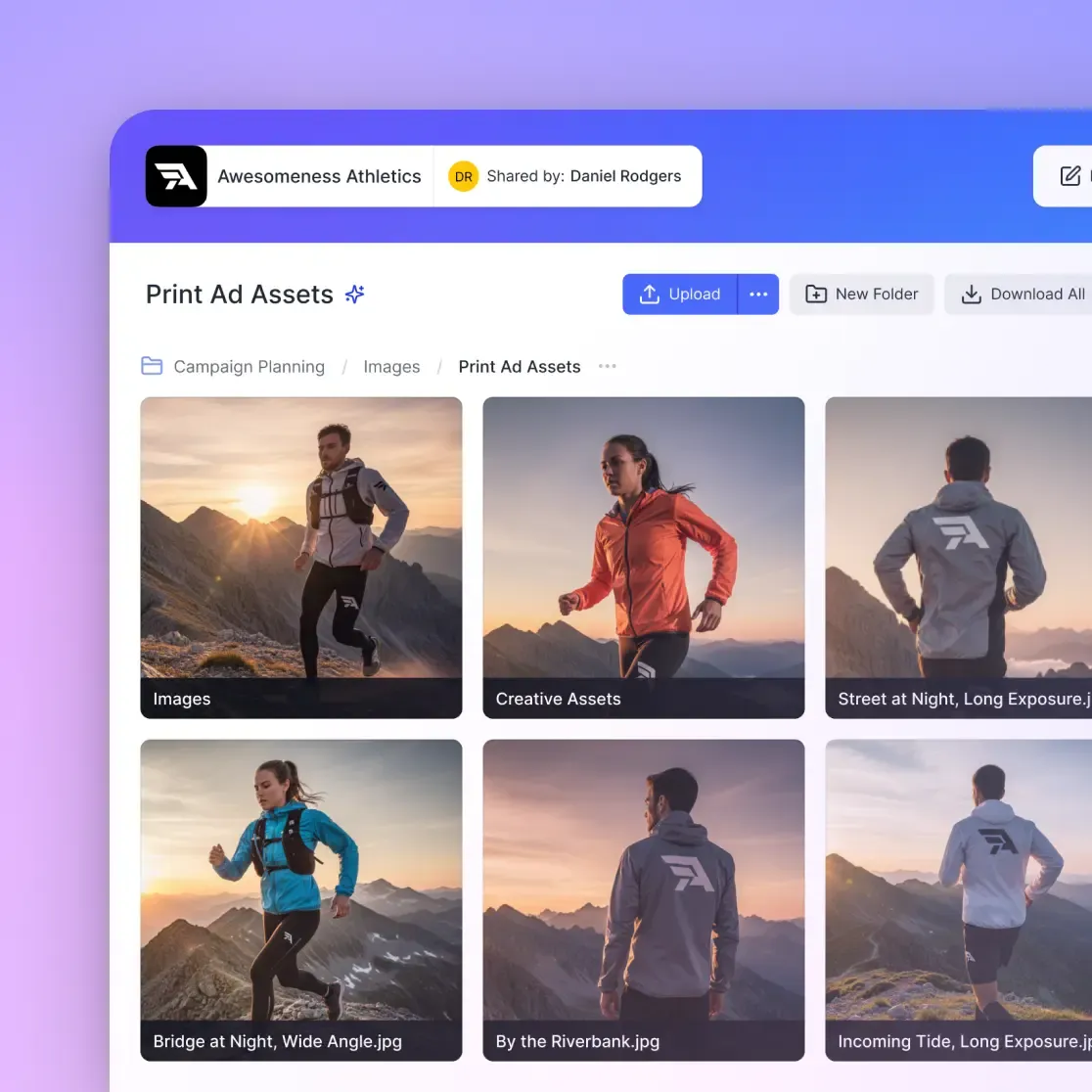
A secure client portal offers a safer alternative. With Fast.io, you can create branded, password-protected spaces that give clients access only to specific folders. Each portal can be customized with your company logo and colors, making it feel like a professional extension of your business.
Security features include link expiration (automatically revoke access after a deadline), view-only mode (clients can watch but not download), password protection (add a second authentication layer), and complete audit logging (see exactly who viewed or downloaded each file and when).
For due diligence processes and legal discovery, these audit logs provide documentation that physical media cannot. You can demonstrate chain of custody and prove that only authorized parties accessed sensitive materials.
When a project relationship changes or a deal falls through, you can revoke access instantly. There is no need to track down physical drives or worry about copies floating around on former clients' computers.
Physical Drives vs. Cloud Transfer: Which Is Actually Faster?
There is an old joke in IT: never underestimate the bandwidth of a station wagon full of tapes. For truly massive data volumes (petabytes), physical shipping sometimes wins on raw throughput. But for the file sizes typical of active post-production work (500GB to 5TB), cloud-based transfer is both faster and more practical.
Consider a 1TB project that needs to move from an editor to a colorist in another city. Overnight FedEx takes 18-24 hours minimum, plus time for packing, pickup scheduling, and unpacking on the other end. If the drive arrives damaged, you start over.
With accelerated cloud transfer on a modern connection, that same 1TB moves in 2-4 hours. More importantly, the colorist can start working on early files while the transfer is still in progress. They do not need to wait for the complete package to arrive.
Cloud delivery also offers flexibility that physical media cannot match. Need to add one more file to the package? Upload it. Need to revoke access after the deadline? Click a button. Need to see when your client finally reviewed the cut? Check the activity log.
Physical drives still make sense for archival purposes and for transferring complete facility libraries. But for day-to-day production handoffs where time matters, cloud wins on speed, security, and convenience.
Setting Up Review Sessions with Frame-Accurate Feedback
Generic video hosting platforms let clients leave comments like "I don't like the transition around the middle." This vague feedback forces editors to guess what the client means and often leads to multiple rounds of revision.
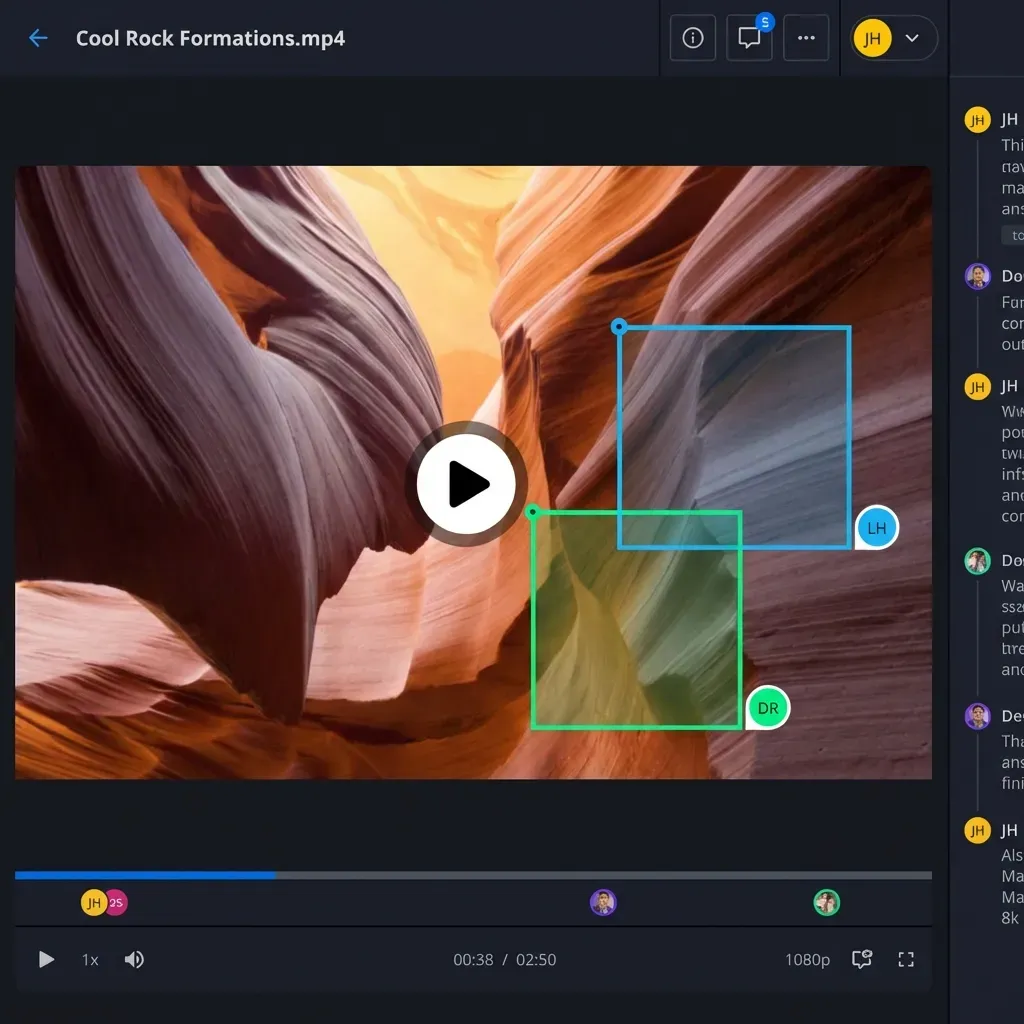
Professional review tools support frame-accurate commenting. A client can pause at exactly the moment they want to discuss, leave a note, and the editor sees precisely which frame the comment refers to. This eliminates ambiguity and speeds up the approval process.
Fast.io's review features include timecode-linked comments (feedback attached to specific frames), drawing tools (mark up specific areas of the image), version comparison (view two cuts side by side), and approval workflows (clients can formally sign off on deliverables).
For video editors, this level of precision makes a real difference in daily work. Instead of scrubbing through a 30-minute sequence trying to find "that shot that needs to be shorter," you click the comment and jump directly to the relevant frame.
The review interface works in standard web browsers without requiring clients to install software. A marketing director reviewing a commercial can watch the video, leave notes, and approve the final cut all from their browser. No downloads, no special apps, no technical support calls about playback issues.
Frequently Asked Questions
What is the best way to send 100GB ProRes files?
For files this size, standard cloud drives fail because they require full local sync before remote access. Use a cloud-native transfer platform like Fast.io that optimizes for speed and handles massive files without imposing file size limits. Files become streamable immediately after upload, so recipients can start reviewing while the transfer completes.
Can I play ProRes files in a web browser?
Natively, most browsers do not support ProRes playback because the codec requires hardware or software decoding that browsers do not include. However, Fast.io's Universal Media Engine transcodes these files on the fly into web-compatible formats, allowing you to stream and review ProRes footage in any browser without quality loss on the viewing copy. The original ProRes master remains untouched.
How much faster is ProRes transfer with Fast.io compared to traditional methods?
Fast.io skips local syncing and uses a global edge network optimized for large file delivery. For a 500GB project, users typically gain access hours faster than with sync-based cloud storage. The bigger advantage is streaming. Recipients can start watching immediately rather than waiting for complete downloads.
Is it safe to store ProRes masters in the cloud?
Yes, with the right platform. Fast.io offers encryption for files in transit and at rest, plus granular permission controls that let you restrict access to specific team members or external clients. Audit logs track every view and download, providing documentation that physical drives cannot match.
Should I convert ProRes to H.264 before sharing with clients?
Converting to H.264 reduces file size but also reduces quality and eliminates the ability to do professional color work on the shared file. A better approach is to use a streaming platform that delivers web-optimized preview while preserving the original ProRes. Clients see a high-quality stream. Editors keep full-resolution access. No conversion step required.
What ProRes flavor should I use for client review?
For review purposes where clients need to see visual quality but are not doing technical work, ProRes 422 or ProRes 422 LT provides good visual fidelity at reasonable file sizes. If clients will be doing color grading or VFX work on the files, send ProRes 4444 or the original camera codec. For rough cut approvals where speed matters most, ProRes Proxy works well.
Related Resources

Accelerate Your Video Pipeline
Stop waiting for ProRes files to sync. Stream footage instantly, share securely with clients, and keep your entire production team in sync.