How to Set Up a Remote Video Editing Workflow
Remote video editing is the practice of editing video projects from anywhere, using cloud storage and collaboration tools to work with distributed teams. This guide covers the infrastructure you need beyond just editing software, including file transfer, version control, and feedback workflows that actually work when your team is spread across time zones.
What Makes Remote Video Editing Different
Remote video editing requires solving problems that never exist in a traditional post house. When everyone works in the same building, you share a SAN, pass hard drives across the hall, and tap someone on the shoulder when you need feedback.
Distributed teams face three challenges that local teams don't:
- File size: A 30-minute 4K timeline can exceed 100GB. Traditional cloud storage like Dropbox and Google Drive struggle with files this large.
- Version control: Without a shared server, teams end up with "final_v3_john_edits_REAL.mov" naming chaos.
- Feedback latency: Waiting for a 50GB export to upload, then waiting for a client to download it, can add days to review cycles.
The software you edit with matters less than the infrastructure connecting your team. Most guides focus on NLEs and plugins. This one focuses on the pipeline that makes remote work actually work.
The Core Infrastructure You Need
A working remote video workflow has four layers. Skip any of them and you'll hit friction.
1. Cloud Storage That Handles Large Files
Your storage solution needs to handle video-scale files without compression or size limits. Most consumer cloud storage caps uploads at 2-5GB, which is fine for documents but useless for video.
Look for:
- No file size limits (or limits above 100GB)
- No automatic compression of uploads
- Fast upload speeds on large files
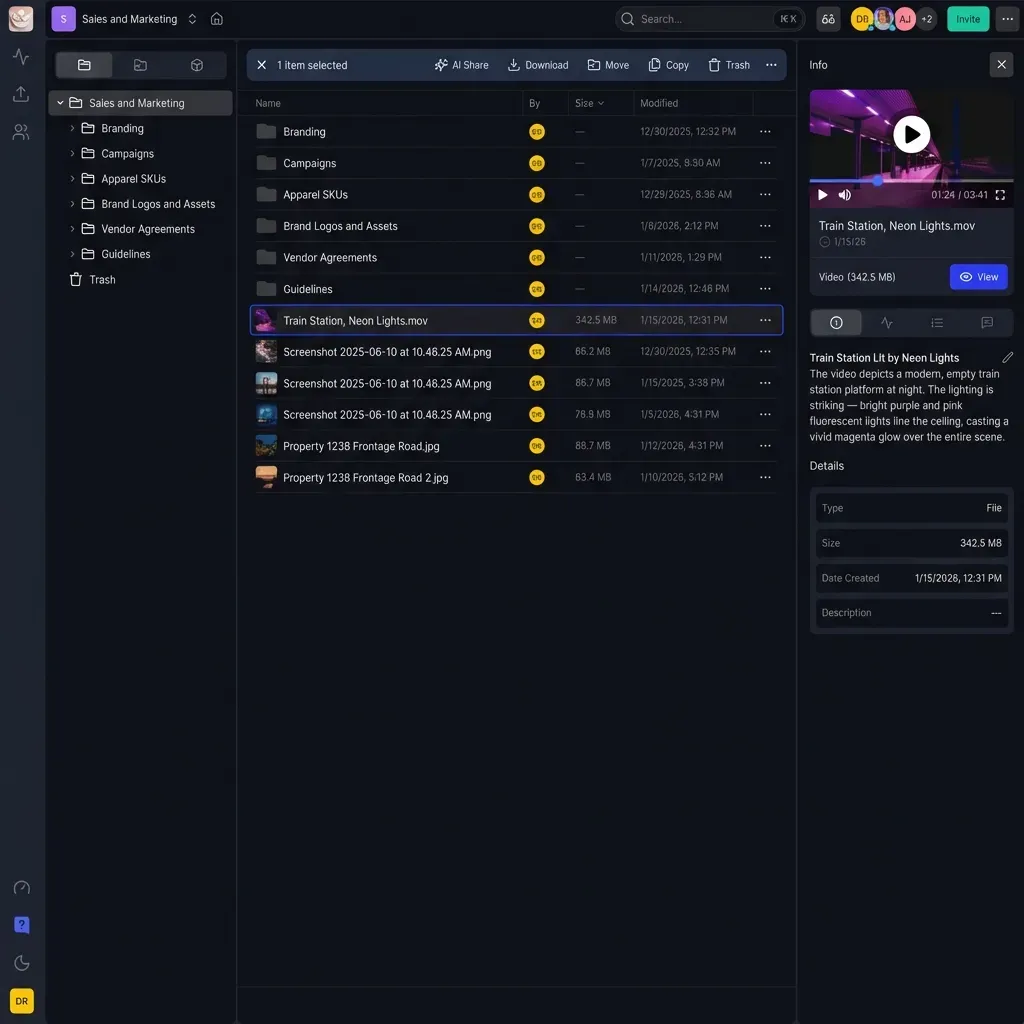
- Folder structures that match your project organization
2. Streaming Preview (Not Progressive Download)
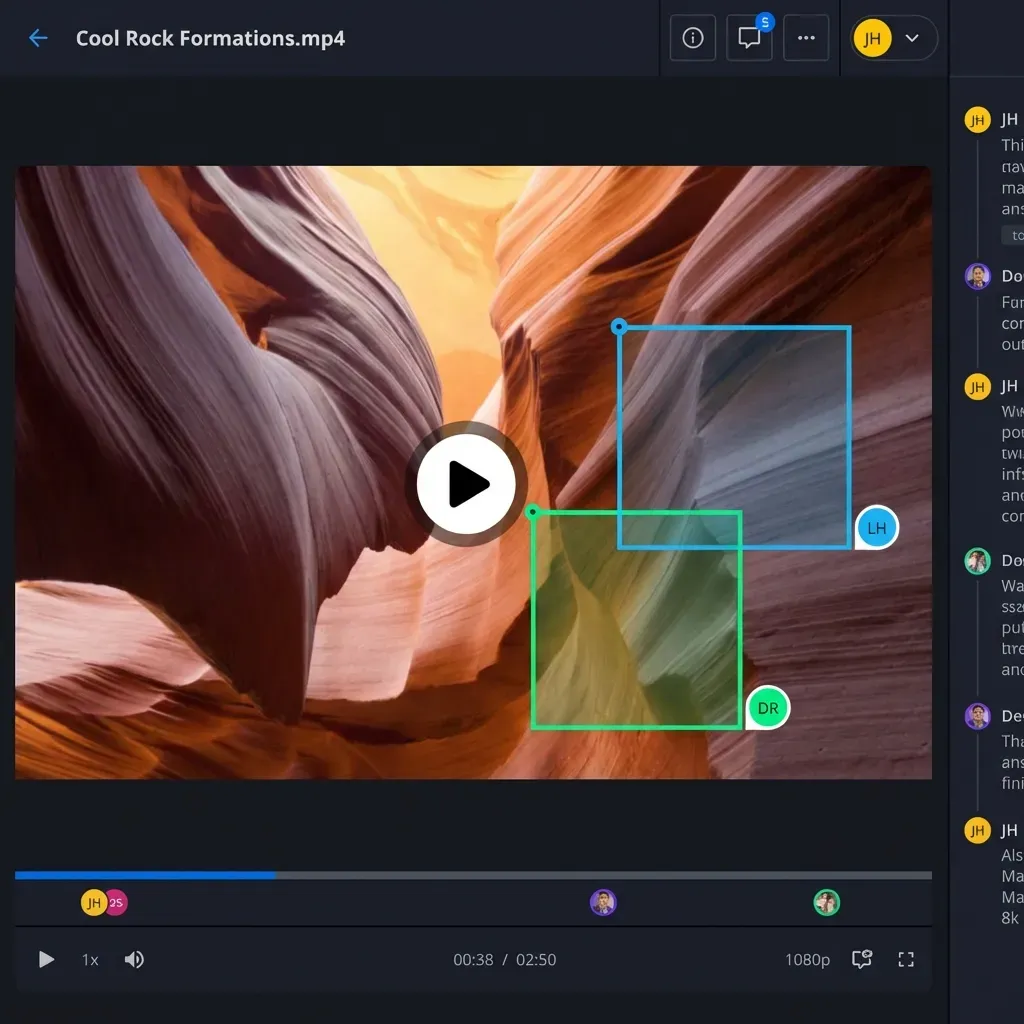
This is where most workflows break down. When a client or producer needs to review a cut, they shouldn't have to download the entire file first.
Adaptive bitrate streaming (like Netflix uses) lets reviewers scrub through video instantly. The file streams at a quality that matches their connection, with instant start and no buffering.
3. Feedback and Annotation Tools
Frame-accurate feedback eliminates the "at about 2 minutes in, there's a shot I don't like" problem. Reviewers should be able to pin comments to specific frames, and editors should see exactly what's being referenced.
4. Version Control and File Ownership
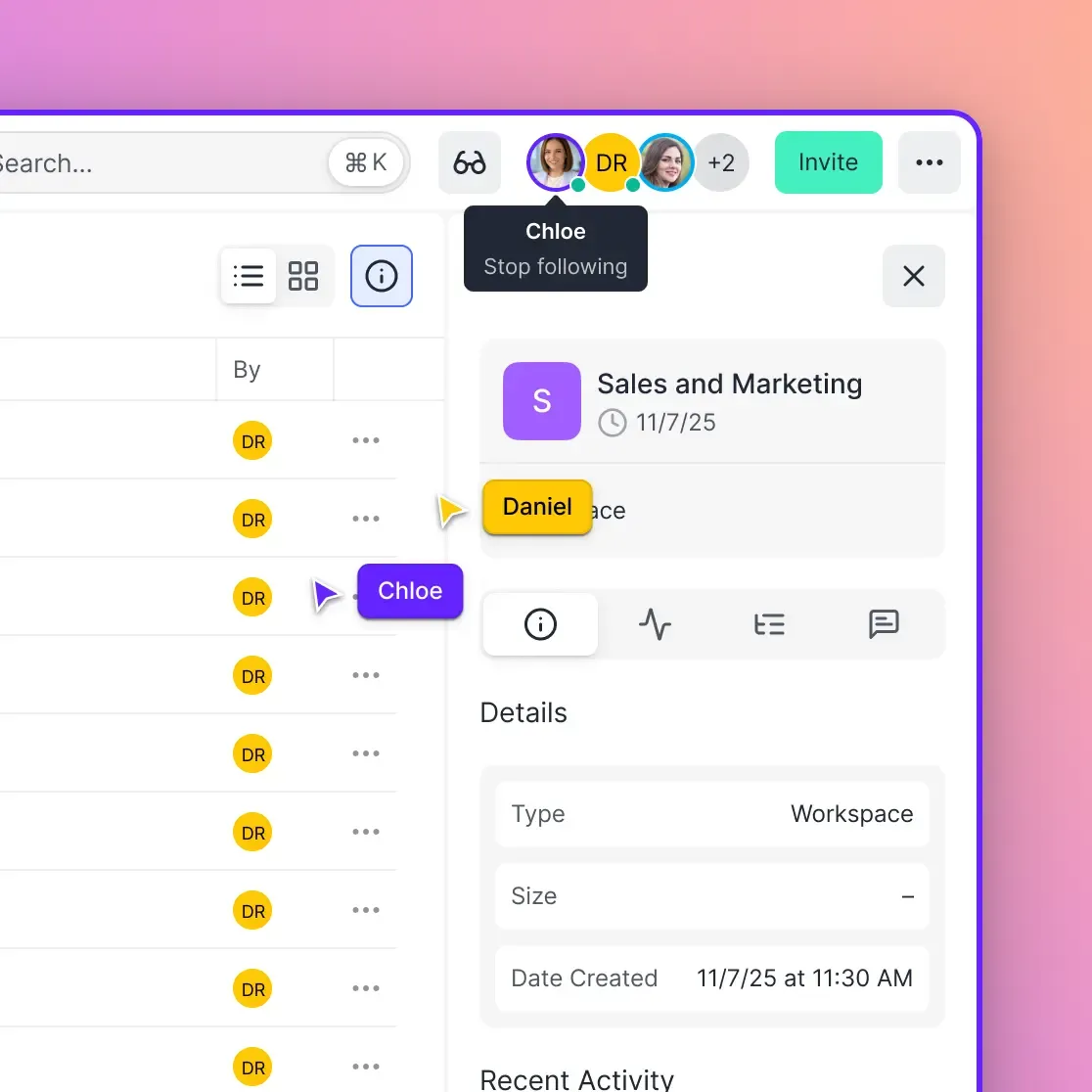
When freelancers rotate through projects, files shouldn't disappear with them. Organization-owned storage keeps assets under company control regardless of who uploaded them.
Step-by-Step: Setting Up Your Remote Editing Workflow
Here's the practical setup process, assuming you're starting from scratch.
Step 1: Establish Your Folder Structure
Before inviting anyone to your workspace, create a consistent folder structure. A common approach for video projects:
/Project Name
  /01_Footage
    /A_Cam
    /B_Cam
    /Drone
  /02_Audio
    /Production
    /Music
    /SFX
  /03_Graphics
    /Lower_Thirds
    /Logos
  /04_Exports
    /Dailies
    /Reviews
    /Finals
  /05_Project_Files
This structure should live in your cloud storage, not on local drives. Everyone works from the same source.
Step 2: Set Up Ingest and Upload
When footage comes in from a shoot, it needs a clear path to your cloud storage:
- Designate who's responsible for uploads (usually a DIT or assistant editor)
- Create a naming convention before the first card is ingested
- Upload originals immediately; proxies can be generated later
- Log each card/drive in a simple spreadsheet with date, contents, and upload status
Step 3: Configure Editing Access
Editors need fast access to media without downloading everything. Two approaches:
Proxy workflow: Upload full-res originals to cloud storage. Editors download lightweight proxies for offline editing, then relink to originals for final export.
Cloud-native editing: Some cloud platforms let editors stream media directly into their NLE without local copies. This requires solid internet but eliminates the proxy dance.
Step 4: Establish Review Cycles
Set clear expectations for how reviews happen:
- Where exports get uploaded for review
- How reviewers access the files (streaming link vs download)
- Where feedback is collected (directly on the video vs email threads)
- Turnaround expectations for each review round
How Video Editors Work Remotely
The daily workflow for a remote editor looks different from an in-house role. Here's what a typical day involves:
Morning sync: Check overnight comments and feedback on shared projects. In distributed teams, clients in different time zones often leave notes while you sleep.
Active editing: Work from cloud-synced project files. If you're using proxies, your media lives locally but project files stay in sync so other team members can see your progress.
Export and upload: When a cut is ready for review, export and upload directly to your shared workspace. Streaming previews mean clients can watch within minutes, not hours.
Feedback review: Watch client comments in context, with timestamps or frame markers showing exactly what they're referencing.
The 65% of video editors who now work remotely at least part-time have built these rhythms into their practice. The teams that struggle are usually missing one of the infrastructure pieces, forcing workarounds that add friction to every handoff.
What You Need for Remote Video Editing
Beyond your editing software, here's the equipment and services that make remote work practical:
Hardware
- Editing workstation: Your local machine does the actual editing. Specs depend on your codec and resolution, but remote workflows don't change hardware requirements.
- Fast internet: Upload speed matters more than download for editors. 50+ Mbps upload is comfortable; under 20 Mbps creates bottlenecks.
- External storage: Even with cloud storage, you need local drives for active projects. NVMe drives for current work, spinning drives for archives.
Software and Services
- NLE: Premiere, Resolve, Final Cut, Avid. Your choice. Remote workflows are NLE-agnostic.
- Cloud storage: A platform that handles large files, provides streaming preview, and supports collaboration.
- Communication: Slack, Discord, or similar for quick questions. Video calls for creative reviews.
- Project management: Frame.io, Notion, or even a shared spreadsheet for tracking shot lists and delivery status.
Optional but Helpful
- Color-calibrated monitor: If you're doing final color, you need accurate displays regardless of location.
- LUT boxes: For client monitoring if you're doing remote color sessions.
- Backup internet: A mobile hotspot for when your primary connection drops during a deadline.
Sharing Video Files for Editing
File sharing is where most remote workflows hit their first wall. Here's how to handle it:
Sending to Team Members
For internal team sharing, everyone should work from the same cloud workspace. No files attached to emails, no WeTransfer links, no "I'll send you a drive."
Upload once, share the location. New team members get access to the workspace, not copies of files.
Sending to Clients
Client delivery is different. Clients don't need access to your project files, raw footage, or folder structure. They need:
- Streaming access to review cuts
- Download links for approved finals
- A simple interface that doesn't require training
Branded client portals work well here. Clients see a clean interface with your logo, not your internal chaos.
Receiving Files from Clients
Client uploads are often the messiest part of the pipeline. Clients don't follow your naming conventions, compress files accidentally, or send links that expire.
Set up a dedicated upload folder with clear instructions. Better yet, send them a direct upload link that dumps files into the right location automatically.
Large File Considerations
Files over 10GB need special handling:
- Segment very large files if upload stability is an issue
- Use resumable uploads that don't restart on connection drops
- Avoid services that compress video uploads
- Check that your cloud storage doesn't have hidden file size limits
Common Remote Editing Problems and Fixes
Every remote team hits these issues. Here's how to solve them:
"I'm editing the wrong version"
Cause: Multiple copies of project files floating around. Fix: Single source of truth in cloud storage. Editors check out project files, make changes, check back in. No local-only copies that diverge.
"The client can't play the video"
Cause: Sending raw exports that require specific codecs. Fix: Use a platform with streaming preview. Clients watch in browser, no downloads or codec issues.
"Feedback is scattered across email, Slack, and texts"
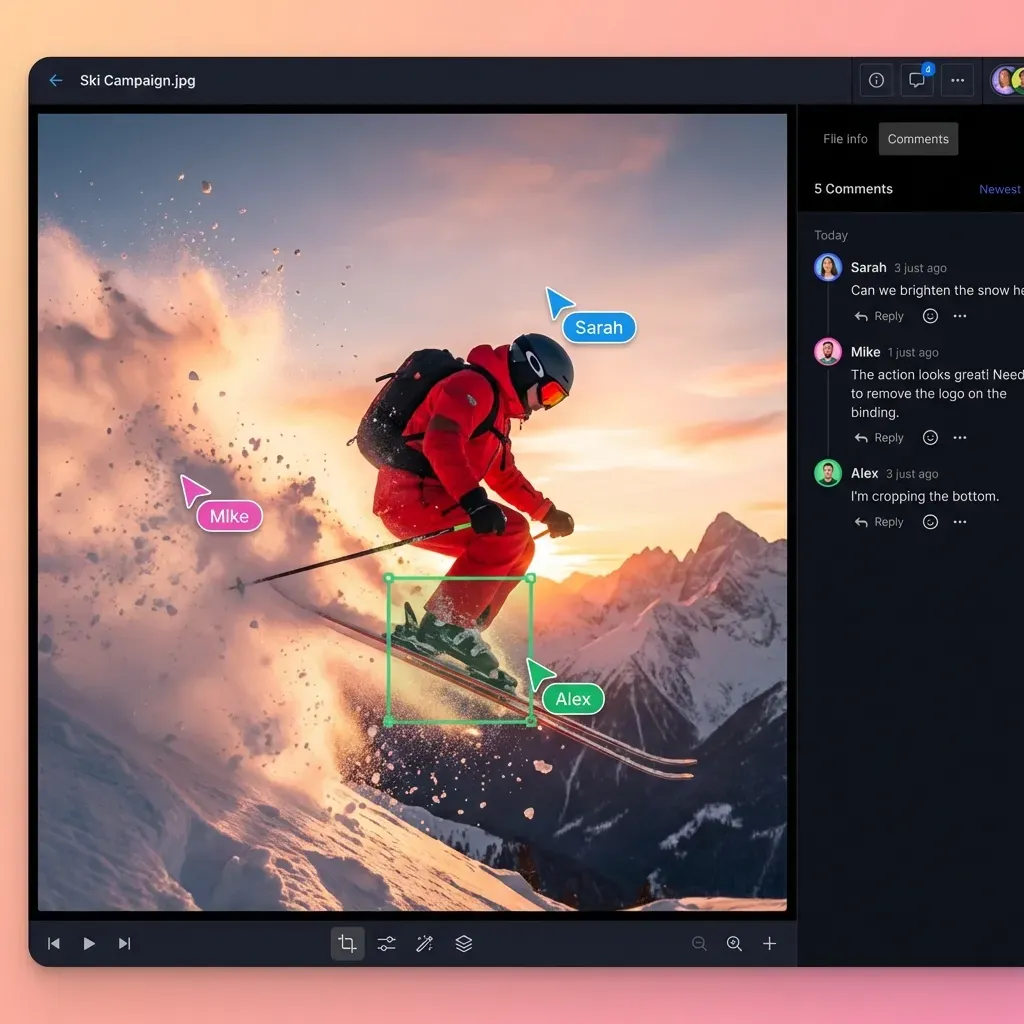
Cause: No designated feedback location. Fix: All feedback happens in one place, attached to the video. Comments on frames, not in separate threads.
"I can't find the footage I need"
Cause: Inconsistent organization, renamed files, missing metadata. Fix: Enforce folder structure from day one. Use descriptive naming. Log everything during ingest.
"Uploads take forever"
Cause: Slow upload speeds, services that don't handle large files well. Fix: Check your upload speed (not download). Use services optimized for large files. Consider uploading overnight for massive transfers.
"Freelancer left and took the files"
Cause: Files stored in personal accounts. Fix: Organization-owned storage from the start. Files belong to the company, not the individual who uploaded them.
Frequently Asked Questions
How do video editors work remotely?
Remote video editors work from cloud-synced project files, using proxy workflows or cloud-native editing to access media without downloading everything locally. They upload exports to shared workspaces where clients can stream and review, receive frame-accurate feedback, and make revisions without the back-and-forth of traditional workflows.
What do I need for remote video editing?
Beyond your editing software (Premiere, Resolve, Final Cut, etc.), you need cloud storage that handles large files without compression, fast upload speeds (50+ Mbps recommended), streaming preview capabilities for client reviews, and a feedback system with frame-accurate comments. Hardware requirements stay the same as local editing.
How do you share video files for editing?
For team members, use a shared cloud workspace where everyone accesses the same files rather than passing copies around. For clients, use streaming preview links for reviews and download links for approved finals. Avoid email attachments and services that compress video or have low file size limits.
What internet speed do I need for remote video editing?
Upload speed matters more than download. 50+ Mbps upload is comfortable for most workflows. Under 20 Mbps creates bottlenecks when uploading dailies or exports. If your upload speed is limited, work with proxies locally and upload full-res files overnight.
How do you handle version control with remote video teams?
Use organization-owned cloud storage as your single source of truth. All project files live there, not on individual drives. Establish clear naming conventions before the first file is created, and use folders like /Reviews/v1, /Reviews/v2 to track iterations rather than filename suffixes.
Related Resources

Ready to simplify your remote video workflow?
Fast.io handles large video files, streaming preview, and team collaboration in one platform.