How to Send 4K Video Files Without Losing Quality
4K video files range from 3GB for a short clip to over 100GB per hour of professional footage. Most transfer methods either compress the video, cap file sizes, or force recipients to download everything before watching. This guide covers five methods that preserve original quality, from free cloud storage to professional transfer services built for production workflows.
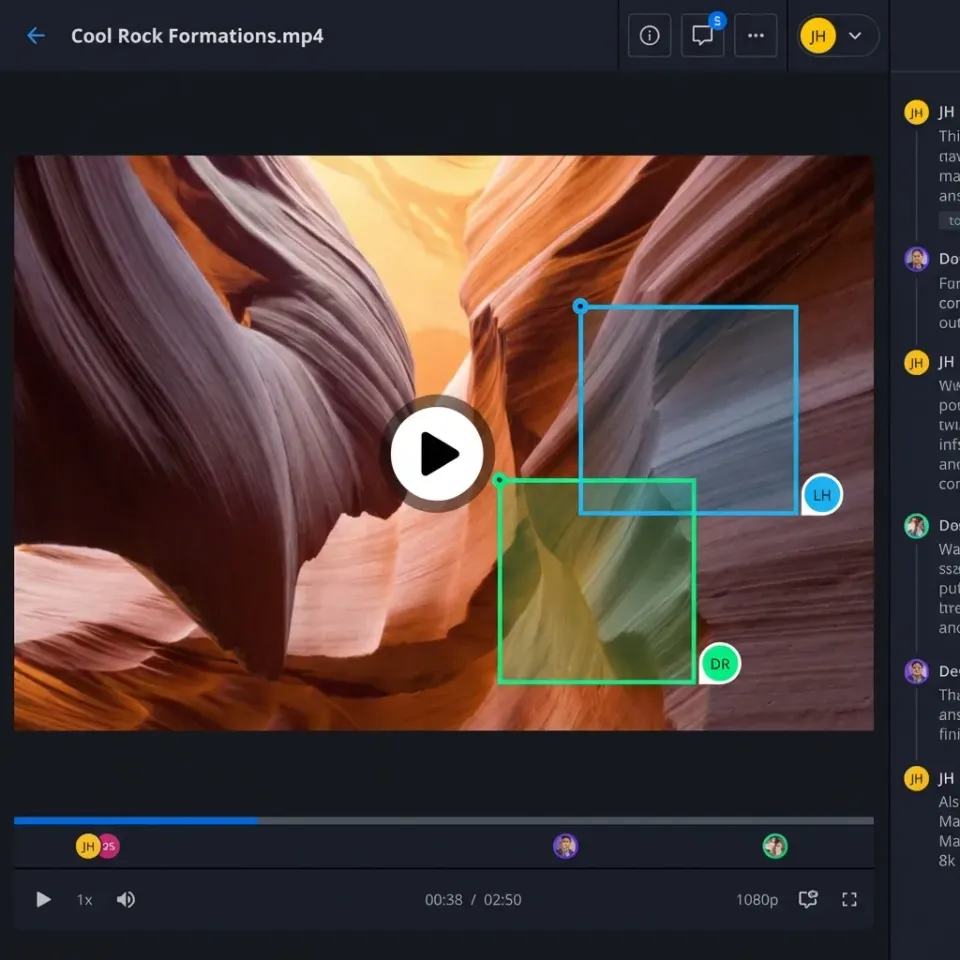
Why 4K Files Break Most Transfer Methods
4K video is roughly four times the resolution of 1080p, and file sizes scale accordingly. A 10-minute clip shot in H.264 runs 3-6GB. The same clip in ProRes 422 can hit 20GB. Shoot in ProRes 4444 or RAW, and you're looking at 50-75GB for just a few minutes of footage.
These sizes create three problems with standard sharing methods:
- Size limits stop you cold. Email caps at 25MB. WhatsApp limits video to 2GB and re-encodes it. Free cloud storage tiers top out at 2-15GB.
- Automatic compression destroys quality. Messaging apps like iMessage, WhatsApp, and Messenger re-encode video to save bandwidth. Your carefully graded 4K footage arrives as a muddy, artifact-ridden mess.
- Downloads take forever. Sending a 30GB file means the recipient waits hours on a typical home connection before they can watch a single frame.
For anyone delivering dailies, sharing footage for color grading, or sending final cuts to clients, you need a method that handles large files without touching the original quality.
Understand Your File Sizes Before Choosing a Method
The right transfer method depends on how large your files actually are. Codec choice has a massive impact on file size, and knowing your numbers helps you pick the right tool.
Common 4K file sizes per minute of footage:
- H.265/HEVC: ~165MB per minute. Best compression-to-quality ratio available. About half the size of H.264 with comparable visual quality.
- H.264/AVC: ~330MB per minute. Universal compatibility, but larger files. Still the most common delivery codec.
- ProRes 422: ~1.8GB per minute. Standard editing codec for professional workflows. Visually lossless.
- ProRes 4444: ~4.3GB per minute. Preserves alpha channels and extended color. Common in VFX and compositing.
- Cinema DNG / RAW: 5-7.5GB per minute depending on camera. Uncompressed sensor data with maximum flexibility in post.
A 10-minute wedding highlight reel in H.264 is about 3.3GB. That same 10 minutes shot on an ARRI in ProRes 4444 is 43GB. The transfer method that works for one will not work for the other.
If quality allows, encoding to H.265 before transfer cuts your file size roughly in half without visible quality loss on most footage. This is the single biggest thing you can do to speed up transfers when the recipient doesn't need the original codec.
Method 1: Cloud Storage for Files Under 15GB
Cloud storage services upload files without re-encoding, so your recipient downloads the exact file you uploaded. For shorter 4K clips or H.265 exports, free tiers can work.
Google Drive gives you 15GB free. Upload your video, right-click, share the link. Recipients can preview video directly in the browser for files under 5GB, though playback quality is limited to what Google's player supports.
Dropbox starts at 2GB free (2TB on the paid Plus plan). Its video previewer handles files up to 50GB and generates streaming thumbnails, which is helpful for quick reviews.
OneDrive offers 5GB free with Microsoft accounts. Integration with Windows and Office makes it convenient if your team already uses Microsoft tools.
The limitations are real. Free tiers fill up fast with 4K footage. Per-seat pricing on paid plans adds up for teams. And sync-based platforms like Dropbox require local copies of every file, eating through disk space on laptops. Cloud-native platforms that stream files on demand avoid this problem entirely.
Cloud storage works well for occasional transfers of smaller 4K files. For regular transfers or anything over 15GB, you'll need a different approach.
Method 2: Transfer Services for One-Off Sends
File transfer services focus on moving files from A to B without storing them permanently. Upload your video, get a link, send it to the recipient.
WeTransfer allows 2GB on free accounts and 200GB on Pro plans. Files expire after 7 days (free) or 28 days (paid). No account needed for recipients. It's the simplest option for quick, one-time transfers.
Smash has no file size limit on free uploads, though transfer speeds are throttled. Paid plans remove the speed cap and add password protection.
MASV is built specifically for video professionals. It handles files up to 15TB per transfer with no software installation required. Pricing is pay-as-you-go at $0.25 per GB downloaded. MASV uses a network of over 400 global server locations to accelerate uploads and downloads, and it integrates directly with tools like Frame.io and cloud storage services. For production teams sending dailies or large project files regularly, MASV fills the gap between consumer transfer services and enterprise solutions.
The trade-off with all transfer services is impermanence. Files expire, recipients must download before the link dies, and you'll re-upload every time you need to share with someone new. For ongoing projects where the same footage gets shared with multiple stakeholders, persistent storage is a better fit.


Share 4K footage with instant streaming preview
Fast.io lets recipients watch 4K video immediately without downloading. 50GB free storage, no credit card required.
Method 3: Team Storage with Streaming Preview
For video teams that share 4K footage regularly, dedicated storage with built-in streaming solves the biggest pain point: waiting for downloads before anyone can watch.
Fast.io uses HLS (HTTP Live Streaming) to let recipients preview 4K videos instantly in their browser. The original file stays untouched in storage while a lightweight streaming proxy handles playback. Recipients start watching in seconds, not hours.
Why this matters for video workflows:
- No downloads for review. Clients and stakeholders watch footage immediately. They don't need to clear 30GB of disk space first.
- Persistent storage. Files don't expire like transfer services. Your project library stays accessible for months or years.
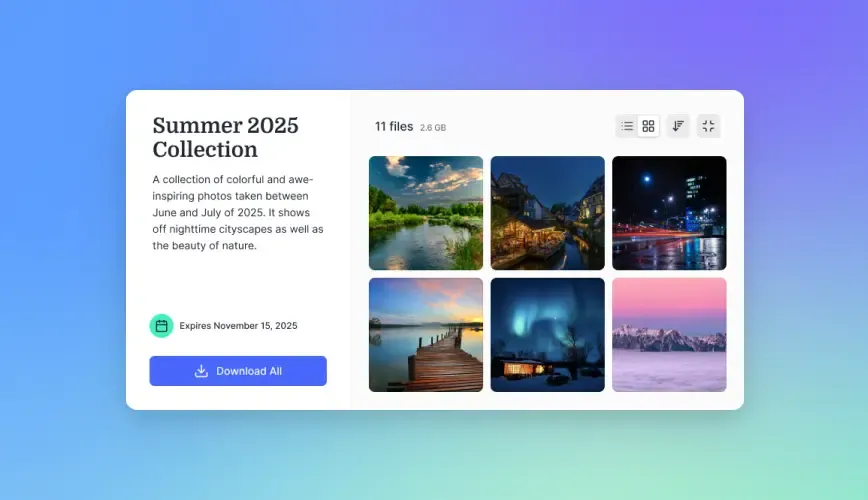
- Branded shares. Deliver work through portals with your logo and colors. Send shares let you package multiple files for client delivery with optional password protection and expiration dates.
- Granular permissions. Control who can view, download, or upload at the workspace, folder, or individual file level.
- Version history. Upload revised cuts without losing previous versions. Clients always see the latest, and you can roll back if needed.
The free tier includes 50GB of storage and 5,000 monthly credits with no credit card required. That's enough for several projects worth of 4K footage.
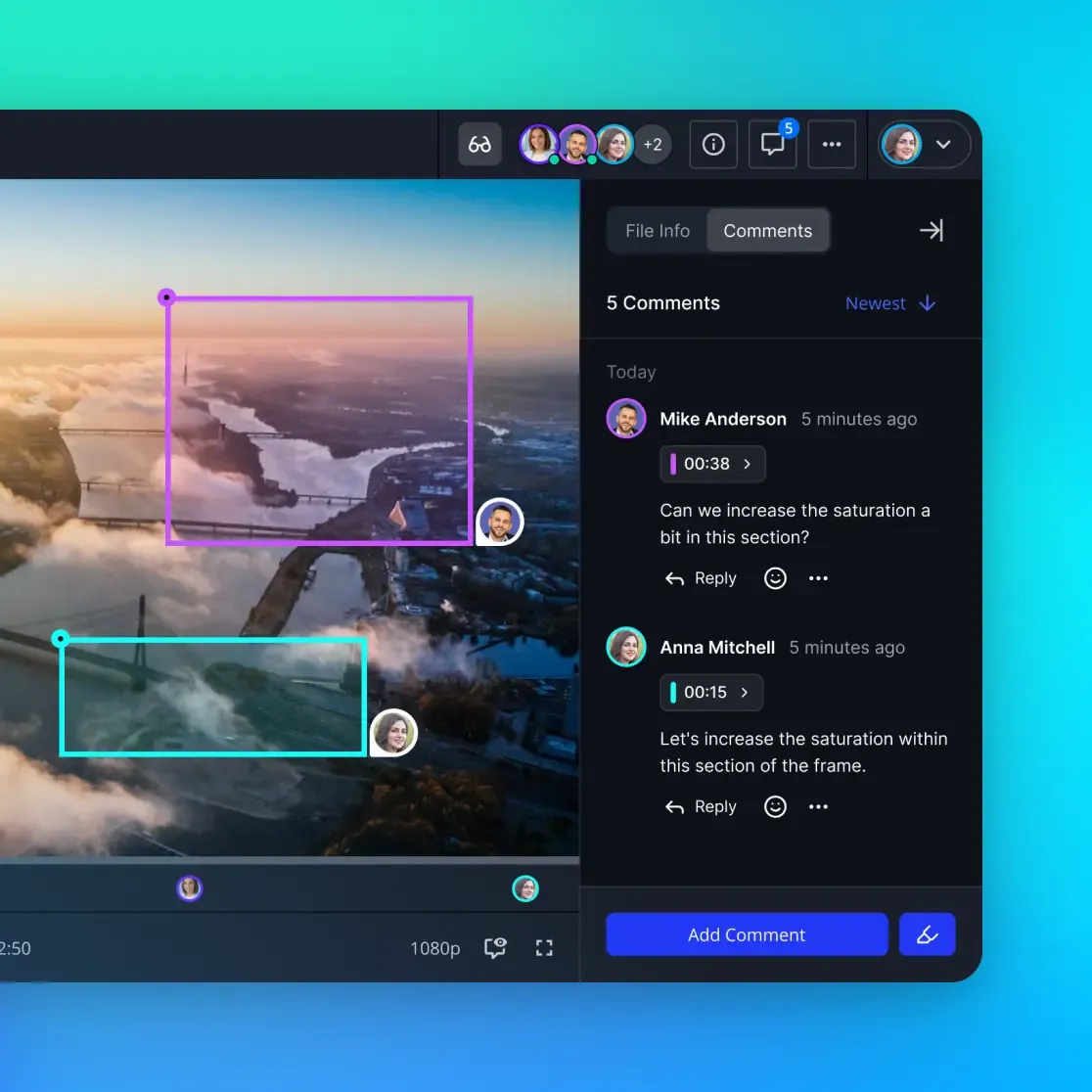
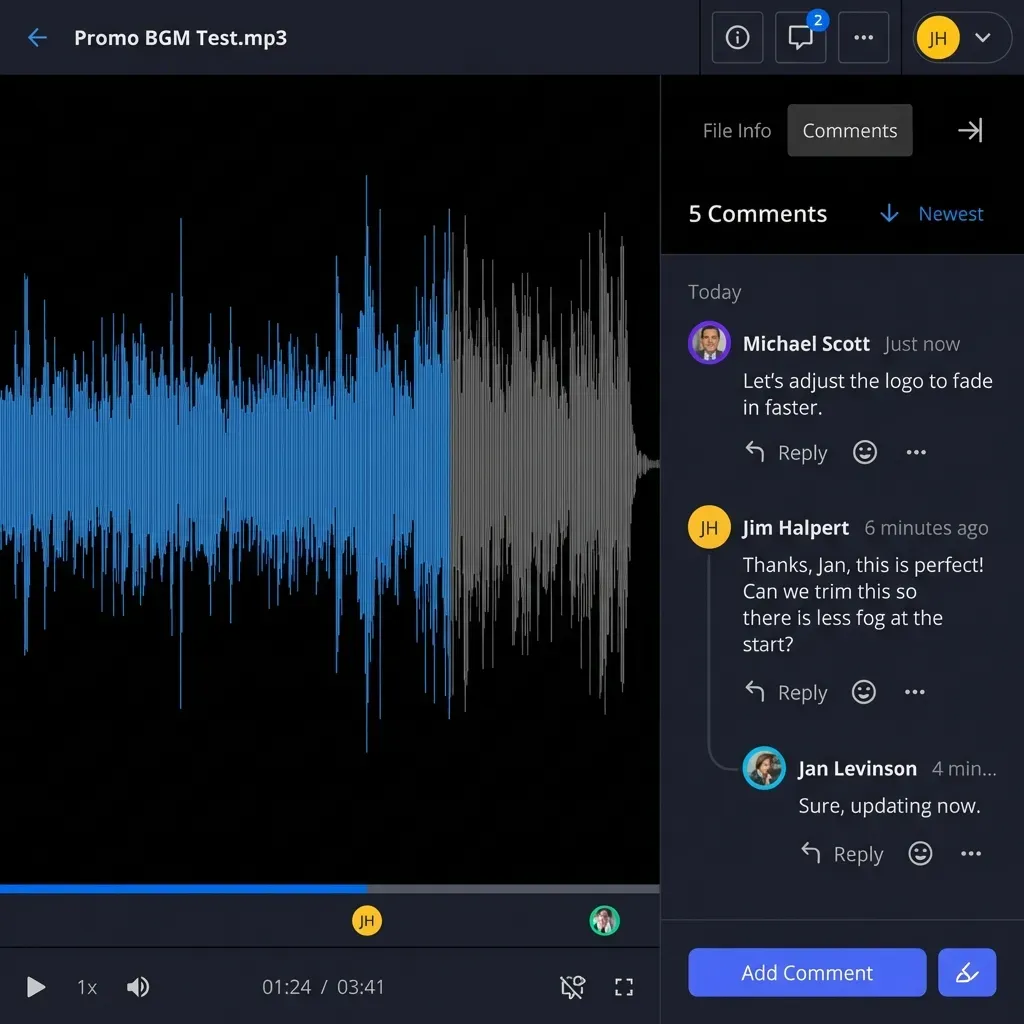
Other platforms in this category include Frame.io (focused on video review with timecode comments) and Dropbox Replay (adds review features to Dropbox storage). Each has different strengths depending on whether you prioritize review tools, storage capacity, or client delivery.
Method 4: Physical Drives for Massive Transfers
Sometimes the fastest way to move 4K footage is to copy it to a drive and ship it.
A 2TB NVMe SSD costs around $120 and holds roughly 20 hours of 4K ProRes 422 footage. Copy speeds from a fast internal drive to an external NVMe hit 1,000-2,000 MB/s, meaning you can copy 500GB in under 10 minutes.
The math on when physical wins:
Uploading 500GB on a 100 Mbps connection takes about 11 hours. On a 50 Mbps upload speed (common for business internet), that's 22 hours. Overnight shipping takes 12-18 hours, and the drive arrives with the data ready to use at full disk speed.
For transfers over 500GB, physical media is often faster and cheaper than any network-based option. This is especially true when:
- One or both sides have slow upload speeds
- The footage is time-sensitive and you can't wait a full day for uploads
- You need to maintain chain of custody for sensitive content
- You're delivering a complete project archive (raw footage, proxies, project files, renders)
The downside is logistics. You need the drive, packaging, and a shipping account. There's no instant sharing, no streaming preview, and no collaboration until the drive arrives. For large one-time deliveries, it works. For ongoing work, pair physical delivery with cloud storage for day-to-day access.
Tips for Faster 4K Transfers Over the Internet
Regardless of which method you choose, these practices speed things up.
Pick the Right Codec for Delivery
If your recipient needs to edit the footage, send the original codec (ProRes, RAW, or whatever your camera shoots). If they just need to review or play back, export to H.265 first. You'll cut file sizes by 50-80% compared to ProRes with no visible quality difference on playback.
Use a Wired Connection Wi-Fi speeds fluctuate based on interference, distance from the router, and how many devices share the network. A wired ethernet connection gives consistent throughput. For a 30GB upload, the difference between stable 100 Mbps wired and fluctuating 40-80 Mbps Wi-Fi can save you an hour.
Check Your Upload Speed
Most internet plans have asymmetric speeds: download is fast, upload is slow. A "200 Mbps" plan often has only 10-20 Mbps upload. Run a speed test focused on upload before starting a large transfer. If your upload is under 20 Mbps, consider encoding to H.265 or using physical media for anything over 10GB.
Transfer During Off-Peak Hours
Shared internet connections (office buildings, apartments) slow down when everyone is online. Scheduling uploads for late evening or early morning can double your effective speed.
Avoid These Methods Entirely
Never use these for 4K video when quality matters:
- Email attachments cap at 25MB and some providers compress attachments
- WhatsApp, iMessage, Messenger re-encode video aggressively
- YouTube or Vimeo uploads re-encode everything, so recipients get a streaming version, not your original file
- SMS/MMS compresses video to under 1MB in most cases
Frequently Asked Questions
How do I send a 4K video without losing quality?
Use a transfer method that doesn't re-encode your file. Cloud storage services (Google Drive, Dropbox, OneDrive), file transfer services (WeTransfer, MASV, Smash), and team storage platforms like Fast.io all preserve original quality. Avoid messaging apps and social platforms, which compress video automatically.
Can you email a 4K video?
Not directly. Email attachments are limited to 25MB on most providers, and a single minute of 4K video is 165MB to 7.5GB depending on the codec. Instead, upload your video to cloud storage or a transfer service and share the link via email.
What is the best way to share 4K footage with clients?
For client reviews, use a platform with streaming preview so clients can watch instantly without downloading. Fast.io and Frame.io both offer this. For final delivery of original files, MASV handles large transfers without file size limits. For ongoing projects, persistent team storage avoids re-uploading for each review round.
How long does it take to upload a 4K video?
It depends on file size and your upload speed. A 5GB H.264 clip on a 50 Mbps upload takes about 13 minutes. The same file on 10 Mbps upload takes over an hour. A 50GB ProRes file on 50 Mbps upload takes roughly 2.2 hours. Check your actual upload speed (not download) before planning your transfer timeline.
Does compressing a 4K video reduce quality?
Re-encoding always loses some quality, though modern codecs like H.265 make the loss invisible in most footage. For archival or professional delivery where every detail matters, always transfer the original file. For reviews and approvals where playback quality is sufficient, H.265 encoding cuts file sizes in half with no perceptible difference.
What's the largest 4K video file I can send online?
It depends on the service. WeTransfer Pro handles up to 200GB. MASV supports files up to 15TB. Cloud storage limits depend on your plan (Google Drive goes up to 5TB per file on paid plans). Fast.io's free tier includes 50GB of storage. For files over 500GB, physical drives shipped overnight are often the most practical option.
Related Resources

Share 4K footage with instant streaming preview
Fast.io lets recipients watch 4K video immediately without downloading. 50GB free storage, no credit card required.