How to Send Large Video Files Without Losing Quality
Most file sharing methods choke on video. Email caps out at 25MB. Consumer tools compress your footage into artifacts. This guide covers five ways to send large video files—and when to use each one based on file size and whether you need a simple transfer or ongoing project access.
Why Standard Email Won't Work for Video Files
Email attachments cap out around 25MB. One minute of 4K footage? About 375MB. So even a 30-second clip is five times too large.
Video is just big. A 10-minute interview in 4K runs around 3.75GB. An hour of raw footage hits 50GB or more. Standard sharing tools weren't built for this.
But size is only half the problem. Many services compress files during transfer to save bandwidth. That compression wrecks color-graded footage—banding in gradients, soft edges, muddy shadows. The file arrives smaller but looks worse.
The 5 Best Methods for Sending Large Video Files
No single method works for everyone. Your choice depends on file size, how often you're sending, and whether recipients need to download or just watch.
1. Cloud Storage Services
Upload your video to Dropbox, Google Drive, or iCloud and share a download link. This works for files up to 50GB (iCloud) or 250GB (Dropbox with add-ons).
Best for: One-off transfers when you already pay for cloud storage.
Downsides: Uploads take as long as your internet allows. Recipients have to download everything before they can watch.
2. Dedicated File Transfer Services
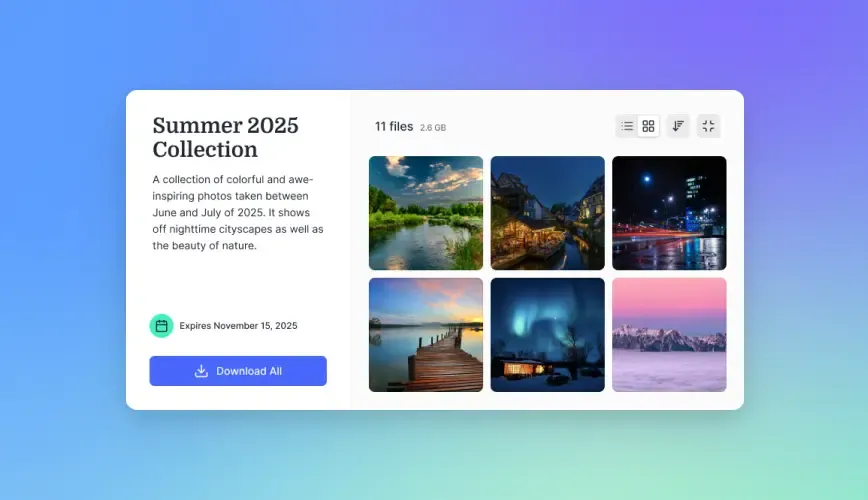
WeTransfer, SendAnywhere, and similar tools let you upload files and generate download links without storing files long-term. Files typically expire after 7-30 days.
Best for: Quick transfers when you don't need ongoing access.
Downsides: File expiration means broken links. No organization features for ongoing projects.
3. Cloud-Native Platforms with Streaming
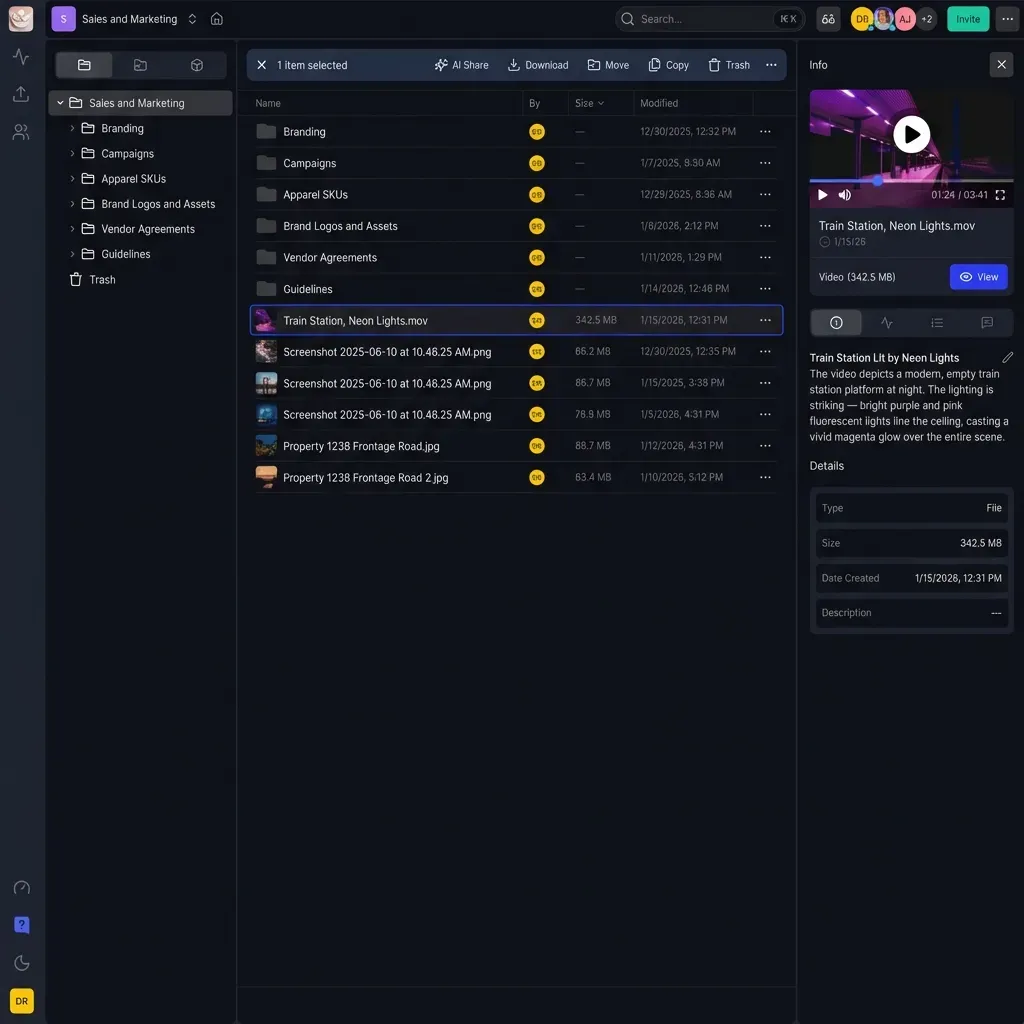
Platforms like Fast.io store your files and let recipients stream video directly. No expiration dates, and multiple team members can access the same content.
Best for: Teams sharing video regularly, client reviews, ongoing projects.
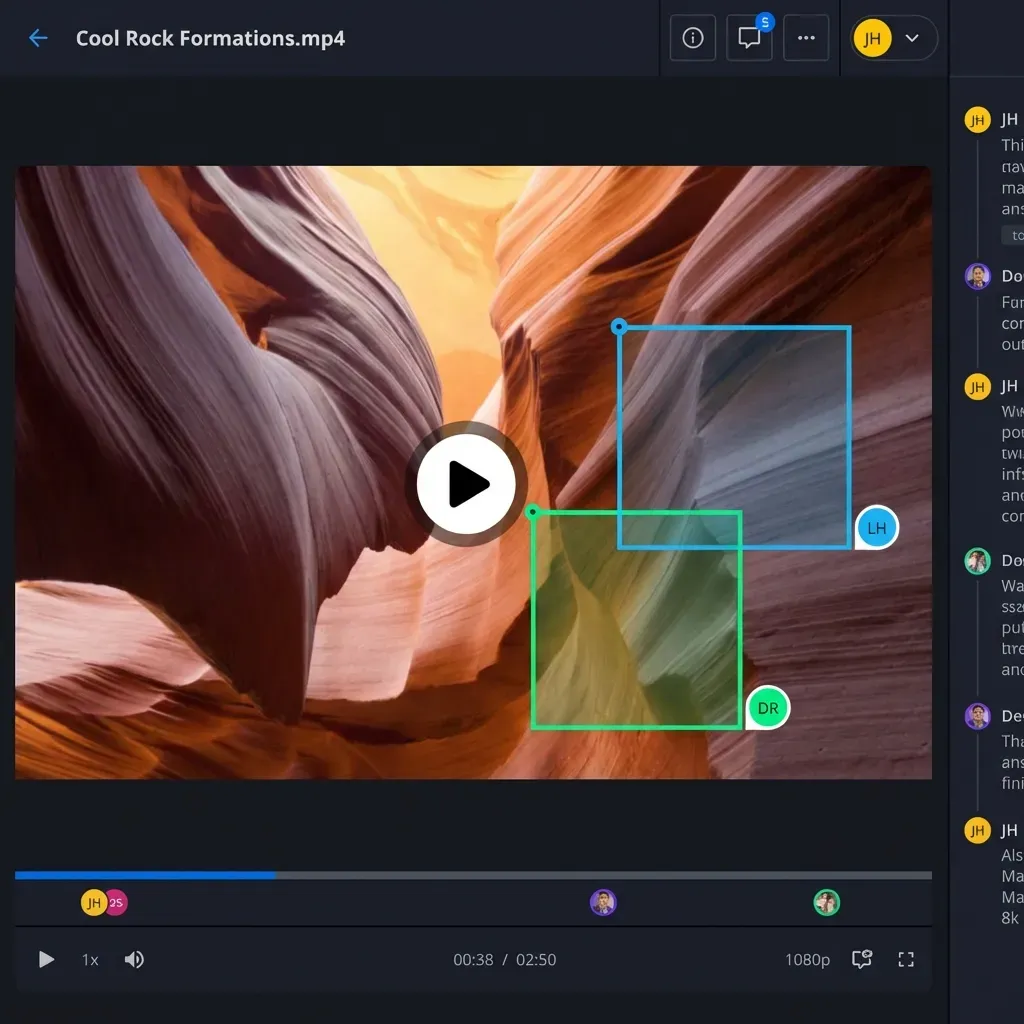
Advantages: Streaming means instant playback—no waiting for downloads. Comments pin to exact frames, so reviewers can point to the specific second they're talking about.
4. Video Hosting Platforms
YouTube and Vimeo work fine when viewing is the goal, not downloading. But they compress everything for streaming, which wrecks the original quality.
Best for: Public sharing, marketing content, social posts.
Downsides: If recipients need the original file, this won't work. Heavy compression hurts professional footage.
5. Physical Media
USB drives handle any file size. No internet required. A 1TB flash drive runs under $100 and transfers faster than most connections.
Best for: Huge files (100GB+), bad internet, security-sensitive content.
Downsides: You need to physically hand it over or ship it.
Why Video Compression Causes Problems
Many transfer services shrink files to save on storage costs. Fine for PDFs. Terrible for video.
Compression algorithms throw out data they consider "redundant." For video, that means:
- Color banding in gradients and sky shots
- Macro-blocking during motion
- Lost shadow detail in dark scenes
- Soft edges that make footage look muddy
If a client needs to make final edits, a compressed proxy won't cut it. They need the original.
Fast.io keeps source files intact. You get streaming previews for quick review, but the full-quality original stays available for download.
Step-by-Step: Send a Large Video File
The quickest path for files over 1GB:
- Create a workspace or folder for your project
- Upload your video with drag-and-drop or the file picker
- Wait for processing (streaming platforms generate previews automatically)
- Copy the share link with download enabled
- Send the link via email, Slack, wherever
A 10GB file takes about 15-30 minutes to upload on a 100Mbps connection. Gigabit connections are obviously faster.
Options worth knowing about
- Password protection for sensitive content
- Expiration dates if you want links to die after delivery
- View-only mode when watching is fine but downloading isn't
- Watermarking for review copies
How to Share Video for Client Review
Sending a file is one thing. Getting useful feedback is another.
The old way—email a link, ask for notes—turns into chaos. "The part around 2 minutes needs work" isn't helpful when you're scrubbing through a 30-minute edit trying to figure out what they mean.
Comments that pin to exact frames fix this. Clients click on the frame they're talking about and leave a note right there. You open the project and see exactly which second needs attention.
Setting up a client portal takes this further with a branded space for reviewing multiple deliverables.
What clients actually need
- No software to install—just a browser
- Instant playback without downloading gigabytes first
- Comments attached to specific timecodes
- Mobile access so they can review from anywhere
Comparing Transfer Methods by File Size
Quick reference based on file size:
Under 2GB - Almost anything works. Google Drive, Dropbox, WeTransfer. Pick whatever's convenient.
2GB to 25GB - Email is out. Some consumer services struggle. Stick with cloud storage or dedicated transfer tools.
25GB to 100GB - You need something built for this. WeTransfer free caps at 2GB. Paid cloud tiers or specialized platforms handle it.
Over 100GB - Cloud gets painful. Upload times on home internet are brutal. Physical drives or enterprise platforms start making sense.
If you're sending large files regularly, a streaming platform beats uploading to WeTransfer every time.
Frequently Asked Questions
How do I send a video that is too large for email?
Upload the video to a cloud storage service like Google Drive, Dropbox, or Fast.io and share a download link. Most services support files up to 50-250GB, far exceeding email's 20-25MB limit. The recipient clicks the link to download or stream the video.
What is the best way to share large video files?
For one-time transfers, cloud storage or WeTransfer work well. For ongoing projects with client reviews, streaming platforms are better—recipients can watch instantly without downloading and leave comments tied to specific moments. The best method depends on whether you need storage or just a quick transfer.
Can I send a 5GB video through email?
No. Email providers cap attachments at 20-25MB. A 5GB video is about 200 times larger than the limit. Upload the file to cloud storage and email the download link instead. Gmail and Outlook both offer this workflow through Google Drive and OneDrive integration.
How long does it take to upload a 10GB video?
On a 100Mbps connection, a 10GB video takes about 15 minutes to upload. On a slower 25Mbps home connection, expect about an hour. Download speeds for recipients depend on their connection, but streaming platforms let viewers start watching immediately without waiting for the full download.
Does sending video files reduce quality?
Some services compress uploads to save storage, which hurts quality. Professional platforms keep the original file intact. Before using any service for color-graded or high-quality footage, check whether it modifies your files.
Related Resources

Send large video files without compression
Fast.io handles files up to 250GB with instant streaming and frame-accurate review tools.