How to Share Files Temporarily
Temporary file sharing creates time-limited access to files that automatically expires after a set period. This prevents sensitive documents from remaining accessible indefinitely. This guide covers how to set up expiring links, the security benefits of time-limited sharing, and best practices for protecting your files with temporary access controls.
What Is Temporary File Sharing?
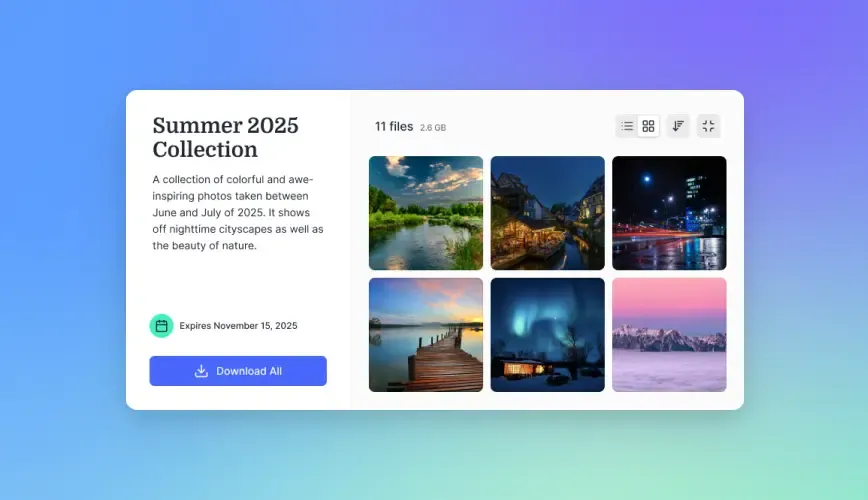
Temporary file sharing is the practice of distributing digital files through links that automatically stop working after a specified time period or number of downloads. Unlike permanent file sharing where links remain active indefinitely, temporary sharing builds expiration directly into the access mechanism. When the deadline passes, the link becomes invalid and returns an error page to anyone who clicks it.
This approach addresses a fundamental problem with digital file distribution. Traditional methods like email attachments create permanent copies that sit in inboxes forever, forwarded endlessly and impossible to recall. Even cloud sharing links often default to perpetual access, meaning that contract you shared with a vendor three years ago might still be accessible today. Research indicates that most shared links are never accessed again after 30 days, yet they frequently remain active for months or years.
The concept works by separating the file itself from the access path. Your original file stays safe in your cloud storage. What expires is the link, the specific URL that grants viewing or download access. This distinction matters because you retain full control of the source file while managing who can reach it and for how long. If someone needs access again later, you can generate a fresh link with a new expiration date rather than trying to track down and revoke an old one.
For businesses handling client deliverables, legal documents, financial reports, or any sensitive information, temporary sharing reduces what security professionals call the "attack surface." Every active link represents a potential entry point. By automatically expiring links that are no longer needed, you systematically close those doors without requiring manual intervention or constant auditing.
How Expiring Links Protect Your Data
Expiring links provide security through automatic access revocation. When you share a file with a 7-day expiration, you create a narrow window during which the recipient can access the content. Once that window closes, the protection kicks in automatically. No one needs to remember to revoke access. No one needs to audit old shares. The system handles it.
Consider a common scenario: you share a draft contract with an external legal team for review. They complete their review in three days, but the link stays active. Six months later, someone at that firm forwards the email to a new colleague who clicks the link. If the link is permanent, they see your confidential document. If the link expired after 14 days, they see an error page. The file was never at risk because access ended automatically.
The security benefit compounds when you factor in data breaches. When email accounts get compromised, attackers often comb through old messages looking for active file links. Expired links return nothing useful. They are dead ends that provide no value to attackers even if they find them. This matters more than most people realize. A significant percentage of data breaches involve access to old, forgotten shares rather than sophisticated hacking.
Time-limited sharing also supports data retention policies. Many organizations must demonstrate that they control access to sensitive information and can prove when access ended. Expiring links create automatic documentation. The link settings themselves become an audit trail showing that access was configured to end on a specific date. This documentation proves useful for compliance discussions and security reviews.
For creative professionals and agencies, temporary sharing solves the version control problem. When you send a client the wrong draft, you need that link to die quickly so they look at the right version instead. Permanent links create confusion when old versions remain accessible alongside new ones. Expiration forces everyone toward the current material.
Step-by-Step Guide to Creating Temporary Links
Setting up temporary file shares follows a consistent pattern across most cloud platforms, though the specific interface elements vary. Here is the general process that applies to Fast.io and similar business file sharing tools.
Step 1: Upload your file to a secure workspace
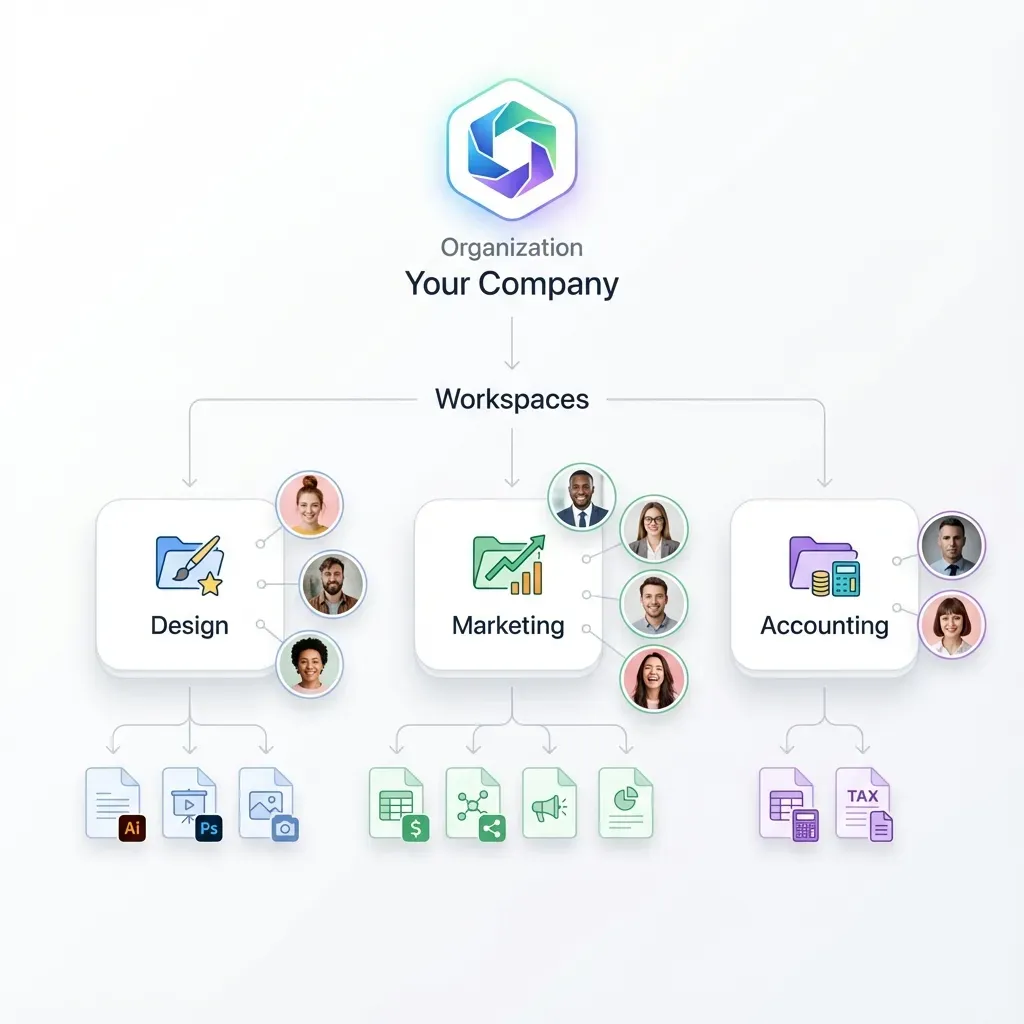
Start by placing your file in an organization-owned workspace rather than a personal folder. This ensures that expiration settings apply properly and that audit logs track all access. Organization ownership also means the file stays accessible to your team even if the person who uploaded it leaves the company.
Step 2: Open the sharing dialog
Select the file and click the Share button. Most platforms display this prominently near the file name or in a right-click context menu. You should see options for creating a shareable link.
Step 3: Access link settings
Look for a gear icon, "Settings" link, or "Advanced options" near the share link. This opens the configuration panel where expiration controls live alongside other security settings like password protection and download restrictions.
Step 4: Enable and configure expiration
Toggle on the expiration option. You should see choices for setting a specific date, a relative duration (like 7 days from now), or a maximum number of downloads. Choose based on your use case. For time-sensitive deliverables, a specific date works well. For general sharing, a relative duration like 30 days provides flexibility.
Step 5: Add additional protection if needed
Consider stacking expiration with other controls. Adding a password means that even if the link is forwarded during its active period, unauthorized recipients cannot open the file. View-only mode prevents downloads, leaving no copy behind after expiration. These layers work together.
Step 6: Copy and send the link
Once configured, copy the generated link and send it through your preferred channel. Email, Slack, or project management tools all work. Include a note about the expiration so recipients know the deadline. Something like "This link expires on Friday" prevents confusion when they try to access it later.
The entire process takes under a minute once you know where the settings live. Most platforms remember your preferences, so subsequent shares can go even faster.
Temporary Transfer vs. Controlled Access
Two distinct approaches exist for sharing files temporarily, and understanding the difference helps you choose the right tool for each situation.
File transfer services like WeTransfer and similar platforms upload your file to their servers, generate a download link, and delete the entire file after a set period (typically 7 days for free tiers). The file simply ceases to exist. This approach works for one-off transfers where you have no ongoing relationship with the recipient and no need to retain the original. Send a video file to a friend, they download it, the file vanishes. Simple.
The limitation appears when you need the file later. If you want to share it again, you must upload again. If a client needs a fresh copy after the deletion window, you dig through your local storage, find the file, and repeat the upload process. There is no organization, no audit trail, and no way to see who downloaded the file or when.
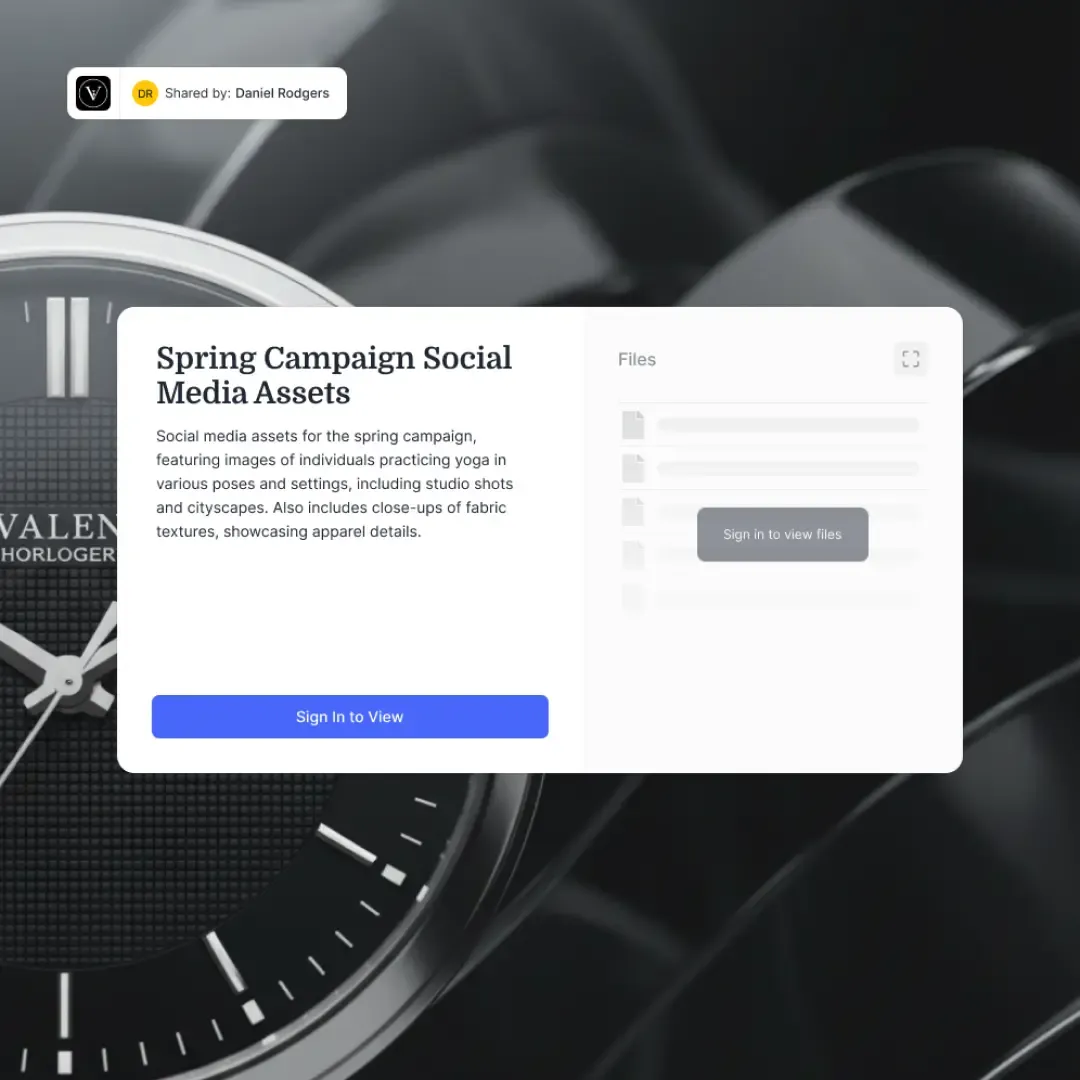
Controlled access platforms like Fast.io work differently. Your file lives in your workspace permanently (or until you delete it). You share links that expire, but the file remains yours. Revoke access by letting the link expire or by disabling it manually. Generate new links whenever needed. Track every view and download in audit logs. The file is the constant; the access is what you control.
This distinction matters for professional use. Legal teams need to prove exactly when a document was shared and viewed. Creative agencies need to reshare assets when clients lose track of files. Sales teams need to update collateral and distribute fresh links without re-uploading. Controlled access handles all of these scenarios because the source file persists.
The practical recommendation: use transfer services for casual, personal file exchanges where you truly need to send something once and forget it. Use controlled access platforms for anything business-related where you might need the file again, want audit trails, or require professional features like branding and permissions.
Best Practices for Secure Temporary Sharing
Effective temporary sharing combines expiration with complementary security measures. Each layer adds protection, and the combination provides substantially more security than any single control.
Match expiration to the use case
Not all shares need the same duration. A quick review of design mockups might need 48 hours. A legal document under negotiation might need 30 days. Financial statements going to auditors might need 90 days. Highly sensitive data like passwords or access credentials should expire within hours, or better yet, use "burn after reading" mode where the link dies after a single view. Set expiration based on how long the recipient genuinely needs access, not based on a default that happens to be convenient.
Layer passwords on top of expiration
An active link can still be forwarded to the wrong person. Adding a password means that even if the email gets forwarded or the Slack message is visible to the wrong channel, unauthorized viewers cannot open the file. Send the password through a different channel than the link. If the link goes via email, send the password via text message. This separation means both channels must be compromised for unauthorized access to succeed.
Restrict downloads for sensitive content
When recipients only need to view a document, disable downloads entirely. View-only mode streams the file in their browser without creating a local copy. When the link expires, nothing remains on their device. This matters for contracts, financial documents, and creative work where you want visibility but not possession. The recipient can review the content thoroughly but cannot keep a copy beyond the access window.
Use organization workspaces, not personal accounts
Files shared from personal cloud accounts disappear when that person leaves the company, taking all the sharing history and audit logs with them. Organization-owned workspaces ensure continuity. Someone else can manage those shares, see who accessed what, and generate new links as needed. This organizational ownership is fundamental for any professional use.
Document your sharing decisions
Keep a record of what you shared, with whom, and what expiration you set. Some platforms provide this automatically through audit logs. Others require manual tracking. Either way, being able to answer "who had access to this file and when" matters for compliance, dispute resolution, and general operational awareness.
Common Temporary Sharing Scenarios
Different professional situations call for different expiration strategies. Here are configurations that work well for common use cases.
Client deliverables and approvals
When sending work to clients for review and approval, 14 to 30 days typically provides enough time for their internal review process while ensuring old versions do not linger. Enable view-only mode if you want feedback but not downloads. Add your organization branding to the share portal so it looks professional. Include commenting features if you want consolidated feedback in one place rather than scattered across email threads.
Contract and legal document review
Legal documents often go through multiple review cycles spanning weeks or months. Set longer expirations (60 to 90 days) but require password access. Use audit logs aggressively here since knowing exactly when opposing counsel viewed a document can matter in negotiations. Consider watermarking documents with the viewer's email address to discourage unauthorized redistribution.
Sensitive financial information
Financial reports, tax documents, and investment materials require tight controls. Short expirations (7 to 14 days), mandatory passwords, view-only access, and download tracking all apply. For extremely sensitive materials like acquisition documents or pre-public earnings, consider links that expire after a single view to ensure information does not spread.
Creative asset delivery
Video files, photography, and design work need enough time for client review but not so long that old versions circulate. Two to four weeks handles most review cycles. Disable downloads until final approval if you want to prevent premature use of draft work. For final deliverables, enable downloads but still set expiration so clients do not keep accessing the file forever when you might want to archive or update it.
Internal project collaboration
When sharing with colleagues or other departments, shorter expirations (7 days) keep workspaces clean and encourage use of shared folders over individual link shares. If something needs longer access, it probably belongs in a shared workspace rather than as a temporary link. This pattern reduces clutter and keeps truly temporary shares temporary.
Vendor and partner exchanges
External business partners often need access for the duration of a project or contract term. Match expiration to project milestones or agreement periods. Require password access since vendor email accounts change hands more frequently than you might expect. Audit all access for accountability.
Frequently Asked Questions
How do I share a file that expires automatically?
Upload the file to a cloud platform with sharing controls, click Share, open link settings, and enable expiration. Choose either a specific date or a duration like 7 or 30 days. The link will stop working automatically when that time passes. The file remains in your storage; only the access path expires.
What happens when someone clicks an expired link?
They see an error page indicating the content is no longer available. The original file remains safe in your storage. If you need to share it again, generate a new link with fresh expiration settings. No data is exposed to late visitors.
Can I extend or revoke a temporary link before it expires?
Most platforms allow you to modify expiration settings on active links. You can extend the deadline if a client needs more time, or revoke immediately if circumstances change. Check your sharing dashboard for the specific link and adjust its settings.
Should I combine expiration with password protection?
Yes. Expiration limits the time window, but the link can still be forwarded during that window. Passwords add another layer so that even if the link reaches the wrong person, they cannot open the file without the password. Send the password through a different channel than the link for maximum security.
What is the difference between temporary transfer and controlled access?
Temporary transfer services delete the actual file after the expiration period. Controlled access platforms keep your file and just expire the link. Use transfer services for casual one-off sends. Use controlled access for business documents where you need audit trails, might reshare later, or want to maintain the source file.
How long should I set expiration for different types of files?
Match expiration to genuine need. Quick reviews need 48 hours to 7 days. Contract negotiations need 30 to 90 days. Extremely sensitive data like credentials should expire within hours or after a single view. When unsure, start short and extend if recipients need more time.
Related Resources

Start Sharing Files Temporarily
Create secure, expiring links for your business files. Control exactly how long recipients can access your content with time-limited sharing and password protection.