How to Share Revit Files with Construction Teams
Revit files for construction projects regularly exceed 500 MB, making email and basic cloud drives impractical for sharing with general contractors, subs, and field crews. This guide covers the main approaches to Revit model collaboration, from Autodesk's native tools to general-purpose platforms, and walks through setting up secure multi-team workflows that keep every trade working from the current model revision.
Why Revit File Sharing Breaks Down on Construction Projects
Revit models are big. A typical commercial building produces files between 200 MB and 1 GB, and complex projects like hospitals or mixed-use towers can push past 1.5 GB. That size creates problems at every stage of the sharing process.
Email caps attachments at 10 to 25 MB depending on the provider. That means Revit files never travel by email in their native .rvt format. Teams resort to zipping partial exports, sending Google Drive links, or burning time splitting models into pieces. Each workaround introduces a new failure mode: stale versions, broken linked files, or subs working from exports that strip out the metadata they need.
Generic sync tools like Dropbox and Google Drive handle the file size, but they create a different problem. When an architect pushes a revised structural model and a sub is syncing an older version, you get merge conflicts that are difficult to resolve in Revit. There is no built-in awareness of who is working on what.
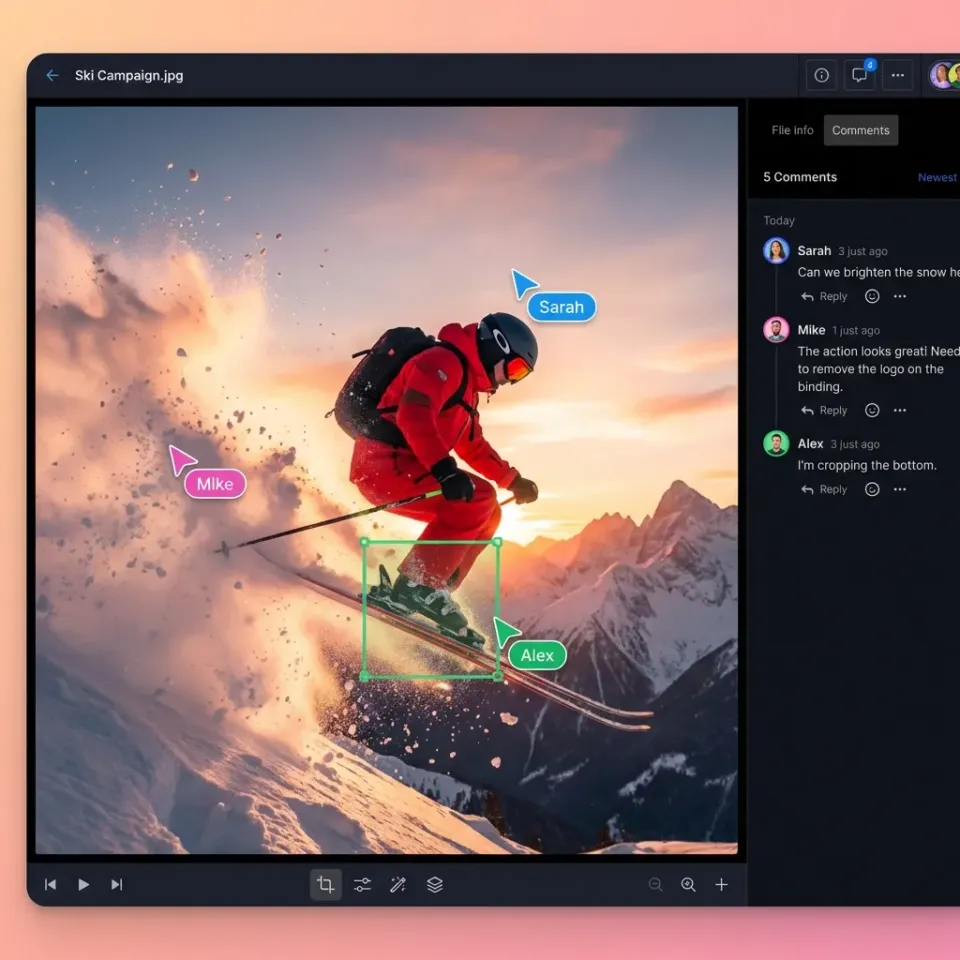
Field crews compound the issue. A superintendent checking clash details on a job site needs to view the model, not download 800 MB over spotty cellular data. Without browser-based previews, field teams either wait for downloads or skip checking altogether.
The cost of these breakdowns is real. A buildingSMART survey of 250 construction professionals found that 65% adopted BIM specifically to resolve quality issues and eliminate clashes faster. But those gains evaporate when teams can't reliably access the current model.
Revit Sharing Methods Compared
There are four main approaches to sharing Revit files with construction teams. Each fits different project sizes and team structures.
Autodesk Construction Cloud (ACC)
ACC is the only platform that supports true Revit cloud worksharing, where multiple users co-author the same model in real time. It stores the central model in the cloud, handles sync-with-central operations, and provides native clash detection through Navisworks integration. For teams already embedded in the Autodesk ecosystem, ACC is the most capable option.
The tradeoff is cost and complexity. ACC is priced per user with annual subscriptions, and every team member needs the appropriate Autodesk license. Subcontractors who just need to review a model still need access credentials, which adds administrative overhead. Onboarding non-technical subs can take days.
Cloud worksharing with Desktop Connector
For teams using BIM 360 or ACC, Autodesk's Desktop Connector maps cloud models to a local drive letter. This lets Revit treat cloud-hosted files as if they were on a network drive. It works, but version mismatches between Desktop Connector builds (Revit 2025 and 2026 require version 16.x or later) cause sync failures that are hard to diagnose.
Model linking workflows
Splitting a project into discipline-specific models (architecture, structure, MEP) and linking them together is standard practice on large jobs. Each discipline owns their model and publishes updates on a schedule. This reduces file sizes per model and limits who needs write access.
The challenge is coordination. Linked models break when file paths change. If the structural engineer renames a folder, every architecture model referencing that link fails on open. Teams need strict naming conventions and a shared file location that does not change.
General-purpose cloud workspaces
Platforms like Fast.io, Box, and SharePoint handle large file uploads and provide permission controls, but they do not offer native Revit co-authoring. Their strength is in distribution: getting .rvt files, exported sheets, and supporting documents to the right people with the right access level.
Fast.io fits here when the workflow is "architect publishes model, everyone else consumes it." The free tier includes 50 GB of storage and supports files of any size. Subcontractors access files through branded share links without creating accounts, and browser-based previews let field crews review models without downloading.
Setting Up Multi-Team Revit Sharing on Fast.io
This walkthrough covers the most common construction scenario: an architecture firm sharing Revit models with a GC and multiple subcontractors. The goal is giving each party access to the files they need, without exposing the rest of the project.
1. Create a project workspace
Sign up at fast.io (no credit card required) and create a workspace named for the project, such as "Riverdale Mixed-Use Tower." This workspace becomes the single source of truth for all shared project files.
2. Organize by discipline
Create folders that mirror your project structure:
- /Models/Architecture (full .rvt models)
- /Models/Structural (structural models and linked files)
- /Models/MEP (mechanical, electrical, plumbing)
- /Exports/Sheets (PDF and DWG sheet sets for field use)
- /Submittals (shop drawings and RFI responses)
Keep linked Revit families in the same parent folder as the model that references them. This preserves relative paths when someone downloads the full set.
3. Set permissions by role
Fast.io supports four permission levels: organization, workspace, folder, and file. Use this hierarchy to control access:
- Internal team: full access to the entire workspace
- General contractor: view and download on /Models and /Exports
- MEP subcontractor: view and download on /Models/MEP and /Exports/Sheets only
- Steel fabricator: view and download on /Models/Structural only
Each subcontractor sees their trade folder and nothing else. No access to other subs' files, bid documents, or contract amounts.
4. Create share links for external teams
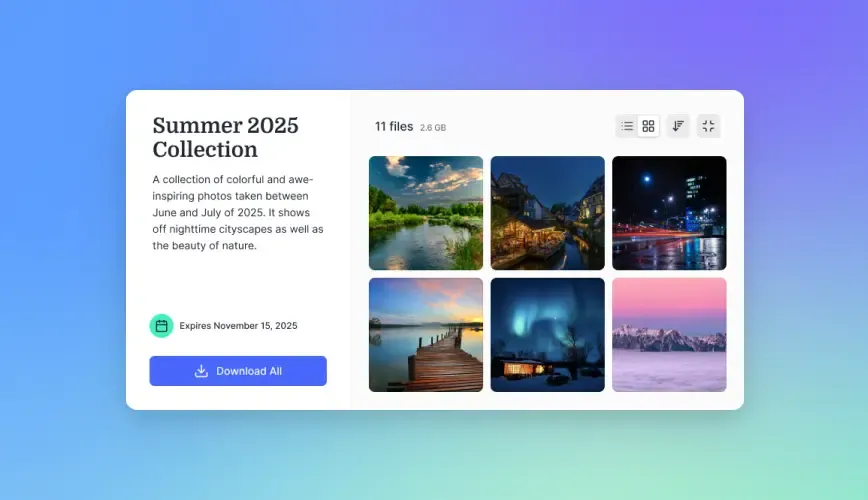
For each sub, generate a branded share link with a password and an expiration date tied to the project timeline. Subs click the link, enter the password, and see their permitted files in a browser. No account creation, no software installation.
If a sub leaves mid-project, revoke their link in one click. The audit log records exactly what they accessed and when.
5. Upload and version models
Drag .rvt files into the workspace. Fast.io handles chunked uploads for files over 1 GB, so large models transfer reliably even on slower connections. Each upload creates a new version, and previous versions stay accessible in the file history.
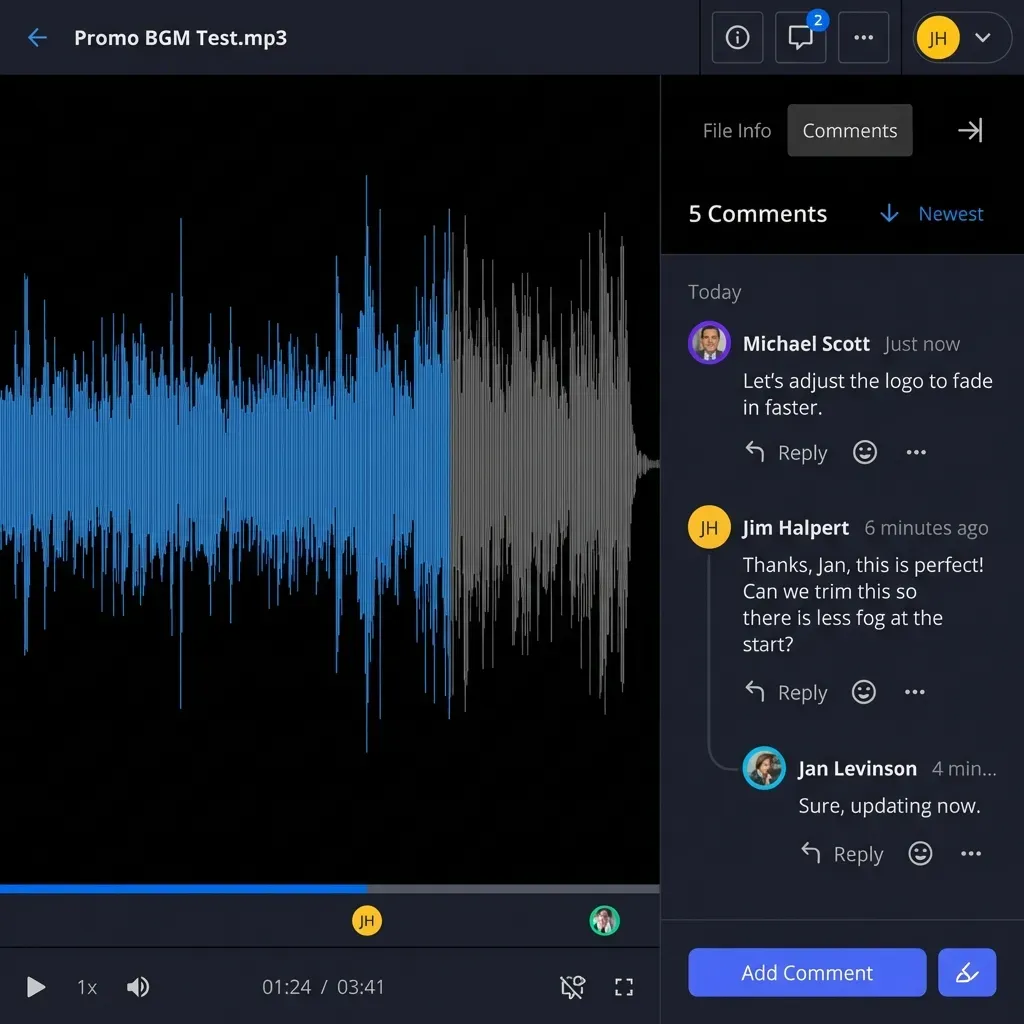
When the architect publishes a model update, collaborators with access see the new version immediately. Activity tracking shows who has viewed the latest revision, so the PM can follow up with anyone who has not reviewed it.


Simplify Revit Sharing for Your Next Project
Fast.io gives construction teams a shared workspace for large BIM files with granular permissions, branded share links, and audit trails. 50 GB free, no credit card required.
Managing Revit Version Conflicts Across Teams
Version conflicts are the most common source of rework on multi-team Revit projects. Two problems cause nearly all the damage: people working from outdated models, and linked file paths breaking when files move.
Preventing stale versions
The simplest fix is to establish a publishing cadence. The architect uploads a revised model every Friday at 3 PM. Subs know to check for updates Monday morning before starting their week's work. Activity notifications in Fast.io flag new uploads, so no one relies on email announcements that get buried.
For time-sensitive changes, like a structural revision that affects MEP routing, tag the upload with a comment explaining what changed. Fast.io's activity feed shows these comments alongside the file, giving context that a plain notification lacks.
Preserving linked file paths
Revit linked models reference specific file paths. If you share a central architecture model that links to a structural model, the recipient needs both files in the same relative path structure. Otherwise the link breaks on open and Revit prompts the user to locate the missing file manually.
The solution is consistent folder structure. Keep all linked models in the same parent folder on Fast.io, and instruct teams to download the entire folder rather than individual files. This preserves the relative paths that Revit expects.
For teams that only need to view the model, browser-based previews bypass the linked-file problem entirely. The preview renders the model as-is, linked files included, without requiring a local Revit installation.
Handling Revit version mismatches
Revit files saved in a newer version cannot be opened in older versions. This is a hard constraint from Autodesk, and no sharing platform can fix it. The only reliable solution is standardizing on a single Revit version across all project teams at kickoff.
When that is not possible, export IFC files as a universal format. IFC strips some Revit-specific data, but it preserves geometry and metadata that most trades need for coordination. Upload both the native .rvt and the IFC export to give teams a fallback.
Security Practices for Sharing BIM Files
Construction BIM files contain sensitive information: building layouts, structural details, mechanical systems, and sometimes cost data embedded in schedules. Protecting this data matters, especially during competitive bidding.
Access controls
Start with the principle of least privilege. Every team member and subcontractor gets the minimum access needed for their work. A plumbing sub does not need to see electrical drawings. A client reviewing progress does not need download access to native models.
Fast.io's four-level permission hierarchy (organization, workspace, folder, file) makes this practical. Set workspace-level defaults, then override at the folder level for specific trades.
Share link restrictions
For external sharing, add multiple layers of control:
- Passwords on every share link
- Expiration dates aligned with project milestones
- Domain restrictions to limit access to specific company email domains
- View-only mode to prevent downloads of native files
Audit trails
Every view, download, and comment is logged with timestamps and user identity. This matters for two situations: proving a sub received the latest revision (relevant for change order disputes), and investigating if sensitive bid documents were accessed by unauthorized parties.
Query the audit log to answer questions like "Did the steel fabricator review the updated connection details before Tuesday's pour?" That kind of traceability prevents finger-pointing and protects your firm during disputes.
Revoking access
When a sub is removed from a project, revoke their share link immediately. The change takes effect instantly. Unlike email attachments or downloaded files, view-only share links mean the sub never had a local copy to begin with.

Improving Project Outcomes with Centralized BIM Sharing
Centralized Revit sharing does not just reduce friction. It changes how construction teams coordinate.
Fewer clashes reaching the field
When all trades can view the current model, coordination problems surface during review instead of during construction. A 2018 study published in the International Journal of Design & Nature found that BIM adoption reduced design errors by 30% and RFIs by 25% on projects that used centralized model access. The reduction comes from catching spatial conflicts in the model before they become physical conflicts on site.
Faster field verification
Field crews with browser-based access to the model can verify dimensions, check clearances, and confirm installation sequences without waiting for paper sets. Superintendents reviewing a concrete pour can pull up the structural model on a tablet and confirm rebar placement matches the design. That kind of immediate verification cuts down on rework caused by misread paper drawings.
Reduced rework costs
Rework typically accounts for 5% to 10% of total construction costs. One case study documented by Autodesk showed a project delivered with less than 1% rework after implementing BIM coordination and multi-discipline collaboration through a centralized platform. The savings on a $50 million project at even a 5% rework reduction are substantial.
Cleaner closeout documentation
At project completion, the shared workspace already contains every model revision, every submittal, and every RFI response. Instead of scrambling to assemble closeout documents from email threads and USB drives, the GC exports the workspace's file history as the project record. This is especially valuable for owners who need as-built documentation for facility management.
Enabling Intelligence Mode on a Fast.io workspace adds another layer. Uploaded files get indexed automatically, making them searchable by content. A facility manager can later ask questions like "What is the specified HVAC tonnage for the third floor?" and get answers drawn from the shared BIM documentation, with citations pointing to the source files.
Frequently Asked Questions
How do I share Revit files securely with subcontractors?
Use a platform with granular permissions so each sub only sees their trade folder. Add password protection and expiration dates to share links. Avoid email attachments, which give subs a permanent local copy with no access controls. Fast.io supports folder-level permissions and password-protected branded links without requiring sub accounts.
What platforms work best for Revit collaboration on construction projects?
Autodesk Construction Cloud is the best option for teams that need real-time co-authoring of Revit models. For projects where the architect publishes and other teams consume, general-purpose platforms like Fast.io, Box, or SharePoint handle large file distribution with better cost structures. The right choice depends on whether you need co-authoring or just controlled file access.
How large are typical Revit files for construction?
Commercial building models typically range from 200 MB to 1 GB. Complex projects like hospitals, airports, or mixed-use towers can exceed 1.5 GB. Autodesk notes that Revit cannot open non-worksharing files larger than 2 GB, so files approaching that limit should be split into discipline-specific models.
Can field crews view Revit models without Revit software?
Yes. Browser-based preview tools render .rvt files without requiring a local Revit installation. This lets superintendents and field crews check model details on tablets or phones. Fast.io generates previews automatically on upload. For more detailed review, free viewers like Autodesk Viewer also open .rvt files.
How do I prevent version conflicts when sharing Revit models?
Establish a publishing schedule so teams know when to expect updates. Use a single shared location rather than distributing copies by email. Keep linked models in the same folder structure to preserve file references. Standardize on one Revit version across all project teams, and provide IFC exports as a fallback for teams on different versions.
What is the difference between Revit worksharing and file sharing?
Worksharing lets multiple users edit the same Revit model simultaneously through worksets and sync-with-central operations. File sharing distributes copies or provides view access to published models. Worksharing requires Autodesk Construction Cloud or a shared network drive. File sharing works on any platform that handles large uploads and permissions.
Related Resources

Simplify Revit Sharing for Your Next Project
Fast.io gives construction teams a shared workspace for large BIM files with granular permissions, branded share links, and audit trails. 50 GB free, no credit card required.