How to Share Uncompressed Video Without Quality Loss
Sharing uncompressed video means transferring video files in their original, lossless format without applying compression that reduces quality. This matters for professional editing, color grading, and VFX work where every bit of data counts. While most file sharing services compress your footage to save bandwidth, this guide covers four proven methods to move massive raw files while preserving every pixel.
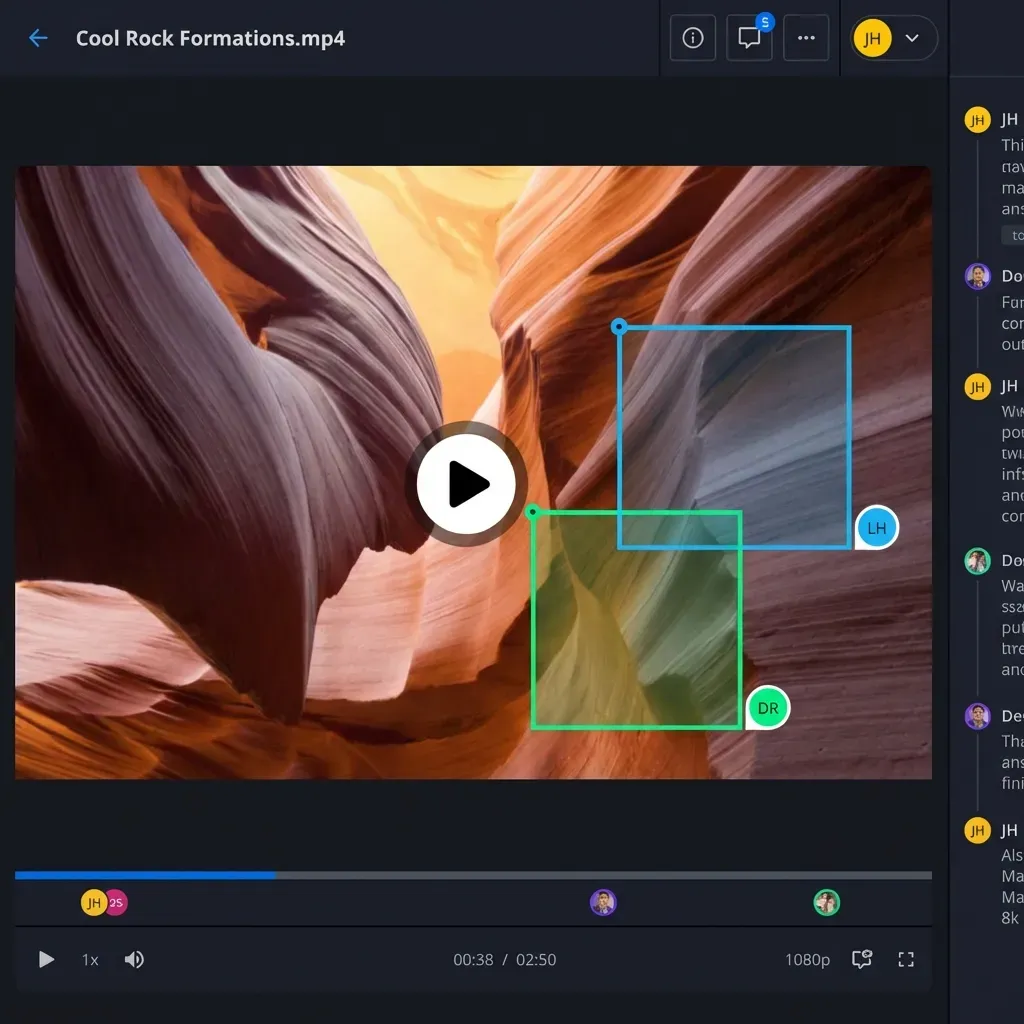
Why Compression Destroys Professional Footage
When you shoot in RAW, ProRes 4444, or ARRIRAW, you are capturing massive amounts of data for a specific reason: maximum flexibility in post-production. A single frame of uncompressed 4K video can contain 50MB of color information. That data represents the difference between a grade that looks cinematic and one that falls apart under manipulation.
Most consumer file sharing services treat video as content to be optimized, not data to be preserved. They run your footage through transcoding pipelines designed for social media playback. For a birthday party video heading to Instagram, this is fine. For a commercial that needs to match theatrical color standards, it is a disaster.
Re-compression introduces three categories of damage that compound with each generation:
- Color banding appears in gradients like skies, studio backdrops, and skin tones. What was a smooth transition becomes visible steps of color, especially noticeable in 10-bit workflows pushed to 8-bit delivery.
- Blocking artifacts show up in areas with fine detail or fast motion. Hair, fabric textures, and foliage turn into blocky patches that no amount of sharpening can fix.
- Crushed dynamic range clips highlights and shadows that were recoverable in the original. That sunset shot with detail in both the clouds and the silhouette? Gone.
The technical explanation is straightforward. Modern codecs like H.264 and H.265 use inter-frame compression, meaning they only store the differences between frames. This works well for playback but destroys the frame-by-frame independence that editors need for precise work. When a colorist pushes exposure or saturation, the math falls apart because the data simply is not there anymore.
Professional workflows treat video files as data, not media. The file that arrives on the colorist's drive must be bit-for-bit identical to what left the camera or the DIT station. Anything less means compromised output.
The Real Challenge: Raw Video File Sizes
Before discussing transfer methods, you need to understand the scale of the problem. Uncompressed video creates files that exceed what most internet infrastructure was designed to handle.
Here are typical file sizes for common professional formats:
4K Uncompressed (10-bit 4:2:2): Approximately 1.5GB per minute. A 10-minute interview generates 15GB of data. A full shooting day with multiple takes can easily produce 500GB to 1TB.
6K RAW (RED, ARRI): Between 2GB and 4GB per minute depending on compression settings. A feature film's daily footage can hit 5TB.
8K RAW: Up to 7GB per minute. A single scene might generate more data than a consumer hard drive can hold.
These numbers create practical problems at every step of the transfer process:
Email attachment limits cap at 25MB, making them useless. Free cloud storage tiers typically offer 2GB to 15GB total, not per file. Even paid services often impose per-file limits that raw video exceeds immediately. A standard residential upload speed of 10 Mbps means a 100GB file takes approximately 24 hours to transfer, assuming the connection remains stable.
The infrastructure gap explains why many post-production facilities still ship physical hard drives. When you need to move a terabyte of footage across the country, FedEx overnight can actually be faster than most internet connections. This physical limitation shapes the entire landscape of professional video transfer.
Understanding these constraints helps you choose the right method for your specific situation. Sometimes cloud transfer makes sense. Sometimes driving to the post house is the practical choice.
Method 1: Cloud-Native Storage with Fast.io
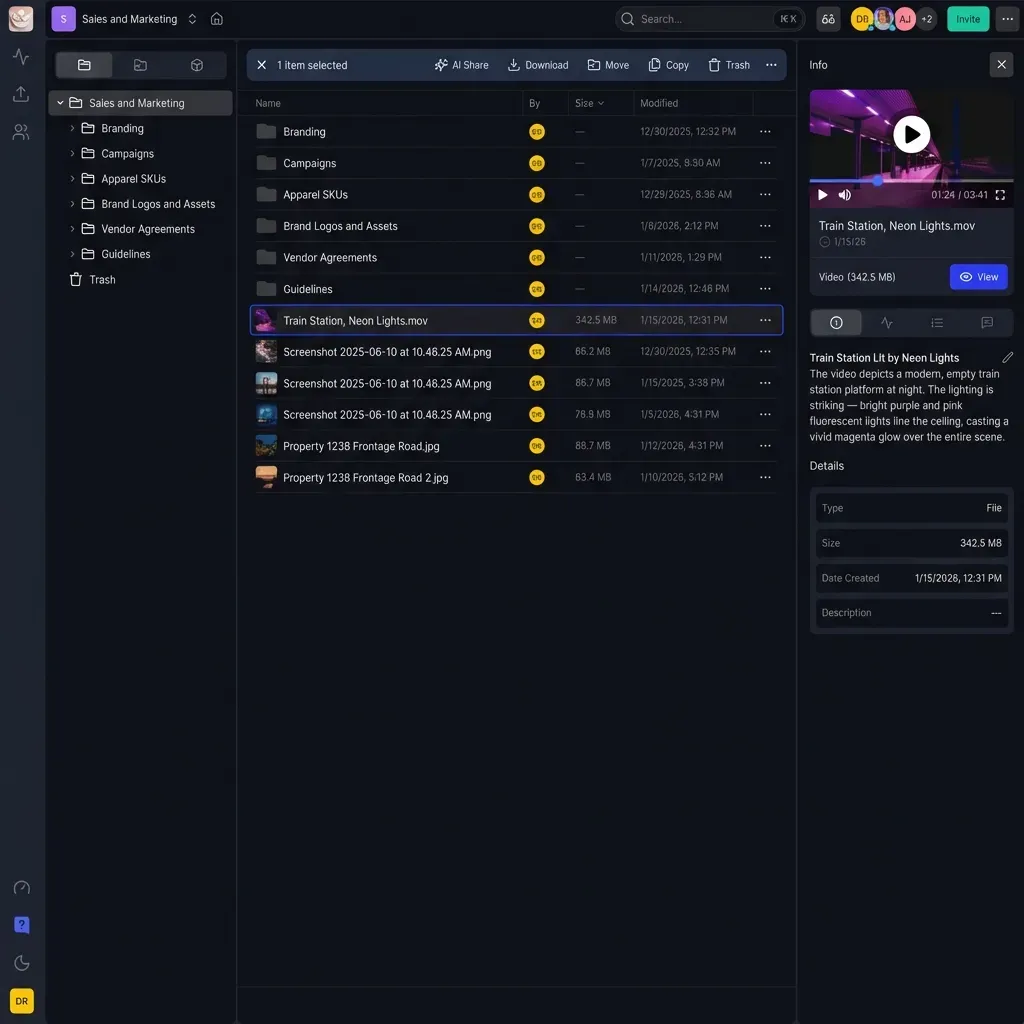
For teams that need remote collaboration without quality compromise, cloud-native storage offers the best balance of speed, accessibility, and data integrity. The key difference from consumer services is how these platforms treat your uploads.
Fast.io stores files as raw binary data without modification. When you upload a 200GB ProRes master, the platform stores exactly those bytes. No transcoding, no optimization, no helpful compression that destroys your work. The file your collaborator downloads is cryptographically identical to what you uploaded.
The platform generates lightweight HLS streaming proxies for preview purposes. This means a director in another city can watch your cut immediately without downloading the full file. They see a compressed preview, but when they need to download for editing, they get the original untouched master.
Why this approach works for professional video:
- No file size ceiling: Upload 500GB files if your project requires it. There is no arbitrary limit that forces you to split deliverables.
- Preserved originals: Zero transcoding on source files. What you upload is exactly what recipients download.
- Automatic proxy generation: Instant streaming previews function like automatic dailies for review sessions.
- Workspace organization: Keep projects organized with dedicated spaces for each client or production, rather than a chaotic pile of transfer links.
- Granular permissions: Control who can view versus download. Let clients watch but restrict download access until approval.
The streaming preview feature deserves special attention. Traditional transfer services force recipients to download entire files before viewing anything. With HLS proxy generation, a producer can scrub through an hour of footage in minutes, identify the takes they need, and then download only those specific files. This saves bandwidth, time, and storage costs.
For ongoing client relationships, the workspace model eliminates the chaos of expired transfer links and version confusion. Each project lives in a dedicated space with version history and activity tracking.
Method 2: Specialized Large File Transfer Services
Services built specifically for large file delivery offer another viable path. MASV, Aspera, and premium WeTransfer tiers exist specifically because standard file sharing cannot handle professional media workflows.
These platforms optimize their infrastructure for throughput rather than storage. They use techniques like UDP-based acceleration, parallel connections, and strategic server placement to maximize transfer speeds. A file that takes 24 hours on a standard upload might complete in 2-4 hours on a specialized service.
Advantages of dedicated transfer services:
- Speed optimization: Infrastructure tuned specifically for moving large files quickly. Many use protocols faster than standard HTTP.
- Pay-per-gigabyte pricing: For occasional one-off transfers, you pay only for what you send rather than maintaining ongoing subscriptions.
- Industry familiarity: Post houses and broadcast facilities often already use these services, reducing client friction.
- Delivery confirmation: Detailed tracking shows exactly when files were downloaded and by whom.
Limitations to consider:
- Files expire: Most services delete files after 7-14 days. If a client forgets to download, you re-upload from scratch. On slow connections, this is painful.
- No collaboration features: These are digital courier services. You send, they receive, end of interaction. No commenting, no version management, no ongoing project organization.
- Recurring costs add up: At $0.25 to $0.50 per gigabyte, sending 500GB of footage runs $125 to $250 per transfer. Do this weekly and costs compound quickly.
- No preview capability: Recipients cannot see what they are downloading until they have the complete file. This creates delays when they realize they needed a different version.
Specialized transfer services work best for one-time deliveries to clients you will not work with repeatedly. They solve the immediate problem of moving files but do not address the broader workflow challenges of ongoing collaboration.
Method 3: FTP and SFTP Servers
File Transfer Protocol remains the traditional standard for moving large files without interference. FTP treats your video as pure data, transferring bytes without interpretation or modification. For organizations with technical resources, running your own FTP server provides complete control over the transfer process.
Technical advantages of FTP/SFTP:
- Direct transfer: Files move from source to destination without passing through intermediary processing. No compression algorithms, no format conversion, no surprises.
- Resume capability: Interrupted transfers pick up where they stopped. Critical for multi-day uploads on unstable connections.
- Scriptable workflows: Automate transfers with cron jobs, watch folders, or custom scripts. Upload dailies automatically at wrap each day.
- No size limits: Transfer terabytes without hitting artificial ceilings. Your only limits are storage and bandwidth.
- Checksum verification: Verify file integrity automatically using MD5 or SHA hashes. Confirm transfers completed without corruption.
Practical challenges:
- Technical barrier: Clients need FTP software (FileZilla, Cyberduck, Transmit) and must understand server credentials. This is not drag-and-drop simple.
- Security complexity: Standard FTP sends credentials in plain text. You must use SFTP (SSH File Transfer Protocol) or FTPS (FTP over SSL) for security. Configuring this correctly requires technical knowledge.
- No preview system: Recipients cannot see file contents before downloading completely. Sending the wrong file means they discover it only after the full transfer completes.
- Server maintenance: Someone must manage the server, handle storage, monitor security, and troubleshoot issues. This is ongoing work.
- Firewall complications: Corporate networks often block FTP ports. Getting through enterprise firewalls can require IT involvement on both ends.
FTP makes sense for teams with in-house technical staff and established infrastructure. Studios that have run FTP servers for years often prefer sticking with what works. For freelancers or small teams without dedicated IT, the overhead rarely justifies the control.
Method 4: Physical Drive Shipping
When raw throughput matters more than convenience, the oldest method remains surprisingly competitive. Shipping a hard drive can transfer data faster than any internet connection for sufficiently large datasets. Amazon famously demonstrated this by trucking data to AWS in semi-trailers rather than uploading over networks.
The math is straightforward. A 4TB drive shipped overnight delivers 4 terabytes in approximately 18 hours including packaging and transit. Achieving the same transfer over a 100 Mbps connection would take roughly 90 hours of continuous, error-free uploading. At gigabit speeds, the drive still wins for multi-terabyte transfers.
When physical shipping makes sense:
- Multi-terabyte datasets: VFX plates, film archives, or multicam shoots where total data exceeds 2TB
- Unreliable internet: Remote locations, developing regions, or connections with frequent dropouts
- Archival delivery: Final masters going to cold storage where speed matters less than integrity
- Initial project handoff: Starting a new project with years of legacy footage
Practical execution:
- Use SSDs for shipping: They survive drops and vibration that destroy spinning drives. The cost premium is insurance.
- Encrypt everything: Use VeraCrypt, BitLocker, or FileVault. An unencrypted drive lost in transit is a liability nightmare.
- Maintain chain of custody: Require signature on delivery. Know exactly when the drive arrived and who received it.
- Document contents: Include a manifest listing every file with checksums. Recipients verify nothing was corrupted.
- Plan for return: Budget for drives to ship back, or factor in the cost of drives as project expenses.
Limitations:
- Minimum 24-hour latency: Even overnight shipping adds a full day. For urgent approvals, this delay kills momentum.
- Physical vulnerability: Drives get lost, stolen, or damaged despite best practices. Always maintain copies.
- Cost per delivery: A $150 SSD plus $50 overnight shipping is $200 per delivery. This adds up across multiple rounds.
- No versioning: A shipped drive is a snapshot. Updates require shipping again.
Physical shipping is not outdated or inferior. It occupies a specific and valid niche in professional workflows. Recognizing when this method outperforms digital transfer is part of working efficiently with large media.
Verifying Transfer Integrity
Regardless of which transfer method you use, verification ensures your footage arrives intact. Professional workflows include integrity checks as standard practice, not optional extras.
Checksum verification is the gold standard. Before transfer, generate a hash (MD5 or SHA-256) of each file. After transfer, generate the hash again on the destination copy. If the hashes match exactly, the files are identical. If they differ by even a single bit, something went wrong.
Tools for checksum verification:
- macOS:
md5 filenameorshasum -a 256 filenamein Terminal - Windows:
certutil -hashfile filename MD5in Command Prompt - Cross-platform: HashMyFiles, QuickHash, or built-in NLE verification tools
Archive wrapping provides additional protection. Placing video files inside a ZIP or TAR archive before transfer prevents intermediate services from attempting optimization. Most systems will not try to transcode a compressed archive, leaving the contents untouched.
Download managers matter for browser-based transfers. Standard browser downloads fail silently on large files, especially over unstable connections. Dedicated download managers (Free Download Manager, JDownloader, Internet Download Manager) can resume interrupted transfers and verify completion.
Practical verification workflow:
- Generate checksums for all source files before upload
- Include the checksum file alongside the media files
- After download, run checksums on received files
- Compare results before beginning any work
- If mismatches occur, re-transfer affected files immediately
This process adds 10-15 minutes to each transfer but prevents hours of troubleshooting corrupted files downstream. Every professional who has chased mysterious timeline glitches back to a corrupted transfer learns this lesson eventually. Better to verify upfront.
Frequently Asked Questions
Does Google Drive compress uploaded video files?
Google Drive creates compressed preview versions for browser playback, typically at 360p or 720p resolution. However, the original file remains untouched on their servers. When you or your recipient downloads the file, Drive serves the original. The confusion arises because clients often watch the browser preview and assume that low quality is what they received. Always instruct recipients to download files rather than streaming them through the web interface.
What is the fastest way to transfer raw 4K video over the internet?
For pure speed, UDP-based transfer acceleration (used by services like Aspera and Signiant) can saturate your full bandwidth capacity. For most users without enterprise tools, a cloud platform running on a fiber connection represents the practical speed ceiling. If your dataset exceeds 2-3 terabytes, overnight shipping of a physical SSD often completes faster than any internet transfer, accounting for realistic upload conditions including interruptions and throttling.
Can I send uncompressed video through WhatsApp or Messenger?
No. Both WhatsApp and Facebook Messenger apply aggressive compression to all video content. This compression is server-side and cannot be disabled. To share high-quality video with contacts on these platforms, upload your file to a cloud service like Fast.io, Google Drive, or Dropbox, then send the share link through the messaging app. The recipient downloads the original file rather than a compressed version passed through the messenger's processing.
How much does it cost to transfer 500GB of raw video?
Costs vary significantly by method. Specialized transfer services typically charge $0.25 to $0.50 per gigabyte, making a 500GB transfer cost $125 to $250. Cloud storage platforms with unlimited file sizes may be more economical for ongoing workflows, especially if you need persistent storage rather than one-time transfer. Physical shipping costs roughly $150-200 including drive purchase and overnight shipping but becomes more economical per gigabyte as transfer size increases.
Should I compress video before uploading to save time?
This depends entirely on your downstream workflow. If the recipient needs to edit, grade, or composite the footage, send uncompressed masters. Compression saves transfer time but creates quality loss that compounds through the editing process. If the recipient only needs to review or distribute without modification, a high-quality intermediate codec like ProRes 422 or DNxHD provides significant size reduction with minimal visible quality impact. Never compress footage that will undergo further color work or VFX processing.
Related Resources

Share uncompressed video without limits
Stop compromising on quality. Use Fast.io to send massive raw video files to clients and collaborators with zero compression.