How to Set Up Team File Sharing That Actually Works
Team file sharing puts files in a central location where everyone with the right access can find them. Teams lose hours daily searching for files, and the right sharing setup eliminates that waste. This guide covers the folder structures, permission setups, and workflows that separate functional teams from those drowning in shared drive chaos.

What Is Team File Sharing?
Team file sharing is a system where files are stored in a central location that every team member can access based on their role. Unlike personal cloud storage (Google Drive, Dropbox Basic), team file sharing treats files as organizational assets rather than individual possessions. The distinction matters. When files belong to individuals, they disappear when that person leaves. When files belong to the organization, institutional knowledge stays put.
Core elements of team file sharing:
- Centralized storage accessible to authorized team members
- Permission controls that restrict access by role or project
- Version history so changes can be tracked and reversed
- Activity logs showing who accessed or modified files
- Search functionality that spans all shared content
Research shows many teams use multiple file sharing tools. That fragmentation creates the problem team file sharing should solve. Pick one system, structure it well, and get everyone using it.
Helpful references: Fast.io Workspaces, Fast.io Collaboration, and Fast.io AI.
Five Best Practices for Team File Sharing
These practices apply regardless of which tool you use. The goal is to create a system where anyone can find what they need without asking around.
1. Establish a folder hierarchy before you start
Create your folder structure based on how work actually flows, not how the org chart looks. Most teams do better with project-based folders than department-based ones.
Structure that works:
- Top level: Active projects, Archive, Templates
- Second level: Project or client names
- Third level: Deliverables, Assets, Reference materials
Structure that fails:
- "Miscellaneous" or "Other" folders
- Date-based folders (2024-Q1, 2024-Q2)
- Nested folders more than four levels deep
2. Use naming conventions everyone can follow
A file named "final_v2_REAL_final_USE_THIS.pdf" signals a broken system. Agree on naming patterns before files accumulate.
Effective naming patterns:
[Project]_[DocumentType]_[Version](AcmeCampaign_Brief_v2)[YYYY-MM-DD]_[Description]for date-sensitive files[ClientCode]_[Deliverable]_[Status]for client work
The specific pattern matters less than consistency. Pick one and enforce it.
3. Set permissions at the folder level, not file level
Managing permissions file-by-file creates maintenance nightmares. Instead, structure folders so permissions cascade logically.
Permission levels to define:
- Organization-wide (company announcements, templates)
- Department-specific (HR policies, finance reports)
- Project-based (client deliverables, active work)
- External (client review folders, vendor uploads)
4. Define ownership and cleanup responsibilities
Every shared folder needs an owner responsible for maintenance. Without this, folders become digital landfills.
Owner responsibilities:
- Archive completed projects quarterly
- Remove duplicate or outdated files
- Enforce naming conventions
- Onboard new team members to the structure
5. Document the system and train your team
A file sharing system only works if everyone uses it correctly. Create a one-page guide explaining your folder structure, naming conventions, and permission model. Include it in onboarding and reference it when people deviate.
How Organization-Owned Files Change Everything
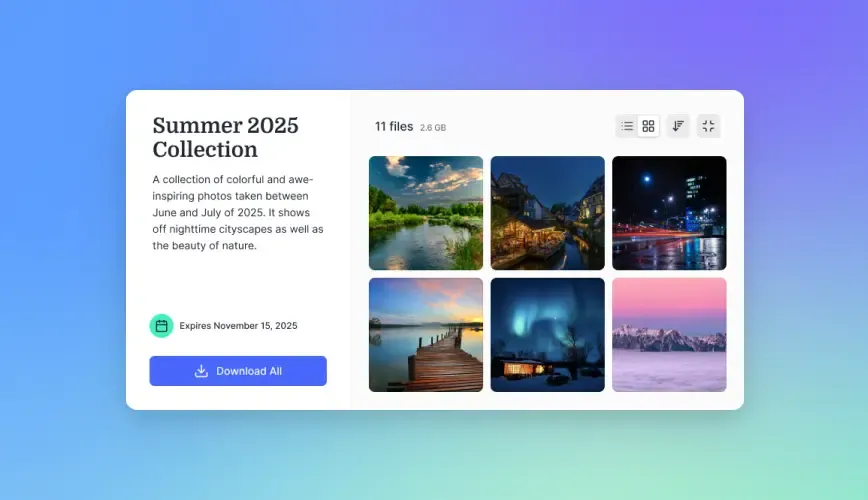
Most file sharing tools started as personal storage. Google Drive, Dropbox, and OneDrive all began with "My Drive" as the default location. The result: company files scattered across employee accounts, inaccessible when that person goes on vacation or leaves the company. Organization-owned files flip this model. Files belong to the company from the moment they're uploaded. When someone leaves, there's nothing to transfer because the files were never theirs to begin with.
Practical differences:
This model also changes how teams discover files. Instead of asking "who has that file?" and waiting for a share link, team members can browse workspaces and find what they need. Fast.io uses organization-owned files as the default. Create a workspace, and everything in it belongs to the organization. Team members can join open workspaces without waiting for invitations, and files never disappear when someone moves on.


Collaborate on Files with Your Team
Fast.io gives teams shared workspaces, MCP tools, and searchable file context to run team file sharing workflows with reliable agent and human handoffs.
Setting Up Permissions That Scale
Too many permission levels will kill your file sharing system. Start with the simplest structure that works and add complexity only when you hit real problems.
Start with three permission levels
Most teams need just three permission tiers:
- View-only: Can see and download files, cannot edit or delete
- Edit access: Can modify files and add new ones
- Admin: Can change permissions and structure
Resist the urge to create elaborate role hierarchies upfront. You can always add complexity later.
Use groups, not individuals
Adding permissions person-by-person creates maintenance problems. Instead, create groups (Marketing, Sales, Project Alpha) and assign permissions to groups. When someone joins or leaves, update the group membership once.
Set expiration on external shares
When sharing with clients or vendors, set link expiration dates by default. External users rarely need permanent access, and forgotten share links become security risks over time.
Recommended expiration defaults:
- Client review links: 30 days
- Vendor collaboration: Project duration + 30 days
- One-time file delivery: 7 days
Audit permissions quarterly
Schedule a quarterly review of who has access to what. Remove former employees, revoke expired project access, and clean up orphaned share links. This takes just minutes per quarter and prevents permission creep.

Workspace Organization for Different Team Types
The right workspace structure depends on how your team operates. Here are patterns that work for common setups.
Project-based teams (agencies, consultancies)
Create one workspace per client or project. Archive workspaces when projects complete. This keeps active work visible and historical work accessible. ``` Workspaces: ├── [Active] Client A - Website Redesign ├── [Active] Client B - Q1 Campaign ├── [Active] Internal - Templates └── [Archive] Client C - 2025 Work
### Department-based teams (corporate, enterprise)

Create workspaces for each department, with sub-folders for ongoing workstreams. Use cross-functional workspaces for projects that span departments. ```
Workspaces:
├── Marketing
│   ├── Campaigns
│   ├── Brand Assets
│   └── Analytics
├── Engineering
│   ├── Documentation
│   └── Architecture
└── [Cross-functional] Product Launch 2026
Creative teams (video, design, photography)
Organize by asset type at the top level, with project folders within. This makes it easy to find specific deliverables and reuse assets across projects. ``` Workspaces: ├── Video Projects │ ├── Brand Film 2026 │ └── Product Demos ├── Design Assets │ ├── Logo Variations │ └── Social Templates └── Stock Library
### Remote-first teams

Put discoverability first. Use descriptive workspace names, keep a workspace directory, and default to open (organization-visible) workspaces unless content is sensitive.
Common Team File Sharing Mistakes
These patterns break file sharing systems that started with good intentions.
Mistake 1: Too many folder levels
If you need to click through six folders to find a file, your structure is too deep. Most files should be reachable in three clicks from the workspace root.
Mistake 2: Email attachments instead of share links
Emailing files creates version confusion instantly. The file in someone's inbox is frozen in time while the original keeps changing. Always share links, never attachments.
Mistake 3: No archive process
Without archiving, active workspaces become cluttered with completed projects. Set a quarterly archive schedule and stick to it. Archived doesn't mean deleted; it means moved out of the active view.
Mistake 4: Permissions that are too restrictive
Over-restricting access slows teams down. If people constantly request access to files they need, your permission model is wrong. Default to broader access and restrict only sensitive content.
Mistake 5: Ignoring mobile access
Field teams, traveling executives, and remote workers need file access on phones and tablets. Choose a solution with functional mobile apps, not just a responsive website.
Mistake 6: Using personal accounts for company files
When employees use personal Dropbox or Google accounts for work files, you lose control entirely. Mandate company accounts and disable personal account uploads in sensitive workspaces.
Frequently Asked Questions
What is the best way to share files with a team?
Use a dedicated team file sharing platform with organization-owned files, not personal cloud storage. Create a clear folder structure, establish naming conventions, and set permissions at the folder level rather than file-by-file. The best approach centralizes files in shared workspaces where everyone can find what they need without asking around.
How do I set up file sharing for my team?
Start by choosing a platform that supports organization-owned files and workspace organization. Create your top-level folder structure based on projects or departments. Set up permission groups before inviting users. Document your naming conventions in a one-page guide, then onboard team members with access to the workspaces relevant to their work.
What is team file management?
Team file management is how groups store, organize, and control access to shared files. It covers folder structures, naming rules, permissions, version control, and archiving. Good file management means people can find current files quickly, and only the right people have access.
How do I prevent file chaos in shared drives?
Assign a folder owner responsible for maintenance and enforcement. Establish naming conventions before files accumulate. Archive completed projects quarterly. Use groups for permissions instead of individual assignments. Conduct quarterly audits to remove outdated content and revoke stale access. Most importantly, document your system and train new team members on it.
Should files belong to individuals or the organization?
Organization-owned files are better for teams. When files belong to individuals, they're lost or inaccessible when that person leaves or is unavailable. Organization-owned files stay in place regardless of personnel changes, making them the right choice for any content that needs to outlast individual employment.
Related Resources

Collaborate on Files with Your Team
Fast.io gives teams shared workspaces, MCP tools, and searchable file context to run team file sharing workflows with reliable agent and human handoffs.