How to Upload Video to Link: The Secure Way to Share Large Files
Uploading a video to a link is the fastest way to share large footage without email bounce-backs or long download times. This guide covers how to generate secure, streamable links that work on any device, including step-by-step instructions, security options, and platform comparisons.
Why You Should Upload Video to Link Instead of Attaching
If you have ever tried to email a video file, you have probably hit the 25MB attachment limit. Most email providers, including Gmail and Outlook, block large files to prevent server overload. A single minute of 1080p footage typically weighs between 100MB and 300MB depending on codec and bitrate. That means even a short clip will trigger an error message.
Uploading video to a link solves this problem completely. Instead of forcing the file through email servers, you host it in the cloud and share a URL. The recipient clicks the link and watches, no download required. This approach reduces bandwidth usage by approximately 60% compared to traditional file transfers because viewers stream only the segments they watch rather than downloading the entire container upfront.
The experience for your recipient also improves dramatically. Traditional file sharing forces them to download a 4GB file before seeing a single frame. A proper video link uses HLS (HTTP Live Streaming), the same technology Netflix and YouTube rely on, to start playback within seconds. The stream adapts to their connection speed automatically, so a viewer on a hotel Wi-Fi network sees a lower bitrate version that plays smoothly instead of buffering endlessly.
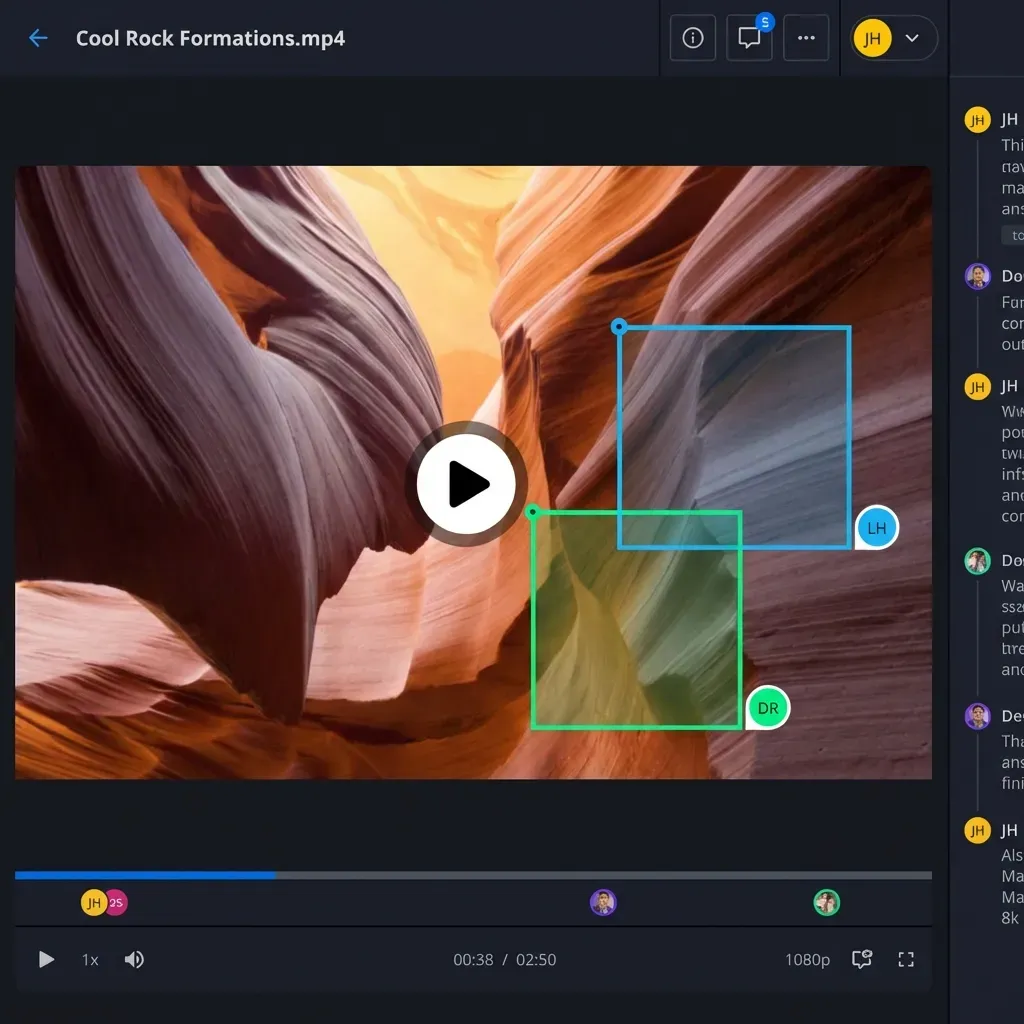
For professionals sending dailies, client previews, or rough cuts, this matters. A director reviewing footage from a film set does not want to wait 20 minutes for a download. They want to scrub through the timeline immediately, leave comments on specific frames, and move on. Video links make that possible.
How to Create a Video Link in 3 Steps
Creating a shareable video link takes less than a minute with the right platform. The process works whether you are sending a quick iPhone recording or a multi-gigabyte ProRes master file from a professional edit.
Step 1: Upload Your Video
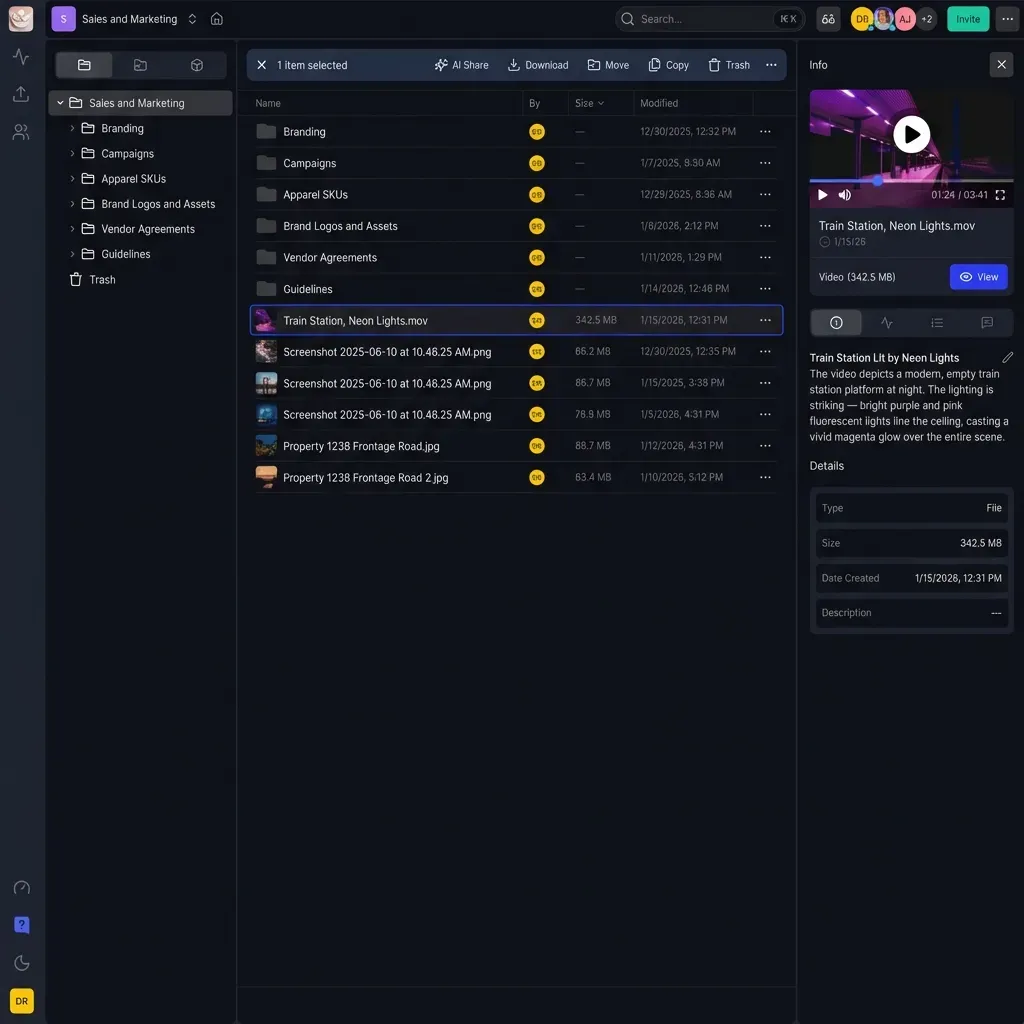
Start by dragging your video file into your workspace. Fast.io uses a cloud-native architecture, which means uploads begin processing immediately rather than waiting for the entire file to finish transferring. For large files, you will see a progress indicator, but you can navigate away or close your laptop. The upload continues in the background.
Unlike sync-based services like Dropbox, cloud-native platforms do not require local storage space. You do not need 50GB free on your hard drive to upload a 50GB file. The video goes directly from your machine to the cloud without creating a local copy first.
Step 2: Generate the Link
Once your video finishes uploading, right-click the file and select "Get Link." The system generates a unique URL instantly. This link points directly to your video, not to a download page with countdown timers or ads.
Fast.io links are persistent by default. Unlike WeTransfer, where links expire after 7 days, your video link continues working until you revoke it. This prevents the awkward situation where a client tries to re-watch a video two weeks later and finds a dead link.
Step 3: Share with Control
Copy the link and send it wherever works best: email, Slack, text message, or project management tool. When your recipient clicks, they see a branded player where they can stream the content immediately. No account creation required. No software installation. Just click and watch.
The player adapts to their device automatically. Desktop users see the video in a full browser window. Mobile users get a touch-friendly player optimized for their screen size. Tablet users can rotate between portrait and landscape without interrupting playback.
Secure Your Video Links with Advanced Settings
Not all video content should be public. When sharing sensitive rough cuts, internal communications, confidential training materials, or client deliverables, a basic link might expose your content to unintended viewers. Professional platforms offer granular security controls to protect your work.
Password Protection
Adding a password to your video link ensures that only people with the correct credentials can access the footage. This works well for pre-release content, confidential announcements, or any video you would not want forwarded to the wrong person. The recipient receives your link, clicks it, enters the password you provided separately, and gains access. Even if the link gets shared accidentally, the password requirement blocks unauthorized viewing.
Password-protected links are particularly useful for client deliverables where you want an extra verification layer. Send the link in one message and the password in another. The separation creates a simple two-factor protection without requiring complex setup.
Expiration Dates
Time-limited links automatically disable after a specified period. You might set a link to expire after 48 hours for a quick review, or after 30 days for a project wrap-up. Once the expiration passes, anyone clicking the link sees a message that the content is no longer available.
Expiration dates serve two purposes. First, they prevent outdated versions of a video from circulating. If you sent revision 1 on Monday and revision 3 on Friday, the revision 1 link expires automatically. Clients cannot accidentally reference the wrong version. Second, they give you automatic cleanup. You do not need to remember to revoke access later.
Download Restrictions
View-only mode allows recipients to stream a video but prevents them from downloading the source file. The play button works. The download button does not appear. This protects your intellectual property when you need to share work before final approval or payment.
For video professionals, view-only links solve a common problem. You want the client to approve a cut, but you do not want them walking away with footage they have not paid for. Enable view-only, share the link, get approval, then send a downloadable version after the invoice clears.
Watermarking
Overlay your logo or custom text directly on the video stream. If someone screen-records your content, the watermark travels with it. This discourages unauthorized redistribution and helps identify the source if footage does leak.
Domain Restrictions
Limit access to specific email domains. For example, you might allow only @acmecorp.com addresses to view a video meant for that company. Anyone outside the approved domain list cannot access the content, even if they somehow obtain the link and password.
Video Link Platforms Compared
The platform you choose affects how your video looks, how long your links last, and how much control you retain. Here is how dedicated video link platforms compare to common alternatives.
Fast.io vs. YouTube
YouTube works for public distribution to large audiences. If you want millions of people to discover and watch your video, YouTube's recommendation algorithm helps. But for private sharing, YouTube falls short.
"Unlisted" videos can still be forwarded to anyone with the URL. There is no password option, no expiration date, and no way to see who actually watched. YouTube also compresses your video significantly. A crisp 4K master gets re-encoded, sometimes with visible artifacts, to save YouTube bandwidth. You cannot share the original quality file.
Fast.io preserves your original file for download while generating optimized streaming versions. You can share a beautiful, adaptive-bitrate stream for watching and still let approved viewers download the full-resolution master when needed.
Fast.io vs. WeTransfer
WeTransfer handles large file transfers well, but the service focuses on one-time delivery rather than ongoing access. Links expire after 7 days on the free tier. Even paid plans cap access periods. If your client wants to re-watch a video after the project wraps, they find a dead link.
WeTransfer also requires the recipient to download before watching. There is no streaming player. A 4GB video means a 4GB download before the first frame appears. For clients on slow connections or limited data plans, this creates friction.
Fast.io workspaces are persistent. Your files stay available as long as you want them. Recipients can stream instantly or download later. You control when access ends rather than accepting arbitrary expiration windows.
Fast.io vs. Google Drive
Google Drive integrates with Gmail, making it a common choice for casual sharing. But Drive creates friction for recipients. Opening shared videos often requires a Google account. The "Request Access" popup confuses clients who expect a simple click-and-watch experience.
Drive also "processes" videos before they play, which can take minutes or longer for large files. Meanwhile, your client stares at a spinner. And Drive's video player lacks professional features like frame-accurate scrubbing or timecode display.
Fast.io requires no account for viewers. Click the link, watch the video. The player handles professional formats and provides smooth scrubbing even for multi-hour timelines.
Fast.io vs. Dropbox
Dropbox uses progressive download for video playback. The file downloads in the background while you watch. If your connection slows, playback stutters or stops entirely. Dropbox cannot adapt the stream quality in real-time.
Fast.io uses HLS streaming, the same adaptive technology behind Netflix. The player automatically adjusts quality based on network conditions. A mobile viewer on cellular gets a lighter stream. A desktop viewer on fiber gets full quality. Playback stays smooth regardless of bandwidth fluctuations.
The Bandwidth Advantage
Streaming saves significant bandwidth compared to forcing full downloads. A viewer who watches the first 30 seconds of a 10-minute video transfers only a small fraction of the total file size. If they skip to the middle, the player fetches that segment on demand rather than downloading everything in between.
For recipients with data caps, this matters. For organizations paying for egress bandwidth, the savings add up across thousands of shares. Adaptive bitrate streaming also means a mobile user on 4G receives an appropriate stream rather than attempting to download a massive 4K file that will drain their data plan and buffer constantly.
Common Use Cases for Video Links
Video links serve different purposes depending on your industry. Understanding the common workflows helps you configure your sharing settings appropriately.
Client Review and Approval
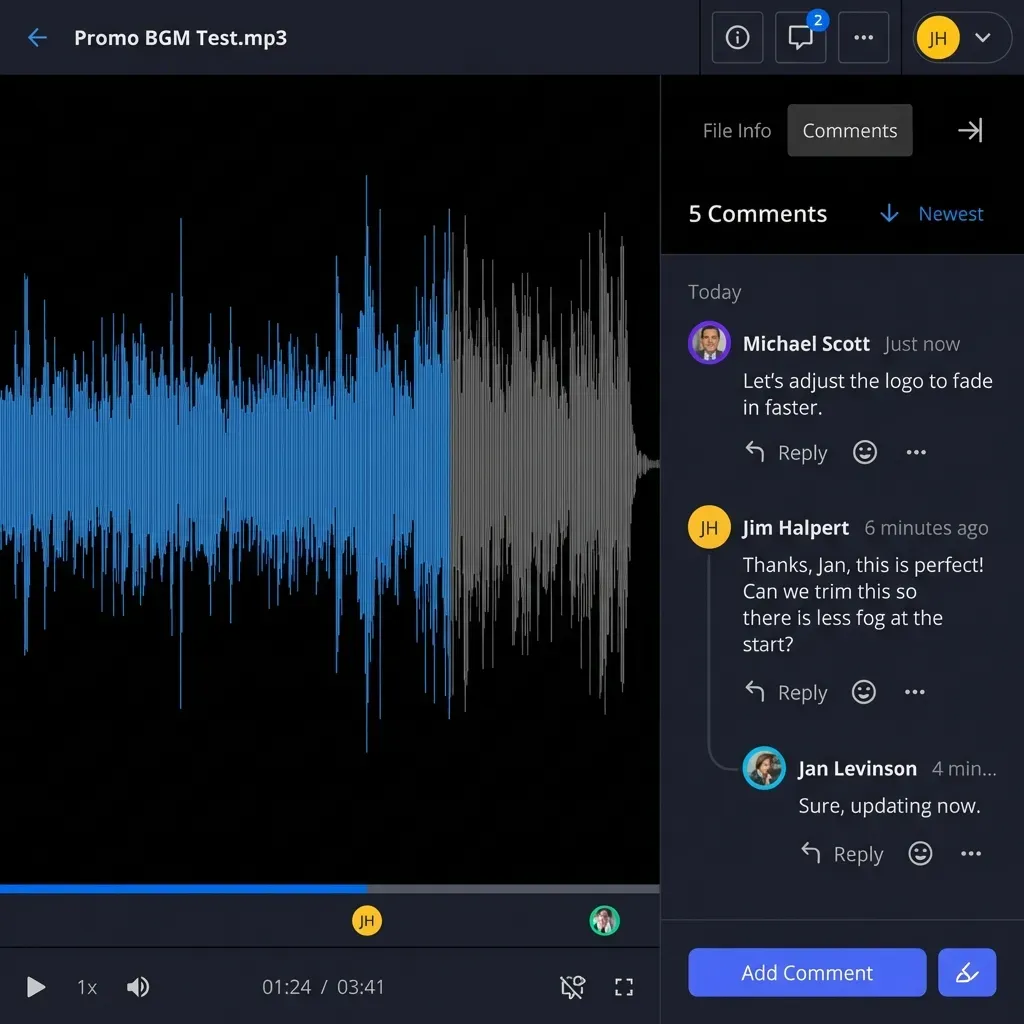
Creative agencies send rough cuts to clients for feedback before finalizing edits. The client watches in their browser, leaves timestamped comments on specific frames, and the editor incorporates the notes. Password protection prevents unauthorized viewing of unreleased campaigns. View-only mode ensures the client does not download incomplete work.
Internal Training and Documentation
HR departments distribute onboarding videos, safety training, and company announcements to employees. Unlike public platforms, internal videos should not be indexed by search engines or accessible to outsiders. Domain restrictions limit access to employees only. Expiration dates ensure outdated training materials stop circulating.
Film and Television Dailies
Production teams share daily footage with directors, producers, and editors working remotely. Speed matters. Dailies need to reach reviewers within hours of shooting, and those reviewers need to scrub through hours of footage efficiently. HLS streaming provides instant playback. Frame-accurate controls let reviewers reference specific moments precisely.
Real Estate Virtual Tours
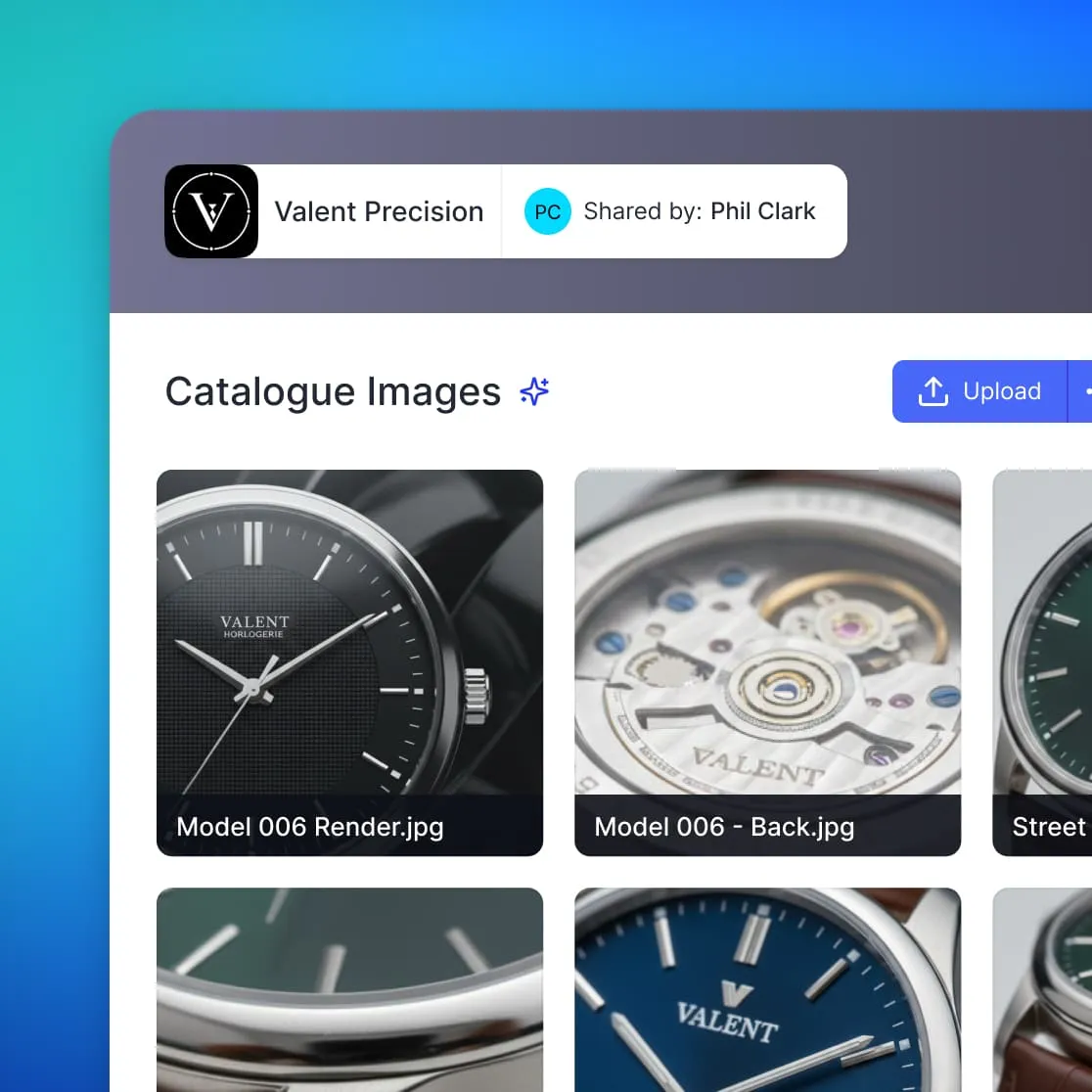
Agents share property walkthrough videos with prospective buyers. The viewer watches on their phone between meetings rather than scheduling a physical showing. Password protection ensures only serious prospects receive access. Branded portals keep the agent's contact information visible throughout.
Educational Content
Instructors share lecture recordings with students. Unlike YouTube, private video links keep content off public search indexes. Download restrictions prevent course materials from being redistributed without permission. Expiration dates align with semester schedules.
Event Recordings
Conference organizers distribute session recordings to registered attendees. Links can be set to expire after the registration period ends. Domain restrictions ensure only people with company email addresses from sponsoring organizations can access premium content.
Tips for Better Video Links
A few best practices make your video links more professional and easier for recipients to use.
Use Descriptive File Names
When you upload a video, the file name often becomes visible to recipients. "final_final_v3_REAL.mp4" looks unprofessional. Rename your file before uploading to something clear like "Acme-Campaign-Spot-Jan2026.mp4". This helps recipients identify the correct video months later.
Include Context in Your Message
A bare link in an email forces the recipient to guess what they are about to watch. Add a sentence or two explaining the content, duration, and what feedback you need. "Here is the 90-second product demo. Please review by Friday and let me know if the opening graphic matches your brand guidelines."
Test Before Sending
Open your link in an incognito browser window before sending it to clients. This simulates the recipient's experience. Confirm that password protection works as expected. Verify that the video plays smoothly. Check that watermarks appear correctly.
Organize Your Workspace
If you share videos regularly, create folders or workspaces organized by client or project. This makes it easy to find past shares when clients request revisions or re-downloads. A structure like "Clients > Acme Corp > Q1 Campaign > Videos" scales better than dumping everything in a single folder.
Track Engagement
Professional platforms provide analytics on who viewed your video and for how long. If a client says they "watched the whole thing" but analytics show they closed after 15 seconds, you have useful information for your follow-up conversation. Engagement data also helps identify which parts of a video hold attention and which parts lose viewers.
Frequently Asked Questions
How do I create a link for a video on my phone?
Most cloud platforms, including Fast.io, offer mobile web interfaces or apps that let you upload directly from your camera roll. Tap the upload button, select your video, wait for the upload to complete, then tap the share or link icon to generate your URL. You can text or email the link immediately from your phone.
Can I send a video link without letting the recipient download it?
Yes. Enable 'View Only' mode when generating your link. This allows recipients to stream the video in their browser but removes the download button. They can watch and take notes, but they cannot save the source file to their device. This protects your content until you decide to grant download access.
What is the maximum file size for a video link?
With Fast.io, there are no practical file size limits. You can upload and share video files up to terabytes in size, far beyond what email or typical transfer services allow. The platform handles multi-hour 4K footage, RAW camera files, and ProRes masters without issue.
Does uploading a video to a link reduce its quality?
It depends on the platform. YouTube and social media sites compress uploads heavily, sometimes introducing visible artifacts. Fast.io preserves your original file for download while generating optimized streaming versions. Viewers get smooth playback, and anyone who downloads receives the full-quality original you uploaded.
How long do video links last?
This varies by platform. WeTransfer links expire after 7 days on free plans. Fast.io links are persistent by default and remain active until you manually revoke them or set an expiration date. You control the access window rather than accepting arbitrary limits.
Can I see who watched my video?
Professional platforms provide viewer analytics. You can see which recipients opened your link, how long they watched, and which sections they rewatched or skipped. This data helps you understand engagement and follow up appropriately with clients or stakeholders.

The Fastest Way to Share Videos
Stop fighting email limits. Upload your videos to Fast.io and share high-speed, streamable links in seconds.