How to Send a Video That's Too Big for Email
Email services cap attachments at 25MB, but a single minute of 4K video can exceed 300MB. This guide covers five practical methods for sending videos that are too big for email, from cloud sharing links to physical media. You'll learn which approach works best for different scenarios, whether you're sending a quick clip to a friend or delivering raw footage to a production client.
Why Email Rejects Large Videos
Every major email provider enforces attachment size limits that were established decades ago. Gmail, Outlook, Yahoo, and Apple Mail all cap attachments at 25MB. Some corporate email servers set even lower limits at 10MB or 15MB. These restrictions exist for practical reasons: email servers were never designed to handle large binary files, and allowing massive attachments would overwhelm infrastructure and slow delivery for everyone on the network.
The problem is that modern video files blow past these limits almost instantly. A one-minute video recorded on an iPhone at 4K resolution runs about 350MB. Even a 30-second 1080p clip often exceeds 50MB. Screen recordings with high frame rates generate surprisingly large files too. Drone footage shot in 4K can produce files over 500MB per minute of recording. Professional camera output from RED, ARRI, or Blackmagic cameras creates ProRes or RAW files measured in gigabytes, not megabytes.
When you hit "attach" and see that dreaded "file too large" error, you're facing a fundamental mismatch between how we create video today and how email was built in the 1990s. Mobile phones now shoot video in resolutions that would have seemed absurd to the engineers who designed SMTP protocols. The gap between what cameras capture and what email can handle grows wider every year as sensor technology improves and storage becomes cheaper.
Many people respond to this limitation by trying to compress their video down to email-friendly sizes. This rarely works well in practice. Shrinking a 300MB file to 25MB means throwing away roughly 90% of the visual information. The result is blocky, pixelated footage that stutters during playback. Colors look washed out, fine details disappear, and fast motion turns into a blurry mess. For professional work or anything you actually want people to watch, aggressive compression defeats the purpose of sending video in the first place.
The good news is that you don't need to wrestle with email's limitations anymore. Modern cloud technology offers several ways to share full-quality video without size restrictions. The key is picking the right method for your specific situation and understanding the tradeoffs each approach involves.
Method 1: Cloud Sharing Links
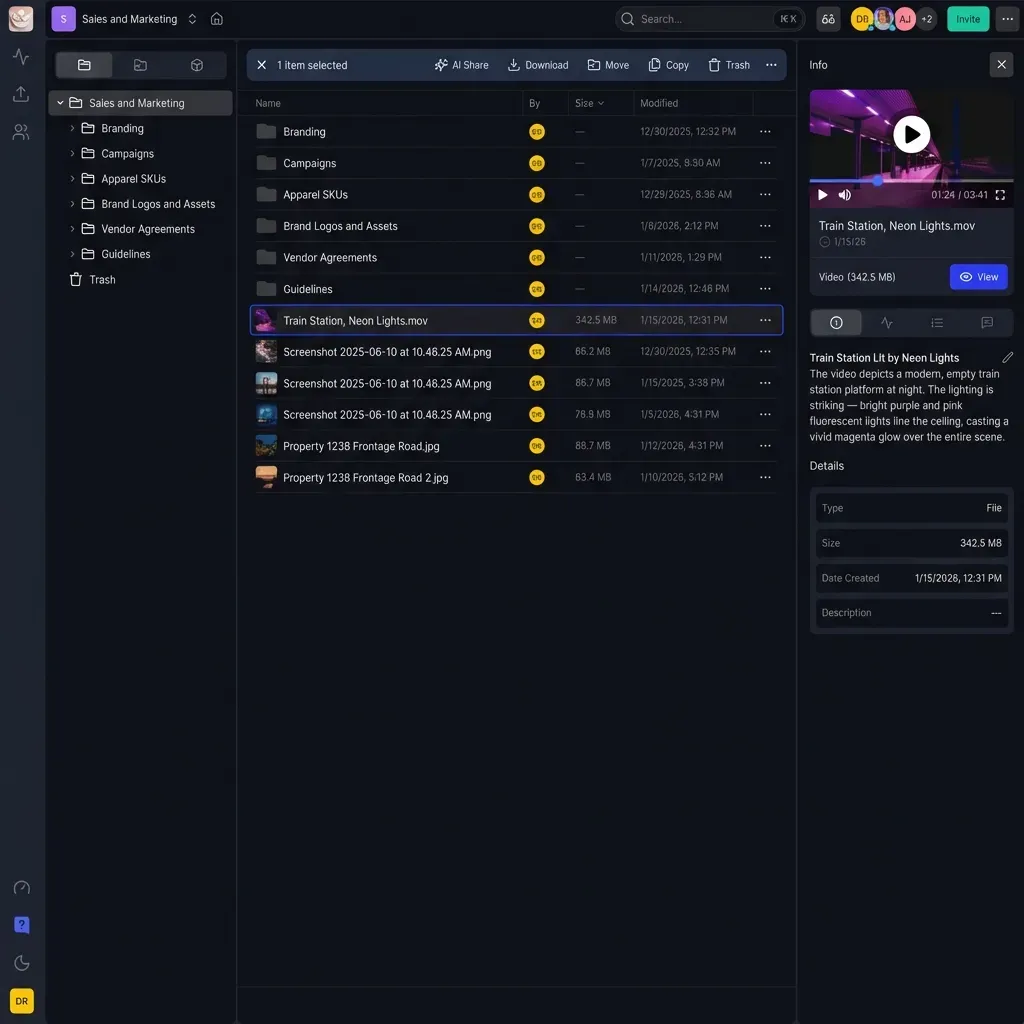
The most straightforward solution is uploading your video to cloud storage and sharing a link instead of the file itself. Since you're sending a few characters of text rather than hundreds of megabytes of video data, email size limits become completely irrelevant. The recipient clicks the link and either streams or downloads the full-quality file directly from the cloud servers.
This approach works with any cloud storage service: Google Drive, Dropbox, OneDrive, iCloud, or specialized platforms like Fast.io. The basic workflow is the same everywhere. Upload your video to the service, wait for it to process and transcode, generate a shareable link with your preferred permissions, and paste that link into your email or message. Most services let you control who can access the link, set expiration dates, and require passwords for sensitive content.
For casual sharing with friends and family, Google Drive or iCloud work fine. They're free for reasonable storage amounts and integrate with tools most people already use. The downside is that recipients typically need to download the entire file before watching. A 2GB video means your friend waits for a 2GB download before seeing a single frame. On slow connections, this can take hours.
For creative professionals sharing work with clients, the choice of platform matters more. General-purpose storage services require recipients to download files locally before viewing. If your client is reviewing a rough cut on their phone while traveling, asking them to download multiple gigabytes of footage creates friction that slows down feedback cycles and frustrates everyone involved in the review process.
Dedicated video delivery platforms handle this differently. Fast.io uses HLS streaming technology, the same adaptive bitrate approach that Netflix and YouTube use for their content. When someone clicks your link, playback starts immediately without any download. The viewer watches in up to 1080p quality while the rest of the file loads in the background. No waiting, no buffering spinners, no downloading multi-gigabyte files just to review a 30-second clip.
The streaming approach also handles varying network conditions gracefully. If a viewer starts watching on fast office WiFi and then switches to spotty mobile data during their commute, the quality adjusts automatically to prevent stuttering. They keep watching without interruption, just at a lower resolution until bandwidth improves.
Method 2: Specialized File Transfer Services
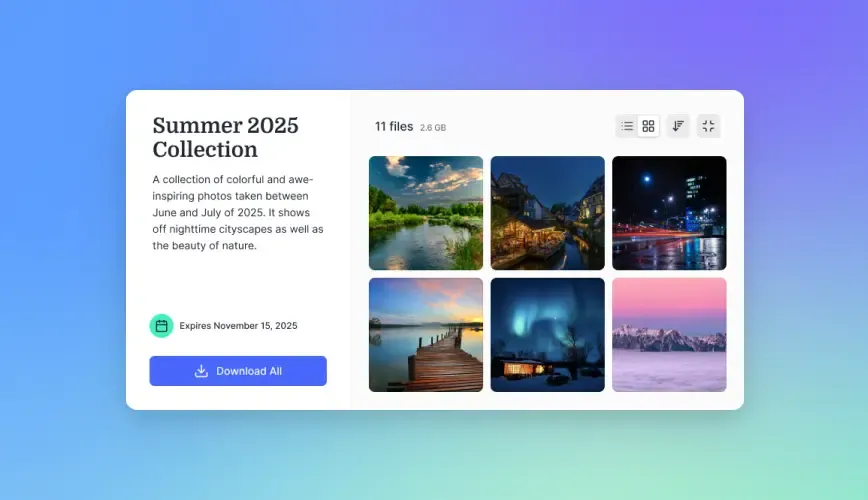
Services like WeTransfer, MASV, and Filemail are built specifically for sending large files between parties. They work like temporary digital lockers: you upload your video, the service generates a unique download link, and the recipient grabs the file within a set time window before it expires and gets deleted from the servers. These tools prioritize the one-time transfer use case rather than ongoing storage and organization.
WeTransfer is probably the most recognizable name in this category, known for its simple interface and quick setup. The free tier handles files up to 2GB with links that expire after 7 days. Pro plans raise limits to 200GB per transfer and extend link lifespans to 28 days. The interface is intentionally minimal, which makes it popular for quick transfers when you just need to get a file from point A to point B without setting up accounts or navigating complicated options.
MASV targets professional video production workflows with support for truly massive files and accelerated upload technology. The service uses a global network of transfer nodes to speed up uploads and downloads compared to standard cloud services. MASV charges per gigabyte transferred rather than monthly subscriptions, which can be economical for occasional large transfers but adds up quickly for teams sending multiple deliverables every day. MASV also integrates with tools like Frame.io and Adobe Premiere, making it useful for post-production pipelines where files flow between multiple applications.
Filemail offers a middle ground with both subscription plans and pay-per-transfer options. Their desktop app can resume interrupted uploads, which matters when you're transferring 50GB of raw footage and your internet connection drops halfway through. The service includes basic tracking to see when recipients download your files.
The main limitation of pure transfer services is that files disappear after the expiration period. Once the link expires, the video is gone from their servers. If a client needs to reference the file weeks or months later, you need to re-upload everything and generate a new link. For ongoing projects where you might revisit footage multiple times throughout production, this creates extra work and eats into your billable hours.
Consider your actual needs before choosing a transfer service. If you're sending finished deliverables to a client who just needs to download once, transfer services work fine and keep costs predictable. If you're collaborating on a project where multiple people need ongoing access to source files, cloud storage with permanent links makes more sense for the long term.
Method 3: Streaming-First Delivery for Client Reviews
When sending video for review and approval rather than final delivery, the recipient often doesn't need the source file at all. They need to watch the content, provide feedback, and approve the work. Downloading a massive file just to watch it adds unnecessary friction to this process and wastes time for busy clients.
Streaming-first platforms eliminate this friction by prioritizing instant playback over file downloads. When you share a video through Fast.io, recipients can watch immediately in their browser at up to 1080p resolution without installing any software or waiting for downloads. The HLS streaming technology adapts quality automatically based on the viewer's connection speed and device capabilities. On fast WiFi, they see crisp high-definition playback with smooth motion. On spotty mobile connections, quality scales down gracefully to prevent buffering while remaining perfectly watchable.
This matters most for creative agencies and production companies managing ongoing client relationships. Imagine sending a rough cut to a director for approval. With traditional file transfer, they download 5GB of ProRes footage, wait 30 minutes for it to finish, hunt for a video player that supports the codec, and then try to articulate feedback over email or phone. "The color looks off somewhere around the middle" isn't actionable feedback for an editor working against a deadline.
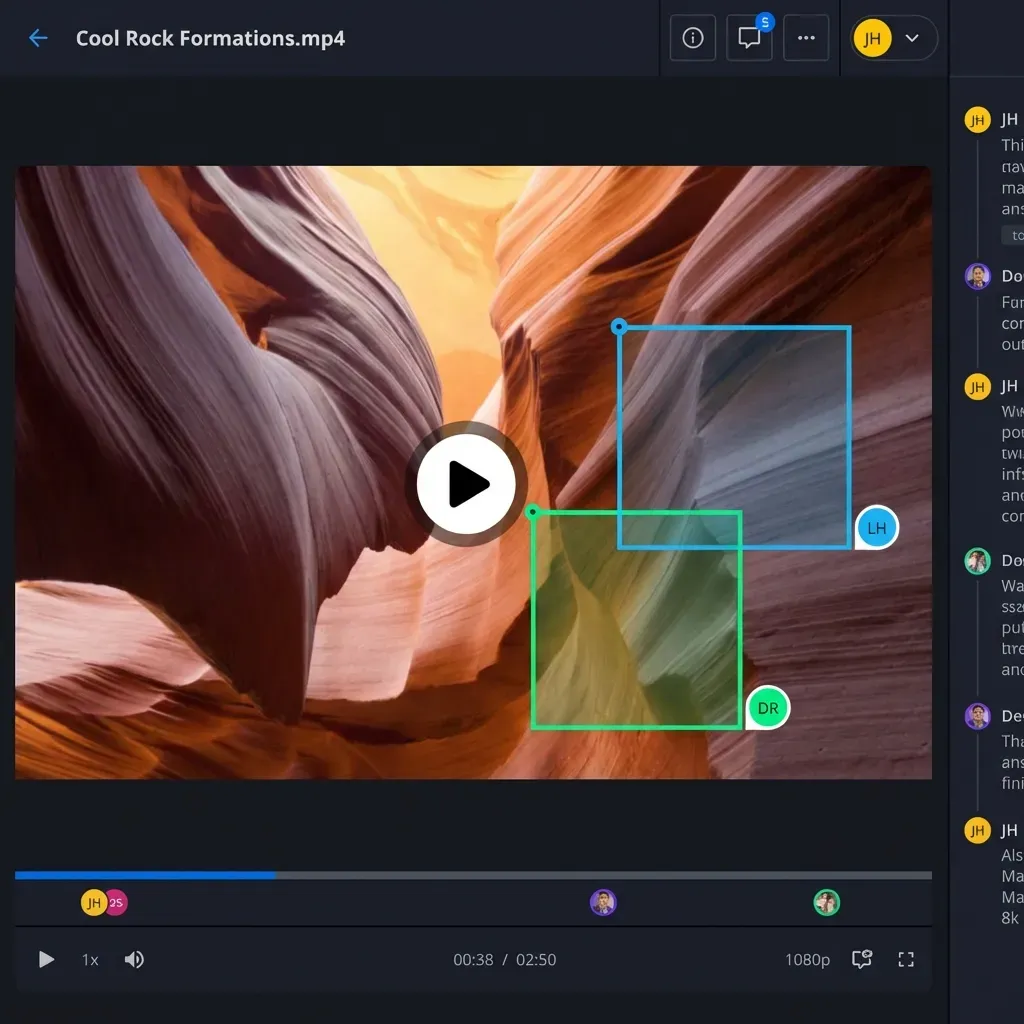
With streaming delivery, they click a link, watch instantly on any device including their phone, and leave timestamped comments directly on specific frames. The difference in feedback quality and turnaround time compounds across every review cycle in a project.
Frame-accurate commenting is particularly valuable for precision feedback. Instead of writing "the color looks off around the middle somewhere," reviewers pin comments to exact frames with specific timecodes. "At 1:23:14, the sky looks oversaturated compared to the reference footage" gives editors something they can act on immediately without spending time trying to interpret vague notes or going back and forth clarifying what the client meant.
Fast.io's branded portal feature lets you white-label this entire experience with your own logo, colors, and custom domain. Clients interact with a professional interface that reinforces your brand identity rather than a generic file-sharing page with someone else's branding. For agencies billing premium rates, this presentation detail reinforces the quality and professionalism of your work. It also keeps clients focused on your content rather than getting distracted by ads or upsell messages from the hosting platform.
The original high-resolution file remains available for download when someone actually needs the source footage, but casual reviewers never deal with unnecessary downloads or codec compatibility issues.
Method 4: Compress Video as a Last Resort
Sometimes you genuinely need to reduce file size, not just share more efficiently. Maybe you're posting to a platform with hard size limits that can't be bypassed, archiving footage for long-term storage where every gigabyte costs money, or sending to someone whose internet connection makes large downloads impractical regardless of the delivery method. In these specific cases, compression is the tool for the job, but it requires understanding the tradeoffs involved.
All video compression works by removing information from the original footage. Lossy codecs like H.264 and H.265 (HEVC) analyze each frame and discard details the human eye is less likely to notice, like subtle color variations in shadowy areas or fine texture details in fast-moving objects. The more aggressively you compress, the more information gets permanently discarded, and the more visible the quality loss becomes. There's no magic setting that makes large files small without consequences.
For reasonable quality at smaller sizes, H.265 (HEVC) is currently the best general-purpose codec for delivery. It delivers roughly 50% smaller files than H.264 at equivalent visual quality levels. HandBrake is a free, open-source tool that handles H.265 encoding well and runs on Windows, Mac, and Linux. Adobe Media Encoder offers more granular control if you're already in the Adobe ecosystem and familiar with its interface. Both applications let you target specific file sizes or bitrates and preview quality before committing to potentially long encoding jobs.
Practical compression settings depend heavily on your content type. For dialogue-heavy scenes with limited motion and simple backgrounds, you can compress more aggressively without obvious degradation because there's less visual complexity to preserve. Fast action, detailed textures, and subtle color gradients require higher bitrates to look acceptable. A wedding video of people talking at a reception can compress much further than a mountain biking edit with rapid camera motion, dense foliage, and lots of detail in every frame.
Here are starting points for 1080p delivery that balance quality with file size:
- High quality: H.265 at 8-12 Mbps (approximately 30-45 MB per minute)
- Balanced: H.265 at 4-6 Mbps (approximately 15-22 MB per minute)
- Maximum compression: H.265 at 2-3 Mbps (approximately 8-11 MB per minute)
Always preview your output before sending to clients or posting publicly. Compression artifacts are most visible in dark scenes with subtle gradients, skin tones where we naturally notice imperfections, and areas with fine detail like hair or fabric texture. If the preview looks bad on your screen, it will look worse on the recipient's larger display or when projected in a conference room. Spend the extra few minutes to verify quality before delivery.
Method 5: Physical Media for Massive Archives
For truly enormous transfers measured in terabytes rather than gigabytes, physical media sometimes makes practical sense despite feeling archaic. Shipping a hard drive sounds like something from the 1990s, but the math doesn't lie. Transferring 10 terabytes over a 100 Mbps internet connection takes about 10 days of continuous uploading, assuming your connection never drops and maintains peak speed the entire time. FedEx overnight delivers the same data in 24 hours for a fixed shipping cost.
This approach, sometimes called "sneakernet" by IT professionals, remains surprisingly relevant for specific scenarios even in 2026. Film and television productions accumulate terabytes of raw camera footage daily when shooting in high-resolution formats. Scientific research generates massive datasets from sensors and simulations. Backup archives for enterprise organizations can run into petabytes. When internet transfer would take weeks or months, physical shipping becomes the faster and often cheaper option.
The practical challenges are real and require planning. Hard drives can fail during transit from vibration, temperature changes, or impact, so redundancy matters for irreplaceable content. RAID arrays or multiple duplicate drives provide protection against single points of failure. Proper packaging with foam inserts, anti-static bags, and "fragile" labeling reduces the risk of impact damage. Chain of custody documentation helps if a drive goes missing, arrives with corrupted data, or needs to be tracked for security compliance.
For most individual videos and project-sized deliverables under a few hundred gigabytes, physical shipping is overkill and slower than electronic transfer. The sweet spot for considering physical media is somewhere in the 1TB to 10TB range, where uploads are painfully long but manageable, and cloud transfer remains faster than overnight shipping for smaller amounts. Beyond that threshold, start calculating whether putting a drive in a padded box makes more sense than tying up your internet connection for days.
Hybrid approaches work well for ongoing relationships. Use cloud sharing for daily transfers and feedback cycles during active production, then ship physical drives for archive delivery at project milestones when the client needs master files for their permanent storage. This gives you the responsiveness of instant cloud access during active work while providing physical backup of raw assets at key points when clients need to maintain their own copies.
Choosing the Right Method for Your Situation
Each approach has distinct strengths and appropriate use cases. Picking the right one depends on what you're actually trying to accomplish, not just the file size itself. Understanding your recipient's needs and technical setup matters as much as the video dimensions.
For client reviews and approvals: Use a streaming-first platform like Fast.io. Clients watch immediately without downloading gigabytes of footage, leave timestamped feedback on specific frames, and you maintain a professional branded experience throughout the review cycle. The original files remain available if anyone needs them for actual editing work.
For one-time delivery of finished assets: Transfer services like WeTransfer or MASV handle this efficiently. Recipients download once, and you don't need to pay for ongoing storage of completed projects. Watch for per-gigabyte pricing that can add up on larger transfers, and factor transfer costs into your project budgets.
For ongoing project collaboration: Cloud storage with permanent links keeps files accessible throughout the project lifecycle and beyond. Teams can reference footage whenever needed without re-uploading or generating new links every time someone needs access.
For extreme compression needs: Use HandBrake or Adobe Media Encoder with H.265 encoding when you genuinely need smaller files. Understand that quality loss is inevitable and preview results carefully before sending. Don't compress just because you can; compress because the delivery format requires it.
For multi-terabyte archives: Calculate transfer time versus shipping time honestly. Physical drives make sense when uploads would take longer than overnight courier delivery. Plan for drive failures and ship redundant copies for irreplaceable content.
Whatever method you choose, test the recipient experience before sending important deliverables. Click your own links on different devices, try downloading over both WiFi and mobile data, and verify that what arrives matches what you sent in terms of quality and completeness. Five minutes of testing prevents awkward follow-ups and missed deadlines that damage client relationships.
For recurring workflows, document your preferred method so team members handle transfers consistently. A standardized process reduces confusion and ensures clients receive a consistent experience regardless of which team member handles their project.
Frequently Asked Questions
How do I send a video that is too large for email?
Upload the video to cloud storage and share a link instead of attaching the file directly. Services like Fast.io, Google Drive, and Dropbox let you generate shareable links that bypass email attachment limits entirely. For creative work, choose a platform with streaming playback so recipients can watch without downloading.
What is the maximum file size I can send via email?
Most email providers cap attachments at 25MB. Gmail, Outlook, Yahoo, and Apple Mail all enforce this limit. Some corporate email servers set even lower limits at 10-15MB. Any video longer than a few seconds at modern resolutions will exceed these limits, making cloud sharing the practical solution.
How can I reduce video file size without losing quality?
Use H.265 (HEVC) encoding, which delivers about 50% smaller files than H.264 at equivalent quality. Free tools like HandBrake handle H.265 encoding well. However, all compression involves tradeoffs. The more you shrink a file, the more visible quality degradation becomes. For best results, compress as little as possible while meeting your size requirements.
What is the best way to share large videos with clients?
Use a streaming-first platform that lets clients watch immediately without downloading. Fast.io offers HLS streaming with up to 1080p quality, frame-accurate commenting for precise feedback, and branded portals with your logo. This creates a professional review experience while keeping original files available for download when needed.
Why does my video file say it's too large to upload?
Video files are large because they contain massive amounts of visual data. A single minute of 4K video runs 300-400MB depending on recording settings. Resolution, frame rate, and codec all affect file size. Higher quality settings produce larger files, which is why professional footage often exceeds gigabytes for just a few minutes of content.
Is it better to compress video or use cloud sharing?
Cloud sharing preserves full quality and is faster for the sender since no encoding is required. Compression reduces quality and requires time-consuming encoding on your computer. Use cloud sharing for most scenarios. Only compress when you need the actual file size reduced, such as for platforms with hard limits or situations where download size genuinely matters to the recipient.
Related Resources

Send videos of any size, instantly
Stop wrestling with email limits and compression settings. Fast.io lets you share full-quality video with streaming playback, timestamped feedback, and branded portals.