How to Bypass the Outlook File Size Limit
Outlook's file size limit restricts email attachments to 20-25MB for most accounts, preventing users from sending large files directly. While Microsoft encourages using OneDrive, professional teams often need better alternatives for sharing large assets with clients. This guide covers the technical reasons behind the limit and provides 6 methods to bypass it.
Understanding the Outlook File Size Limit
If you've ever tried to email a video or a high-resolution presentation, you've likely hit the dreaded error message: "The file you are attaching is bigger than the server allows."
For the vast majority of users, Outlook limits email attachments to 20MB. This applies to Outlook.com, Outlook 2013, 2016, 2019, and most standard Exchange accounts. While this might seem arbitrary, there are technical reasons behind it.
The "Hidden" Encoding Cost
Email was originally designed to send text, not files. To attach a file (like a PDF or JPG) to an email, Outlook must convert that binary file into text using a process called MIME (Multipurpose Internet Mail Extensions) or Base64 encoding.
This conversion process is inefficient. It increases the size of your file by approximately 33%.
- A 15MB file becomes roughly 20MB after encoding.
- A 20MB file becomes roughly 27MB after encoding.
This is why you might get rejected even if your file is technically 19MB. The encoded version exceeds the 20MB cap.
Limits by Outlook Version
Different versions of Outlook handle these limits slightly differently, though the server usually has the final say:
- Outlook.com (Free): 20MB hard limit.
- Outlook for Microsoft 365 (Business): Defaults to 20MB, but admins can increase this to 150MB.
- Exchange Server: Defaults to 10MB or 20MB, configurable by IT.
- Gmail (Incoming): 25MB limit. If you send a 50MB file from a "boosted" Outlook account to a Gmail user, it will bounce.
Method 1: Share via Professional Cloud Storage (Best for Teams)
The most reliable, professional way to bypass Outlook's limits is to upload the file to a secure cloud platform and paste the link in your email. This decouples the file delivery from the email infrastructure entirely.
Why professionals prefer this method:
- No Size Limits: Share files up to 5TB without worrying about encoding or bounce-backs.
- Revocability: Unlike an attachment, you can disable a link after you send it. If you accidentally send the wrong contract, you can kill the link before the client opens it.
- Tracking: Receive notifications when your recipient views or downloads the file.
- Version Control: Update the file content without sending a new link.
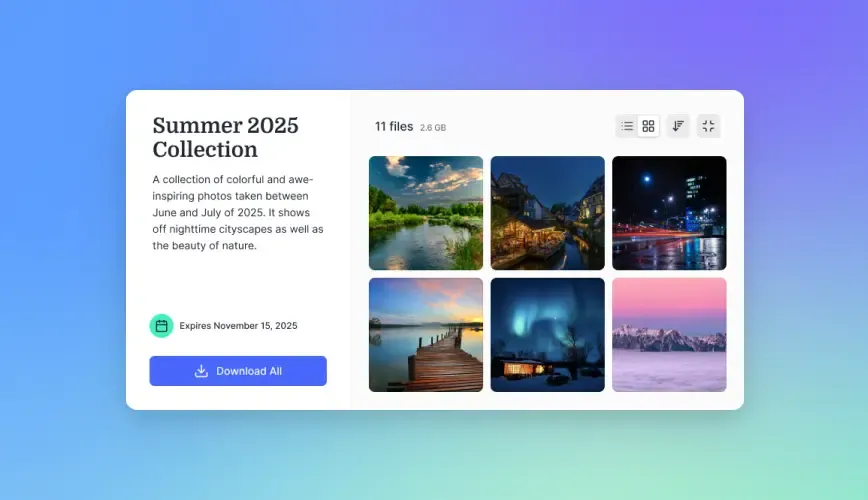
Fast.io is built specifically for this workflow. Unlike personal cloud storage (which often requires recipients to log in), Fast.io allows for unlimited guest access.
How to do it with Fast.io:
- Drag and drop your large file into your Fast.io workspace.
- Right-click the file and select Copy Link.
- (Optional) Set a password or expiration date for security.
- Paste the link into your Outlook email.
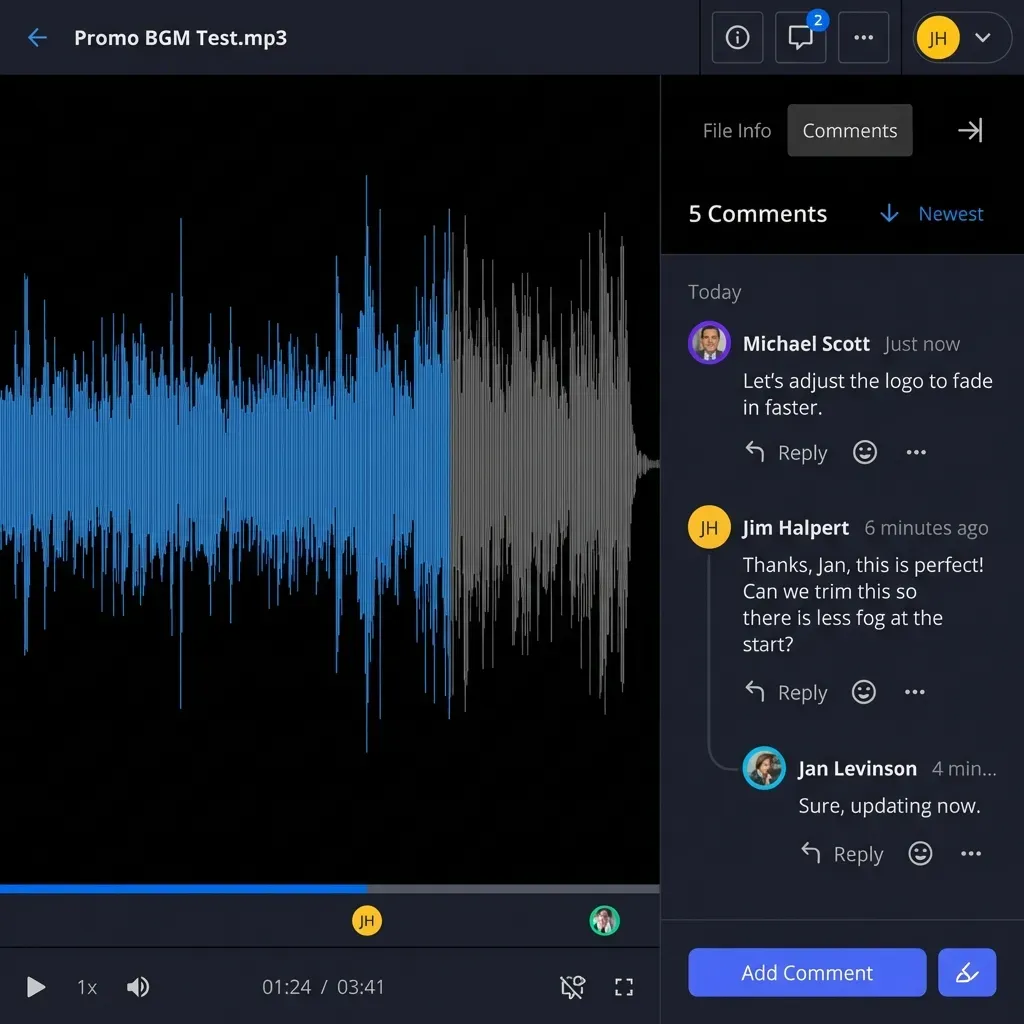
For creative teams, Fast.io's Universal Media Engine streams video and audio directly in the browser. The recipient can review a 2GB 4K video without waiting for a download to complete.
Method 2: Use Outlook's OneDrive Integration
Microsoft has integrated OneDrive deeply into Outlook to solve this exact problem. When you attempt to attach a file larger than the limit, Outlook often prompts you to "Upload to OneDrive and share link."
Step-by-Step Guide:
- Compose a new email in Outlook.
- Click the Attach File button (paperclip icon).
- Browse specifically to Web Locations or select Browse Web Locations > OneDrive.
- If selecting a local file, choose Upload and share as a OneDrive link.
- Outlook will upload the file in the background and change the attachment icon to a cloud icon.
Permissions Management: By default, Outlook might set the permission to "Recipients can edit." To change this:
- Click the down arrow on the attachment cloud icon.
- Select Change Permissions.
- Choose Recipients can view to prevent them from modifying your original file.
Pros and Cons: While convenient, OneDrive links can cause friction for external clients who don't have Microsoft accounts. They may encounter "Request Access" screens or be forced to sign in, which can look unprofessional. Files shared this way also live in your personal OneDrive, making them difficult for your team to manage if you leave the company.
Method 3: Compress Your Files (ZIP)
If your file is close to the limit (say, 22MB), compression might be the simplest fix. This technique works best for "compressible" file types like documents, spreadsheets, and databases.
How to Compress on Windows:
- Locate your file in File Explorer.
- Right-click the file (or select multiple files).
- Select Send to > Compressed (zipped) folder.
- A new
.zipfile will appear. Attach this file to your email.
How to Compress on Mac:
- Locate the file in Finder.
- Right-click (Control-click) the file.
- Select Compress [Filename].
Limitations: Compression is not magic. It relies on finding redundant data patterns.
- Good Candidates: Word docs (
.docx), Excel sheets (.xlsx), PDFs (containing mostly text), text files (.txt), HTML/CSS code. You can often see 50-80% size reduction. - Bad Candidates: JPEG images, MP4/MOV videos, MP3 audio. These formats are already compressed. Zipping them typically saves less than 1% of space.
Method 4: Resize Images in Outlook
Photos are a common culprit for exceeding attachment limits. Modern smartphones take photos that can easily be 5-10MB each. Attach four of them, and you're over the limit. Outlook has a built-in feature to fix this without external software.
How to use the Image Resizer:
- Create a new email and attach your high-resolution images.
- Click on File in the top menu bar.
- In the Info tab, look for the Image Attachments section at the top.
- Select Resize large images when I send this message.
- Return to your email and send.
Outlook will automatically downsample the images to a resolution suitable for screen viewing (usually 1024x768 or similar). This can turn a 50MB batch of photos into a 2MB attachment.
Warning: Do NOT use this method if you are sending photos for printing or professional production. The quality loss is irreversible on the recipient's end.
Method 5: Use a Transfer Service (WeTransfer/Smash)
For one-off transfers to people you likely won't collaborate with long-term, specialized transfer sites are a quick solution.
How they work:
- Go to a site like WeTransfer or Smash.
- Upload your file.
- Enter your email and the recipient's email.
- The service sends a download link to the recipient.
These services are popular because they generally don't require an account for the sender (up to a certain size, usually 2GB).
The Trade-offs:
- Expiration: Links die after 7-14 days. If your client tries to download the file next month, it's gone.
- Ads: Free tiers display advertising to your clients.
- No history: You don't have a central "Sent Items" repository for files sent via these web forms.
Method 6: The Registry Hack (Advanced Users Only)
Technically, you can modify Outlook's internal attachment limit by editing the Windows Registry. However, we strongly advise against this for most users.
Why? Increasing Outlook's limit doesn't increase the limit of your email server (Exchange/ISP) or your recipient's email server. Even if you hack Outlook to allow a 50MB attachment, the moment you hit "Send," your email provider will likely block it.
The Process (For reference only):
- Press
Win + R, typeregedit. - Navigate to
HKEY_CURRENT_USER\Software\Microsoft\Office\16.0\Outlook\Preferences. - Create a new DWORD named
MaximumAttachmentSize. - Set the value to the limit in KB (e.g.,
51200for 50MB). Setting it to0removes the limit entirely.
Again, this only removes the warning message in Outlook. It does not magically upgrade the infrastructure of the internet to accept your massive file.
Why Attachments Are a Security Risk
Beyond the size limits, there's a good reason to abandon attachments altogether.
Once you send an attachment, you lose control of that data forever.
- You cannot delete it from the recipient's inbox.
- You cannot prevent them from forwarding it to a competitor.
- You cannot see if they have opened it.
- You cannot update it if you find a critical error.
Link-based sharing flips this model. The file remains on your secure server (Fast.io, OneDrive, etc.). The email only contains a key (the link) to view it.
- Revoke access anytime.
- Set passwords for extra protection.
- Disable downloading (view-only mode) to prevent unauthorized copies.
- Expire links automatically after 24 hours.
For legal, financial, and creative industries, the ability to control data after it leaves your outbox is essential for compliance and IP protection.
Frequently Asked Questions
How do I send a file larger than 25MB in Outlook?
The most effective method is to upload the file to a cloud storage service (Fast.io, OneDrive, Google Drive) and simply copy-paste the share link into your email body. This completely bypasses email server limits and allows you to send files of any size (even terabytes).
Can I increase the Outlook attachment size limit?
You can modify the Windows Registry to remove the warning in Outlook, but this is rarely effective. Email servers (both yours and the recipient's) have hard limits on their end. Even if Outlook lets you attach a 100MB file, the email server will likely reject it upon sending.
Does zipping a file reduce size for Outlook?
It depends on the file type. Documents (Word, Excel, PDF) compress very well, often shrinking by 50% or more. However, media files like MP4 videos and JPEG images are already compressed, so zipping them usually saves less than 1% of space.
Why does Outlook say my 18MB file is too big?
This is due to MIME encoding. When a file is attached to an email, it must be converted to text, which increases its size by about 33%. A 18MB file becomes roughly 24MB after encoding, pushing it over the standard 20MB limit.
Related Resources

Stop struggling with email limits
Share files of any size securely with Fast.io. No file size limits, unlimited guest access, and real-time tracking.