How to Send MOV Files Without Losing Quality
MOV files from modern cameras and phones routinely exceed email attachment limits, forcing video professionals to find alternative transfer methods. This guide covers five proven approaches to sending MOV footage, from quick free options to professional delivery portals, so you can choose the right method for your situation.
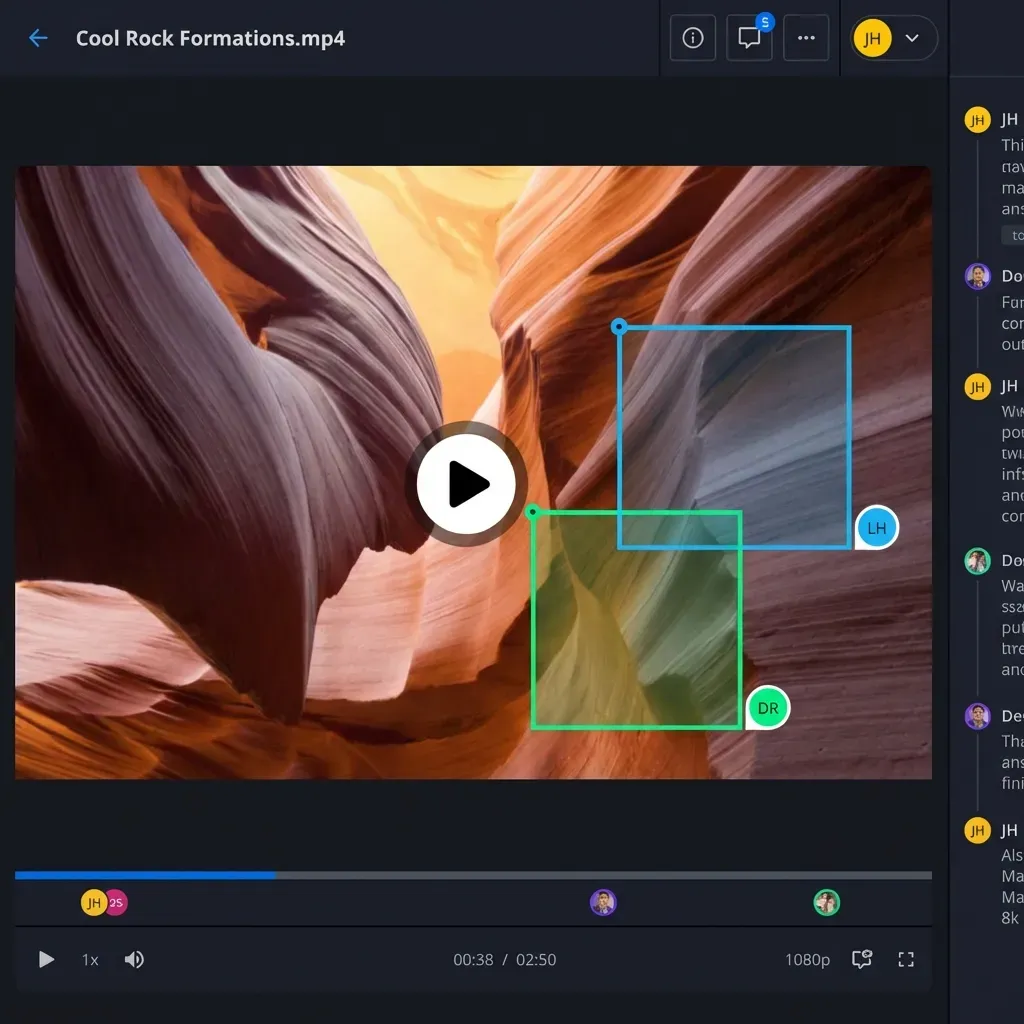
Why MOV Files Are Difficult to Send
The MOV container format, developed by Apple for QuickTime, has become a standard for professional video. iPhones, DSLRs, mirrorless cameras, and professional camcorders all capture footage in MOV by default. The format preserves high bitrates, color depth, and metadata that editors need for post-production work.
This quality comes at a cost: file size. A one-minute clip shot in 4K at 60fps can range from 150MB to 500MB depending on the camera and codec. ProRes footage, common in professional workflows, pushes even higher. A 10-minute interview shot in ProRes 422 can easily exceed 20GB.
Email services have not kept pace with these file sizes. Gmail caps attachments at 25MB. Outlook limits you to 20MB. Even when you manage to attach a smaller clip, recipients on slow connections face long download times. The fundamental mismatch between video file sizes and email infrastructure means you need a different approach.
Messaging apps compress your videos automatically. When you send a MOV file through WhatsApp, iMessage, or Facebook Messenger, the app re-encodes the video to a smaller, lower-quality version. This destroys the bitrate, introduces compression artifacts, and strips metadata. For personal videos, this might be acceptable. For professional work delivered to clients, it is not.
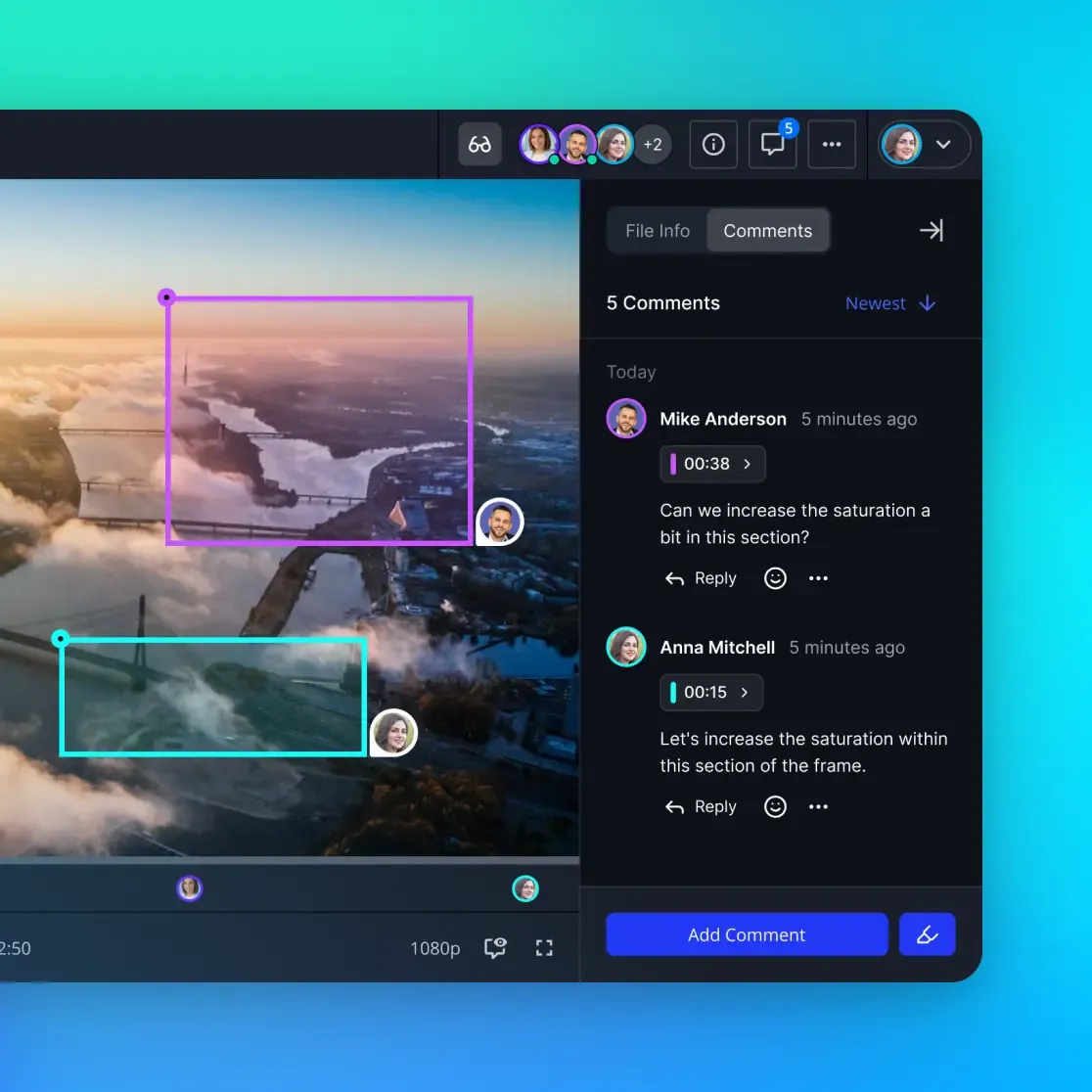
Method 1: Cloud Storage Links (Google Drive, Dropbox, iCloud)
The most accessible solution for occasional transfers is uploading your MOV file to cloud storage and sharing a download link. Google Drive, Dropbox, OneDrive, and iCloud all support this workflow. You upload the file, right-click to share, and send the link via email or message.
Google Drive offers 15GB free with any Google account. Dropbox provides 2GB on the free tier. iCloud gives Apple users 5GB but allows files up to 50GB per upload on paid plans. For a single large project, these quotas work. For ongoing video work, you will burn through storage quickly.
The upload process can take considerable time on residential internet connections. A 10GB file on a 10Mbps upload speed takes roughly 2.5 hours. Your computer needs to stay online and connected throughout. If the upload fails partway through, most services require starting over from the beginning.
Recipients encounter their own challenges. They must navigate to your shared link, potentially sign in to view the file, and download the full file to their local machine before viewing. For clients without fast internet or technical confidence, this process creates friction. You may field questions about "why the link isn't working" when the actual issue is a slow download or browser timeout.
Cloud storage works best when you already use the service for other purposes, when file sizes stay under 5GB, and when recipients are comfortable with technology. For larger files or less technical clients, the friction adds up.
Storage Quota Concerns
Professional video work generates terabytes of footage per year. If you upload raw footage to personal cloud storage, you will either hit quota limits or pay escalating storage fees. Dropbox Plus costs $12/month for 2TB. Google One charges $10/month for 2TB. These costs accumulate, and the storage model assumes you will keep files indefinitely rather than transfer and delete.
Method 2: Transfer Services (WeTransfer, Smash, TransferNow)
Dedicated file transfer services like WeTransfer, Smash, and TransferNow are designed specifically for sending large files. Unlike cloud storage, they do not expect you to organize or keep files long-term. You upload, share a link, and the file expires after a set period.
WeTransfer is the most recognized name in this category. The free tier allows files up to 2GB. WeTransfer Pro ($15/month) increases the limit to 200GB and adds password protection. Smash offers up to 50GB on free transfers with no account required. TransferNow allows up to 250GB per transfer on paid plans.
The workflow is straightforward. You drag files into the browser, enter the recipient's email, and click send. The service handles the upload, notifies the recipient, and tracks when they download. Some services provide read receipts so you know the client received the footage.
The downsides center on impermanence and branding. Files expire after 7 to 30 days depending on the service. If a client forgets to download, or needs the footage again months later, you must re-upload everything. The download pages display the transfer service's branding, not yours. For freelancers trying to project a professional image, sending clients to a third-party branded page undercuts that effort.
File transfer services work well for one-time sends when file sizes fall within tier limits. For ongoing client relationships or files that clients may need to access repeatedly, the temporary nature creates complications.
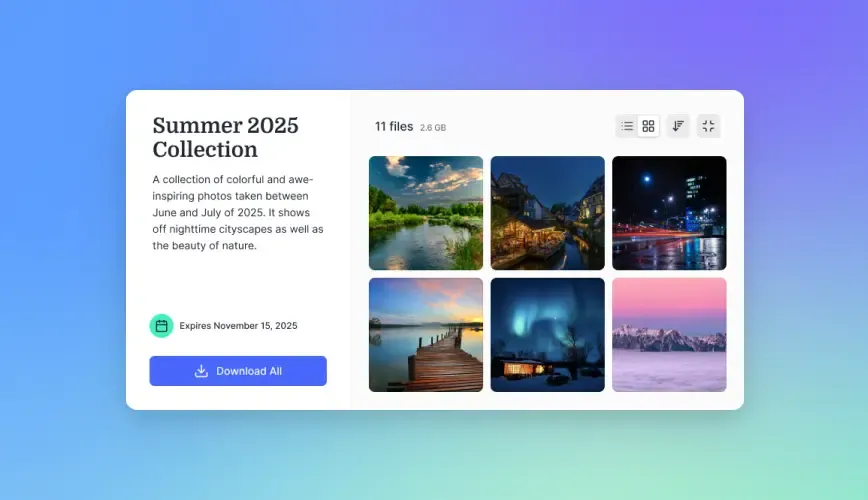
Method 3: Professional Client Portals
For videographers, agencies, and production companies who send MOV files regularly, a branded client portal streamlines delivery. Instead of juggling cloud storage links or temporary transfer URLs, you provide clients with a consistent, professional destination for their files.
Professional portals connect to your existing cloud storage but present a clean interface to clients. The underlying storage stays organized for your workflow. Clients see a simple, branded page with their files ready to download. No navigation through your folder structure. No confusion about which version is final.
This approach addresses the branding problem that transfer services create. Your logo, your colors, your domain. Clients download from a page that reinforces your brand rather than advertising a third-party service. For creative professionals where presentation matters, this distinction affects how clients perceive your work.
Professional portals also solve the persistence problem. Files remain available as long as you keep them in storage. When a client returns six months later needing the raw footage, the same link still works. No re-uploading. No expired links. The URL becomes a permanent delivery point for that project.
Fast.io operates on this model. You connect your existing storage (Google Drive, Dropbox, S3, or others), organize files in workspaces, and share through branded portals that clients access without needing accounts. Files stream through HLS rather than requiring full downloads, so clients can preview before committing to a large download. For 4K footage where a full download might take an hour, streaming preview saves significant time.
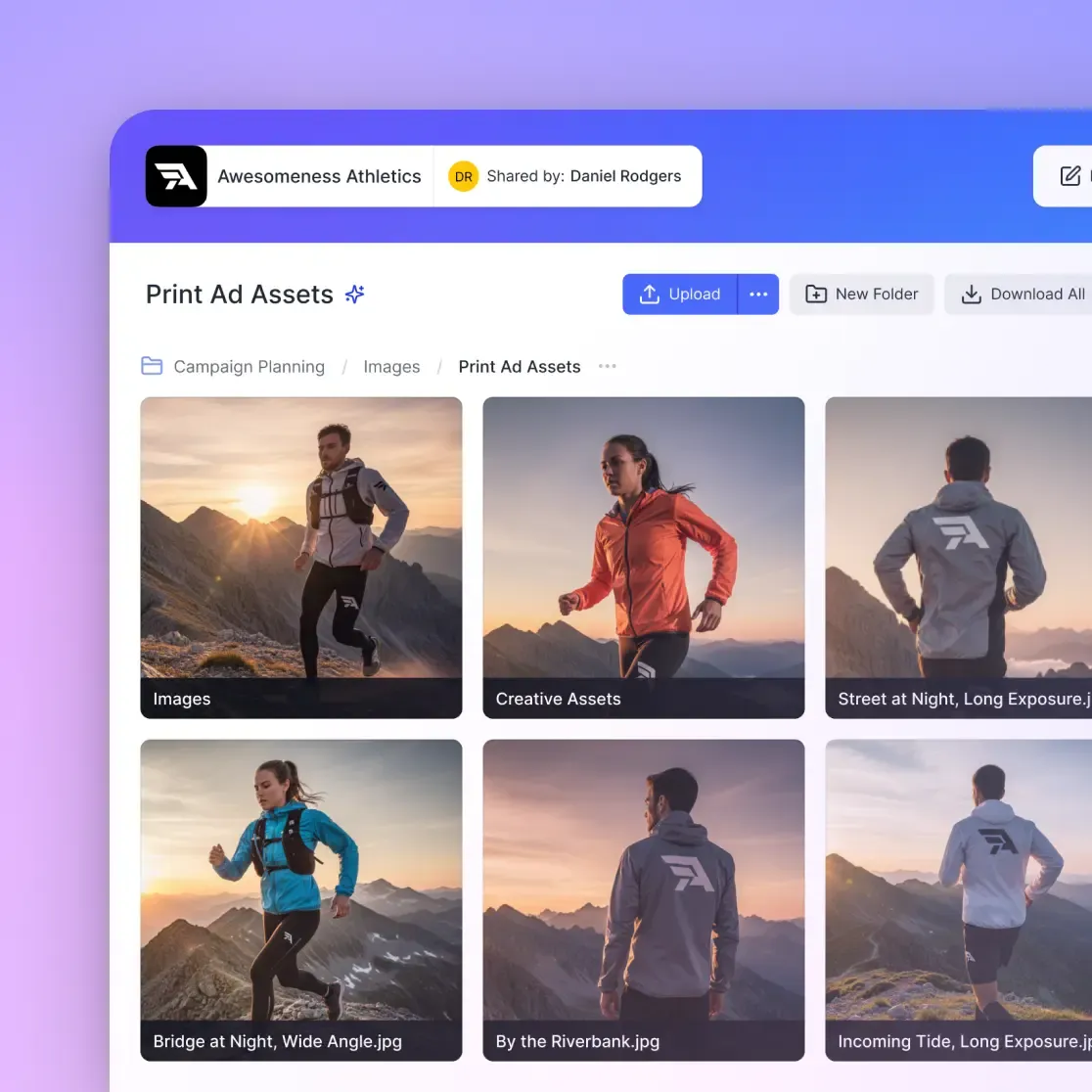
Method 4: FTP and SFTP for Technical Clients
File Transfer Protocol (FTP) and its secure variant SFTP have been standard tools for large file transfers since the 1980s. Many post-production houses, broadcasters, and enterprise clients still use FTP servers to receive deliverables.
FTP transfers files directly between computers without the overhead of web interfaces. For very large files (50GB and above), this can be more reliable than browser-based uploads. The protocol supports resumable transfers, meaning a interrupted upload can continue from where it stopped rather than starting over.
Setting up FTP requires technical knowledge. You need server access, credentials, and an FTP client like FileZilla or Cyberduck. The recipient also needs to understand FTP. For clients who already have FTP infrastructure, sending to their server is straightforward. For clients without that background, asking them to "connect via SFTP" creates confusion and support overhead.
Security varies with implementation. Standard FTP transmits data unencrypted, which is inappropriate for sensitive footage. SFTP encrypts the connection and should be preferred for any professional transfer. Enterprise clients often provide SFTP credentials specifically for secure deliverables.
FTP remains viable when both parties have technical capability and existing infrastructure. It is not a practical solution for delivering to individual clients, small businesses, or anyone without IT support.
Method 5: Physical Drives for Massive Projects
For truly massive transfers, sometimes the fastest internet is a hard drive in a shipping box. A 4TB NVMe drive costs around $300 and can be shipped overnight. For productions generating 10TB or more of raw footage, physical media may actually be faster than uploading over a residential internet connection.
The math works like this: uploading 10TB on a 20Mbps connection takes roughly 50 days. Shipping an overnight package takes one day. Even accounting for the cost of the drive and shipping, physical transfer wins by a significant margin for very large projects.
This approach requires coordination. You need to purchase or loan a drive, copy files (which itself takes time), package securely, and ship. The recipient needs to copy files to their system and potentially return the drive. Drives can fail in transit, so duplicating critical footage across two drives adds safety margin.
Physical transfer makes sense for final project archives, large raw footage dumps at project end, or transfers to clients with slow internet. It does not make sense for quick turnarounds, iterative reviews, or clients who need immediate access.
Choosing the Right Method for Your Situation
The best transfer method depends on file size, frequency, recipient technical ability, and how you want your brand perceived.
For occasional transfers under 2GB: Free transfer services like WeTransfer or Smash offer the lowest friction. No account needed, simple upload, quick share. Accept the branding trade-off and expiring links.
For regular transfers up to 10GB: Cloud storage links work if you manage your quota carefully. Consider whether the client experience (navigating your folder structure) matches your professional standards.
For professional delivery workflows: A branded client portal pays for itself in time saved and professional presentation. Clients receive a consistent experience. Files stay available long-term. You control the branding.
For enterprise or broadcast clients: Ask about their preferred delivery method. Many have FTP servers or vendor portals specifically for receiving deliverables. Match their workflow rather than imposing yours.
For projects exceeding 50GB: Evaluate the math on physical drives. For very large archives, shipping beats uploading.
Most video professionals eventually settle on a tiered approach: quick transfer services for small urgent files, cloud storage for internal team sharing, and professional portals for client delivery. This combination covers the range of situations without over-investing in infrastructure for simple use cases.
Preserving Quality During Transfer
The transfer method you choose does not inherently affect video quality. MOV files are containers holding compressed or uncompressed video data. Moving the file from one location to another does not change that data. However, certain pitfalls can destroy quality before the file even reaches its destination.
Avoid messaging apps for professional delivery. WhatsApp, iMessage, Facebook Messenger, Telegram, and similar apps re-encode video to reduce file size. Even if the app claims to send "original quality," the file often passes through compression. Send MOV files as documents when apps allow it, or use a different transfer method entirely.
Check that compression is disabled. Some cloud services offer to "optimize" uploads for web viewing. This means transcoding your original to a lower-resolution proxy. For delivery purposes, you want the original file untouched. Verify your service sends the actual source file, not a transcoded version.
Verify file integrity after transfer. Corruption during upload or download is rare but possible. For critical deliveries, compare file sizes and checksums between source and destination. A quick verification catches problems before they cause headaches downstream.
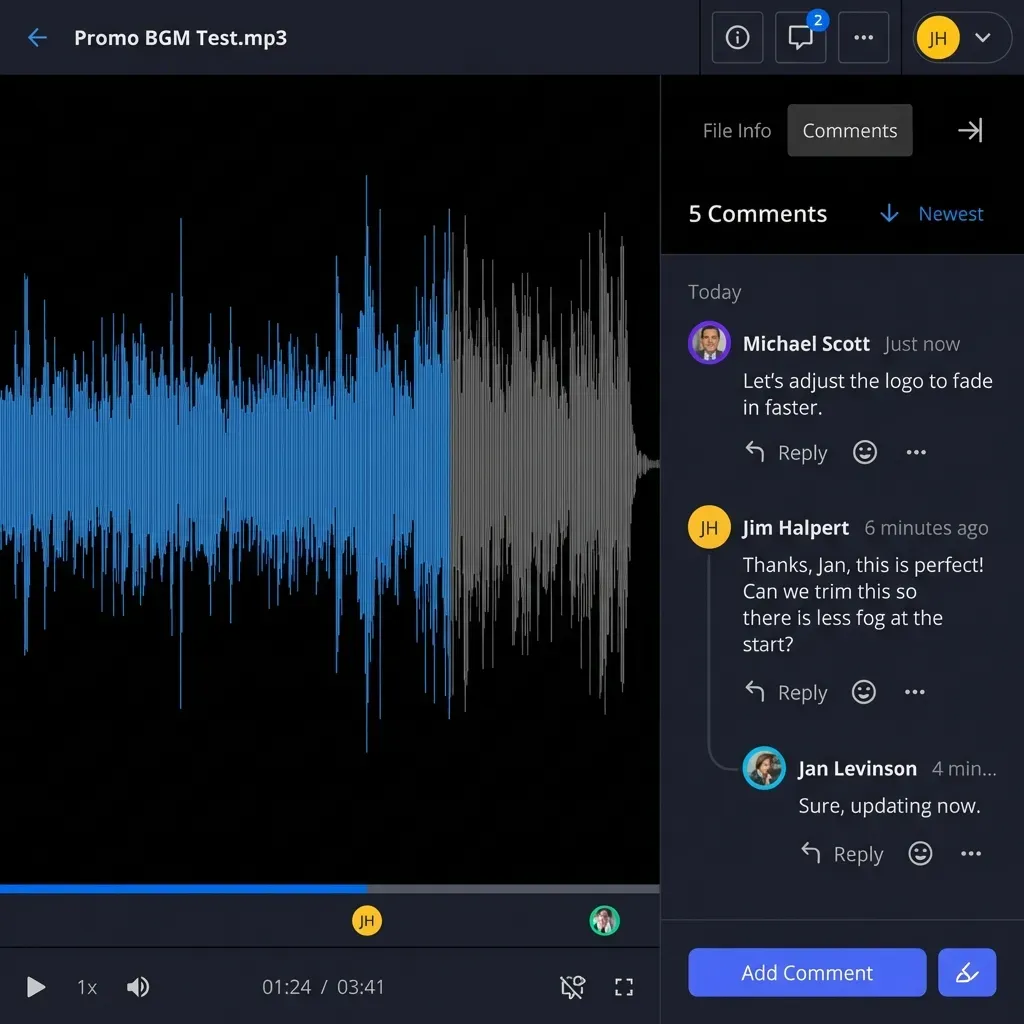
Consider proxy workflows for review. If clients need to review footage before you send the full-resolution files, generate lightweight proxies for approval. This speeds up the review cycle. Once approved, deliver the original MOV files through your chosen method. Fast.io's HLS streaming handles this automatically, generating playable previews while keeping originals untouched.
Frequently Asked Questions
What is the maximum file size for a MOV file?
The MOV container format itself supports files up to exabytes in size, far beyond any practical limit. The actual limit depends on your file system (FAT32 caps at 4GB per file, NTFS and APFS support much larger) and your transfer method. Professional transfer tools handle MOV files of 100GB or more without issue. The constraint is almost always your internet upload speed, not the file format.
Why do MOV files lose quality when sent through WhatsApp or iMessage?
Messaging apps prioritize delivery speed over quality. When you attach a video, the app re-encodes it to a smaller, lower-bitrate version that transmits quickly over mobile networks. This process introduces compression artifacts, reduces resolution, and strips metadata. To preserve quality, send MOV files through file transfer services or cloud storage links rather than messaging apps. If you must use a messaging app, some allow sending files 'as documents' which bypasses the compression.
Can I send a 20GB MOV file for free?
Free options exist but have trade-offs. Smash allows transfers up to 50GB with no account required, though speeds may be throttled. Google Drive provides 15GB free storage, so you would need to delete other files to fit a 20GB upload. TransferNow offers larger free transfers with advertising and slower speeds. For regular 20GB transfers, a paid solution typically provides better reliability and speed. Fast.io's usage-based pricing means you only pay for actual storage used, which often costs less than per-seat subscription services.
Is it better to send MOV or convert to MP4 first?
It depends on the recipient's needs. For editing purposes, send the original MOV to preserve maximum quality and metadata. For viewing purposes, MP4 offers broader compatibility across devices and players. Converting MOV to MP4 requires transcoding, which takes time and may reduce quality if settings are not correct. If in doubt, ask the recipient what format they prefer. For professional client delivery, providing both a proxy MP4 for preview and the original MOV for use often satisfies both needs.
How long does it take to upload a large MOV file?
Upload time depends on file size and your internet upload speed. A 10GB file on a 10Mbps upload connection takes approximately 2.5 hours. On a 50Mbps connection, the same file takes about 30 minutes. Residential internet often has much slower upload than download speeds (10Mbps upload with 100Mbps download is common). For very large files, consider transferring during off-hours when network congestion is lower, or use services that support resumable uploads so interruptions do not force you to start over.
Do MOV files work on Windows computers?
Yes, though Windows does not include MOV support by default. Windows users need to install QuickTime Player, VLC Media Player, or the Windows HEVC extension (for HEVC-encoded MOV files) to play MOV files. When delivering MOV files to Windows users, mention that VLC (free, open-source) plays the format without issues. Alternatively, provide an MP4 version alongside the MOV for easier playback.
Related Resources

Deliver Video Files Professionally
Stop sending clients to third-party download pages. Create a branded portal where clients access their footage instantly, with streaming preview and no account required.