How to Build a Raspberry Pi Camera Module 3 Vision Agent with OpenClaw
The Raspberry Pi Camera Module 3 packs 11.9-megapixel resolution and phase-detection autofocus into a $25 board, making it the first official Pi camera that can track focus on subjects at varying distances. Paired with OpenClaw on a Pi 5, the camera becomes the input layer for an autonomous vision agent that captures frames, runs classification, and syncs results to searchable cloud storage.


Phase-Detection Autofocus on a $25 Camera Board
Raspberry Pi shipped 7.6 million boards in fiscal year 2025, a 9% increase year over year. Camera modules rank among the most popular accessories for those boards, but most vision builds still default to the Camera Module 2, a fixed-focus design released in 2016 that cannot adjust to subjects closer than one meter. That limitation matters more than most project guides let on.
Fixed-focus cameras work fine for static scenes. A security camera pointed at a doorway, a timelapse rig aimed at a garden bed. The subject sits at a known distance, and you rotate the lens once during setup. Autonomous vision agents operate differently. An agent that monitors a workbench for defects needs sharp images whether the object is 10 cm or 60 cm from the lens. A package detection agent needs to read labels on boxes at varying distances. A plant health monitor needs macro-sharp leaf images one moment and full-plant shots the next.
The Camera Module 3 solves this with phase-detection autofocus (PDAF), the same technology found in smartphone cameras. PDAF uses dedicated pixels on the Sony IMX708 sensor to measure the phase difference of incoming light, calculating the correct focal distance in a single measurement rather than hunting back and forth like contrast-detection systems. The Module 3's autofocus locks in under 100 milliseconds and works continuously during video capture.
Combined with OpenClaw, an open-source AI agent framework that runs directly on Raspberry Pi hardware, the Camera Module 3 becomes the input layer for an autonomous pipeline. OpenClaw handles the orchestration: triggering captures based on events, routing frames through classification models, logging results, and uploading output to cloud storage. The camera captures. The agent decides what to do with what it sees.
Most Camera Module 3 guides stop at hardware installation and a few test shots. They cover libcamera-hello and maybe a picamera2 script that saves photos to a local folder. This guide goes further, connecting the camera to an AI agent that captures images, runs inference, and syncs results to cloud storage where they are searchable and shareable.
Related guides
- How to Build a Hermes Agent AI Code CheckerThe proportion of copy-pasted code in repositories rose from 8% in 2020 to 12% in 2024, representing a 48% relative...
- How to Build AI Agents with the Claude Agent SDKThe Claude Agent SDK is Anthropic's toolkit for building AI agents that can read files, run commands, search the web,...
- How to Build an OpenClaw Vision Agent with the Raspberry Pi AI CameraThe Raspberry Pi AI Camera offloads neural network inference to the Sony IMX500 sensor itself, leaving your Pi's CPU...
- How to Build a Raspberry Pi Night Vision Camera with OpenClaw AIThe Raspberry Pi Camera Module 3 NoIR captures 12-megapixel images in complete darkness when paired with infrared LEDs,...
- How to Build a Wildlife Camera Trap with OpenClaw on Raspberry PiA wildlife camera trap agent uses an OpenClaw-powered Raspberry Pi with a PIR motion sensor and camera module to...
- How to Build an OpenClaw Pan-Tilt Object Tracking Camera on Raspberry PiA pan-tilt tracking camera pairs servo motors with a PiCamera on a Raspberry Pi so the camera physically follows...
More on this subject: OpenClaw on Raspberry Pi (192 guides)
Camera Module 3 vs Module 2 Specs
The Camera Module 3 and Module 2 share the same physical form factor and MIPI CSI-2 ribbon cable connection. The internal hardware is a generation apart.
Sensor and resolution:
The Module 2 uses a Sony IMX219 sensor with 8 megapixels and a 62.2-degree diagonal field of view. The Module 3 uses a Sony IMX708 with 11.9 megapixels and a wider 75-degree field of view in the standard variant. The IMX708 is a back-illuminated design with 1.4-micrometer pixels, which improves low-light sensitivity compared to the IMX219's front-illuminated architecture.
Autofocus:
The Module 2 has a fixed-focus lens. You can adjust it manually by rotating the lens housing with a small tool, but the camera has no motorized focus mechanism. The Module 3 includes motorized PDAF that adjusts focus continuously. For vision agents that process subjects at varying distances, this is the most important upgrade.
Video performance:
The Module 2 captures 1080p video at 30 fps and 720p at 60 fps. The Module 3 records 1080p at 50 fps and 720p at 120 fps. Higher frame rates give classification models more frames to work with per second, improving detection accuracy for fast-moving subjects.
HDR imaging:
The Module 3 supports on-sensor HDR at resolutions up to 3 megapixels. In high-contrast environments where shadows and highlights clip, which is common in outdoor vision setups, HDR recovers usable detail in both dark and bright regions of the frame.
Variants:
The Module 3 comes in four configurations: standard (75 degrees), wide (120 degrees), standard NoIR (no infrared filter, for night vision with IR illumination), and wide NoIR. The Module 2 only comes in standard and NoIR variants. The wide-angle option is useful for agents that need to monitor a larger area from a fixed mount point.
Pricing:
Module 2 sells for $20. Module 3 sells for $25. The $5 difference buys autofocus, 50% more resolution, HDR, faster video, and a wider field of view. For vision agents, the Module 3 is the clear choice.

How to Connect and Configure Camera Module 3 on Raspberry Pi
The parts list is short. You need a Raspberry Pi 5 (recommended) or Pi 4 with at least 4 GB of RAM, a Camera Module 3 ($25), a microSD card of 16 GB or larger (a USB SSD is better for reliability), and a USB-C power supply rated for your Pi model (27W for Pi 5, 15W for Pi 4).
Connect the camera ribbon cable to the CSI connector on the Pi. On the Pi 5, use the connector closest to the Ethernet port. Lift the latch gently, slide the cable in with the contacts facing the board surface, and press the latch down to lock it.
Flash the OS:
Use Raspberry Pi Imager to flash 64-bit Raspberry Pi OS (Bookworm or later) to your microSD card. OpenClaw requires a 64-bit operating system and does not support 32-bit builds. Enable SSH and configure Wi-Fi in the imager's settings so you can set up the Pi headlessly.
Verify the camera:
After booting, SSH into the Pi and test the camera connection:
libcamera-hello --timeout 5000
This opens a preview window for 5 seconds. If the camera is connected correctly, you will see either a live preview or a confirmation message. If it fails, check the ribbon cable orientation and make sure the connector latch is fully closed.
Take a test image with autofocus:
libcamera-still -o test.jpg --autofocus-mode continuous
Hold an object at different distances and take several shots. Open the resulting images to confirm that autofocus is tracking correctly.
Verify picamera2:
Picamera2 comes pre-installed on recent Raspberry Pi OS images. Confirm it works:
python3 -c "from picamera2 import Picamera2; print('picamera2 OK')"
If it is missing, install it with sudo apt update && sudo apt install -y python3-picamera2. Picamera2 gives you Python control over the camera with full access to autofocus modes, HDR, and per-frame configuration. The key setting for a vision agent is continuous autofocus:
from picamera2 import Picamera2
from libcamera import controls

picam2 = Picamera2()
config = picam2.create_still_configuration()
picam2.configure(config)
picam2.start()
picam2.set_controls({"AfMode": controls.AfModeEnum.Continuous})
This keeps the camera adjusting focus between captures, so subjects at varying distances stay sharp without manual intervention. With the camera verified and picamera2 working, the hardware layer is ready for the agent software.
Installing OpenClaw and Verifying the Agent Daemon
OpenClaw requires Node.js 24 on a 64-bit Raspberry Pi OS install. The official documentation recommends installing Node.js via the NodeSource repository before running the OpenClaw installer.
Update your system packages first. If your Pi has less than 4 GB of RAM, configure 2 GB of swap space to prevent out-of-memory failures during installation.
Run the OpenClaw installer:
curl -fsSL https://openclaw.ai/install.sh | bash
After the installer finishes, run the onboarding command to configure your agent and start the background daemon:
openclaw onboard --install-daemon
The onboarding process asks for an API key from a cloud LLM provider. OpenClaw uses cloud-hosted models for reasoning because local LLMs run too slowly on ARM hardware for interactive agent work. Anthropic, OpenAI, and other providers are supported. You can also connect to locally-hosted models via Ollama or llama.cpp if you prefer keeping inference private and accept slower response times.
Verify the installation:
openclaw status
This shows whether the daemon is running and which LLM provider is configured. The --install-daemon flag sets up OpenClaw as a systemd service that starts automatically on boot, so the agent survives power cycles without manual restart.
OpenClaw agents work through tools and skills. The agent can execute shell commands, interact with APIs, manage files, and orchestrate multi-step workflows. For a vision agent, the relevant capabilities are triggering Python scripts that capture camera frames, processing classification output, and uploading results to external services.
The official Raspberry Pi blog demonstrated this pattern with a wedding photo booth project built on OpenClaw. Using natural language prompts, the agent independently created the booth's web interface, configured a Wi-Fi hotspot for guest photo downloads, and set up admin access. The same agentic approach applies to vision pipelines: describe the capture and classification workflow you want, and OpenClaw builds the scripts and runs them.
A Pi 5 with 8 GB of RAM provides comfortable headroom for both OpenClaw's agent runtime and camera frame processing. The Pi 4 with 4 GB works for simpler pipelines where inference happens off-device or uses lightweight models. For either board, a USB SSD instead of an SD card improves both reliability and I/O speed when writing high-resolution captures at regular intervals.


Store and search your vision agent output
Fastio provides scalable workspace storage with Intelligence Mode indexing once enabled. Upload classified frames from your Pi, search by content, and share results through a link.
How to Build a Capture, Classify, and Upload Pipeline
A vision agent pipeline has three stages: image capture, classification, and output handling. Each stage runs as a standalone script that OpenClaw orchestrates in sequence.
Capture stage:
The capture script uses picamera2 to grab frames based on a trigger. For continuous monitoring, the script captures at regular intervals. For event-driven capture, it watches for motion or a GPIO signal. A basic interval capture script:
from picamera2 import Picamera2
from libcamera import controls
import time
from pathlib import Path

picam2 = Picamera2()
config = picam2.create_still_configuration(
    main={"size": (4608, 2592)}
)
picam2.configure(config)
picam2.start()
picam2.set_controls({"AfMode": controls.AfModeEnum.Continuous})

output_dir = Path("captures")
output_dir.mkdir(exist_ok=True)

while True:
    timestamp = int(time.time())
    picam2.capture_file(
        str(output_dir / f"frame_{timestamp}.jpg")
    )
    time.sleep(10)
This captures a full-resolution 11.9-megapixel image every 10 seconds with continuous autofocus. Adjust the interval and resolution based on your use case. For real-time detection, switch to a video configuration and process frames in a loop, at the cost of higher CPU usage.
Classification stage:
For on-device classification, TensorFlow Lite runs efficiently on the Pi 5's Cortex-A76 cores. A MobileNet v2 model handles general object detection at roughly 5 to 10 fps on CPU. For specialized tasks like plant disease identification, product defect detection, or animal classification, fine-tuned models from platforms like Edge Impulse or Roboflow work with the TFLite runtime.
If you need higher accuracy than edge models provide, the agent can send captured frames to a cloud vision API. Google Cloud Vision, AWS Rekognition, and OpenAI's vision endpoints all accept image uploads and return structured detection results. The tradeoff is latency and per-request cost versus classification accuracy.
For hardware-accelerated inference without leaving the Pi, the Hailo-8L AI HAT delivers 13 TOPS of neural network throughput. It plugs into the Pi 5's M.2 slot and runs YOLO, MobileNet, and other detection models at 30+ fps while leaving the CPU free for agent logic.
Upload stage:
Raw frames and classification results need durable storage. Local SD cards fill up fast with 12-megapixel images, roughly 4 MB per JPEG at full resolution. At one capture every 10 seconds, that is about 35 GB per day. An external SSD buys time, but any long-running vision agent needs a cloud storage sink.
OpenClaw coordinates these stages by running scripts in sequence, parsing output from one stage as input to the next, and retrying network uploads when connectivity drops. The agent can also apply conditional logic: only upload frames where the classifier detected something interesting, skip near-duplicate images, or batch uploads during off-peak hours to conserve bandwidth.
Cloud Storage and Intelligence Mode for Vision Output
Local storage works during development and testing. In production, vision agents generate too much data for an SD card, and the output is only useful if other people or other agents can access and search it.
General-purpose cloud storage services like Google Drive, Dropbox, and S3 handle raw file uploads, but they treat images as opaque blobs. You can upload a thousand classified frames, and searching through them later still means opening each file individually or maintaining a separate metadata database.
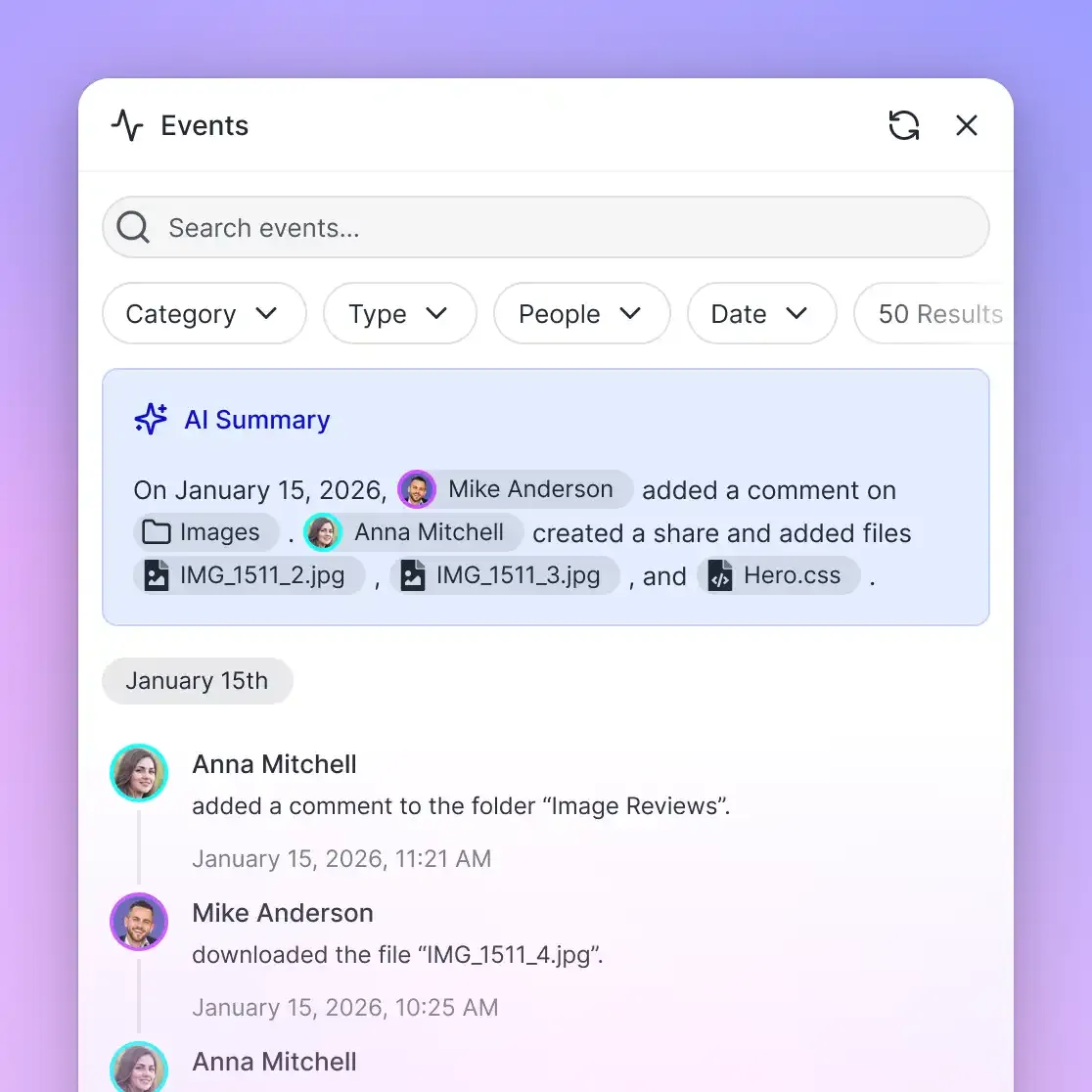
Fastio takes a different approach with its workspace model. Upload files to a workspace, enable Intelligence Mode, and the platform automatically indexes content for semantic search. Upload a week of classified plant health images, and you can search the workspace for "images flagged as fungal infection" and get results with citations pointing to specific files. No separate vector database, no manual tagging step.
For vision agents, the practical workflow is:
- The OpenClaw agent captures and classifies frames on the Pi
- Frames that pass the classification filter upload to a Fastio workspace
- Intelligence Mode indexes the images and any attached metadata
- Humans access the workspace through the web UI or the Fastio API to review results
Fastio's MCP server provides programmatic access to workspace operations. Through Streamable HTTP at https://mcp.fast.io/mcp/tools, an agent can create workspaces, upload files, organize output into folders, and query indexed content through the same tool interface that drives the rest of the agent's workflow.
Fastio offers a 14-day Business Trial, card required; see pricing for plans starting with 250 GB on Starter. Selective upload, only frames with positive detections, ensures maximum efficiency for your storage and credit allowances.
If you are building vision agents for clients, ownership transfer lets you build the workspace, populate it with classified output, and hand the entire collection to the client while retaining admin access for maintenance. The client gets a searchable, shareable set of vision data without needing to understand the agent infrastructure behind it.
Alternatives worth considering: S3 is the cheapest option for raw storage but has no intelligence layer. Google Drive has a familiar UI but requires an OAuth flow for automated uploads. Dropbox offers a solid API but does not index image content for semantic queries.
Sources
References used to verify factual claims in this guide.
-
Raspberry Pi shipped 7.6 million boards in fiscal year 2025, a 9% increase year over year
-
Camera Module 3 features 11.9MP Sony IMX708 sensor with PDAF, HDR, 1080p50 video, priced at $25
-
Camera Module 2 uses 8MP Sony IMX219 sensor with fixed focus, 1080p30 video, priced at $20
Frequently Asked Questions
How do I set up Raspberry Pi Camera Module 3?
Connect the ribbon cable to your Pi's CSI port, flash 64-bit Raspberry Pi OS using Raspberry Pi Imager, and test the connection with `libcamera-hello --timeout 5000`. Picamera2 comes pre-installed on recent OS images and provides Python control over autofocus, HDR, and capture settings. No additional drivers are needed since libcamera support for the IMX708 sensor is built into the OS.
What is the difference between Camera Module 2 and 3?
The Module 3 uses a Sony IMX708 sensor with 11.9 megapixels (vs 8 MP on the Module 2's IMX219), adds phase-detection autofocus (the Module 2 is fixed-focus), supports HDR imaging, and records 1080p video at 50 fps (vs 30 fps). The Module 3 also comes in wide-angle (120-degree) and NoIR variants. Price difference is $5, with the Module 3 at $25 and the Module 2 at $20.
Can I use Camera Module 3 for security cameras?
Yes. The autofocus handles subjects at varying distances, HDR helps in mixed-lighting conditions, and the NoIR variant works with infrared illuminators for night recording. Paired with an OpenClaw agent on a Pi 5, you can build a camera that detects motion, classifies what triggered it (person, vehicle, animal), and uploads relevant clips to cloud storage automatically.
How do I stream Raspberry Pi camera to the cloud?
For live streaming, use `libcamera-vid` piped to an RTMP server or a WebRTC service. For agent-driven workflows where you need classified snapshots rather than a continuous video feed, capture frames with picamera2, run classification locally or via a cloud API, and upload the results to a workspace like Fastio where Intelligence Mode makes them searchable. The upload approach uses less bandwidth and produces more useful output than raw video streaming.
Does Camera Module 3 work with Raspberry Pi 4?
Yes. The Camera Module 3 works with the Pi 4 (all RAM variants), Pi 5, Pi 3B+, and Pi Zero 2 W via the standard MIPI CSI-2 connector. For OpenClaw vision agents, the Pi 4 with 4 GB of RAM or more is the practical minimum since the agent runtime, camera processing, and classification model all share memory.
Related Resources

Store and search your vision agent output
Fastio provides scalable workspace storage with Intelligence Mode indexing once enabled. Upload classified frames from your Pi, search by content, and share results through a link.