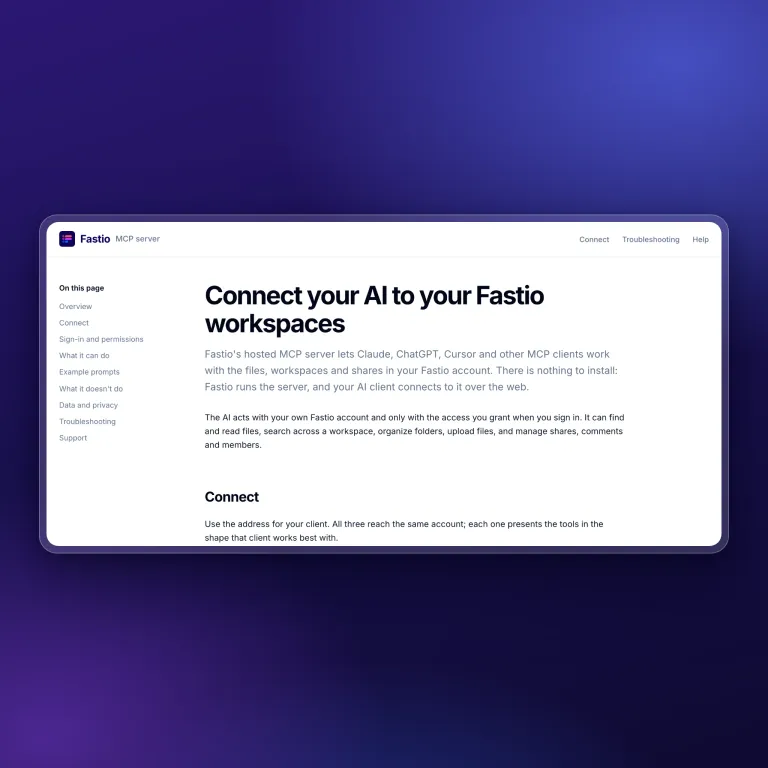
An MCP Setup Guide and Cloud Sync Folder Checks
A public guide walks you through connecting each MCP client to Fastio, and Cloud Sync now sizes and checks a folder before you connect it to a workspace.
Two new features lead today’s release. The MCP server has a public setup guide for every client, and Cloud Sync checks a folder before you connect it, so you know what you are bringing into a workspace.
A Setup Guide for Every MCP Client
The MCP server now has a public guide at mcp.fast.io/docs. It covers setup, sign-in and permissions for each client, so you can connect Claude, ChatGPT, a coding agent or another MCP client by following the steps written for it.
- Each client has its own steps. The guide gives you the address to use, how sign-in works and which permissions you can grant.
- MCP addresses open the guide in a browser. If you paste a Fastio MCP address into a browser, you land on the setup guide.
- Permissions are explained up front. You can choose read-only or read and write access before you connect an agent.
If you are connecting your first agent, start with the guide and then read how agents use Fastio on the storage for agents page.
Cloud Sync Checks a Folder Before You Connect It
Cloud Sync now looks at a folder before you sync it into a workspace and shows you what it found.
- See the folder’s size first. Cloud Sync measures the folder and checks it against your plan before anything copies. Your plan’s limits are on the pricing page.
- Overlapping folders are caught early. If a folder overlaps one you already sync, Cloud Sync tells you before you connect it, so the same files are not brought in twice.
- Each synced folder explains itself. A connected folder shows what it linked and how to change the direction of the sync.
Also New
- A getting-started checklist for new organizations. New organizations open to a checklist of first steps, so a new team knows where to begin.
- ZIP links from the CLI carry their own token. The CLI returns ZIP download links that work without an auth header, so you can hand one to another program or script.
The folder checks are the change you will notice first. You see how big a folder is and how it fits your plan before you sync it, and every connected folder tells you which way it syncs.
Related Posts
Passkey Sign-In, Cloud Imports With Live Progress, and New MCP Tools
Sign in to Fastio with a passkey, import a cloud folder once and watch it run, and give agents new MCP tools for notes, file versions, comments and invites.
One Tool per Operation and Read-Only MCP Sessions
A new MCP endpoint gives agents one tool per operation, and every Fastio tool now comes as a read tool and a separate write tool, each labeled with hints.
Claude Sonnet 5.5 vs Sonnet 5 on Fastio's Agent Benchmark
Claude Sonnet 5 found 4 to 14 of 17 contract contradictions, depending on the run. Claude Sonnet 5.5 found all 17 in six of seven runs and 16 in the other.