ChatGPT Message Limits: Quotas, Cooldowns, and Large File Workarounds
Text chat in ChatGPT is unlimited; uploads, images, and voice are capped within rolling windows. When conducting in-depth research across multi-page files, document attachments consume conversational context and burn prompt allowances quickly. Decoupling file storage into persistent workspaces via the Model Context Protocol lets assistants query indexed documents directly without exhausting conversational message quotas.


What Is a ChatGPT Message Limit?
Attaching multi-page reference documents or raw data dumps to a ChatGPT session burns conversational turns and exhausts model attention long before substantive research begins. Every iterative question re-transmits the document payload across the conversational context, forcing users to hit rolling cooldown windows or suffer context truncation when querying large document sets.
While text chat is unlimited across ChatGPT plans, uploads, images, and voice are capped within rolling time windows.
OpenAI enforces these operational boundaries to balance server compute resources, manage load across GPU clusters, and prevent runaway automated scripts from degrading service quality for interactive users. Depending on your subscription tier and the specific model selected, message limits dictate both how frequently you can submit queries and which underlying models handle your prompts.
Plan Limits and Cooldown Windows
Operational quotas vary across subscription tiers. Since August 6, 2026, text chat is unlimited across ChatGPT plans, while file uploads, image generation, and voice remain capped separately. According to OpenAI's file uploads documentation, paid tiers are capped at 80 files every 3 hours, and free users receive up to 3 uploads per day.
This distinction is critical for practitioners: if you hit an operational ceiling during an analytical workflow, you are rarely exhausting raw text generation limits. Instead, you are hitting the secondary boundaries placed on high-overhead modalities, including file ingestion buffers, image generation quotas, and specialized deep reasoning models.
Related guides
- ChatGPT Canvas Limits: File Sizes, Document Length, and WorkaroundsChatGPT Canvas limits documents to practical thresholds of roughly 4,000 lines of code or 25,000 words, running in an...
- ChatGPT Prompt Limit: Maximum Length, Character Limits, and WorkaroundsChatGPT enforces an input cap between 25,000 and 32,000 characters in its web interface, triggering a length error even...
- ChatGPT Character Limits: The 25,000-Character Paste Limit and SolutionsThe ChatGPT web interface enforces a frontend paste limit that triggers truncation warnings or forces file attachment...
- Gemini Message Limits in 2026: Quotas, Cooldowns, and WorkaroundsA Gemini message limit restricts how many prompts or API requests you can submit within a rolling window. Learn the...
- Can ChatGPT Access OneDrive? Workflows, Admin Limits & Fast StorageChatGPT can access OneDrive files through its cloud storage connector, but personal accounts remain unsupported while...
- Can ChatGPT Edit Google Docs? Native Limits vs. Workspace SyncChatGPT cannot natively edit, overwrite, or modify live Google Docs through its built-in Google Drive connector. While...
More on this subject: AI Agents: General Guides (218 guides)
How Rolling Cooldown Windows and Hidden Tokens Operate
Understanding how limits trigger requires looking at the timing mechanics behind OpenAI's quota tracking. A frequent point of confusion is assuming that message limits reset at fixed intervals, such as midnight or the top of the hour.
Rolling Time Windows Versus Fixed Clock Resets
ChatGPT uses a rolling time window rather than a fixed clock reset. On a 3-hour limit, each message timestamp starts an independent 180-minute countdown.
If your account allows 40 messages every 3 hours and you send 10 prompts at 1:00 PM, 10 prompts at 1:30 PM, and 20 prompts at 2:00 PM, your quota is fully exhausted at 2:00 PM. The interface will block new prompt submissions. However, your entire allowance does not restore at 4:00 PM.
Instead, your capacity returns in tranches matching your original submission pattern:
- Exactly 10 messages become available at 4:00 PM (180 minutes after your 1:00 PM submissions).
- Another 10 messages open up at 4:30 PM (180 minutes after your 1:30 PM submissions).
- The final 20 messages become available at 5:00 PM (180 minutes after your 2:00 PM submissions).
This rolling mechanism means that rapid-fire prompting at the start of a work session locks your account out for a full 3 hours, whereas pacing questions evenly maintains continuous operational availability.
Reasoning Models and Quota Depletion
Advanced reasoning architectures consume computational budgets differently from standard conversational models. Reasoning models introduce an internal thinking phase before emitting text, generating hidden reasoning tokens that work through logic trees, verify code paths, and self-correct errors.
Because these hidden tokens require extensive server-side compute, reasoning modes carry strict standalone quotas. Standard subscriptions frequently enforce dedicated weekly or daily allowances on reasoning modes. When those allowances run out, the interface either disables the deep reasoning toggle or routes requests back to standard general-purpose models until the cooldown period expires.
Rate Limiting Versus Quota Exhaustion
Users often confuse message quota limits with HTTP 429 rate limits. A message quota represents a contractual ceiling on prompts per window. A rate limit is a protective throttle on speed.
OpenAI rate limit errors can occur when request volume increases too rapidly, even when overall traffic remains within published minute-based quotas.
If an automated script or a rapid copy-paste workflow submits five complex requests within ten seconds, the API gateway triggers an immediate 429 slow_down response. The system includes a Retry-After header indicating how many seconds you must wait before retrying. This is not a penalty against your 3-hour limit; it is an infrastructure defense against concurrent burst traffic.
Why Document Attachments Accelerate Message Cap Burn
The fastest way to burn through your ChatGPT message allowance is attaching documents directly to the chat window. While dropping a PDF, spreadsheet, or code file into ChatGPT feels convenient, it introduces technical bottlenecks that degrade conversational performance.
The Context Window Tax on Multi-Turn Analysis
When you upload a document to ChatGPT, the model processes the file by extracting raw text and injecting it into the working context window. In multi-turn sessions, the entire conversational history, including the document text or its extracted summaries, re-transmits with every subsequent prompt.
Consider an analyst reviewing a 40-page financial report:
- Turn 1 uploads the document and asks for an executive overview. The model reads the text and answers.
- Turn 2 asks for a breakdown of operating expenses. The prompt submits Turn 2 plus the full document context from Turn 1.
- Turn 3 asks for a variance calculation between two divisions. The prompt submits Turn 3, Turn 2, Turn 1, and the document context again.
By Turn 6, the conversation carries tens of thousands of tokens of redundant history. Because the model must evaluate this growing context on every exchange, processing times lengthen and the probability of hitting session-level token saturation skyrockets.
Context Truncation and Attention Drift
As context windows fill up, large language models suffer from attention degradation. Relevant details buried in the middle of long multi-page files get overlooked as the model prioritizes the beginning and end of the prompt payload.
When the model overlooks critical clauses or misinterprets financial tables due to context stuffing, the user must enter corrective follow-up prompts: "Look at table 4 again," "You missed section 2.3," "Recalculate using column B." Each corrective prompt consumes another message from your 3-hour quota. Users burn 10 to 15 turns fixing context-drift errors rather than gaining new insights.
The Multi-File Threshold in AI Project Workspaces
This bottleneck appears across proprietary AI interfaces. For example, Claude Projects limits project knowledge by the context window, 30MB per file (see Anthropic's file upload guidelines). When researchers hit that threshold or reach ChatGPT's local upload limits, they face an administrative wall.
The problem is architectural: conversational chat interfaces were never designed to act as document management systems. Attempting to force an LLM to manage static file storage inside an ephemeral chat buffer wastes conversational quota, degrades answer accuracy, and strands research files inside isolated browser tabs. Exploring specialized Fast.io Storage for Agents provides a persistent alternative designed specifically for assistant retrieval.
Decoupling Document Retrieval with Fast.io Workspaces and MCP
The solution to message limit exhaustion during research is decoupling document storage from conversational turns. Instead of uploading entire files into ChatGPT, teams place their source corpus into an intelligent, persistent storage layer and connect the assistant via the Model Context Protocol (MCP).
Fast.io Workspaces provides shared environments designed for agentic teams and AI assistants. Rather than passing raw file bytes across the chat interface, files live inside org-owned workspaces where they are indexed automatically for hybrid search.
In a traditional chat upload workflow, a user uploads a large PDF, and every subsequent conversational turn re-transmits the entire document context, rapidly burning message allowances. In a decoupled workspace architecture, files reside in Fast.io, and the assistant executes targeted MCP tool calls to retrieve only the two or three paragraphs required to answer each prompt, using minimal tokens and avoiding quota exhaustion.
How Fast.io Decouples File Search
When you store your document collection in a Fast.io workspace and enable Intelligence Mode, the platform automatically indexes file contents, formatting structures, and embedded data. Fast.io combines exact full-text matching with semantic meaning retrieval:
- Exact keyword retrieval: Instantly locates specific sku codes, contract clauses, dates, or employee identifiers.
- Semantic retrieval: Identifies conceptual answers even when queries use different terminology from the source text.
- Preview matching: Returns exact snippet passages and page citations rather than dumping full documents into the prompt buffer.
When your AI assistant needs information, it connects to Fast.io's remote MCP server at https://mcp.fast.io/mcp/tools (ChatGPT connects through the Fastio plugin) using a consolidated MCP toolset. The assistant executes a focused search query, retrieves only the relevant two or three paragraphs, and answers your question accurately. Detailed setup instructions are available on the Fast.io Storage for Agents hub and the Fast.io developer documentation.
Preserving Third-Party Quotas
Using an external workspace does not raise OpenAI's native message limits. OpenAI's limits remain governed by your ChatGPT subscription tier. However, external search fundamentally changes how quickly you consume those limits:
- Zero redundant payload re-transmission: Each conversational turn remains lean, containing only targeted snippet results rather than full document text.
- Elimination of corrective prompt loops: High-precision citations eliminate the hallucinations and attention drift that force users into multi-turn correction cycles.
- Cross-session persistence: Your files remain permanently indexed in your workspace. When you start a fresh conversation, your assistant connects to the same workspace without re-uploading documents.
Fast.io supports automated cloud synchronization from Google Drive, Dropbox, Box, and OneDrive. Teams can centralize thousands of files without local disk overhead or repeated browser uploads. For comprehensive AI capabilities, explore Fast.io AI features.
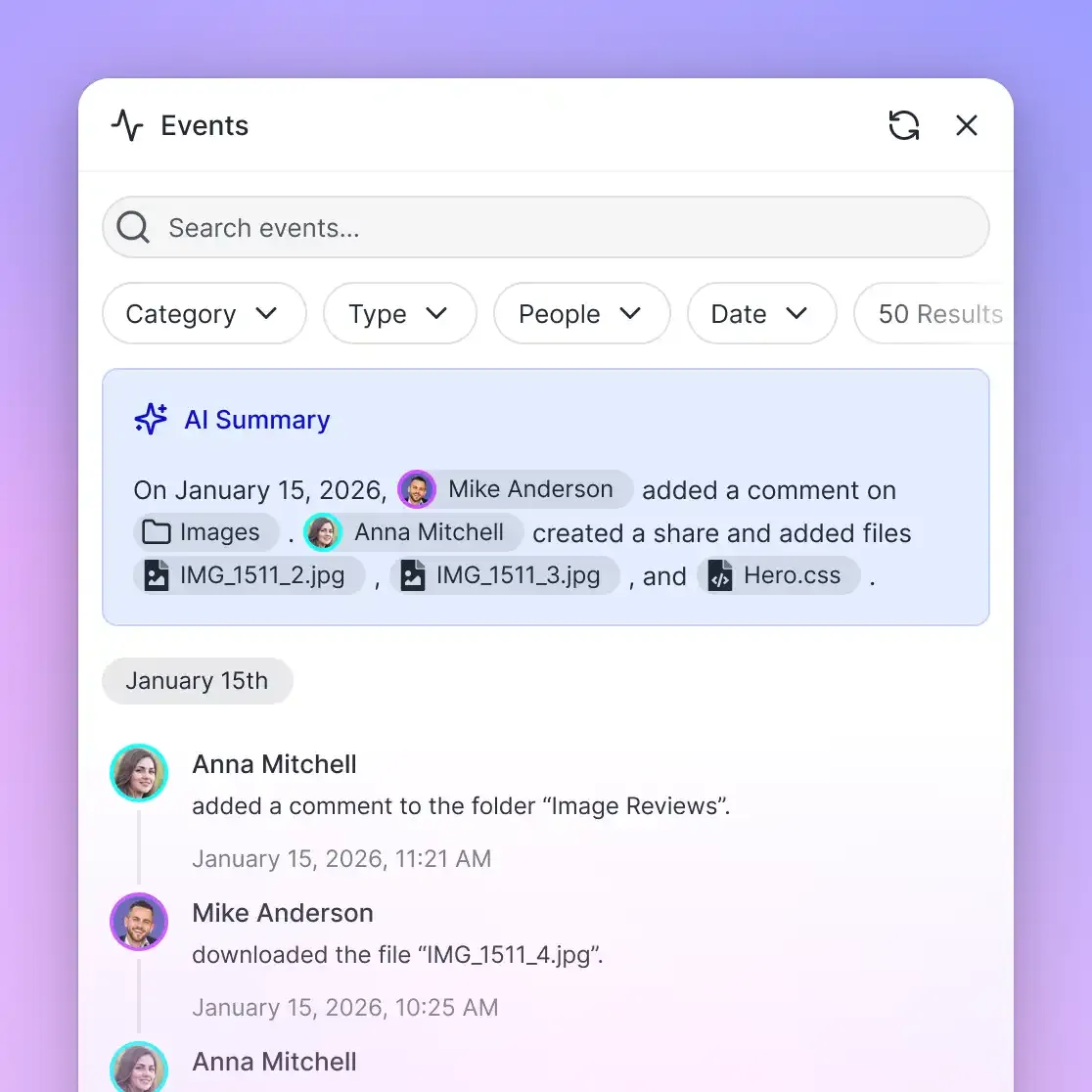


Stop Burning ChatGPT Quotas on Large File Uploads
Organize document collections in persistent Fast.io workspaces with hybrid semantic search. Connect your AI assistant through MCP to retrieve exact passages without attaching multi-page files. Monthly plans start with a trial of up to 14 days (credit card required); annual plans have no trial.
Architecture and Setup: Connecting Assistants to Fast.io MCP
Integrating a persistent Fast.io workspace with your AI development tools or MCP-enabled assistants takes only a few minutes. Fast.io exposes a remote Streamable HTTP endpoint at /mcp, requiring no local background daemon or package installation.
Step 1: Create a Fast.io Workspace and Ingest Files
Monthly plans start with a trial of up to 14 days (credit card required); annual plans have no trial. Plans are Starter at $9.99/mo, Business at $49.99/mo, and Enterprise at $199.99/mo on Fast.io pricing.
Once your organization is active:
- Create a dedicated workspace (for example,
Legal-ResearchorProduct-Documentation). - Upload your source files directly, or configure cloud sync from Google Drive, Dropbox, Box, or OneDrive.
- Toggle Intelligence Mode in workspace settings. Fast.io automatically processes PDFs, Office documents, text files, and spreadsheets, building vector and keyword indices in the background.
Step 2: Configure the Remote MCP Connection
Add Fast.io's remote endpoint to your MCP client. For ChatGPT, install the Fastio plugin: open the plugin directory at chatgpt.com/plugins, find Fastio, select Install plugin, and sign in to Fastio, or use the custom MCP server at https://mcp.fast.io/mcp/operations as the alternative. Desktop assistants use https://mcp.fast.io/mcp/tools (in Claude, add it as a custom connector under Customize, then Connectors), and coding agents use https://mcp.fast.io/mcp/code; each one signs in to Fast.io in the browser.
An orchestration engine that runs without a browser sends an API key as a Bearer header instead:
{
  "mcpServers": {
    "fastio": {
      "url": "https://mcp.fast.io/mcp/tools",
      "headers": {
        "Authorization": "Bearer YOUR_FASTIO_API_KEY"
      }
    }
  }
}
Step 3: Query Workspace Documents via MCP Tools
Once connected, the assistant gains access to Fast.io's consolidated MCP toolset. Instead of asking you to attach files, the assistant queries the workspace dynamically:
User: "What are the termination notice requirements across all vendor agreements signed in Q3?"

Assistant (Tool Call):
Uses the Fastio storage search tool (see mcp.fast.io/skill.md) to search the workspace for "termination notice period vendor contract".

Assistant Response:
"Based on the vendor contracts in your workspace:
- Acme Logistics (page 12): Requires 60 days written notice.
- Global Hosting (page 8): Requires 30 days written notice prior to annual renewal.
- Apex Media (page 19): Requires 90 days notice with cause."
This entire operation completes in a single conversational turn. The assistant retrieves exact passages with page-level citations without flooding the context window with hundreds of pages of legal boilerplate.
Step 4: Structured Data Extraction with Metadata Views
For document-heavy workflows that require structured data rather than freeform text answers, Fast.io provides Metadata Views. Metadata Views turn unstructured documents into a live, queryable database.
Users describe the fields they need extracted in natural language, and Fast.io designs a typed schema across text, integer, decimal, boolean, date, URL, and JSON types. It automatically extracts matching fields from PDFs, scanned pages, Word documents, and spreadsheets into a filterable spreadsheet view.
AI assistants can create Views, trigger extractions, and query structured results via MCP, allowing teams to analyze contract renewals, invoice line items, and policy limits without burning chat turns on manual data parsing. Learn more on the Fast.io Document Data Extraction product page.
Practical Strategies to Maximize Output Within ChatGPT Usage Limits
Whether working directly within ChatGPT or coordinating multi-model research through external workspaces, applying disciplined prompt hygiene ensures you never hit unexpected operational walls.
1. Batch Questions into Comprehensive Turn Prompts
Avoid conversational ping-pong. Submitting single-sentence prompts like "Can you summarize paragraph 2?" followed by "Now rewrite it," followed by "Add bullet points" burns three full messages from your rolling 3-hour allowance.
Consolidate instructions into structured single turns:
- Define the objective clearly.
- Provide the required output format (for example, Markdown table or numbered list).
- Specify tone, constraints, and length upfront.
A single, well-structured prompt extracts the final desired output in one turn, preserving quota for subsequent analytical tasks.
2. Enforce Thread Hygiene to Prevent Context Bloat
Long-running chat threads accumulate dead tokens that degrade response quality and increase processing latency. When switching from one phase of research to another (for example, moving from raw document extraction to executive slide drafting), archive the current thread and open a fresh conversation.
Starting a new thread resets your working context window to zero tokens. When your files live in an external Fast.io workspace, your assistant accesses the same indexed documents in the new thread without re-uploading anything.
3. Use Thinking Effort Controls Deliberately
On models that provide a reasoning effort selector, reserve high-effort settings for genuinely complex tasks, such as mathematical derivations, architectural debugging, or multi-jurisdictional contract comparison.
Leaving reasoning effort on maximum for simple drafting, copy editing, or formatting tasks consumes compute budgets unnecessarily and triggers reasoning-specific rate limits. Use lower reasoning settings for routine synthesis and escalate only when multi-step verification is required.
4. Monitor Request Cadence During Automated Workflows
If you interact with models via automated scripts or rapid clipboard macros, build gentle exponential backoff delays into your submission loops. Rapid bursts of five or more requests in quick succession trigger protective 429 throttling even when your overall message quota has ample remaining capacity. Adding a short delay between submissions ensures continuous execution without interruption.
Sources
References used to verify factual claims in this guide.
-
Text chat is unlimited across ChatGPT plans, while file uploads, image generation, and voice remain capped separately.
-
OpenAI rate limit errors can occur when request volume increases too rapidly, even when overall traffic remains within published minute-based quotas.
Frequently Asked Questions
What is the ChatGPT Plus message limit per 3 hours?
Text chat is unlimited across ChatGPT plans; uploads, images, and voice are capped within rolling windows. File uploads are capped at 80 files every 3 hours on paid tiers, while advanced reasoning modes, image generation, and specialized features continue to operate under separate rolling allowances.
Why do I hit the ChatGPT limit so fast when uploading files?
Uploading files attaches raw extracted text into the active conversational context window. With every follow-up question, the entire file content re-transmits along with the chat history. This rapid token consumption fills the context buffer, triggers attention drift, and forces corrective prompt cycles that burn your 3-hour message allowance quickly.
How do you reset the ChatGPT message limit?
You cannot manually reset a ChatGPT message limit. OpenAI enforces a rolling time window where each prompt expires exactly 180 minutes after it was sent. To resume messaging after hitting a cap, you must wait for older prompt timestamps to roll off the 3-hour window, switch to a lighter model, or use external workspaces via MCP to avoid burning turns on document uploads.
Do reasoning models share the same message cap as standard models?
No. Advanced reasoning models generate hidden chain-of-thought tokens that require substantial server compute. As a result, reasoning models operate under dedicated daily or weekly message allowances that run independently from standard conversational quotas.
Does using an external MCP workspace raise ChatGPT message caps?
An external workspace does not alter OpenAI's native message limits. However, connecting an assistant to a Fast.io workspace via MCP eliminates message burn by letting the model retrieve precise, indexed snippets on demand instead of re-uploading and processing full multi-page documents across multiple conversational turns.
Related Resources

Stop Burning ChatGPT Quotas on Large File Uploads
Organize document collections in persistent Fast.io workspaces with hybrid semantic search. Connect your AI assistant through MCP to retrieve exact passages without attaching multi-page files. Monthly plans start with a trial of up to 14 days (credit card required); annual plans have no trial.