How to Use GitHub Copilot CLI
GitHub Copilot CLI is included across Free through Enterprise plans as a terminal-native coding agent that plans, edits, runs tools, and works with issues and pull requests. Most install guides stop after the first prompt. This walkthrough covers install, auth, slash commands, /fleet handoff, MCP storage, and shared workspaces for CLI outputs.


GitHub Copilot CLI is more than autocomplete in a shell
GitHub ships Copilot CLI as a core feature of every Copilot subscription from Free through Enterprise, and each interaction draws AI credits from that plan's allowance. The CLI is a terminal-native coding agent that plans work, edits files, runs tools, and talks to GitHub issues and pull requests without leaving the shell.
In practice that means you open a project directory, run copilot, and give it a task the way you would brief a teammate. The agent can draft an implementation plan, switch models for a hard refactor, spin subagents with /fleet, open a pull request, and resume the same session later. GitHub's product page frames the flow as moving from /plan to merged code with /fleet parallel work and native MCP access to GitHub resources.
Most public guides stop after install and a hello-world prompt. That leaves three gaps teams hit quickly:
- Where do multi-session artifacts live when the CLI finishes?
- How do you wire MCP servers so the agent can reach shared storage, not only the local repo?
- How do you use
/fleetand/delegatewithout losing the human review loop?
The rest of this guide fills those gaps with steps grounded in GitHub's official Copilot CLI docs, then shows how to park outputs in a shared workspace humans and agents can both open.
Related guides
- How to Install and Use the Devin AI CLICognition positions Devin AI CLI as a local coding agent that runs on your machine, separate from cloud Devin in a VM....
- How to Connect Devin AI to GitHubDevin AI's GitHub integration is a full GitHub App install with nine read scopes and eight read-write scopes, not a...
- How to Use MCP Servers with GitHub CopilotGitHub Copilot's MCP integration lets Copilot Chat connect to external MCP servers for file storage, databases, and...
- The Best Storage for GitHub Copilot Workflows: Object Storage vs Intelligent WorkspacesEvaluating storage for GitHub Copilot workflows requires looking beyond raw gigabytes to active context delivery. While...
- Devin AI vs. GitHub Copilot: Autonomous Agent vs. Editor AutocompleteChoosing between Devin AI and GitHub Copilot represents a decision between autonomous cloud sandboxes and...
- GitHub Copilot Limits: Plan Quotas, Rate Caps, and Context BoundariesUnderstanding GitHub Copilot limits requires tracking how monthly quotas, chat throttling, and workspace indexing rules...
More on this subject: GitHub Copilot (141 guides)
How to install and authenticate GitHub Copilot CLI
You need an active Copilot subscription and a supported OS: Linux, macOS, or Windows (PowerShell 6+ or WSL). If you get Copilot through an organization, an admin may need to enable the CLI policy before you can sign in.
1. Install the CLI
Pick one path. npm works everywhere if you have Node.js 22 or later:
npm install -g @github/copilot
On macOS and Linux with Homebrew:
brew install --cask copilot-cli
On Windows with WinGet:
winget install GitHub.Copilot
Or use GitHub's install script (macOS and Linux):
curl -fsSL https://gh.io/copilot-install | bash
2. Start a session in a trusted directory
Change into a project folder you trust, then run:
copilot
On first launch the CLI asks whether you trust files in that directory. Choose session-only trust, remember the folder for future sessions, or exit. Do not start from your home directory if it holds credentials or unrelated private data.
3. Authenticate
If you are not logged in, run /login and complete the browser flow. For headless or CI-style use, create a fine-grained personal access token with the Copilot Requests permission on your personal account, then export it as COPILOT_GITHUB_TOKEN, GH_TOKEN, or GITHUB_TOKEN (checked in that order).
4. Run a first real task
Prefer a scoped prompt over "fix my code":
List open issues assigned to me in OWNER/REPO and propose a one-day implementation plan for the highest priority item.
When Copilot wants a tool that can modify or execute files, approve once, approve for the session, or reject and redirect. Prefer narrow approvals until you trust the session. For scripted runs, GitHub documents flags such as --allow-tool and --allow-all-tools; use the broad flags only in sandboxes you control.
Plan mode, models, and a slash-command cheatsheet
Interactive Copilot CLI has a default ask/execute mode and a plan mode. Press Shift+Tab to cycle modes. In plan mode the agent clarifies scope, asks questions, and builds an implementation plan before writing code. That is the right default for multi-file features, migrations, and anything you will later parallelize with /fleet.
Switch models with /model in the session, or pass --model when you start the CLI. GitHub documents models from multiple providers, plus the option to bring your own provider through environment variables (COPILOT_PROVIDER_BASE_URL, COPILOT_PROVIDER_TYPE, COPILOT_PROVIDER_API_KEY, COPILOT_MODEL). Some models offer extended context windows and configurable reasoning; those options consume more AI credits, so keep defaults for routine work and raise context or reasoning only for hard problems.
Slash-command cheatsheet
/login: authenticate with GitHub/model: pick the model for the next work- Plan mode (Shift+Tab): outline work before coding
/fleet: split multi-step work across subagents/delegate: hand work to Copilot with higher autonomy/agent: choose a custom or built-in specialized agent/mcp add: connect an MCP server for extra tools/pr: view, create, or fix pull requests/tasks: inspect background subagent tasks/resumeorcopilot --continue: resume a prior session/usageand/context: see credits and token window use/compact: compress history to free context/settings: edit personal CLI settings/sandbox enable: restrict local filesystem and network access
Built-in custom agents cover common jobs: Explore for quick codebase questions, Task for tests and builds, General purpose for multi-step work, Code review for change review, and Research for deep investigation with citations. You can also define agents under ~/.copilot/agents, .github/agents, or org-level agent directories, and give project context with .github/copilot-instructions.md, path-specific instruction files, or AGENTS.md.
For day-to-day control, attach files with @path/to/file, run shell commands with a leading !, schedule recurring work with /every, and delay a one-shot prompt with /after. Press Esc to stop a thinking loop. Press Ctrl+T if you want to watch model reasoning while it works.


Keep Copilot CLI outputs in one shared workspace
Connect agents to versioned folders, hybrid search, and MCP endpoints so /fleet results and review notes survive the terminal session. Start a 14-day Business Trial on Fast.io.
Parallel work with /fleet and /delegate
/fleet is the answer when a plan has independent slices: frontend shell, API handlers, tests, and docs can often move at once. GitHub's workflow is:
- Enter plan mode with Shift+Tab.
- Describe the feature and refine the plan with the agent.
- Accept the plan with autopilot plus
/fleet, or exit plan mode and run a prompt like/fleet implement the plan. - Monitor subagents with
/tasks, open details with Enter, stop a runaway task withk, and clear finished items withr.
/delegate and autopilot mode raise autonomy further: the agent can create a branch, implement changes, and open a pull request with less step-by-step approval. That speed is useful after the plan is solid and the repo is under version control. Keep branch protections, required checks, and review policies on. Copilot Business and Enterprise policies still apply; the CLI does not bypass org guardrails.
Remote steering is available when you need to leave the machine. GitHub documents remote control so you can monitor progress and respond from GitHub.com or GitHub Mobile after enabling remote control for a session. Cloud-backed sessions via copilot --cloud (public preview) keep isolated state when you do not want the agent writing directly on your laptop.
The handoff problem appears after parallel work succeeds. Subagents produce diffs, logs, patch notes, and review comments. Those artifacts often land in the local working tree or the conversation history. Local git is the right home for source. For shared review packs, design docs, customer-facing notes, and cross-machine continuity, you need storage the next human or agent can open without cloning your laptop state.
How to connect MCP servers and persistent storage
Copilot CLI ships with the GitHub MCP server already configured, so the agent can work with issues, pull requests, and related GitHub resources from the terminal. To add more servers, use /mcp add in an interactive session, run copilot mcp add from the shell, or edit ~/.copilot/mcp-config.json (or the path under COPILOT_HOME).
Transports include local STDIO processes and remote HTTP (Streamable HTTP) or SSE endpoints. Example remote HTTP add using the Streamable HTTP endpoint published on the agent storage setup page:
copilot mcp add --transport http \
  --header "Authorization: Bearer YOUR-TOKEN" \
  fastio YOUR_FASTIO_MCP_HTTP_URL
Equivalent JSON shape for the config file:
{
  "mcpServers": {
    "fastio": {
      "type": "http",
      "url": "YOUR_FASTIO_MCP_HTTP_URL",
      "headers": {
        "Authorization": "Bearer YOUR-TOKEN"
      },
      "tools": ["*"]
    }
  }
}
Fast.io exposes Streamable HTTP at /mcp and legacy SSE at /sse, with a consolidated MCP toolset for workspace, storage, AI, and sharing operations. Start from agent storage setup for account, workspace, and MCP endpoint details. Keep API keys out of committed repo files; prefer environment variables and scoped keys.
Where CLI outputs should live
Teams often default to three places:
- Local disk and git: best for source code and reviewable diffs.
- Object storage (S3 and similar): durable blobs, weak collaboration UX for non-engineers.
- Consumer cloud drives (Drive, Dropbox): easy sharing, awkward for high-frequency agent writes and structured review.
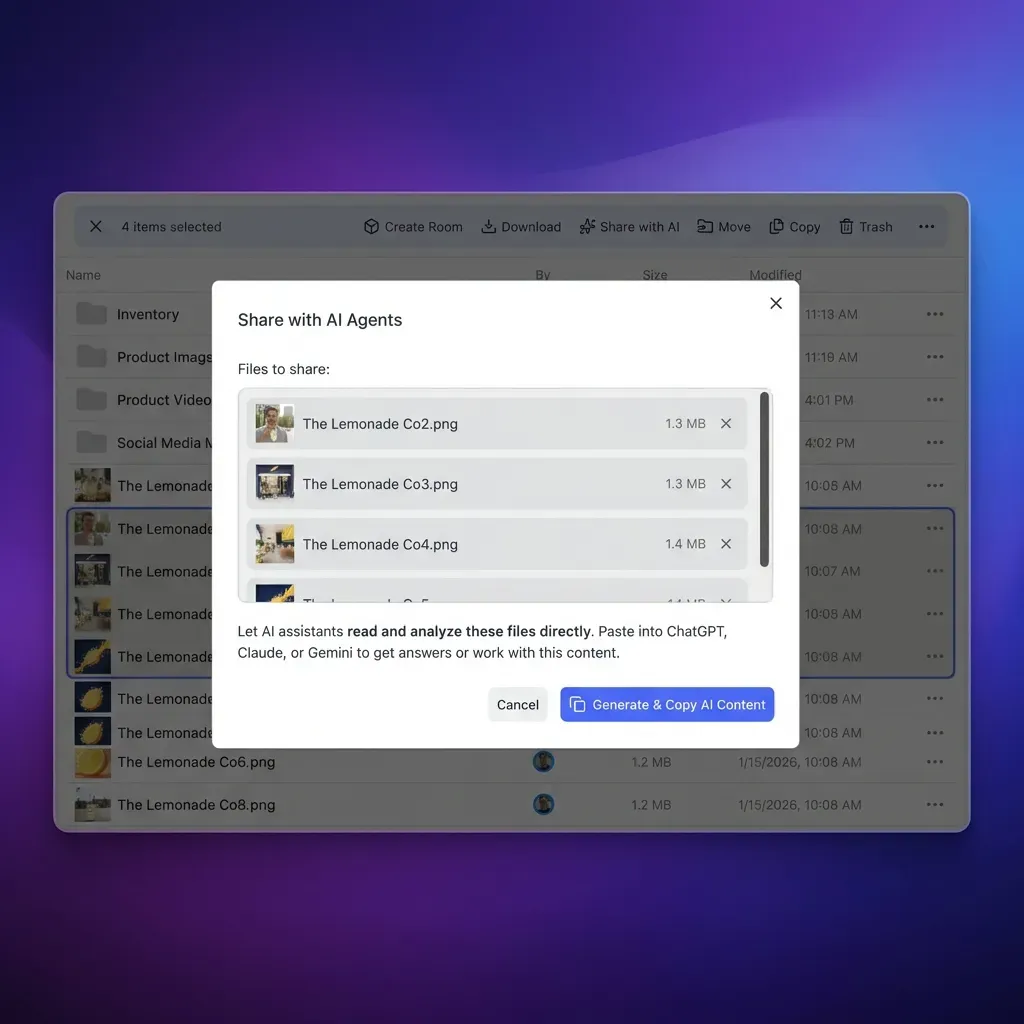
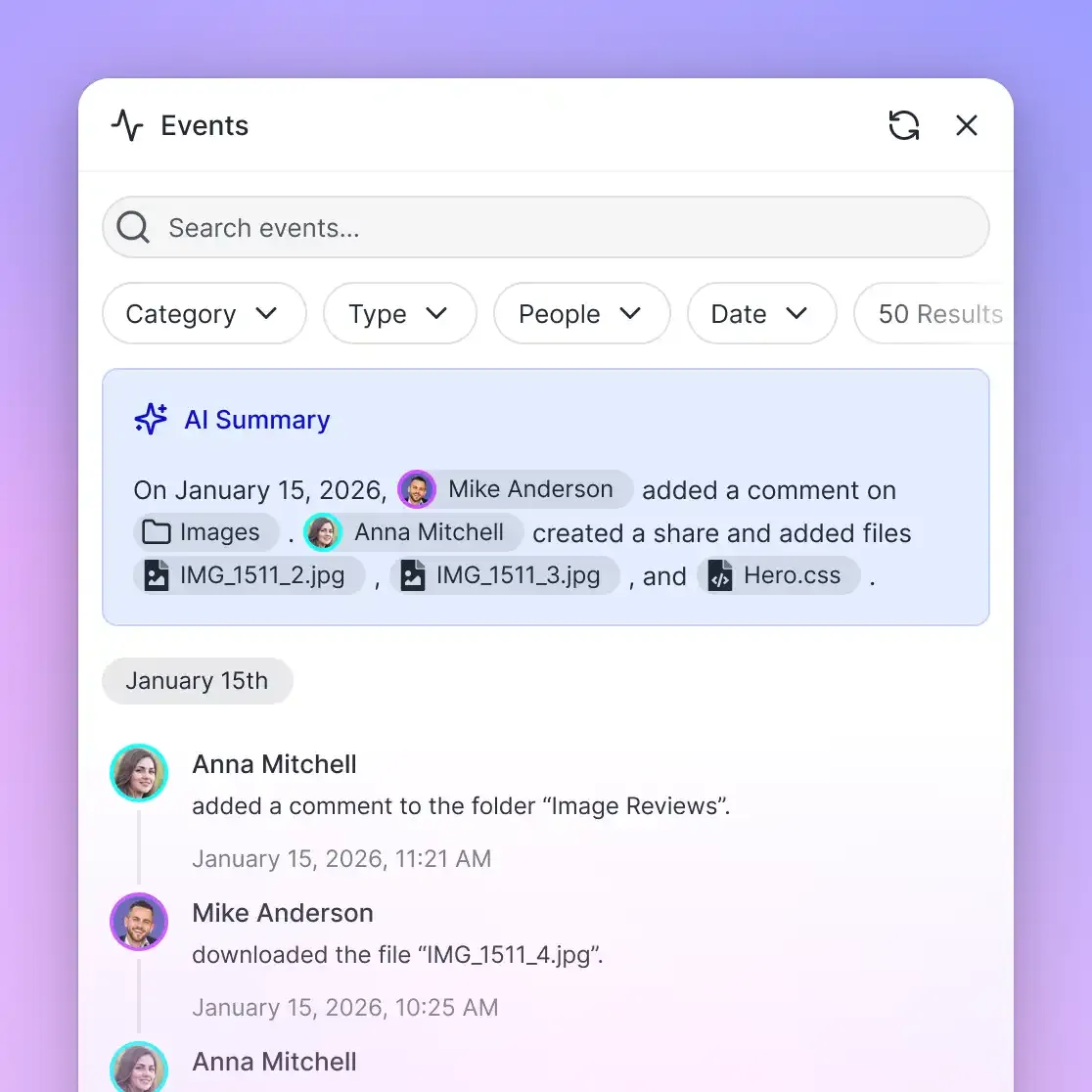
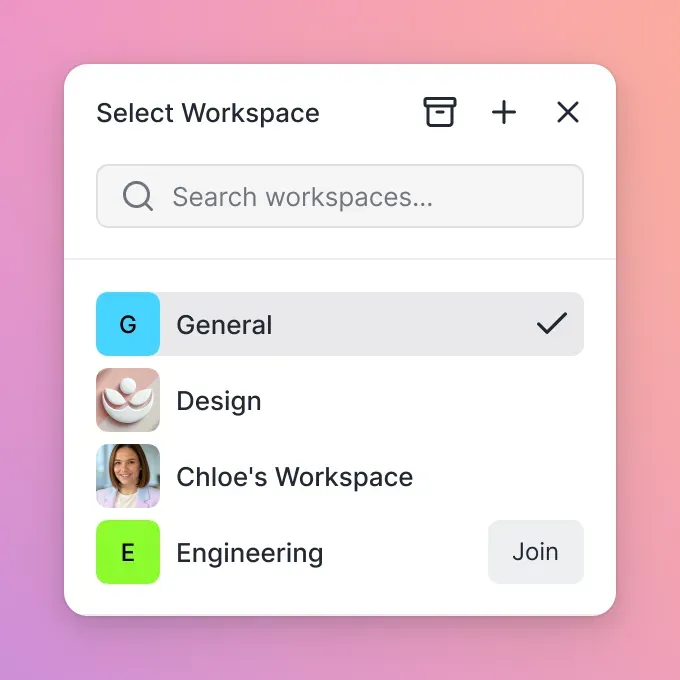
A fourth option is an intelligent shared workspace built for agents and humans. On Fast.io workspaces, files keep per-file version history, Intelligence Mode can index content for hybrid search and citation-backed chat, and agents can write through MCP while teammates open the same folders in the UI. Ownership transfer lets an agent or contractor build the workspace, then hand the org to a human while keeping admin access. That pattern fits CLI sessions that generate more than a single PR: research notes, review packs, customer deliverables, and multi-agent artifacts that need a durable home beyond the session transcript.
For structured reports the CLI produces (test summaries, change logs, invoice-like ops docs), Metadata Views turn document sets into a typed, filterable grid without hand-written OCR rules. Intelligence Mode covers search and summarization; Metadata Views are the structured extraction layer.
Pricing is org-based: Starter $9.99/mo, Business $49.99/mo, Enterprise $199.99/mo, each with a 14-day Business Trial that requires a credit card. Creating a user account is free, but real workspace work requires a paid organization subscription. Agent accounts can sign up, build, then transfer ownership to a human who starts the trial.
Steps for an end-to-end Copilot CLI workflow
Put the pieces together on a real feature.
- Install and login in the repo root with
copilotand/login. - Add project instructions in
.github/copilot-instructions.mdorAGENTS.mdso every session inherits build and test norms. - Connect MCP for GitHub (built-in) and any shared workspace server you use for non-repo artifacts.
- Enter plan mode, describe the issue URL, and accept a written plan before code lands.
- Run
/fleet implement the planfor independent slices; watch/tasksfor stuck subagents. - Review with
/prand code review agents, keep required checks green, then merge under your normal branch rules. - Persist side outputs (design notes, customer summary, ops checklist) to the shared workspace so the next person does not depend on your local session history.
- Resume later with
copilot --continueor/resumewhen the work spans days.
Common failure modes and fixes:
- Auth fails after install: confirm Copilot is enabled for your account or org, and that PAT scopes include Copilot Requests if you use a token.
- Tool prompts never stop: approve only the tools you need, or use
/sandbox enable/copilot --cloudfor higher autonomy in isolation. - Context feels full: run
/context, then/compact, or start a fresh session and reattach key files with@. - MCP server silent: run
/mcp show, check transport type (HTTP vs STDIO), and verify headers or env vars without pasting secrets into chat logs. - Fleet noise: kill weak subtasks early, re-plan smaller slices, and keep source of truth in git plus one shared workspace for non-code deliverables.
Treat the terminal agent as a fast implementer with GitHub context, not as the system of record for every file your team produces. Source stays in git. Shared knowledge, handoffs, and searchable history belong in a workspace both people and agents can open tomorrow.
Sources
References used to verify factual claims in this guide.
-
GitHub Copilot CLI is included as a core feature of all GitHub Copilot plans (Free, Pro, Pro+, Max, Business, and Enterprise), and each interaction draws on the plan's AI credits allowance.
-
GitHub Copilot CLI can be installed via npm, WinGet, Homebrew, or the official install script, and requires an active Copilot subscription. npm install requires Node.js 22 or later; Windows install paths document PowerShell v6 or higher.
-
Copilot CLI supports plan mode, tool approval prompts, MCP server configuration via /mcp add, custom agents, and session resume with --continue or /resume.
-
The /fleet slash command assigns parts of a multi-step plan to subagents so independent work can run in parallel, monitored with /tasks.
-
Additional MCP servers can be added with /mcp add, copilot mcp add, or mcp-config.json, using local STDIO or remote HTTP/SSE transports; the GitHub MCP server is built into Copilot CLI.
-
Fast.io plans are Starter $9.99/mo, Business $49.99/mo, and Enterprise $199.99/mo, with a 14-day Business Trial that requires a credit card for org work.
Frequently Asked Questions
How do I install GitHub Copilot CLI?
Install with npm (`npm install -g @github/copilot` on Node.js 22+), Homebrew (`brew install --cask copilot-cli`), WinGet (`winget install GitHub.Copilot`), or the official script `curl -fsSL https://gh.io/copilot-install | bash` on macOS and Linux. Then run `copilot` in a trusted project directory and complete `/login` if prompted.
Is GitHub Copilot CLI free?
Copilot CLI is included with every GitHub Copilot subscription: Free, Pro, Pro+, Max, Business, and Enterprise. Usage draws AI credits from the plan's allowance. Copilot Free users still need an active Free entitlement; org-managed seats may require an admin to enable the CLI policy.
How do I switch models in Copilot CLI?
In an interactive session, run `/model` and pick from the list. From the shell, pass `--model` when starting `copilot`. You can also configure your own provider with `COPILOT_PROVIDER_BASE_URL`, `COPILOT_PROVIDER_TYPE`, `COPILOT_PROVIDER_API_KEY`, and `COPILOT_MODEL` for OpenAI-compatible, Azure, Anthropic, or local endpoints that support tool calling and streaming.
Does Copilot CLI support MCP?
Yes. The GitHub MCP server is built in. Add more servers with `/mcp add`, `copilot mcp add`, or by editing `~/.copilot/mcp-config.json`. Supported types include local STDIO and remote HTTP or SSE. Org registry allowlists may restrict which servers can run.
What does the /fleet command do?
`/fleet` splits multi-step implementation work across subagents so independent pieces run in parallel. GitHub recommends building a plan first in plan mode, then accepting the plan with fleet or prompting `/fleet implement the plan`. Use `/tasks` to monitor, inspect, or stop subagent work.
How should teams store Copilot CLI outputs outside git?
Keep source in git. For shared notes, review packs, and cross-session artifacts, use object storage, a team drive, or an intelligent workspace with MCP access. Fast.io workspaces add version history, optional Intelligence indexing, and agent-friendly MCP endpoints so humans and CLI sessions share one file layer.
Related Resources

Keep Copilot CLI outputs in one shared workspace
Connect agents to versioned folders, hybrid search, and MCP endpoints so /fleet results and review notes survive the terminal session. Start a 14-day Business Trial on Fast.io.