How to Send a Folder Through Email or Share a Folder Online
Email clients attach individual files, so dragging a project directory into a message flattens the hierarchy or hits attachment size limits. Sending a folder through email means choosing between compressing the directory into a static ZIP archive or creating a shared folder online and emailing the link. For large deliverables, client handoffs, and active projects, sharing folders online via a scoped link preserves your subfolder structure and lets you control access after the email is sent.

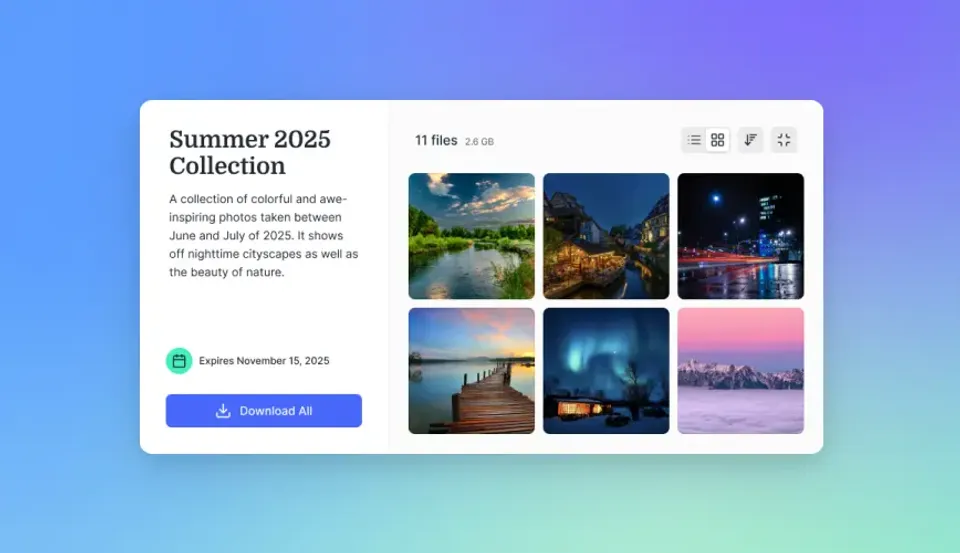
Two Ways to Send a Folder by Email
Email protocols cannot attach a raw directory structure; they only accept individual files. When you drag a project folder into an email draft, the client either refuses the drop, flattens every nested file into a single unorganized list, or bounces the message because the combined payload exceeds attachment size caps.
To solve this, teams use one of two methods when deciding how to email a folder:
Method 1: Compress the Folder Into a ZIP File for Email
If you are sending a small, final set of documents that will not change after delivery, you can compress the directory into a single archive file before attaching it:
- On Windows: Right-click the folder in File Explorer, select Compress to, and choose ZIP file (or select Send to and then Compressed (zipped) folder on older Windows versions).
- On macOS: Control-click the folder in Finder and select Compress from the shortcut menu to create a
.ziparchive in the same directory. - Attach and send: Drag the resulting
.zipfile into your email draft and send the message.
Zipping works for lightweight document packets, but it breaks down for active business collaboration. Recipients cannot preview the contents on a phone without extracting the archive first, mail gateways block ZIP files that contain scripts or nested archives, and any edit to a single document forces you to re-zip and email the entire folder again.
Method 2: Create a Shared Folder Online and Email the Link
For multi-gigabyte media, ongoing client projects, or sensitive records, the standard approach for how to share a folder is to keep the directory in cloud storage and email a permissioned web link instead of an attachment. Rather than pushing raw files through email servers, a shared folder keeps your directory hierarchy, file previews, and version history in one place.
Following four practical steps keeps your internal files organized when you share a folder by link:
- Prepare and clean the folder structure: Before generating a link, separate finished client deliverables from internal working notes and unredacted drafts. Establish clear subfolder names so anyone opening the share can find what they need immediately.
- Choose the right share mode: Decide whether recipients need view-only access to inspect files, upload-only access to submit documents, or two-way edit rights.
- Generate a scoped folder share link: Create a dedicated share link for the specific target folder rather than exposing your parent drive. Using purpose-built folder sharing solutions lets you send a single URL in your email that opens only the files you selected.
- Set link protections before sending: Configure an expiration date, add a password if the contents are sensitive, and decide whether recipients can download original files or only preview them in the browser.
Related guides
- Folder Sharing Permissions: Best Practices for Cloud and Team WorkspacesFolder sharing permissions determine who can read, edit, upload, or administer assets within shared workspace...
- SharePoint External Sharing: How to Share Files and Folders with External UsersSharePoint external sharing allows Microsoft 365 organizations to grant document, folder, and site access to external...
- How to Manage Video Files Like a Production ProVideo file management encompasses the systems, workflows, and tools used to ingest, organize, store, share, and archive...
- 10 File Management Software Features Every Team NeedsFile management software helps teams organize, store, share, and track documents in a centralized system. The right...
- How to Send Video Through Email: 5 Ways to Send Large Video FilesMost email providers cap attachments at 20 to 25 MB, which is smaller than a few seconds of 1080p or 4K footage. To...
- Email Attachment Size Limits by Provider (and How to Send Larger Files)An email attachment size limit is the maximum allowable payload that an email service or mail transfer agent will...
More on this subject: File Sharing (155 guides)
Folder Sharing Access Modes: View, Upload, and Collaborative Edit
When you send a folder link by email, the access mode you pick determines what recipients can do once they open the shared folder. Setting the right boundary protects against accidental deletions and unwanted edits.
View-Only Folder Shares (Send)
View-only access lets recipients open the link from their email to read documents, stream video, and inspect assets in their web browser. Depending on how you configure the share, you can allow full downloads or disable file downloads so guests can only preview files online. This mode fits:
- Delivering completed client reports, creative cuts, and design packages
- Distributing read-only policy manuals, onboarding packets, and documentation
- Sending sales proposals and pitch materials to prospective buyers
- Sharing read-only archive folders with outside reviewers
Setting a folder share to view-only prevents external recipients from altering source files, deleting deliverables, or uploading unrelated files.
Upload-Only Folder Shares (Receive)
Upload-only folder shares, also called Receive shares, let outside parties upload files directly into your designated collection space without seeing what is already inside the folder. When someone asks to email you a large folder that bounces against mail limits, sending them a Receive link solves the problem in reverse. Upload-only access works well for:
- Collecting tax records, financial statements, or legal intake documents from clients
- Receiving vendor bids, proposals, and RFP submissions
- Gathering raw video footage, CAD files, and high-resolution photography from external agencies
- Accepting diagnostic logs or large data exports from customers
Each sender drops their folder or files into the web page, and no guest can view, overwrite, or download files submitted by anyone else.
Two-Way Folder Shares and Workspaces (Exchange)
Collaborative edit access lets participants upload new files, revise existing documents, and add subfolders, and signed-in reviewers can leave comments. This mode supports:
- Active client engagements where both sides exchange redlines and updated schedules
- Multi-agency creative production requiring shared asset libraries
- Technical projects where human teammates and AI agents work on the same documentation
In Fastio, access is granted per organization, workspace, and share through member roles, and every member of a workspace reaches the whole workspace according to their role. When a client, contractor, or AI agent should see only part of a project, you place those files into a dedicated share or give that project its own collaboration workspace, which is protected by per-file version history and a detailed activity log.
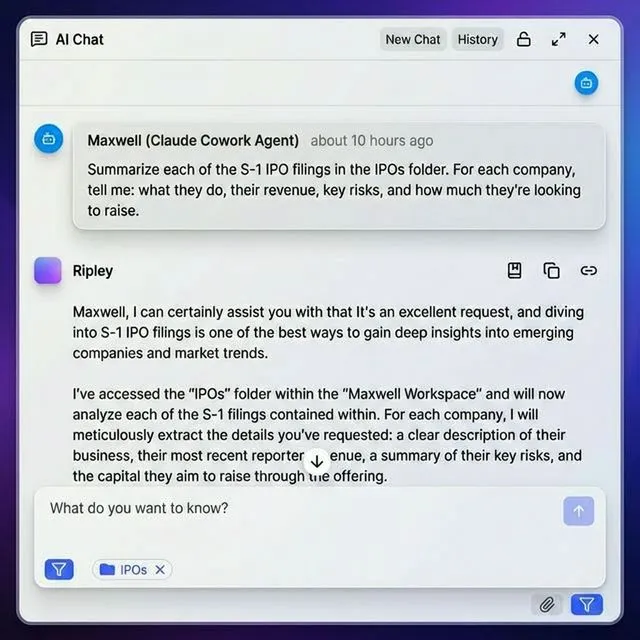
How to Share a Folder With External Users Without Account Friction
Emailing a folder link to an outside client, external legal counsel, or contractor often runs into login walls. Many legacy cloud storage platforms require the person clicking your emailed link to register an account, verify their email address, or sign in to a matching vendor profile before they can work with the folder.
When external stakeholders hit a registration prompt just to open a folder share, handoffs stall. For instance, the official Dropbox Help Center documents that when you share a link with someone who does not have a Dropbox account, they are restricted to previewing the file or folder rather than collaborating in full. When external guests do sign in to accept a shared folder in traditional drives, that folder often mounts inside their personal drive and counts against their own storage quota.
Browser-based folder sharing removes that friction so external recipients can open your emailed link and get straight to work:
- Send links that open without an account: External guests open the shared folder in any modern browser to preview documents, watch video, or upload deliverables without creating an account or consuming a paid organization seat.
- Deliver folders through branded portals: Presenting shared folders inside branded client portals with your organization's logo, colors, and custom styling shows recipients that the link in their email came from your team.
- Keep external shares isolated from personal drives: Delivering files through standalone Send, Receive, or Exchange shares keeps your project folders out of the client's personal cloud drive and keeps external guests out of your internal workspace directories.
- Separate the link from the password: When emailing a sensitive folder to external recipients, send the share URL in your email and deliver the access password through a separate channel such as SMS or chat.


Share Folders by Link Without Attachment Limits
Create branded Send, Receive, and Exchange shares with expiring links, passwords, in-browser previews, and per-file version history. Monthly plans start with a 14-day free trial (credit card required).
Comparing Ways to Share Folders: ZIP Attachments, Cloud Drives, and Workspaces
Teams choose between several folder distribution methods depending on whether they are sending a one-off archive by email, sharing files across an office network, or managing ongoing work across clients and AI assistants.
Zipped Email Attachments and Local Network Shares (SMB and NFS)
Compressing a folder into a ZIP file is built into Windows and macOS, requires no extra software, and puts a static copy directly in the recipient's inbox. For on-premises teams on the same local area network (LAN), Windows Server Message Block (SMB) and macOS file sharing let administrators share a folder over the office network.
Both approaches hit limits quickly when work leaves the building:
- Email size walls and version drift: Mail servers reject large ZIP attachments, and the moment someone edits a file inside the folder, every previously emailed ZIP copy becomes outdated.
- Remote access complexity: Local SMB shares require a virtual private network (VPN) for remote staff, and exposing SMB ports like TCP port 445 to the public internet creates severe security exposure.
- No browser previews: Neither a raw ZIP attachment nor a local network path gives external clients an in-browser preview of video, design files, or large PDFs.
Standard Cloud Drives
Cloud drives such as Google Drive, Microsoft OneDrive and SharePoint, Dropbox, and Box let users email a folder link instead of an attachment. However, teams run into operational hurdles when scaling external sharing or connecting AI assistants:
- Guest account and quota friction: Collaborating inside a shared folder often requires the recipient to hold an account with the same provider and have enough free storage quota.
- Broken browser ZIP downloads: Downloading a large shared folder usually produces a single ZIP, and a dropped connection can force a restart.
- Overly broad drive permissions for AI: Connecting an AI assistant directly to a company-wide SharePoint site or Google Drive often exposes years of mixed internal drafts and sensitive folders that match a user's broad drive permissions.
Cloud Workspaces for Teams, Clients, and AI Agents
Fastio is an organization-owned workspace built for teams, external clients, and AI agents. Because workspaces belong to the organization rather than an individual employee's account, shared folders stay intact when staff change roles, and an agent account can build an organization and hand it off to a human via ownership transfer and a claim link.
Instead of migrating files out of your existing storage, Cloud Sync connects selected folders from Google Drive, Dropbox, Box, and OneDrive (including SharePoint document libraries through OneDrive for Business) into a Fastio workspace on a schedule or on demand, one-way or two-way. You can also bring folders in as a one-time cloud import. From there, you can share a folder using Room Storage Mode (independent share storage) or Shared Folder Storage Mode (backed by a live workspace folder so changes stay synced) across branded Send, Receive, and Exchange shares.
Recipients opening an emailed Fastio share link get in-browser previews of PDFs, Word docs, spreadsheets, PSDs, AI files, RAW photos, CAD drawings, audio waveforms, and adaptive HLS video without installing software. Signed-in collaborators can leave anchored comments pinned to a specific file version, PDF page, image region, or video timestamp. When documents require formal sign-off, built-in e-signature lets you send agreements from the workspace to sequential or parallel signers with no account required, an optional one-time passcode per signer, and an audit certificate that records each signer's IP address and browser.
With Intelligence enabled on a workspace, files are indexed as they arrive for hybrid search (full-text matching, semantic search by meaning, and metadata search), folder-level Q&A, and chat answers with page-level citations. Teams can also use Metadata Views to describe fields in plain English and extract structured data such as contract renewal dates or invoice totals across PDFs, scans, and spreadsheets into a filterable grid. People and agents coordinate work using Collaborative Notes, advisory per-file locks that writers acquire, heartbeat, and release to avoid stepping on concurrent edits, and a consolidated MCP toolset (connected at https://mcp.fast.io/mcp/tools for Claude and general clients, https://mcp.fast.io/mcp/operations for ChatGPT and Codex custom servers, or https://mcp.fast.io/mcp/code for coding agents) so assistants only reach the workspaces you choose.
Monthly plans start with a 14-day free trial (credit card required); annual plans start paid. Visit the Fast.io pricing page to review plan capacities for your organization.
Security Controls When You Email a Shared Folder Link
Once you send an email containing a folder link, that message can sit in the recipient's inbox or get forwarded months later. Relying on an open, permanent link leaves shared folders exposed long after a project closes. Applying five operational controls keeps your shared folder protected throughout its lifecycle.
Set Expiration Dates and Disable Downloads When Needed
Assign an expiration date whenever you generate a share link for a time-bound review, pitch, or vendor bid. When the date passes, the link stops resolving automatically even if someone clicks it from an old email thread. If recipients only need to review a video cut, deck, or document packet without keeping local copies, disable file downloads on the share so the files remain view-only in the browser.
Protect Shares With Passwords and Per-Recipient Grants
Avoid sending unrestricted public links for confidential business folders. Adding a password to the share ensures that if an email is forwarded to an unintended address, the recipient still cannot open the folder. For ongoing single-file or folder exchanges with known partners, use per-recipient access grants that you can issue and revoke individually.
Review Changes in a Detailed Activity Log
Keeping track of shared workspaces requires clear visibility into what changed. Fastio maintains a detailed activity log that records storage changes (uploads, edits, moves, and deletions) alongside membership changes, permission updates, and share creation across both human teammates and AI agents. Administrators can check the detailed activity log at any time to verify who modified a file or created a share and when the change occurred.
Rely on Per-File Version History and Advisory File Locks
When several people or automated agents write to a shared folder, concurrent edits can overwrite recent changes. Every file in Fastio keeps per-file version history, so you can inspect previous revisions and restore an earlier version whenever needed. Writers can also use advisory per-file locks (acquire, heartbeat, and release, with override available to anyone holding write permission) so teammates and agents can see who is actively editing a file before saving changes.
Audit and Revoke Inactive Folder Shares
Treat external folder sharing as part of project offboarding. When a client engagement, audit, or deal closes, inspect your active shares and revoke the links you no longer need.
Sources
References used to verify factual claims in this guide.
-
When sharing Dropbox links with external users who do not have an account, recipients can only preview the folder contents.
Frequently Asked Questions
How do I send a folder through email without zipping it?
Upload the folder to a cloud drive or workspace, generate a shared folder link, and paste that URL into your email message. The recipient clicks the link to preview or download the folder contents in their web browser without extracting a ZIP archive or hitting email attachment size limits.
Why can't I attach a folder directly to an email?
Email protocols only attach individual files, not folder hierarchies. If you want to attach a folder directly to an email, you must compress it into a single .zip file on Windows or macOS first, provided the compressed archive is smaller than your email provider's attachment cap.
How do I share a folder online with someone who doesn't have an account?
Generate a web share link configured for view-only, upload-only, or two-way exchange access. The recipient can open the shared folder in any modern browser to preview documents, stream video, or upload files without creating an account or signing in.
What is the difference between view-only, upload-only, and edit folder sharing?
View-only (Send) sharing lets recipients preview files in their browser and optionally download them without changing anything. Upload-only (Receive) sharing lets external guests drop files into a folder without seeing files uploaded by others. Edit (Exchange) sharing lets collaborators upload, revise, and organize files together.
How can I share a large folder that exceeds email limits?
Put the folder in a cloud workspace platform and email a scoped share link instead of a file attachment. Cloud links bypass email attachment caps, letting recipients stream high-resolution video and download multi-gigabyte directories over an encrypted browser connection.
How do I revoke access to a shared folder after sending a link by email?
Open your workspace sharing settings, locate the active share for that folder, and revoke or delete it. Once revoked, the URL in the original email stops working immediately. You can also set an expiration date when creating the link so access closes automatically on schedule.
Can external recipients see each other's files in a shared upload folder?
When you use a Receive (upload-only) share, external guests can upload files into your folder but cannot browse, preview, or download submissions from other people. This keeps vendor bids, client onboarding records, and contractor deliveries separate.
Related Resources

Share Folders by Link Without Attachment Limits
Create branded Send, Receive, and Exchange shares with expiring links, passwords, in-browser previews, and per-file version history. Monthly plans start with a 14-day free trial (credit card required).