Google NotebookLM Character Limit: Source Constraints, Word Caps, and Workarounds
Google NotebookLM restricts individual sources to 500,000 words, which translates to roughly 2.5 to 3 million characters per document. While a notebook can hold up to 25 million words across 50 sources on the free plan, direct browser pasting hits client-side input walls far earlier. For teams analyzing collections that exceed these limits, external workspaces with retrieval via Model Context Protocol provide an unconstrained alternative.


What Is the Google NotebookLM Character Limit?
Google's official documentation for Gemini Notebook (formerly NotebookLM) establishes that uploaded file sources are restricted to a maximum file size limit of 200MB or 500,000 words, translating to approximately 2.5 to 3 million characters per document, capped at 50 sources per notebook on the free plan as of September 2026. The Gemini Notebook character limit corresponds to Google's cap of 500,000 words (approximately 2.5 to 3 million characters) allowed per individual source in a notebook.
Google defines these ingestion boundaries primarily by word count rather than raw character count. In text processing, character counts vary widely depending on formatting, whitespace, language, and character encoding. A word count standard provides a consistent measure across text formats such as PDFs, Google Docs, Word documents, and web pages. When you upload or import a document, Gemini Notebook's ingestion pipeline parses the extracted text and counts words. If a single document exceeds 500,000 words, the upload fails or the extra content is truncated.
Across an entire notebook container on the free plan, users can upload up to 50 sources. This establishes an aggregate notebook capacity of 25 million words (approximately 125 to 150 million characters). While 25 million words represents an enormous library for personal reading, the distribution matters: you cannot upload a single 600,000-word archive, even if it is the only source in your notebook.
The following table outlines the operational limits governing text sources, character estimates, and notebook containers:
These parameters separate container capacity (the number of discrete sources attached to a notebook) from single-source density (how large an individual file can be). Knowing where your document collection lands relative to these boundaries determines whether Gemini Notebook can handle your project directly or whether you need an external storage and retrieval architecture.
How Do Words, Tokens, and Characters Translate in NotebookLM?
Understanding how Gemini Notebook processes text requires untangling three metrics that commentators frequently confuse: characters, words, and tokens.
In written English, words average between 5 and 6 characters, including necessary punctuation and spacing. A standard 500-word article contains roughly 2,500 to 3,000 characters. Multiplying that ratio by Google's 500,000-word ceiling yields the practical character ceiling of approximately 2,500,000 to 3,000,000 characters (roughly 2.5 to 3 million characters) for an individual uploaded file source in a notebook.
Tokens represent the atomic units used by large language models during inference. For English text, one token typically corresponds to roughly 0.75 words, which means one word requires approximately 1.33 tokens. A 500,000-word document translates to roughly 665,000 to 700,000 tokens when converted for transformer model attention.
Competitors frequently confuse token limits with word limits, asserting that Gemini Notebook's source limit matches Gemini's raw context window. While Google's flagship Gemini models feature large context windows spanning one million to two million tokens, Gemini Notebook does not simply dump an unconstrained multi-million token file into a bare prompt. Instead, Gemini Notebook enforces a 500,000-word upload limit per source during document parsing and grounding, maintaining structured index tables for source attribution.
When you ask a question in Gemini Notebook, the system searches across the indexed text of all selected sources, retrieves relevant sections, and passes those excerpts along with your prompt to the underlying model. Confusing the model's theoretical context window with Gemini Notebook's ingestion gate leads researchers to mistakenly believe they can paste arbitrary multi-million token datasets into a single source.
Related guides
- NotebookLM Limits: Sources, File Sizes, and Words (2026 Guide)Google NotebookLM limits define operational boundaries for AI research, capping free notebooks at 50 sources, 200MB per...
- NotebookLM Token Limit: Gemini Notebook Caps, Context Windows, and ScalingGoogle renamed NotebookLM to Gemini Notebook on July 16, 2026, while maintaining its standalone document interface. The...
- ChatGPT Prompt Limit: Maximum Length, Character Limits, and WorkaroundsChatGPT enforces an input cap between 25,000 and 32,000 characters in its web interface, triggering a length error even...
- DeepSeek Token Limit: Context Windows, Output Caps, and Token WorkaroundsThe DeepSeek token limit consists of a 1M-token context window for prompt ingestion and a 384K-token output ceiling per...
- Google Gemini Prompt Limit: Input Caps Across Web, Studio, and APIGoogle Gemini enforces prompt boundaries ranging from 32,000 tokens on free web tiers to 1,000,000 tokens in Google AI...
- Grok Character Limit: Prompt Caps, Input Ceilings, and SolutionsThe Grok character limit depends on the access surface: when you prompt Grok through a post or reply on X, the post...
More on this subject: AI Agents: General Guides (218 guides)
Why Does Copying and Pasting Long Text Fail in NotebookLM?
In addition to uploading files from disk or Google Drive, Gemini Notebook provides a "Copied text" option that lets you paste raw text directly into a source modal. On paper, this pasted text source shares the same 500,000-word ceiling as an uploaded PDF or Markdown file. In practice, attempting to paste long text blocks triggers severe browser performance bottlenecks long before approaching source capacity.
Direct text paste in Gemini Notebook is subject to browser input limits before reaching source capacity. Web browsers are not optimized to handle hundreds of thousands of characters inside standard DOM input fields or textareas. When a user copies a 100,000-word transcript or a 500-page legal record containing over 600,000 characters and attempts to paste it into the browser window, several technical failures occur:
- Clipboard Buffer Latency: Operating system clipboard managers and browser clipboard APIs struggle to serialize multi-megabyte string payloads instantaneously.
- Event Loop Blocking: Modern single-page web applications run syntax parsers, character counters, and change-detection listeners on the main JavaScript thread. Inserting millions of characters simultaneously locks the browser event loop, causing the interface to freeze and triggering "Page Unresponsive" warnings.
- DOM Memory Pressure: Rendering massive text spans inside rich-text or managed textareas spikes browser tab memory consumption, often resulting in tab crashes or silent truncation where only the first fraction of the pasted text gets captured.
A practical rule for browser paste operations is to avoid pasting text blocks exceeding 25,000 to 50,000 characters (roughly 4,000 to 8,000 words) in a single action. If your raw text exceeds that volume, do not paste it directly into the web interface. Save the text locally into a .txt or .md file, or save it into a Google Doc, and import it as a standard file source. The backend ingestion engine processes large files on Google servers without relying on your local browser's DOM input handling.
Format-Specific Caps for PDFs, Spreadsheets, and Slides
The 500,000-word and 200MB ceilings interact differently depending on the specific file format uploaded to Gemini Notebook:
Portable Document Format (PDF)
PDF files represent the most frequent point of ingestion failure. Digital-native PDFs that contain selectable text remain compact on disk, easily fitting hundreds of pages into lightweight files of a few megabytes while remaining well below the 500,000-word limit. However, scanned documents consisting of high-resolution bitmap images can balloon to hundreds of megabytes while containing only a few thousand words. Gemini Notebook enforces the 200MB ceiling strictly for uploaded files; if an uploaded document measures over the 200MB limit, the server rejects it immediately before extracting any optical character recognition text. In addition, password-protected or DRM-encrypted PDFs fail ingestion across all plan tiers.
Google Sheets and Structured CSVs
While Gemini Notebook accepts tabular data, Google Sheets sources are parsed up to a strict ceiling of 100,000 tokens during ingestion. If you import a financial dataset or inventory ledger with tens of thousands of rows, Gemini Notebook reads only the initial rows until it reaches the 100,000-token ceiling, truncating all subsequent data.
Google Slides Presentations
Presentations imported from Google Drive face an explicit format cap of 100 slides per source. Presentations exceeding 100 slides must be split into separate files before ingestion.
Web URLs and YouTube Captions
Adding a public web URL extracts only the primary body text of that specific webpage. Dynamic scripts, paywalled content, and nested links are not crawled. For YouTube videos, Gemini Notebook does not process video or raw audio streams; it extracts user-uploaded or auto-generated captions. If a video lacks captions or was published too recently for YouTube to index captions, Gemini Notebook cannot process the link. When captions exist, they remain subject to the standard 500,000-word source cap.
How Do Source Limits Compare Across Google AI Subscription Plans?
In 2026, Google aligned Gemini Notebook quotas with its unified Google AI subscription tiers. While upgrading from the free tier expands your total notebook count and the number of sources allowed per notebook, it leaves the individual per-source word and file size caps unchanged.
The following comparison details the operational limits across Google AI subscription tiers:
This structure reveals an important operational constraint: paying for a premium Google AI tier solves container volume constraints, but it does not solve file density constraints. Upgrading to Google AI Pro increases your notebook capacity from 50 to 300 sources, but if you have an archival PDF containing 650,000 words, no subscription tier will allow you to upload it as a single source.
Collaboration rules introduce another consideration. In Google's official Gemini Notebook documentation, sharing a notebook does not alter the source capacity limit for any collaborator. If a user on Google AI Ultra creates a notebook with 450 sources and shares it with a colleague on the free plan, the free collaborator can read and query all 450 sources. However, free collaborators cannot add new sources if the notebook exceeds their own tier's creation limit, and they remain bound by their personal daily query quotas.
Claude Projects Capacity and Context Window Degradation
The 50-source wall in Gemini Notebook mirrors context limits in Claude Projects, where project knowledge is limited by the context window at 30MB per file (see https://support.claude.com/en/articles/8241126-upload-files-to-claude). When teams assemble API references, architectural diagrams, and company policies, loading extensive files directly into project knowledge exhausts available context. Hitting context window exhaustion was the exact moment real users came looking for a better architecture, realizing that attaching static files to chat interfaces does not scale.
Beyond slot limits, loading dozens of massive documents into active model context degrades answer reliability. Researchers document this as the lost-in-the-middle effect. Even when modern frontier models carry multi-million token context windows, their attention mechanisms do not distribute focus uniformly across hundreds of thousands of tokens. When 40 large documents sit simultaneously in active context, models exhibit higher query latency, intermittent hallucinations, and a tendency to overlook specific clauses buried in appendices.
Stuffing an entire multi-megabyte document archive into a single model context window is computationally inefficient and analytically fragile. The sustainable approach separates long-term document persistence from active inference: keep the complete corpus in an indexed workspace, and retrieve only the precise passages needed to answer each specific query.


Query Large Document Archives Without Source Caps
Store extensive research collections in an intelligent workspace with hybrid semantic search and versioning built in. Connect any assistant via MCP. Monthly plans start with a trial of up to 14 days (credit card required); annual plans have no trial.
How to Store and Query Large Corpora with External Workspaces and MCP
Solving source constraints does not require waiting for AI vendors to increase their upload limits. The production solution decouples document storage and retrieval from the AI assistant. Instead of uploading entire files into Gemini Notebook or Claude Projects, teams store their full corpus in an intelligent cloud workspace like Fast.io Workspaces and connect their preferred assistant via the Model Context Protocol (MCP).
This architecture does not raise Google's or Anthropic's own limits. Instead, it eliminates the need to attach raw files to those containers. The workflow operates across three coordinated layers:
1. Centralized Workspace Storage
Teams store their complete document collections in shared, organization-owned Fast.io workspaces. Files can be uploaded directly using chunked uploads, which handle files up to 100 GB on the Enterprise plan without browser timeouts. Alternatively, teams can use cloud import to ingest existing document archives. Cloud Sync mirrors files from Google Drive, Dropbox, Box, and OneDrive on a schedule or on demand.
2. Intelligence Mode and Automated Indexing
Once files land in the workspace, enabling Intelligence Mode activates automatic document indexing for retrieval-augmented generation. Fast.io indexes PDFs, text files, spreadsheets, and presentations for hybrid search, combining full-text keyword matching with semantic vector search. The workspace maintains an indexed knowledge layer without requiring teams to configure external vector databases or manage chunking pipelines. When queries execute, the intelligence layer returns direct answers backed by document citations that link to exact source passages.
3. Remote MCP Integration
Rather than uploading documents into each assistant, you connect your assistant directly to your workspace using Fast.io's remote Model Context Protocol endpoint at https://mcp.fast.io/mcp/tools. When your AI assistant needs information, it queries the workspace index using a consolidated MCP toolset, retrieves the relevant excerpts, and incorporates only those specific passages into its context window.
Configuring AI Assistants to Search Workspaces via MCP
Fast.io exposes its consolidated MCP tools over Streamable HTTP at https://mcp.fast.io/mcp/tools for Claude and most MCP clients and https://mcp.fast.io/mcp/code for coding agents, while ChatGPT connects through the Fastio plugin, with https://mcp.fast.io/mcp/operations as an alternative custom MCP server. Detailed specifications are available in the Fast.io storage for AI agents, and setup steps for each client are at mcp.fast.io/docs. Desktop clients and coding agents sign in to Fast.io with OAuth in the browser, so no API key goes in the configuration.
To connect Claude (web, desktop or mobile), open Customize, then Connectors, add a custom connector with https://mcp.fast.io/mcp/tools, select Connect, and sign in to Fast.io in the window that opens. For Cursor or another coding agent, add the Fast.io remote server to its configuration file (for Cursor, ~/.cursor/mcp.json) and sign in to Fast.io in the browser when prompted:
{
  "mcpServers": {
    "fastio": {
      "url": "https://mcp.fast.io/mcp/code"
    }
  }
}
Once connected, your assistant gains on-demand access to your entire document library. When you prompt the assistant with a complex query, such as auditing contractual liabilities across thirty vendor agreements, the assistant executes a semantic search across the workspace, retrieves the matching paragraphs, and synthesizes the response with source attribution.
This workflow provides three decisive advantages over direct file uploads:
- Unbounded Corpus Capacity: Your document archive can span thousands of files and multi-gigabyte collections without hitting single-source word caps or notebook capacity limits.
- Clean Context Windows: Because the assistant ingests only relevant excerpts rather than dozens of complete documents, inference remains fast, focused, and free from context dilution.
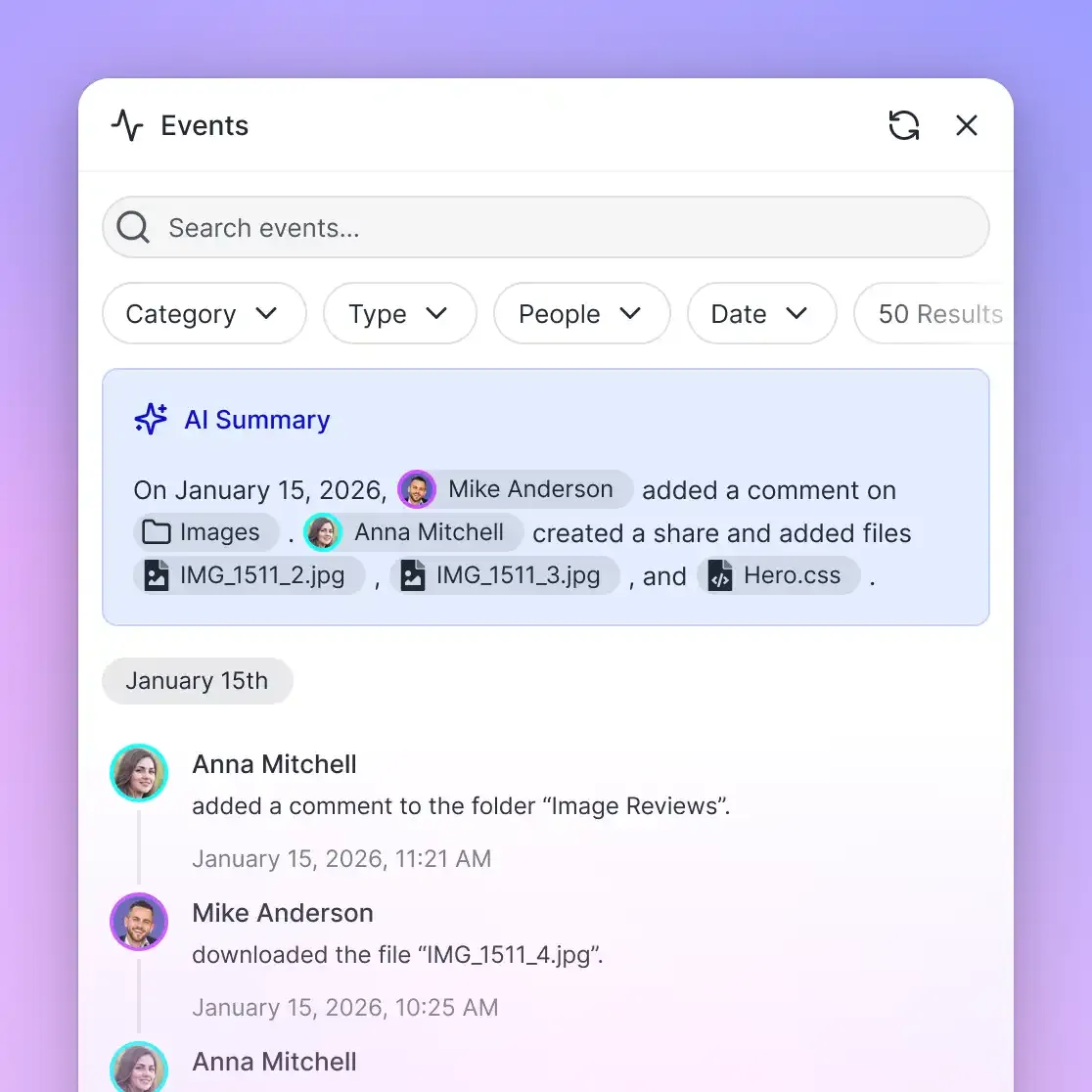
- Continuous Versioning and Auditability: Fast.io maintains per-file version history and a detailed activity log. When documents update, the index refreshes automatically, ensuring all connected agents and human collaborators work from current data. Monthly plans start with a trial of up to 14 days, which requires a credit card, and plans scale across Starter, Business, and Enterprise tiers.
What Are the Best Workarounds for Exceeding NotebookLM Caps?
If your immediate workflow requires using Gemini Notebook directly, several practical preprocessing techniques can help you compress and restructure uploaded file sources to clear the 200MB and 500,000-word ceilings.
1. Segment Large Documents and PDFs with CLI Utilities
When a comprehensive legal filing, municipal archive, or technical handbook exceeds the 500,000-word or 200MB limit, segmenting the document into logical chapters or topical volumes allows you to upload each section as an individual source.
On macOS and Linux, you can split large PDFs without quality loss using qpdf:
qpdf input-large-corpus.pdf --pages . 1-150 -- chapter-1.pdf
qpdf input-large-corpus.pdf --pages . 151-300 -- chapter-2.pdf
2. Convert Copied Text Blocks into Plain Text Files
To prevent browser tab freezing when dealing with long text passages, pipe copied text directly into a plain text file on your local machine rather than pasting into the web interface:
cat raw-transcript.txt | fold -w 80 > formatted-source.txt
Uploading formatted-source.txt as a file source bypasses browser DOM input ceilings and allows Google's backend servers to process the full text up to the 500,000-word limit.
3. Downsample Raster Graphics in Scanned Documents
Oversized PDFs frequently stem from uncompressed bitmap scans rather than textual volume. If a document consists of scanned pages, downsampling embedded raster images to 150 DPI provides clean text for optical character recognition while cutting file size below the 200MB upload limit.
You can reprocess scanned PDFs using Ghostscript:
gs -sDEVICE=pdfwrite -dCompatibilityLevel=1.4 -dPDFSETTINGS=/ebook \
   -dNOPAUSE -dQUIET -dBATCH \
   -sOutputFile=compressed-output.pdf input-oversized-scan.pdf
4. Extract Tabular Data into Structured Metadata Views
Large CSV datasets or tabular appendices often breach the 500,000-word limit while offering poor analytical results inside conversational chat prompts. For document collections containing hundreds of invoices, receipts, lease agreements, or structured forms, use Metadata Views inside your workspace.
Metadata Views transform unstructured files into a typed, queryable database. You describe the target fields in plain English, and the system automatically designs a schema spanning Text, Integer, Decimal, Boolean, URL, JSON, and Date & Time types. Connected assistants can then query structured values, filter by date ranges, and calculate totals via MCP without consuming document upload slots or overloading model context windows.
Sources
References used to verify factual claims in this guide.
-
Google NotebookLM help documentation establishes that uploaded file sources are restricted to a maximum file size limit of 200MB or 500,000 words (approximately 2.5 to 3 million characters), with free accounts capped at 50 sources per notebook across supported document upload types.
-
NotebookLM subscription tiers scale notebook capacity from 50 sources on Standard to 100 on Plus, 300 on Pro, 500 on Ultra 20TB, and 600 on Ultra 30TB.
Frequently Asked Questions
What is the character limit for Google NotebookLM?
Gemini Notebook (formerly NotebookLM) does not enforce an explicit character limit on documents; instead, it enforces a cap of 500,000 words per source. In written English, 500,000 words equals approximately 2.5 to 3 million characters per document. For custom instructions, Gemini Notebook enforces a character limit of 10,000 characters.
How many words can you put into NotebookLM?
On the free plan, you can include up to 500,000 words per source across up to 50 sources, establishing an aggregate capacity of 25 million words per notebook. Paid Google AI subscription tiers increase the source count up to 600 sources per notebook, raising aggregate notebook capacity to 300 million words while keeping the single-source limit at 500,000 words.
What is NotebookLM's token limit compared to Gemini?
While Gemini models feature context windows spanning one million to two million tokens, Gemini Notebook enforces an ingestion boundary of 500,000 words per uploaded file source (approximately 665,000 to 700,000 tokens). Gemini Notebook uses a retrieval-augmented system to search across sources rather than passing entire document libraries directly into active prompt context.
Why does pasting long text into NotebookLM freeze my browser?
Pasting massive text blocks into the browser's Copied Text input locks the browser event loop and exceeds DOM memory handling, causing tabs to freeze or crash. To import large text blocks safely, save the content into a local text or Markdown file and upload it as a file source instead of pasting directly into the browser.
Does upgrading to a paid Google AI plan increase the per-source word limit?
No. Upgrading to Google AI Plus, Pro, or Ultra increases the number of sources allowed per notebook (from 50 up to 600) and increases daily query allowances, but the per-source ceilings of 500,000 words and 200MB remain identical across all tiers.
How do you query document archives that exceed 50 sources?
For document collections that exceed 50 sources or individual file limits, teams can store files in an external cloud workspace like Fast.io with Intelligence Mode enabled. Connected AI assistants query the indexed corpus via remote Model Context Protocol (MCP) search, retrieving only the relevant passages on demand without hitting file count gates.
Related Resources

Query Large Document Archives Without Source Caps
Store extensive research collections in an intelligent workspace with hybrid semantic search and versioning built in. Connect any assistant via MCP. Monthly plans start with a trial of up to 14 days (credit card required); annual plans have no trial.