How to Create Branded Client Portals with Fastio API
Guide to creating branded client portals with fast api: The Fastio API lets developers build branded, secure client portals for delivering agent-generated files to human users. Building these programmatic workspaces removes manual email attachment workflows and creates customized handoff links instantly.


What Are Branded Client Portals?
The Fastio API lets developers build branded, secure client portals for delivering agent-generated files to human users. A client portal is a dedicated digital space where organizations share documents, media assets, and data with external stakeholders. Moving this process to an API lets engineering teams automate file distribution from start to finish. This automation replaces manual email attachments with a programmatic system. Instead of asking employees to drag files into a generic cloud folder, your application creates a unique, white-labeled environment for every new project. This approach saves time and presents a polished image to the end user right from the start.
Helpful references: Fastio Workspaces, Fastio Collaboration, and Fastio AI.
Related guides
- How to Set Up AI Agent File Indexing (The Easy Way)Most AI agent file indexing requires complex Python pipelines and vector databases. This guide shows you how to skip...
- How to Extract Metadata from Excel SpreadsheetsExcel spreadsheets store far more than visible cell data. Author names, revision history, external data connections,...
- Top 5 File Sharing Tools for AI WorkflowsOver 60% of AI workflows involve document or file processing. Multi-agent systems can generate hundreds of artifacts...
- How to Extract Metadata from SharePoint DocumentsSharePoint document libraries hold structured metadata across custom columns, content types, and managed metadata term...
- How to Extract Metadata from Docker Container ImagesDocker container images carry structured metadata far beyond the filesystem layers themselves. OCI manifests, image...
- How to Automate File Classification with AI AgentsAI agent file classification automation uses intelligent agents to categorize incoming documents, apply tags, and route...
More on this subject: Agent File and Document Workflows (325 guides)
Why Build Portals Programmatically?
Manual file sharing introduces friction and security risks. When team members have to manually create folders, configure permissions, and send email links, the chance of human error increases. Programmatic portal creation solves these issues by standardizing the delivery mechanism. You define the structure, branding, and access controls once in your code. Every portal generated through the API then follows those exact rules without deviation.
Automating your client portals also creates branded handoff links instantly. When your system finishes compiling a monthly report or rendering a video file, it can immediately generate a Fastio share link and send it via email or Slack. The client receives an interface featuring your company logo and colors, rather than a generic third-party screen. This automation helps high-volume operations where speed and consistency matter most.
The Fastio Agent-to-Human Handoff
Most traditional cloud storage platforms are designed for human-to-human collaboration. They assume a person is sitting at a keyboard, managing files and sending links. Fastio introduces an agent-to-human handoff feature via branded shares. In this model, an AI agent or automated script acts as the primary operator. The agent creates the organization, builds the workspaces, uploads the necessary assets, and then transfers ownership to a human client.
This workflow works well for AI-driven applications. If you build an AI research assistant, for instance, the agent can compile its findings into a structured Fastio workspace. The agent then generates a branded portal and transfers the final product to the user. The agent retains administrative access to update the files later if new data becomes available. The human client receives a secure link to access their organized, branded workspace. This pattern connects machine-generated content directly to human consumption.


Build Custom Client Portals Fast
Connect your developer stack to Fastio workspaces with a consolidated MCP toolset and version history. Built for fast api workflows.
Prerequisites and the Business Trial
Before writing your first API request, review the platform limits and available resources. Fastio offers a Business Trial designed for developers building automated workflows. It is available on monthly plans and lasts up to 14 days or until its trial credits run out; annual plans have no trial. You can sign up and start building right away; the 14-day trial requires a credit card.
Developers also gain access to a consolidated MCP toolset via Streamable HTTP. Every action available in the web interface has a corresponding programmatic endpoint. To get started, sign up for a trial and generate an API key from your developer settings. Treat this API key with high security. Store it as an environment variable in your application and never commit it directly to your source code repository.
Authenticating Your API Requests
All requests to the Fastio API require authentication using a Bearer token in the authorization header. This token ensures that only authorized applications can create or modify your workspaces. You can generate a long-lived API token from the developer console in your dashboard.
Here is a basic example of how to authenticate a request using Python. This script sets up the base headers you will use for all later calls to the platform.
import requests
import os

FASTIO_API_KEY = os.getenv('FASTIO_API_KEY')
BASE_URL = 'https://api.fast.io/current'

headers = {
    'Authorization': f'Bearer {FASTIO_API_KEY}',
    'Content-Type': 'application/json'
}

response = requests.get(f'{BASE_URL}/orgs/list/', headers=headers)
print(response.json())
If your token is valid, the API will return a list of your organizations. List each organization's workspaces with /org/{org_id}/list/workspaces/. If you receive an Unauthorized error, verify that your token is correct and has not expired.
Creating a Workspace Programmatically
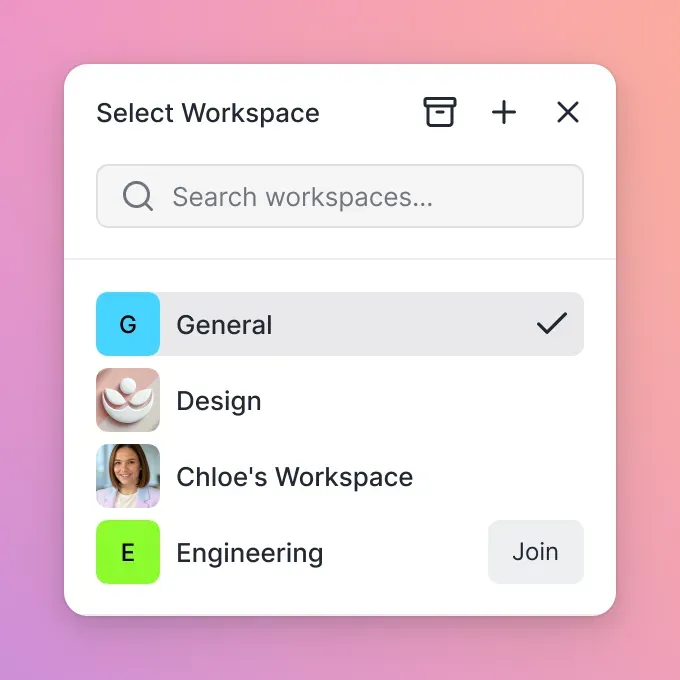
A workspace is the primary container for your client portal. It holds all the files, folders, and metadata associated with a specific project or client. When you create a workspace via the API, you can define its name, description, and initial settings.
To create a new workspace, send a POST request to /org/{org_id}/create/workspace/. The payload includes a URL-safe folder_name, the display name, an optional description, and the two permission settings perm_join and perm_member_manage. Fastio workspaces feature Intelligence Mode, which indexes uploaded files and makes them queryable through built-in RAG capabilities. You can enable this feature during workspace creation to ensure uploaded content is immediately searchable by meaning rather than just filename.
curl -X POST "https://api.fast.io/current/org/YOUR_ORG_ID/create/workspace/" \
  -H "Authorization: Bearer $FASTIO_API_KEY" \
  -d "folder_name=acme-holiday-campaign" \
  -d "name=Acme Corp Holiday Campaign" \
  -d "description=Final assets and reports for the holiday marketing push" \
  -d "perm_join=Member or above" \
  -d "perm_member_manage=Admin or above" \
  -d "intelligence=true"
Once the workspace is created, the API returns a unique workspace ID. You must store this ID in your database, as you will need it to upload files and generate the final share link.
Uploading Files and Content Imports
With your workspace created, the next step is populating it with files. The Fastio API offers multiple ways to ingest content. For standard file uploads, you can use the multipart upload endpoints. This method works well for files generated directly by your application, such as rendered PDF reports or compiled code packages.
The API also includes a URL Import capability. If your assets are currently hosted on another platform like Google Drive, OneDrive, Box, or Dropbox, you do not need to download them locally before uploading them to Fastio. You can pass the source URLs to the API, and Fastio will pull the files directly from the external provider without using any local I/O on your servers. This speeds up the portal creation process and reduces the bandwidth requirements for your application infrastructure.
Generating the Branded Share Link
This is the final step in the process. Once your workspace contains the necessary files, you need to create the client portal interface. To build a branded client portal via the Fastio API, send a POST request to /workspace/{workspace_id}/create/share/. The payload sets the share_type, a display title, the required intelligence flag, and optionally an expires date and accent_color styling. Upload your logo to the share afterwards with POST /share/{share_id}/assets/logo/.
Here is the API payload required to create a branded Fastio share link:
curl -X POST "https://api.fast.io/current/workspace/YOUR_WORKSPACE_ID/create/share/" \
  -H "Authorization: Bearer $FASTIO_API_KEY" \
  -d "share_type=send" \
  -d "title=Holiday Campaign Assets" \
  -d "intelligence=false" \
  -d "expires=YYYY-MM-DD HH:MM:SS"
When you send this request, the API returns the new share's id and custom_name. The share's link serves as the entry point for your client. Because the share carries your logo and accent color, the portal will display your logo and use your primary brand color for all buttons and interface elements. The client only sees your branding, ensuring a white-labeled experience.
Handling File Structure and Directory Organization
When dealing with complex projects, a flat file structure often falls short. Professional client portals need organized directories to help users locate specific assets quickly. The Fastio API allows you to create nested folder hierarchies within your workspaces before generating the final share link. Organizing content logically improves the end-user experience and reduces confusion during the handoff process.
To create a folder programmatically, send a POST request to /workspace/{workspace_id}/storage/{parent_id}/createfolder/ with the folder name, using root as the parent for a top-level folder. If you need to create nested folders, pass the parent folder ID in your request. Once the directory structure is established, include the target folder ID when executing your file upload requests. This programmatic organization ensures every client portal you generate follows a consistent structure, regardless of which automated agent or script created it.
Error Handling and Retry Logic
Strong API integrations must account for network instability and temporary service interruptions. When your application attempts to create a workspace or upload a large file, network timeouts can occasionally occur. Implementing proper error handling and exponential backoff strategies helps your client portal generation processes remain reliable.
When interacting with the Fastio API, always inspect the HTTP status codes returned by your requests. A Too Many Requests response indicates that you have exceeded your rate limits. In this scenario, your application should pause execution and retry the request after a short delay. For large file uploads, use the platform's chunked upload endpoints. This approach divides large assets into smaller pieces, allowing your system to resume interrupted uploads without restarting the entire process from the beginning. Building these safeguards into your code helps your automated agent-to-human handoff workflows succeed even during network issues.
Managing Permissions and Version History
Security remains a key component of any client portal. The Fastio API lets you enforce strict access controls on every share link you generate. Share settings such as the expires date in the payload above, and a password on Send shares, control who can open each link, and the audit log shows exactly who accessed the portal and when they viewed specific documents.
If you have multiple AI agents or automated scripts interacting with the same workspace simultaneously, you must manage concurrency safely. Fastio supports advisory file locks so an agent can acquire a lease on a file before updating it, heartbeat it while working, and release it when finished. A second agent attempting to acquire the lock receives an HTTP 409 status code. Because locks are advisory rather than exclusive, version history preserves every write and a detailed activity log records each action, allowing teams to review changes or restore prior revisions at any time.
Advanced Implementation: Event Streams for Reactive Workflows
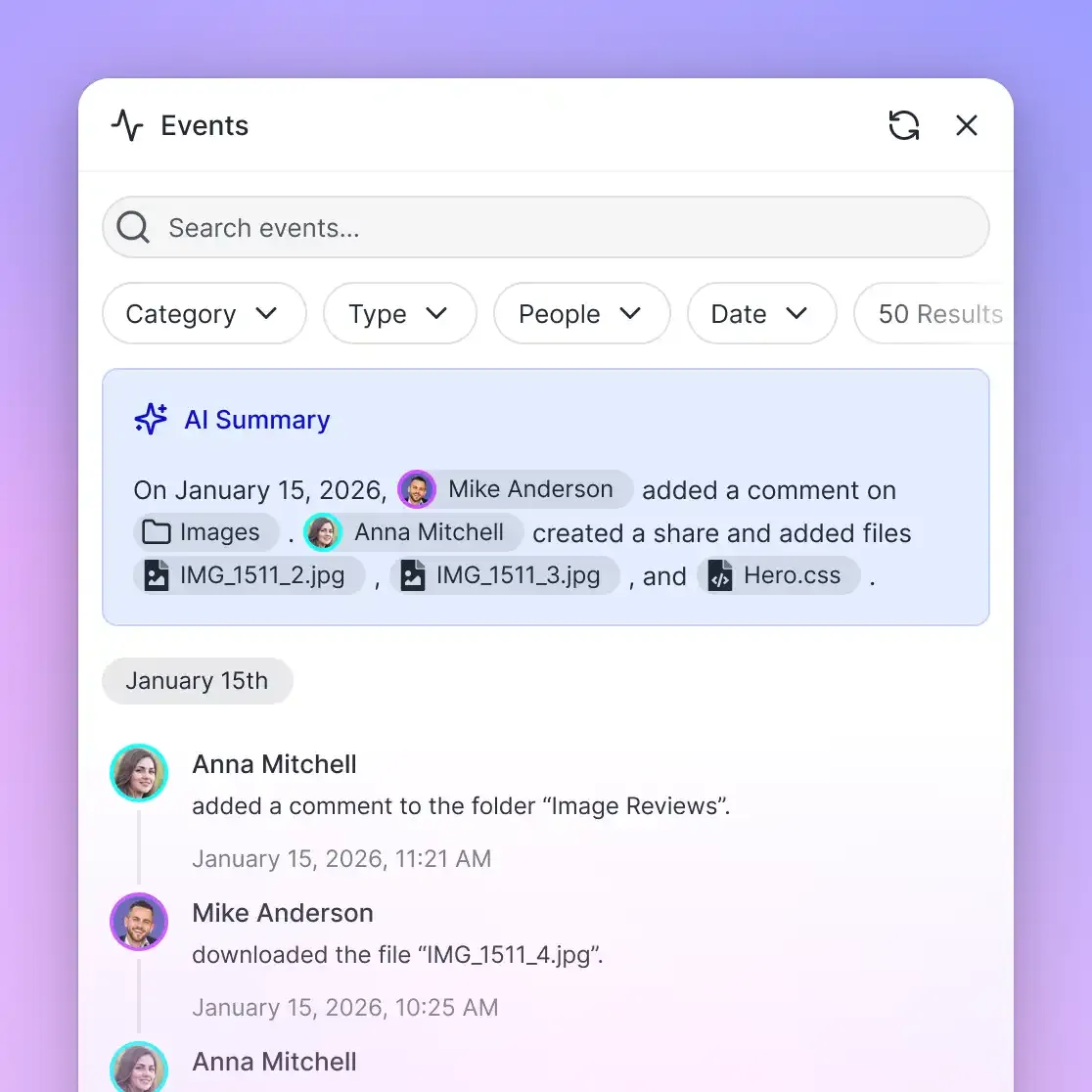
To build smart systems, your application needs to know when clients interact with the portals you create. Fastio provides real-time event streaming via its WebSocket events feed as well as an activity feed you can poll for updates.
You can connect a listener to the WebSocket events feed to notify your application the moment a client downloads a file or leaves an anchored comment on a document. When your server receives an event, it can trigger automated follow-up actions. Your system could automatically send an alert or update a status field in your CRM software. Real-time event monitoring transforms static client portals into interactive, data-driven endpoints.
Implementing OpenClaw for Natural Language Control
If you are building an AI application, interacting with the REST API directly is only one option. Fastio provides a remote Model Context Protocol (MCP) server at https://mcp.fast.io/mcp/tools (or https://mcp.fast.io/mcp/code for coding agents), allowing autonomous AI agents to manage workspaces using natural language tools. Agents connect directly via Streamable HTTP without installing local packages or running custom containers.
Once connected, your agent gains access to a consolidated toolset for file management. Instead of writing complex JSON payloads to create a portal, the agent can state its intent. For example, the agent can determine that a project is complete and automatically issue the commands to create a workspace, apply the client's branding, and generate the final share link. This integration reduces the amount of boilerplate code required to build intelligent file delivery systems.
Sources
References used to verify factual claims in this guide.
-
Fastio plans start at Starter $9.99/mo with a 14-day Business Trial requiring a credit card.
-
Developers have access to a consolidated MCP toolset via Streamable HTTP.
Frequently Asked Questions
How do I create a client portal with Fastio API?
You can create a client portal by sending a POST request to `/workspace/{workspace_id}/create/share/`, then uploading your logo to the share with `POST /share/{share_id}/assets/logo/`. This gives your clients a branded share link.
Can I white-label Fastio shares via API?
You can brand Fastio shares using the API. Set `accent_color` and the background colors when you create the share, and upload your logo with `POST /share/{share_id}/assets/logo/`.
What is included in the Fastio Business Trial?
Fastio offers a 14-day Business Trial that lets teams evaluate workspaces, branded portals, and API capabilities. A credit card is required to begin the trial. Detailed plan quotas and pricing are available at /pricing/.
How does the agent-to-human handoff work?
An AI agent creates a workspace, uploads files, and generates a branded share link via the API. The agent then transfers ownership of the portal to a human client while retaining administrative access to make future updates.
Do I need to download files locally to import them into Fastio?
No, you do not need to download files locally. The Fastio API supports URL Imports, allowing you to pull files directly from Google Drive, OneDrive, Box, or Dropbox using OAuth connections.
How can I track when a client opens a branded portal?
You can track client activity by connecting to the WebSocket events feed or polling the realtime activity feed via the API. Your system receives notifications whenever a client views or downloads a file from your portal.
Related Resources

Build Custom Client Portals Fast
Connect your developer stack to Fastio workspaces with a consolidated MCP toolset and version history. Built for fast api workflows.