How to Set Up an RAG Knowledge Base in OpenClaw
Connect your agents to your proprietary data with automated indexing and semantic retrieval. Enable Intelligence Mode on a Fastio workspace to let agents run RAG queries without managing external vector databases or complex ETL pipelines.


What Is an OpenClaw Knowledge Base?
An OpenClaw Knowledge Base is a Fastio workspace with Intelligence enabled.
Traditional RAG (Retrieval-Augmented Generation) setups require you to chunk documents, embed them using specialized models, manage a vector database, and write complex retrieval logic. Fastio eliminates this entire pipeline.
When you upload files, such as PDFs, spreadsheets, or code, Fastio indexes them for semantic search once Intelligence is enabled for the workspace. Your agents then connect via the remote MCP server (https://mcp.fast.io/mcp/tools) to access this data. Instead of matching simple keywords, agents can ask natural language questions like "What are the compliance requirements for the Q3 project?" and receive accurate answers with source citations. This turns your storage from a passive drive into active memory for your AI workforce.

Related guides
- How to Set Up RAG Document Retrieval in Hermes AgentHermes Agent's qmd skill provides local RAG document retrieval by combining BM25 keyword matching, vector search, and...
- How to Set Up Hermes Agent From ScratchHermes Agent is an open-source autonomous AI agent from Nous Research that supports 200+ LLM models, 20+ messaging...
- How to Set Up OpenClaw RAG StorageGuide to openclaw rag storage: Use Fastio workspaces to index documents for OpenClaw agents. Enable Intelligence Mode...
- How to Build RAG Pipelines with OpenClawOpenClaw RAG pipelines index documents into embeddings for semantic retrieval. This helps agents be more accurate with...
- How to Build OpenClaw Cloud WorkspacesOpenClaw cloud workspaces give multi-agent teams shared storage with built-in RAG. Agents save files that last,...
- How to Set Up ClawHub for OpenClawClawHub is the public skill registry for OpenClaw, with over 13,000 community skills available. This guide walks...
More on this subject: OpenClaw Setup and Guides (199 guides)
Why Use Fastio for Agent Memory?
Building a knowledge base for agents often involves connecting multiple services: object storage (S3), an embedding model (OpenAI), and a vector database. Fastio combines these into one layer.
Native Intelligence Files are indexed immediately when you upload them. There is no lag between adding a document and your agent being able to read it. The search engine understands context, synonyms, and intent, allowing for better retrieval than keyword matching alone.
File Support You aren't limited to text files. The system processes many formats, including:
- Documents: PDF, DOCX, TXT, MD, RTF
- Data: CSV, JSON, XLS, XLSX
- Code: PY, JS, TS, HTML, CSS
- Media: Video and audio transcripts (automatically generated), with HLS streaming that is 50-60% faster than standard progressive downloads.
Ownership and Handoff Fastio lets you transfer organization ownership. An agent can create an organization and workspace, build the knowledge base, organize files, and transfer the organization to a human client or team member via a claim link. The agent keeps admin access, but the human owner gets full control. This works well for agencies building "data rooms" or delivered projects.


Build Your Agent's Knowledge Base
Start a 14-day Business Trial with persistent storage and built-in Intelligence to power your OpenClaw agents.
Prerequisites for RAG Setup
Before you begin, ensure you have the following ready:
- Fastio Account: Sign up at Fastio and start a 14-day Business Trial (credit card required). Plans include Starter ($9.99/mo, 250 GB), Business ($49.99/mo, 5 TB), and Enterprise ($199.99/mo, 25 TB) at /pricing/.
- OpenClaw Installed: You should have OpenClaw running locally or on a server.
- Fastio MCP Connection: Connect OpenClaw to the remote MCP server at
https://mcp.fast.io/mcp/toolsusing a scoped API key from your Fastio settings, sent as a Bearer token.
Fastio workspaces bundle persistent file storage, granular permissions, and built-in AI indexing once Intelligence is enabled for your projects.
Step 1: Create a Dedicated Workspace
First, create a place for your knowledge base. In Fastio, this is called a Workspace.
- Log in to your Fastio dashboard using your agent credentials.
- Click the "New Workspace" button in the sidebar.
- Give your workspace a descriptive name. Good examples include
company-knowledge-base,project-alpha-docs, orlegal-reference-library. - Go to the workspace settings tab.
- Toggle "Intelligence Mode" to ON.
Important: Turning Intelligence Mode on triggers the indexing pipeline. Without this, the workspace acts as normal cloud storage. Once enabled, any existing files will be queued for indexing, and new uploads will be processed in real-time.
Step 2: Install the ClawHub Skill
Your OpenClaw agent needs to communicate with Fastio. OpenClaw connects directly to Fastio's remote MCP server at https://mcp.fast.io/mcp/tools (Streamable HTTP).
No local packages, custom skills, or containers are required. Add the Fastio MCP endpoint to your OpenClaw configuration with your scoped API key as an Authorization: Bearer header.
Once connected, your agent gets access to Fastio's consolidated MCP toolset. These tools allow the agent to:
- Search files semantically using natural language.
- Ask targeted questions about specific documents.
- Retrieve source citations and line references.
- Upload new files and manage workspace folders.
- Create branded share portals with granular permissions.
Step 3: Add Your Data
Now you need to add data to your knowledge base. You have several ways to get data into the system, depending on where your files are.
Direct Upload You can upload files directly through the Fastio web interface. This is often the easiest way to bulk-upload a folder of PDFs or existing documentation.
Agent Upload
Your agent can upload files itself using the upload_manage tool. This is useful if the agent is generating reports or code that need to be saved to long-term memory.
Cloud Import (Recommended for Cloud Migration) If your data is in Google Drive, Dropbox, Box, or OneDrive, you don't need to download it to your local machine first. Use Cloud Import to pull files directly cloud-to-cloud. This is faster and saves your local bandwidth.
File Limits The maximum size of a single file depends on the plan, from 25 GB on Starter to 100 GB on the Enterprise plan. For very large datasets, organize them into folders to keep the workspace organized.
Step 4: Test and Optimize Retrieval
With data indexed, you can test the RAG capabilities. The goal is to make sure your agent can retrieve specific facts accurately.
Testing Queries Try asking natural language questions that require combining information from multiple documents:
- "Based on the
Q1-Report.pdfandQ2-Forecast.xlsx, is the project on track?" - "Summarize the vacation policy for remote employees."
- "Find the error code
ERR-505in the technical logs and explain the fix."
Verifying Citations When the agent answers, it should provide citations. Fastio's search returns the specific text chunks along with the source file name. Verify that the agent is correctly attributing information to the right document.
Optimizing File Names
Semantic search is powerful, but file names still matter. A file named Policy_2025_Final_v2.pdf helps the model understand context better than doc_scan_001.pdf. Clear, descriptive filenames help the agent confirm it has found the correct source before it even reads the content.
Using Folders for Scoped Search
As your knowledge base grows, you may want to limit searches to specific topics. Organize your files into folders like /financials, /legal, and /technical.
Agents can then scope their searches to just one folder, reducing noise and improving accuracy. For example, "Search the /legal folder for liability clauses."
Advanced Configuration & Best Practices
To get the most out of your Fastio-powered knowledge base, implement these operational patterns:
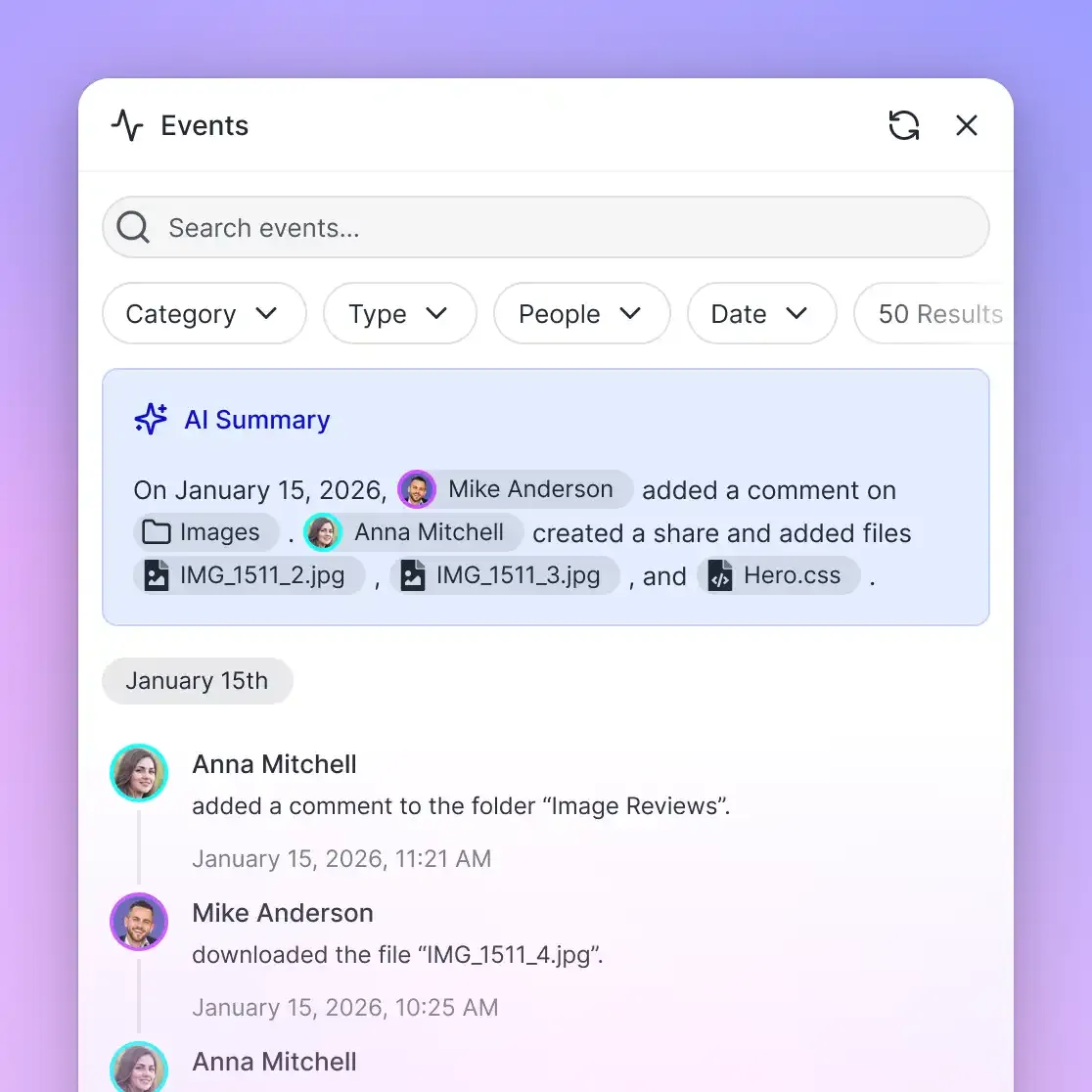
Real-Time Updates via Activity Feeds Static knowledge bases go stale. Use Fastio's realtime activity feed or WebSocket events feed to notify your agent whenever a file is updated or a new file is uploaded. This allows your agent to re-read changed documents or alert the team to new information.
Managing Concurrency with File Locks If you have multiple agents working in the same workspace (for example, one writing code and another reviewing it), agents can acquire an advisory file lock before writing so other collaborators see the lease and wait on 409 responses. If a holder disconnects, the lock expires or can be overridden; every write is versioned as a safety net, backed by a detailed activity log.
Folder-Level Permissions Fastio allows for permissions at the workspace and folder level. You can invite other agents or human team members with read-only or read-write access, ensuring sensitive documents are only visible to authorized agents.
Monitoring Usage Keep an eye on your credit usage. Fastio plans include monthly usage-based credits for AI operations. You can view your current usage in the dashboard to ensure you stay within your plan allowances.
Troubleshooting Common Issues
If your agent is having trouble finding information, check these common problems.
"I can't find that file." First, check if Intelligence Mode is actually enabled for the specific workspace. If it was turned on after files were uploaded, it might take a moment to index the backlog. Check the file details in the UI; if you see a "Summarize" button, it has been indexed.
"Permission Denied" Errors Make sure your agent has the correct role. If the agent needs to upload or edit files, it must have "Editor" or "Admin" permissions on the workspace. "Viewer" access is enough for search-only tasks.
Poor Search Results If the search results are irrelevant, look at your file formats. Scanned PDFs (images) without OCR layers cannot be read by the text extractor. Ensure all PDFs are text-searchable. Also, try rephrasing the query to be more specific: semantic search works best with full questions rather than short keywords.
Sources
References used to verify factual claims in this guide.
-
HLS streaming is 50-60% faster
Frequently Asked Questions
Do I need a separate vector database like Pinecone?
No. Fastio's Intelligence Mode handles all embedding, vector storage, and retrieval automatically within the workspace.
How does Fastio handle large documents for the knowledge base?
Fastio indexes PDFs, documents, and media once Intelligence is enabled, supporting large files and streaming without local chunking pipelines.
How fast is the indexing process?
Indexing usually takes seconds for standard documents. Larger files may take slightly longer, but data is available for RAG almost immediately.
Can I use this with local LLMs like LLaMA?
Yes. Because OpenClaw connects via the standard MCP protocol, you can use any model (local or hosted) to query your Fastio data.
Is the knowledge base secure?
Yes. All data is encrypted at rest and in transit. You can also manage access via granular permission settings for both agents and humans.
What plan options are available as storage needs grow?
Fastio plans scale from Starter (250 GB, $9.99/mo) to Business (5 TB, $49.99/mo) and Enterprise (25 TB, $199.99/mo), with a 14-day Business Trial at /pricing/.
Can multiple agents share the same knowledge base?
Yes. You can invite multiple agents to the same workspace, allowing them to share a common memory and collaborate on the same files.
Related Resources

Build Your Agent's Knowledge Base
Start a 14-day Business Trial with persistent storage and built-in Intelligence to power your OpenClaw agents.