How to Integrate Dropbox with OpenClaw Workspaces
Connect your Dropbox storage to OpenClaw agent workspaces. AI agents can then read, analyze, and create files in your existing folders. This guide covers setup, security configuration, and file automation.

Why Connect Dropbox?
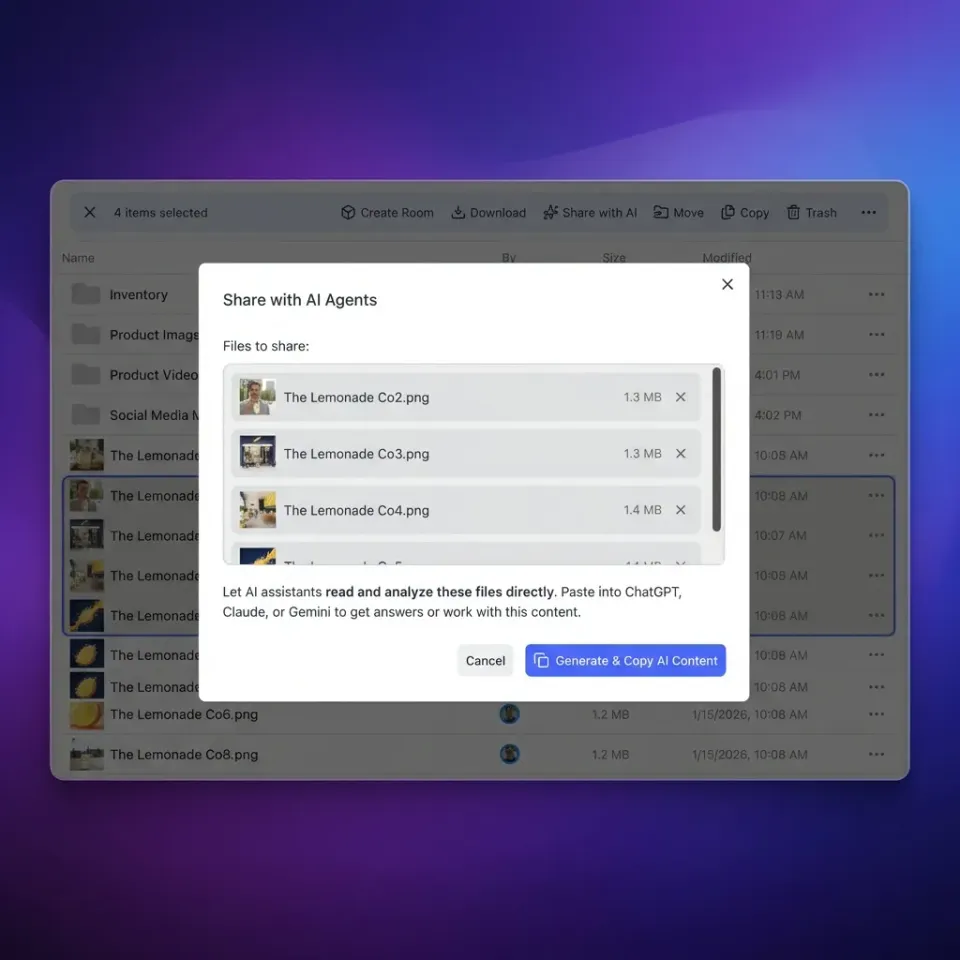
Connecting Dropbox to OpenClaw turns your cloud storage into a workspace for AI agents. Agents can read, analyze, and create files right in your folders. They get access to the same files your human team uses.
You get a direct, secure link without writing code. This solves three problems:
- Context Fragmentation: Agents often work in isolated boxes. You have to move files manually. This integration lets them see what your team sees.
- Version Conflicts: Working on copies gets messy. Connecting to the source means agents analyze the actual contract, design, or dataset.
- Security Risks: Sharing API keys is risky. This uses OAuth tokens. You can revoke access anytime without changing passwords.
This links your Dropbox files to your agents. You can automate invoices, tag creative assets, or review contracts without moving files around.
Related guides
- Copilot Dropbox Integration: Microsoft 365 Copilot vs. Fast.io WorkspacesA Copilot Dropbox integration connects Microsoft Copilot to Dropbox repositories via Microsoft Graph connectors or...
- How to Connect Claude to Dropbox: Integration GuideA Claude Dropbox integration links Anthropic Claude models and Claude Code CLI to Dropbox folders, allowing agents to...
- How to Integrate MCP Servers with OpenClaw AgentsMCP integration lets OpenClaw agents connect to external tools like file storage servers. Access Fastio's consolidated...
- How to Add Mem0 Persistent Memory to OpenClawOpenClaw's built-in memory only auto-loads two days of notes at session start and relies on the LLM to decide what gets...
- How to Use OpenClaw File Sharing for Agentic TeamsOpenClaw file sharing lets agentic teams access files securely in Fastio workspaces via the remote MCP server. Agents...
- How to Use OpenClaw for Finance Automation and ReportingFinance teams spend roughly 70% of their time preparing reports and only 30% analyzing them. OpenClaw, an open-source...
More on this subject: OpenClaw Setup and Guides (199 guides)
What You Need
You need these accounts to start:
Required Components:
- Fastio Account: You need a Workspace to mount the files. Get started with the 14-day Business Trial (credit card required).
- Dropbox Account: Any personal or business plan works. Connect your Dropbox account to Fastio workspaces using cloud import.
- OpenClaw Agent: A hosted agent or a local one running on ClawHub.
System Requirements:
- Browser: You just need a browser for the setup.
- Permissions: You need "Can Edit" or "Owner" permissions on the Dropbox folders if you want the agent to save files.
Fastio workspaces provide ample storage starting with 250 GB on Starter, covering thousands of PDFs or high-res images.


Give your agents access to your files
Create an intelligent workspace with persistent storage and connect your existing cloud files in minutes.
How to Connect
Follow these steps to link Dropbox files to OpenClaw using Fastio.
1. Create a Workspace Log in to Fastio. Create a new Workspace named "Dropbox-Agent-Bridge".
- Go to the dashboard and click "New Workspace".
- Select "Intelligence Mode" so the agent can search file contents (RAG), not just names.
2. Import from Dropbox Go to the "Upload" or "Import" tab.
- Pick "Dropbox" from the list.
- A popup will ask for permission - click "Allow".
- Choose the folders you want the agent to see. You can pick a root folder or specific subfolders.
- Fastio imports them in the background.
3. Connect OpenClaw to Fastio via MCP
To give OpenClaw access, configure it to connect to the remote Fastio MCP server at https://mcp.fast.io/mcp/tools (Streamable HTTP) with your scoped API key as an Authorization: Bearer header. Clients connect with a URL without installing, running, or containerizing any local package.
This provides the Model Context Protocol (MCP) toolset OpenClaw needs to talk to the workspace.
4. Verify Access Check the connection.
- Ask your agent: "List the files in the Dropbox-Agent-Bridge workspace."
- If it lists them, you are set.
- If Intelligence Mode is on, try: "Summarize the marketing strategy in the Dropbox folder."
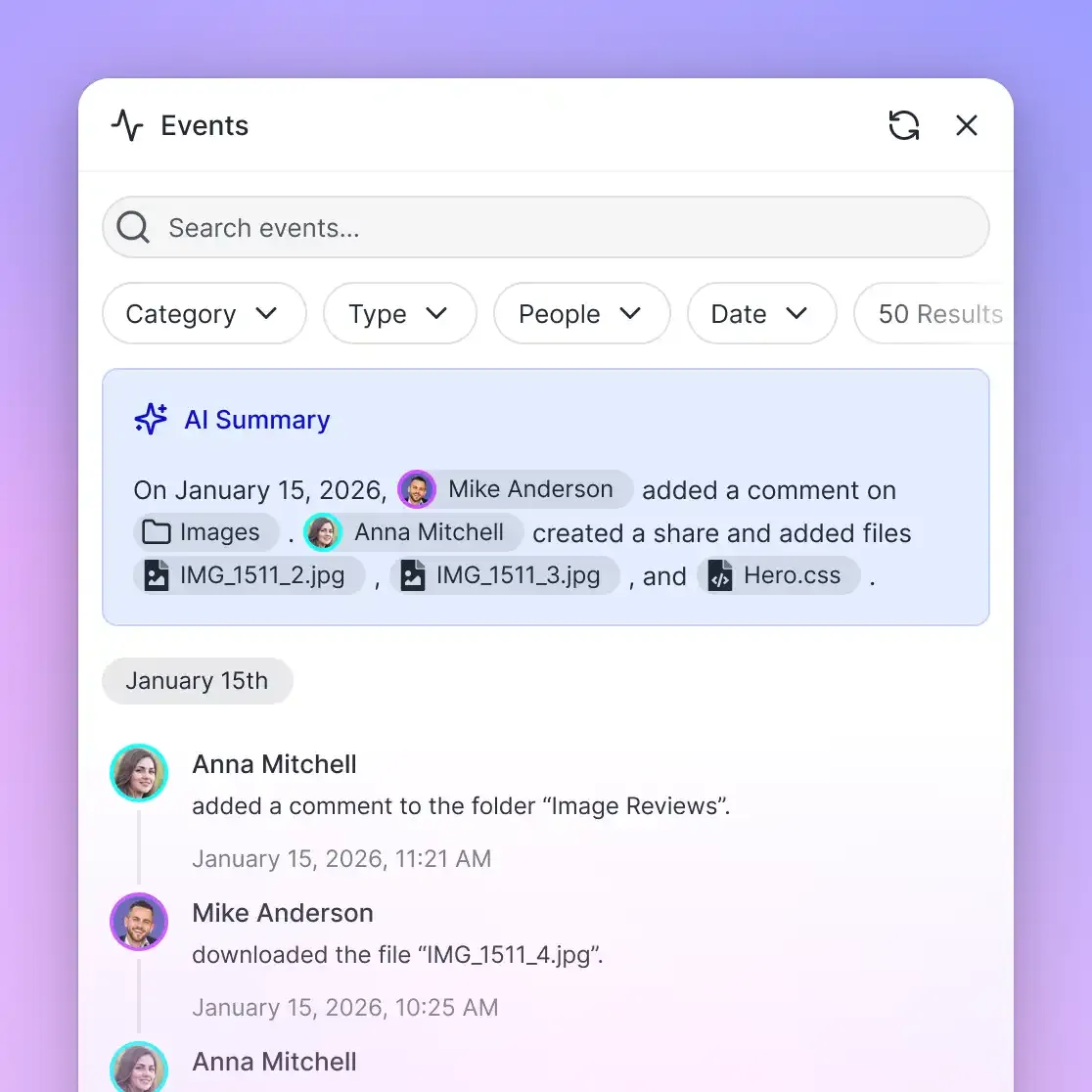
5. Monitor File Events (Optional) For advanced setups, poll the realtime activity feed or connect to the WebSocket events feed. This notifies your agent when new files arrive so it can process them immediately.
Automation Examples
Agents can handle boring tasks. Here are three ways to use them:
1. Automated Contract Review Legal teams keep drafts in Dropbox. An OpenClaw agent watches a "To Review" folder. When a PDF appears:
- The agent reads the file using the Fastio MCP tool.
- It checks clauses against your playbook.
- It saves a summary to a "Reviewed" folder.
2. Tagging Images Marketing teams have too many images. An agent can:
- Scan for new
.jpgor.pngfiles. - Look at the image with a vision model.
- Add tags like "outdoor", "happy family", or "product shot" to a CSV file.
3. Processing Invoices Finance teams get invoices in shared folders. An agent can:
- Read vendor names and amounts from PDF invoices.
- Check them against a database.
- Rename the file to a standard format (e.g.,
2026-02-INV-VendorName.pdf) for better organization.
These workflows make Dropbox an active part of your business, not just a hard drive.
Limits
Understanding limits helps you build better workflows.
Sync Speed Metadata appears almost instantly. Full content analysis takes a bit longer because the system has to index the files. HLS streaming for media is 50-60% faster than downloading, which speeds up video and audio processing. If you import a lot of files, give it a few minutes.
Storage Limits The integration has these limits:
- Max File Size: Up to 25 GB per file on the Starter plan, 50 GB on Business and 100 GB on Enterprise.
- Total Storage: 250 GB on the Starter plan, 5 TB on Business and 25 TB on Enterprise.
- Rate Limits: The API handles normal use. For heavy loads, use bulk operations.
Fastio makes smaller proxy versions for video files so agents can still analyze them.
Troubleshooting
If your agent cannot see Dropbox files, check these issues:
Files Not Appearing
- Cause: The import might be running, or the token expired.
- Fix: Check the Fastio dashboard. If it's stuck, re-authenticate in "Integrations".
"Permission Denied" Errors
- Cause: The agent might be trying to write to a read-only folder.
- Fix: Check that the ClawHub token has
writeaccess and the Fastio user can edit the Dropbox folder.
Slow Responses
- Cause: Indexing takes time.
- Fix: Wait for the "Indexing" indicator in the dashboard to turn green before asking complex questions. For speed, read files directly instead of searching.
Sources
References used to verify factual claims in this guide.
-
Fastio provides a 14-day Business Trial requiring a credit card Total Storage: 250 GB included on Starter plan Fastio plans feature usage-based credits
-
Fastio plans provide persistent storage starting at 250 GB Max File Size: Fastio supports large file uploads across plans
-
HLS streaming for media files is 50-60% faster than progressive downloads
-
covering thousands of PDFs hundreds of high-resolution images
Frequently Asked Questions
How does OpenClaw access Dropbox files?
OpenClaw sees Dropbox files through a Fastio Workspace. You import files using OAuth, and OpenClaw uses the remote Fastio MCP server to work with them.
Is the Dropbox integration secure?
Yes. It uses standard OAuth 2.0. You don't share your password. Access relies on a token you can revoke anytime in your Dropbox settings.
Can OpenClaw edit files in Dropbox?
OpenClaw edits the copies in your Fastio workspace. With a two-way Cloud Sync connection, those edits are pushed back to Dropbox; with a one-way connection, your Dropbox originals are left unchanged.
What happens if I update a file in Dropbox?
Cloud Sync checks connected Dropbox folders for changes on a recurring schedule, and you can also start a sync on demand. It is not real-time, so a change appears in Fastio after the next sync.
Do I need a paid Dropbox account?
No. This works with free and paid Dropbox plans. Fastio plan storage limits apply based on your selected tier (starting at 250 GB on Starter).
Does this work with Dropbox Business teams?
Yes. You can import folders from Dropbox Business accounts. Fastio storage limits still apply.
Related Resources

Give your agents access to your files
Create an intelligent workspace with persistent storage and connect your existing cloud files in minutes.